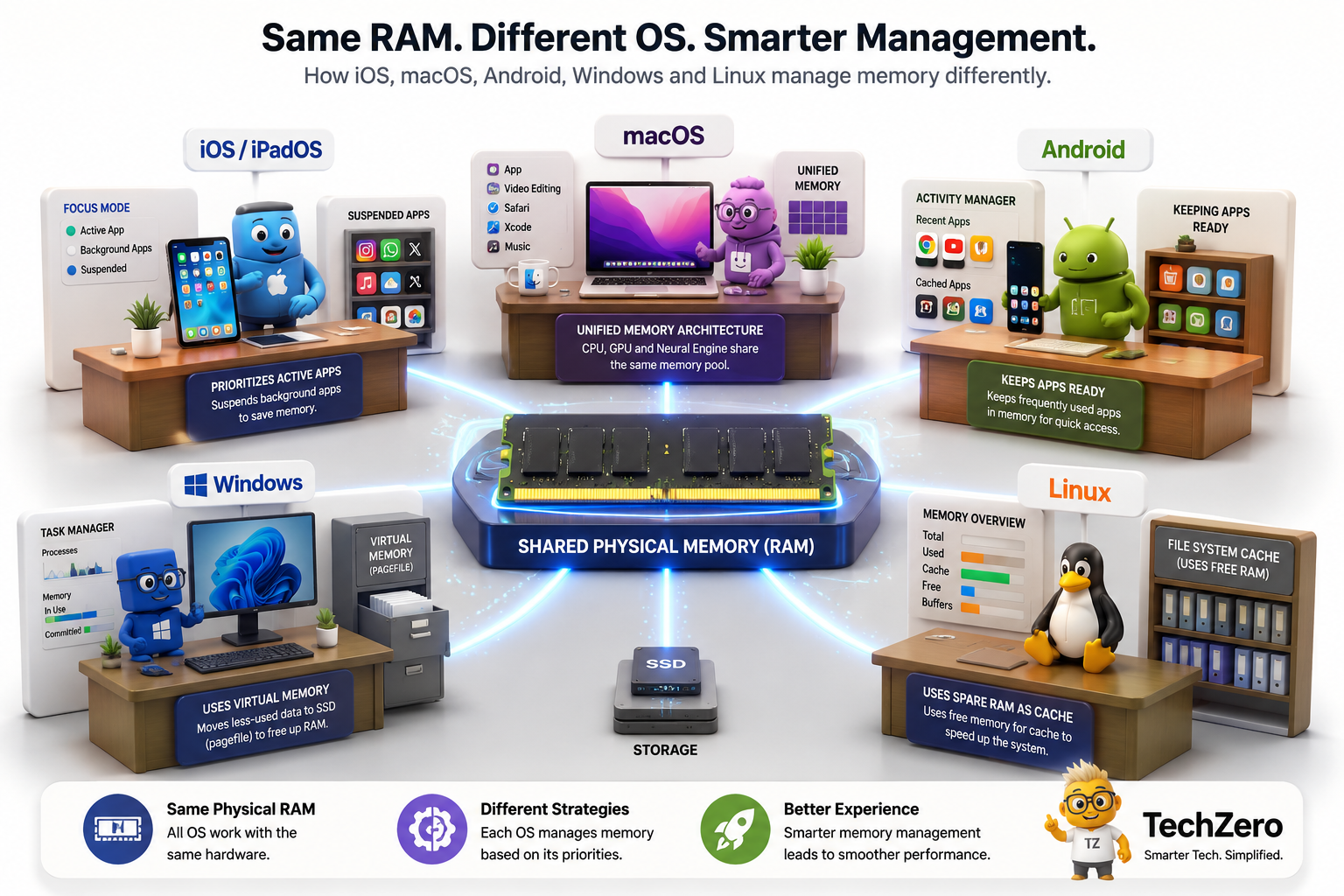

Why can an iPhone with 8GB RAM sometimes feel smoother than an Android phone with 12GB? Why can a Mac with 16GB handle workloads that make a Windows PC with 16GB struggle? And why can a Linux server show 90% or even 99% RAM usage without necessarily having a problem?
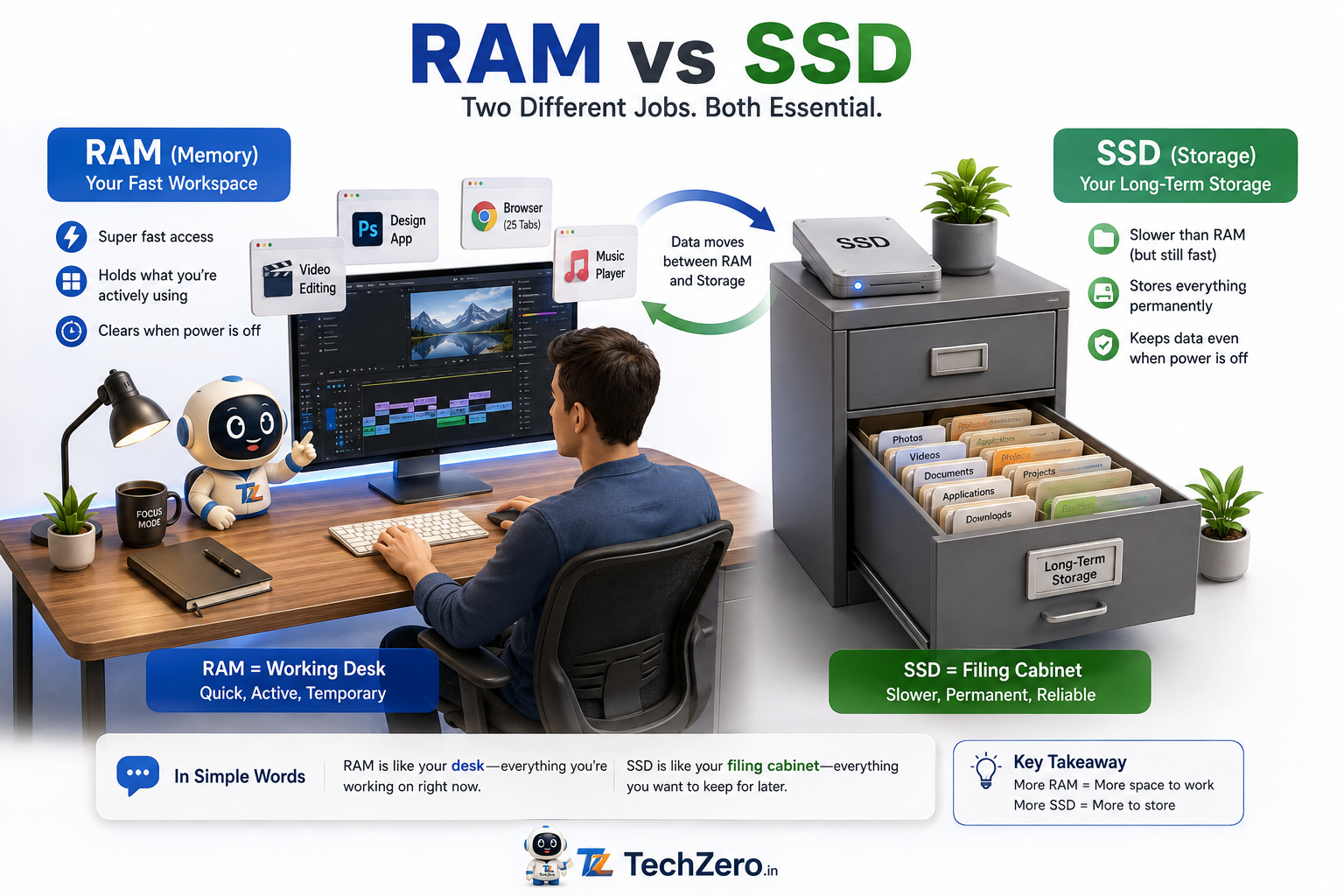
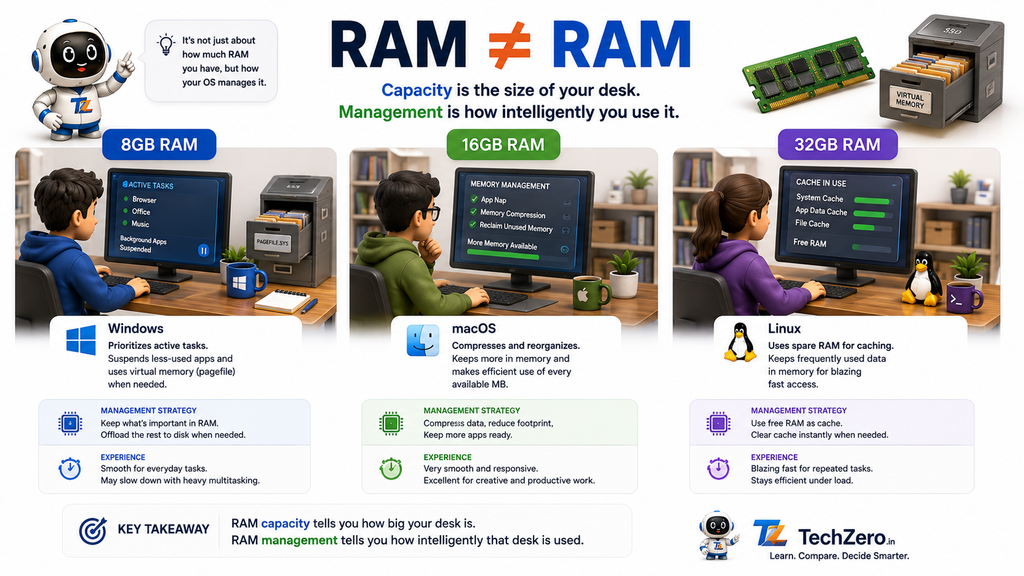
The answer isn’t simply how much RAM you have; it is what the operating system does with that RAM. RAM is your computer’s short-term working space—think of it as your desk—while your SSD or hard drive is the filing cabinet. When you open an application, the operating system takes the information it needs from the filing cabinet and puts it on your desk. The larger the desk, the more things you can keep immediately available. But what happens when the desk starts getting crowded? That’s where operating systems behave very differently: some suspend things you aren’t using, some compress them, some move them to storage, some try to keep as much as possible nearby, and some use spare RAM as a cache to make future work faster. So, when comparing RAM management, we need to separate two things: performance and efficiency.
Think of it this way: Performance is about how well your computer keeps working when you put it under pressure—for example, when you have many apps or demanding tasks running at the same time. Efficiency is about how much work the computer can get done with the RAM it has. In other words, performance asks, “How much can it handle?” while efficiency asks, “How much can it do with what it has?” And importantly, there isn’t one operating system that wins at both.
The Quick Answer
If the question is “Which operating systems are exceptionally efficient with limited RAM?”, Apple’s iOS, iPadOS and macOS are strong contenders.
If the question is “Which operating system is built for enormous workloads, flexibility and administrator control?”, Linux is the standout.
Windows is the great general-purpose juggler, designed to operate across an enormous range of hardware and software.
Android takes a different approach, generally trying to keep useful applications and data available in RAM and managing memory pressure when that space becomes scarce.
Here’s the basic philosophy:
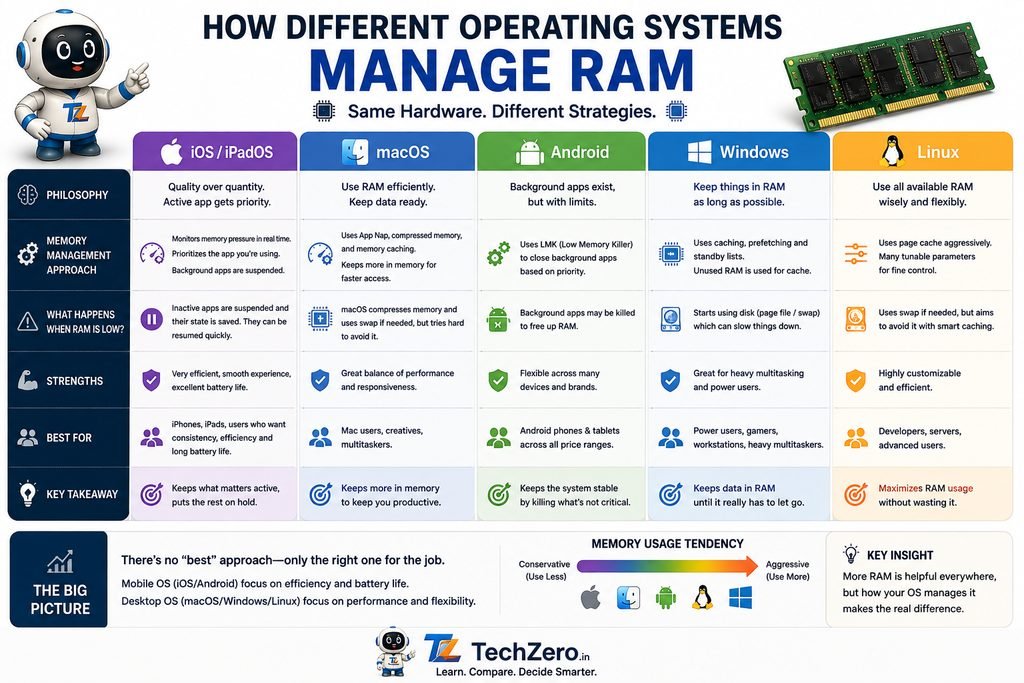
| Operating System | Basic RAM Philosophy |
|---|---|
| iOS / iPadOS | Prioritize what you’re using right now |
| macOS | Share memory efficiently and reorganize when necessary |
| Android | Keep useful things readily available |
| Windows | Move less-important data out when RAM gets crowded |
| Linux | Use available RAM aggressively, including for caching |
To understand why these approaches feel different, let’s see what actually happens when RAM starts filling up.
First: What Actually Happens When RAM Fills Up?
Imagine you’re working at a desk.
You have:
- a document
- a calculator
- a notebook
- your phone
- several folders
- a laptop
Everything you’re actively using is on the desk.
Now someone gives you five more folders.
There isn’t enough space.
You have several choices.
- Put away things you’re not using.
- Compress several folders into smaller piles.
- Move older folders into a drawer.
- Keep everything on the desk and try to make room later.
- Use the empty parts of the desk to store information you expect to need soon.
Operating systems essentially make these kinds of decisions with RAM.
And this is where the differences become interesting.
1. iOS and iPadOS: The Strict Minimalists
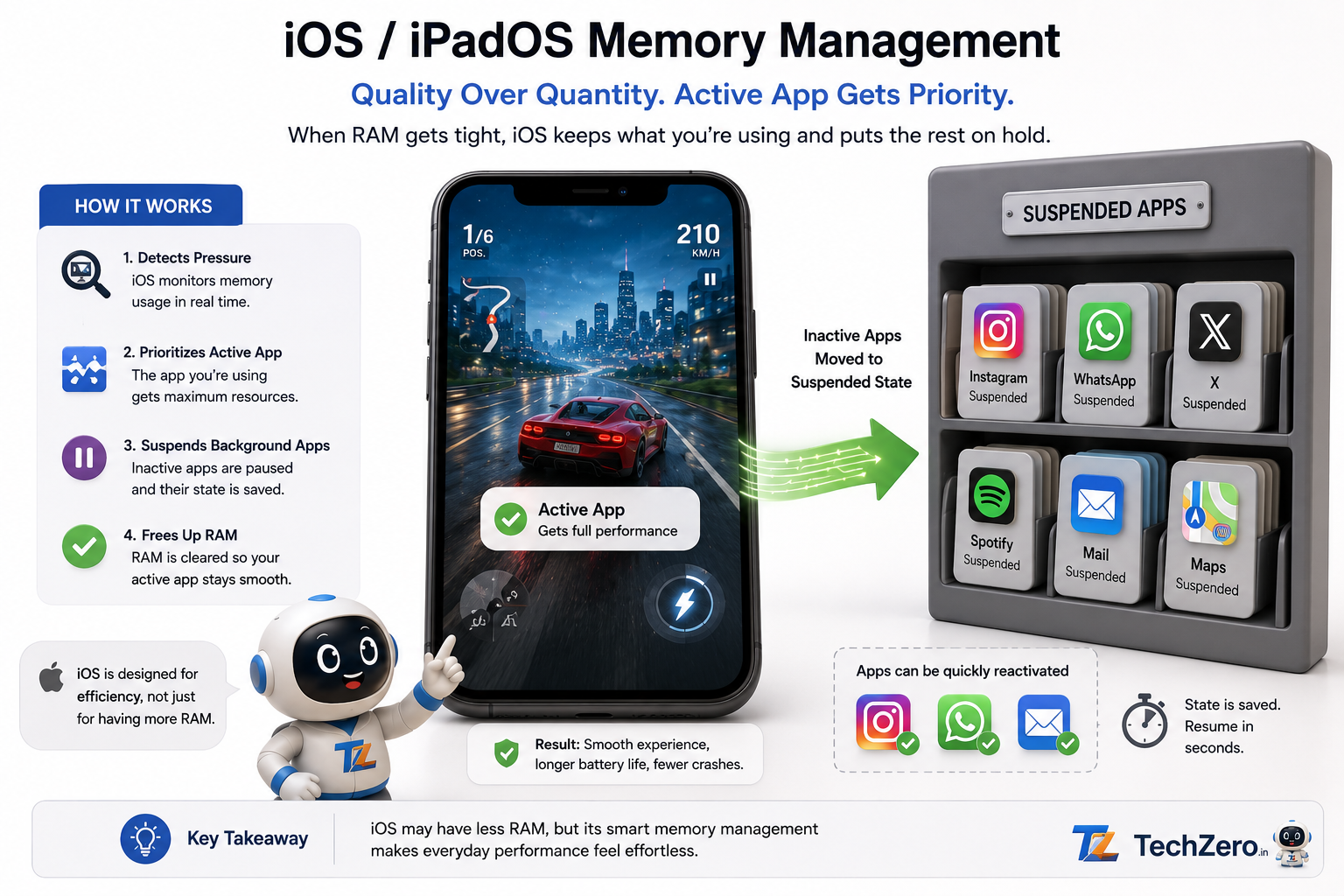
Apple’s mobile operating systems are designed around a very simple priority:
The application you’re using right now matters most.
An iPhone or iPad doesn’t need to keep every background application fully active just because you might return to it.
Instead, iOS can suspend background applications, compress memory and manage their lifecycle so that the foreground application gets priority.
What happens when you switch between demanding apps?
| Your Action | What iOS Does | What You Experience |
|---|---|---|
| 1. Open a demanding game | The game receives the resources it needs. | The game runs normally. |
| 2. Leave the game and open Camera | iOS gives the Camera priority. | Camera opens quickly. |
| 3. RAM becomes tight | iOS can compress memory and suspend background activity. | The app you’re using remains responsive. |
| 4. Record a 4K video | Camera gets the resources it needs rather than competing equally with inactive apps. | Recording continues smoothly. |
| 5. Return to the game | iOS attempts to restore its previous state. | You can often continue where you left off. |
In one line:
Game → Camera → RAM pressure → Background game suspended → Camera gets priority → Return to game → Game resumes
That’s the fundamental idea.
Imagine an office manager with a small desk.
You are currently writing an important report.
Someone asks you to work on another project.
The manager doesn’t insist on keeping every old project spread across the desk.
Instead:
“Put away what you’re not using. Give the current project the space it needs.”
That is essentially the efficiency-oriented philosophy behind iOS.
The source material describes iOS and iPadOS as relying on aggressive lifecycle management and memory compression, with inactive applications being suspended when necessary.
Why this can make an iPhone feel fast with less RAM
An iPhone can sometimes deliver a very responsive experience without needing as much physical RAM as another platform.
That does not mean iOS has magically created more RAM.
It means the operating system is making different decisions about what deserves to remain active.
The key idea
Less RAM + aggressive management can sometimes feel better than more RAM + less efficient management.
But this is not a universal rule.
The actual result still depends on the application, workload, hardware and device.
2. macOS: The Master Organizer
Now move from an iPhone to a Mac.
The problem becomes much harder.
A Mac might simultaneously run:
- 50 browser tabs
- Photoshop
- Final Cut Pro
- a large spreadsheet
- messaging applications
- external displays
- development tools
The operating system can’t simply suspend everything that isn’t in the foreground.
Desktop users expect genuine multitasking.
Apple Silicon adds another important piece to this puzzle:
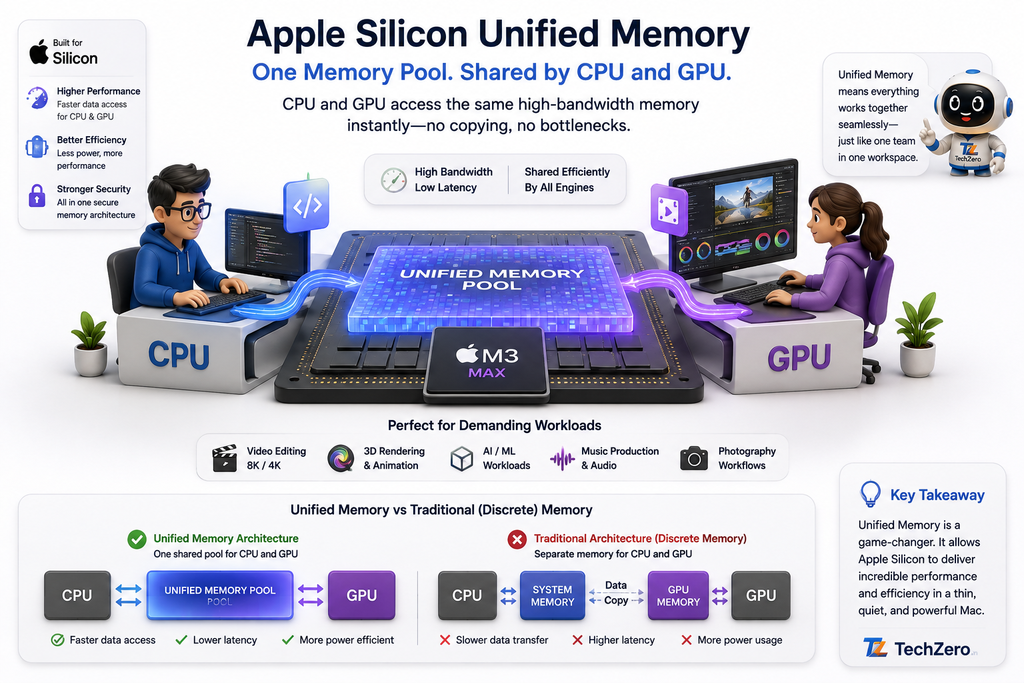
Unified Memory
Traditionally, the CPU and GPU can have separate pools of memory, almost like two departments working at two different desks. When the CPU needs data that the GPU has been working on—or vice versa—the data may need to be copied or moved between those memory pools.
Apple Silicon takes a different approach with its Unified Memory architecture, where the CPU, GPU and other parts of the chip can access a shared pool of memory—more like giving both departments access to the same large workspace. This can be particularly useful for video editing, graphics, gaming and other workloads where the CPU and GPU frequently work on the same data, because it can reduce the need for unnecessary data movement between separate memory pools.
A useful clarification
Unified Memory does not mean that Apple gives the Mac extra RAM. If your Mac has 16GB of Unified Memory, it still has 16GB of physical memory. The key difference is how that memory is shared: the CPU, GPU and other parts of the Apple Silicon chip can access the same pool of memory, rather than having separate pools that may require data to be copied between them. Apple also places the memory very close to the processor as part of its tightly integrated chip/package design. The result is a shorter, more direct path for data to move between the different parts of the system, which can be particularly beneficial for workloads such as graphics, video editing and other tasks that heavily involve both the CPU and GPU.
What happens when your Mac starts running short on comfortable RAM?
| Your Action | What macOS Does | What You Experience |
|---|---|---|
| 1. Open Safari with many tabs | Active and inactive tab data occupies memory. | Tabs remain readily available. |
| 2. Start Photoshop or Final Cut Pro | More memory is allocated to the demanding application. | The application gets the resources it needs. |
| 3. Memory becomes increasingly occupied | macOS compresses some inactive memory. | More information can fit into physical RAM. |
| 4. Memory pressure continues | macOS can use the SSD as virtual memory. | The system can continue operating, but storage is slower than RAM. |
| 5. Return to an inactive task | macOS decompresses or retrieves the required data. | The application becomes active again. |
In one line:
Open apps → RAM fills → macOS compresses inactive data → Pressure increases → SSD assists → You return to an app → Data is restored
This is why a Mac can continue operating even when you have many applications open.
But there is an important distinction:
Unified Memory does NOT turn 16GB into 32GB.
A Mac with 16GB has 16GB of physical unified memory.
What changes is how different parts of the system share and access that memory.
The source material identifies Unified Memory, memory compression and SSD-based swapping as important parts of macOS memory management.
Think of it this way
Traditional architecture:
CPU desk ↔ move paperwork ↔ GPU desk
Apple Silicon:
CPU + GPU → shared desk
The desk hasn’t necessarily become bigger.
The workflow has become more integrated.
3. Android: The “Keep It Handy” Manager
Android takes a noticeably different approach. Its basic philosophy can be summarised as:
If RAM is available, why leave it empty?
Instead of immediately removing applications from memory when you’re finished with them, Android generally tries to keep useful application data available so those applications can be reopened quickly.
This is one reason modern Android phones often offer large amounts of RAM.
What happens when you keep opening applications?
| Your Action | What Android Does | What You Experience |
|---|---|---|
| 1. Open WhatsApp | Android keeps the application and relevant data available. | It can reopen quickly. |
| 2. Open Chrome, YouTube and other apps | More applications can remain in memory where possible. | Switching between apps can be quick. |
| 3. RAM starts getting crowded | Android can use zRAM to compress some memory data. | More information can remain available in compressed form. |
| 4. RAM pressure becomes severe | Background processes can be terminated to free memory. | Some older/background apps may disappear from memory. |
| 5. Return to a terminated app | Android starts the application again. | You may see the app reload instead of instantly resuming. |
In one line:
Open app → Keep app in RAM → Open more apps → RAM fills → Compress some data → Still insufficient → Background process terminated → App reloads when needed
Imagine an office manager who hates empty desks.
You finish one project.
The manager says:
“Don’t put it away. We might need it again.”
You start another.
Then another.
Then another.
Eventually the desk becomes crowded.
The manager starts compressing paperwork into smaller piles.
Still not enough?
Some projects have to go back into the filing cabinet.
The source material identifies caching, zRAM and the Low Memory Killer as important components of Android’s memory-management approach.
This is why RAM numbers can be misleading
Suppose you see:
Phone A — 8GB RAM
Phone B — 16GB RAM
It is tempting to conclude:
“Phone B has twice the RAM, so it must be twice as fast.”
That’s not how RAM works.
The additional RAM mainly gives the operating system more room to keep applications and data available.
Whether that translates into a noticeable advantage depends on what you’re doing.
4. Windows: The Great Juggler
Windows has perhaps the most complicated RAM-management challenge among consumer operating systems.
It needs to run across an enormous variety of:
- processors
- motherboards
- memory configurations
- graphics cards
- storage devices
- applications
- peripherals
A Windows computer could be an inexpensive laptop or a 128GB workstation.
The operating system has to accommodate both.
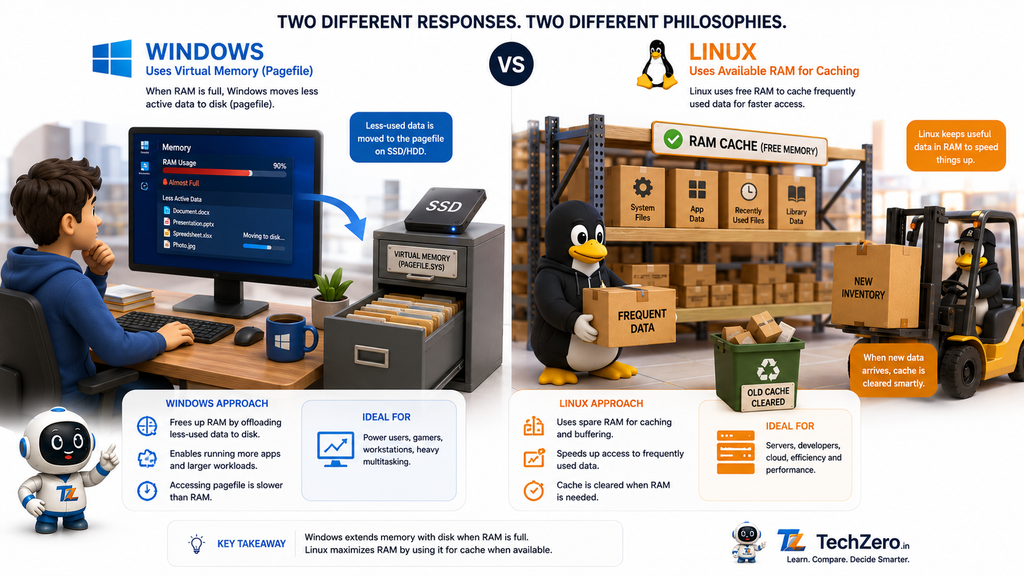
One of its most important tools is virtual memory, including the Windows pagefile.
Think of the pagefile as a drawer underneath your desk.
What happens when you open more applications than your RAM comfortably handles?
| Your Action | What Windows Does | What You Experience |
|---|---|---|
| 1. Open Excel, Photoshop and Chrome | Active applications occupy physical RAM. | Everything runs normally. |
| 2. Open more applications | Available physical RAM becomes increasingly occupied. | Multitasking continues. |
| 3. RAM becomes constrained | Windows can compress memory and move less-active memory pages to the pagefile. | More applications can remain open. |
| 4. Return to an application whose data was moved | Windows retrieves the required data from storage. | You may notice a delay. |
| 5. Paging becomes frequent | More information moves between RAM and storage. | The PC can become noticeably sluggish. |
In one line:
Open apps → RAM fills → Windows compresses/moves less-used data → Pagefile assists → You return to an app → Data comes back from storage → Possible delay
The source material identifies pagefile.sys, memory compression and storage-based paging as central parts of Windows memory management.
Why can this make a Windows PC feel slow?
Because:
RAM is much faster than storage.
Imagine:
RAM = paperwork on your desk
SSD = filing cabinet
If something is on your desk, you can grab it immediately.
If you’ve put it into the filing cabinet, you have to retrieve it.
A fast SSD makes that retrieval much quicker than an old hard drive.
But it still isn’t the same as having enough RAM.
That’s why upgrading from 8GB to 16GB can make a much bigger difference to a heavily multitasking Windows PC than simply upgrading to an even faster SSD.
5. Linux: The Warehouse Foreman
Linux approaches memory from a completely different perspective.
It has deep roots in servers and large-scale computing, where available memory is often treated as a resource that should be actively used rather than left sitting idle.
One of Linux’s most important uses of RAM is page caching.
And this creates one of the biggest misconceptions among new Linux users.
You might open a system monitor and see:
RAM usage: 99%
That doesn’t automatically mean:
“The computer is almost out of memory.”
A large portion may be being used as cache.
What happens?
| Your Action | What Linux Does | What You Experience |
|---|---|---|
| 1. Applications request memory | Linux allocates RAM to them. | Applications get the memory they need. |
| 2. RAM remains available | Linux uses spare memory for file/page caching. | Frequently accessed data can be retrieved faster. |
| 3. RAM usage becomes very high | Cached data can occupy much of the remaining memory. | System monitor may show very high RAM usage. |
| 4. A database suddenly needs more memory | Linux can reclaim/drop cache. | Memory becomes available to the database. |
| 5. Memory pressure becomes extreme | The system may need further reclamation and can invoke the OOM mechanism. | A problematic process may ultimately be terminated. |
In one line:
Applications use RAM → Spare RAM becomes cache → RAM usage looks very high → New application needs memory → Linux reclaims cache → Application gets memory
The source material specifically uses a Linux server showing very high RAM usage because of page caching as an example of why high RAM usage doesn’t automatically mean a problem.
Think of Linux as a warehouse manager
Suppose your warehouse has empty shelves.
The manager doesn’t leave them empty.
They say:
“Let’s put frequently requested items here so we don’t have to walk to the back of the warehouse every time.”
Then a large shipment arrives.
The manager simply clears the shelves and gives the space to the new shipment.
That’s essentially the idea behind using spare RAM for cache.
And this is one reason Linux is so powerful for servers.
The Five Operating Systems — Side by Side
Now we can see the fundamental differences.
| iOS / iPadOS | macOS | Android | Windows | Linux | |
|---|---|---|---|---|---|
| When RAM fills | Prioritize foreground app | Compress inactive memory | Keep useful apps where possible | Compress/page less-used data | Reclaim cache |
| Next step | Suspend background activity | Use more compression / virtual memory | zRAM / terminate background processes | Pagefile | Reclaim cached data |
| When you return | App may resume or reload | Data may be decompressed/retrieved | App may reload if terminated | Data may come from storage | Cached data may already be available |
| Core philosophy | What you’re doing now matters most | Efficient shared workspace | Keep useful things nearby | Extend the workspace | Use available memory |
| Big strength | Efficiency | Desktop efficiency + Unified Memory | App availability | Compatibility + scalability | Control + server workloads |
So Which Operating System Manages RAM Best?
The answer depends on what you mean by “best.”
🏆 Best for RAM Efficiency on Phones and Tablets
iOS / iPadOS
Their aggressive management of background applications allows Apple to prioritize the app you’re actively using.
The result can be an extremely responsive experience without requiring enormous amounts of physical RAM.
🏆 Best for Efficient Desktop Multitasking
macOS
Apple combines memory compression, virtual memory and Unified Memory architecture with tight integration between hardware and operating system.
That makes it particularly interesting for creative and professional workloads.
🏆 Best for Keeping Lots of Apps Ready
Android
Android’s approach of keeping applications and data available in RAM can make frequent app switching very quick, provided sufficient memory is available.
This is one reason manufacturers often equip high-end Android phones with large RAM capacities.
🏆 Best General-Purpose Juggler
Windows
Windows can accommodate an enormous range of hardware and software and uses virtual memory to continue operating when physical RAM becomes constrained.
Its flexibility is also its challenge.
🏆 Best for Large-Scale Workloads and Control
Linux
Linux’s memory management is particularly powerful in server and enterprise environments, where administrators can tune the system and where aggressive use of RAM for caching can improve performance.
The Biggest RAM Myth
“My computer is using 90% RAM, so something is wrong.”
Not necessarily.
High RAM usage isn’t automatically bad.
The important question is:
What is the operating system doing with that RAM?
Linux may be using it as cache.
Android may be keeping applications available.
macOS may be compressing inactive memory.
Windows may be moving less-used memory to its pagefile.
iOS may be suspending background applications.
The percentage alone doesn’t tell the whole story.
Another RAM Myth: “More RAM Always Means More Speed”
It doesn’t.
Going from 8GB to 16GB can be transformative if your workload regularly exceeds what 8GB can comfortably handle.
But if your workload only needs 6GB, adding another 8GB doesn’t suddenly make your processor twice as fast.
Think about the desk again.
A bigger desk doesn’t make you write faster.
It simply means you don’t have to keep moving paperwork out of the way.
That’s why the right amount of RAM depends heavily on your workload.
The Real Winner Is Your Workload
If you mostly:
- browse the web
- watch videos
- use social media
- edit documents
- use lightweight applications
you don’t necessarily need enormous amounts of RAM.
But if you:
- edit 4K video
- work with Photoshop
- run virtual machines
- compile large software projects
- work with massive datasets
- run several professional applications simultaneously
then RAM capacity becomes much more important.
And if you’re running:
- databases
- web servers
- containers
- cloud infrastructure
- scientific workloads
then how the operating system manages RAM can become just as important as how much RAM you have.
TechZero Conclusion
There is no universal “best RAM operating system.”
There are different winners for different jobs.
iOS / iPadOS excel at making limited resources feel highly responsive.
macOS combines that efficiency-oriented philosophy with desktop-class multitasking and Apple’s Unified Memory architecture.
Android uses available RAM aggressively to keep apps and data readily available.
Windows uses a sophisticated virtual-memory system to juggle enormous numbers of workloads across an incredibly diverse hardware ecosystem.
Linux treats RAM as a valuable resource for applications, caching and large-scale workloads while giving experts extensive control.
But the biggest lesson is much simpler:
RAM capacity tells you how big your desk is. RAM management tells you how intelligently that desk is used.
That’s why:
8GB ≠ 8GB
16GB ≠ 16GB
32GB ≠ 32GB
Not because the physical RAM itself is magically different, but because the operating system, hardware architecture and workload determine what that RAM can actually accomplish.
So the next time someone says:
“This phone has 16GB RAM. It must be twice as fast as that phone with 8GB.”
Don’t look at the number alone.
Ask:
“What does the operating system do when that RAM starts filling up?”
Official Sources & Further Reading
- Apple: Check if your Mac needs more RAM — Learn how macOS uses Memory Pressure to indicate how efficiently your Mac is managing memory.
- Apple: Unified Memory architecture — Apple explains how its unified memory architecture provides a single pool of memory accessible across the chip.
- Android Developers: Memory Management — Google’s technical explanation of RAM, zRAM, memory pages, caching and low-memory management in Android.
- Microsoft Learn: Virtual Address Space and Physical Storage — Microsoft’s documentation on virtual memory, physical RAM and paging in Windows.
- Linux Kernel: Memory Management Documentation — Technical documentation covering Linux memory management, page reclaim, swap, page cache and out-of-memory handling.
- Linux Kernel: Memory Management Concepts — Detailed explanation of Linux page cache and how RAM is used to speed up file access.
Related TechZero Guides
- How Apple’s Unified Memory Works — Understand how CPU, GPU and other components share memory in Apple Silicon Macs.
- MacBook Air RAM vs SSD: What Should You Upgrade? — Learn when more RAM matters and when additional SSD storage makes more sense.
- MacBook RAM and SSD Buying Guide 2026 — A practical guide to choosing the right RAM and storage configuration for your MacBook.
- Mac vs Windows: Which Laptop Should You Buy? — See how the two platforms differ when choosing a laptop for your specific needs.
- MacBook Buying Guide 2026 — Find out how much RAM, storage and processing power you actually need for your workload.
- Laptop Buying Guide — Understand the key hardware specifications, including RAM, storage, processors and displays, before buying a laptop.
- Intel Processors Explained — Understand how modern CPU architecture affects performance alongside memory and other system components.



[…] RAM Management Explained — Understand how RAM affects multitasking, performance and long-term tablet use. […]