
📚 Continue Reading: Complete Mac Buying Guides
Choosing between RAM and SSD is only one part of buying the right Mac. These in-depth TechZero guides explain how Apple’s Unified Memory works and help you choose the ideal memory and storage configuration for your workload and budget.
🧠 Apple Unified Memory Explained: The Complete Buying Guide
Discover how Apple’s Unified Memory Architecture works, why RAM cannot be upgraded after purchase, how Swap Memory affects performance, and how much memory you actually need for programming, video editing, AI, and everyday use.
💻 MacBook RAM & SSD Buying Guide (2026): How Much Memory and Storage Do You Really Need?
Not sure how much RAM or SSD storage to buy? This comprehensive guide explains the ideal memory and storage configuration for students, professionals, developers, creators, and AI users, helping you avoid overspending while future-proofing your Mac.
Quick Verdict
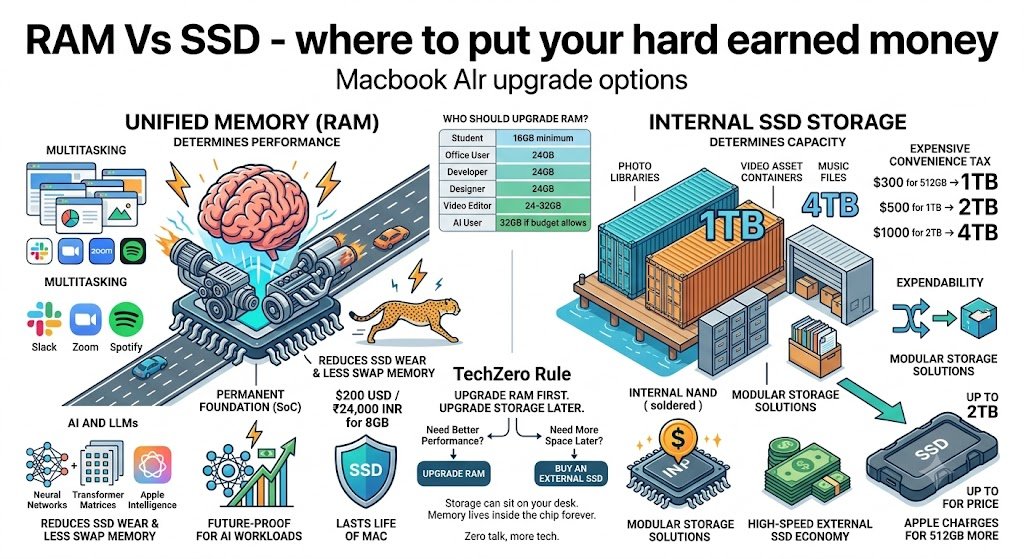
Choose more RAM. A 24GB MacBook Air with 512GB of storage will outperform, outlast, and future-proof a 1TB MacBook Air with baseline 16GB memory. You can always add external storage later. You can never add more Unified Memory.
Chapter 1 — Why This Is the Most Important MacBook Decision
1.1 The Checkout Trap
You are one click away from finalized customization inside the online Apple Store, hovering over the configuration panel for a new MacBook Air. Your budget is constrained, forcing a calculated compromise. You must decide whether to allocate your remaining funds to upgrade the unified system architecture or expand the integrated storage array.
For the vast majority of consumers, this crossroads dictates a binary choice between stepping up to 24GB of Unified Memory or expanding the base drive to a 1 TB Solid State Drive (SSD).
At first glance, the data storage upgrade presents a compelling value proposition. A 1 TB capacity capacity metric is highly tangible, immediately translating in the user’s mind to thousands of local high-resolution RAW images, offline media asset libraries, and dense local application binaries. Storage capacity is a highly visible asset.
Memory, conversely, operates as an invisible, technical abstraction. Because its utility is not immediately measurable in terms of file count, buyers naturally hesitate to invest heavily in it. This hesitation stems from an asymmetric understanding of hardware interfaces: it feels counterintuitive to spend identical or greater capital on a seemingly small quantity of volatile memory (8 GB iterations) when that same capital could net hundreds of gigabytes of non-volatile storage flash. It is a psychological trap engineered by configuration interfaces, and it remains one of the most common configuration errors made by enterprise and consumer buyers alike.
1.2 How MacBook Buying Changed
The paradigm governing laptop hardware optimization has shifted radically over the past five years due to sweeping architectural changes across network software systems and local processing pipelines:
- Ubiquitous Cloud Infrastructure: The requirement for massive local storage arrays has been systematically minimized by deep operating system integration with remote distributed file systems. Cloud systems smoothly offload cold, static user data directly from local storage, dynamically mounting files only when requested by active system processes.
- High-Bandwidth External Interconnects: The integration of modern USB4 and Thunderbolt protocols provides peripheral bus speeds exceeding $3,000\text{ MB/s}$. High-speed external NVMe enclosures read and write massive datastores directly over the wire, rendering high-capacity internal factory storage luxury completely optional for asset-heavy execution workflows.
- Local Neural Execution Contexts: Modern workloads are heavily gated by local on-device Artificial Intelligence engines and Large Language Models (LLMs). These transformer-based networks do not stream weights from deep non-volatile storage during execution pipelines; instead, entire multi-billion parameter matrices must reside concurrently inside high-bandwidth system memory to maintain low-latency inference token generation.
- Concurrent Operating Profiles: Modern desktop multitasking demands massive execution overhead. A standard contemporary pipeline concurrently operates dozens of isolated browser compilation engines, heavy enterprise communication layers, real-time background orchestration processes, and local virtualization nodes—all fighting for the same execution context.
1.3 The Golden Rule
When you encounter this architectural fork during system provisioning, your selection must rely on an absolute law of modern computing systems:
Storage determines how much data your Mac can hold. Memory determines how fast your Mac can work.
An under-provisioned storage drive can be easily remedied via logical partition expansions, network shares, or external hardware buses at a fraction of factory costs. An under-provisioned memory pool creates a permanent system execution bottleneck that cannot be bypassed. Buying more storage will never accelerate your computational throughput; investing in Unified Memory will.
Chapter 2 — Why RAM Is Permanent but Storage Isn’t
2.1 Why Memory Cannot Be Upgraded
When you purchase a modern MacBook Air, you are investing in Apple Silicon. This architecture represents a fundamental departure from traditional PC hardware design. In older laptops, you could often unscrew the bottom chassis, locate a standard SODIMM slot, and physically snap in a new stick of RAM a year or two down the line.
Apple Silicon eliminates this modularity by utilizing a System on a Chip (SoC) design. Rather than spreading the Central Processing Unit (CPU), Graphics Processing Unit (GPU), and memory controller across a sprawling motherboard, Apple integrates all these core components into a single, highly efficient silicon package.
The memory sits directly alongside these processing cores. This is known as Unified Memory. By sharing a single, high-bandwidth pool of memory, the CPU and GPU no longer need to copy data back and forth between separate RAM and VRAM reserves. This architectural proximity is exactly what gives the MacBook Air its legendary battery life and lightning-fast responsiveness.
However, the inescapable downside to this SoC design is absolute permanence. There are no expansion slots. The memory modules are physically baked into the silicon substrate itself. You cannot visit an Apple Store for a memory upgrade later, nor can a third-party repair shop solder on more capacity.
2.2 Apple’s Memory Pricing
Because this configuration is locked at the factory level, it is critical to understand the financial mechanics of Apple’s memory tiers before you check out. Apple prices its Unified Memory upgrades on a rigid, predictable scale.
Stepping up from the baseline 16GB of Unified Memory to higher tiers carries a distinct premium. Apple values every additional 8GB block of Unified Memory at a flat rate. Here is the current upgrade cost structure in both USD and INR:
2.3 Why Storage Is Different
Technically speaking, the MacBook Air’s internal SSD is also soldered directly to the logic board. You cannot replace the internal drive. However, storage fundamentally differs from memory because it possesses a massive operational loophole: you can always add more externally.
🧠 Learn More: How Apple Unified Memory Really Works
Want to understand why Unified Memory is permanently integrated into Apple Silicon and why it cannot be upgraded after purchase? Read our complete guide: Apple Unified Memory Explained: The Complete Buying Guide .
If your internal SSD fills up, your workflow does not permanently halt. You simply transition your data. Today’s market is flooded with high-performance external SSDs utilizing USB-C and Thunderbolt technology. These drives push read and write speeds that rival or exceed the capabilities of older internal drives, allowing you to edit 4K video, manage massive sample libraries, or run heavy applications directly off a portable drive that fits in your pocket.
Furthermore, cloud storage ecosystems effortlessly handle archival data, seamlessly offloading files you don’t access daily. Apple’s internal storage upgrades are incredibly expensive, often operating on a non-linear scale where higher capacities incur an aggressive premium. Why pay a massive tax for soldered internal storage when a vastly cheaper, interchangeable external NVMe drive accomplishes the exact same goal?
Storage is modular. Memory is an immovable foundation.
You only get one chance to buy memory.
Chapter 3 — What Actually Happens When RAM Runs Out
3.1 Understanding Swap Memory
To truly grasp why baseline memory configurations fail under modern workloads, you have to understand what happens when your Mac runs out of physical RAM. It does not crash or throw an immediate “Out of Memory” blue screen. Instead, macOS quietly resorts to an emergency safety net known as Swap Memory.
Think of your unified memory like your physical office desk. When you are working on a few documents, everything sits right in front of you for instant access. But what happens when you start opening dozens of files, running heavy applications, and juggling background tasks? Your desk becomes entirely cluttered.
When your physical RAM reaches its absolute ceiling, macOS cannot simply abandon your active background applications. Instead, it acts like an overworked assistant who runs back and forth to a distant storage room (your internal SSD), shuffling active papers off your desk to make space for what you are looking at right now. That digital shuffling process is called swapping. You can still technically get your work down, but every trip back to the storage room takes extra time.
3.2 Memory Pressure
Many Mac owners panic when they open Activity Monitor and notice that their memory usage is sitting at 90% or higher. However, on modern macOS, high memory allocation is entirely normal; the operating system aggressively claims idle RAM to cache files and speed up launching apps.
The metric you should actually care about is Memory Pressure, located in a live graph at the bottom of the Memory tab in Activity Monitor:
- Green: Memory resources are fully available and your system is managing tasks efficiently.
- Yellow: Memory resources are under strain, and macOS is actively utilizing memory-management protocols like memory compression to free up breathing room.
- Red: Physical memory is entirely depleted, forcing the operating system to rely heavily on startup drive swapping. If your graph routinely hits red, your workflow is fundamentally bottlenecked by insufficient RAM.
3.3 Performance Impact
When a Mac is forced to live in the yellow or red zone, the performance degradation is tangible across your entire workflow.
- Browser Tabs Reloading: Instead of keeping web pages frozen cleanly in memory, background tabs are constantly purged and forced to completely reload from scratch when you click back to them.
- Laggy Application Switching: Juggling between heavy professional suites results in stuttering animations and delayed window focus.
- AI & Developer Bottlenecks: Local AI models, containerized development environments like Docker, and heavy processing nodes in Lightroom or video editors require vast, contiguous pools of high-speed memory. Without it, execution speeds drop dramatically, rendering real-time rendering and prompt evaluation sluggish.
3.4 SSD Wear
There is a common misconception that running out of RAM destroys your MacBook overnight. Modern solid-state drives are remarkably durable, and most users will never wear out a drive through normal daily operations.
However, relying heavily on swap increases write activity unnecessarily. Every time macOS pages data back and forth to disk, it accumulates background write cycles. Upgrading your RAM directly reduces swap utilization, ensuring consistent execution speeds and preserving long-term hardware health.
Chapter 4 — Apple’s Upgrade Pricing Doesn’t Make Sense
4.1 RAM Pricing
Here is how Apple prices memory tiers across regional storefronts:
📊 TechZero Reality Check
Apple charges $200 (₹24,000) for 8GB more Unified Memory—but demands $300 (₹36,000) for just 512GB of extra SSD storage.
The memory upgrade is 33% cheaper, permanently improves your Mac’s performance, reduces swap wear, and can never be added later. Storage, on the other hand, can be expanded at any time. The extra $300 (₹36,000) Apple charges for internal space is enough to buy a high-quality 2TB external NVMe SSD and enclosure, and still leave you with money left over.
4.2 SSD Pricing
In stark contrast to memory, the storage configurator operates on a aggressively non-linear pricing scale. As you request higher capacities, the financial tax imposed by Apple scales exponentially per gigabyte.
Here is how internal storage upgrade tiers are structured:
4.3 TechZero Reality Check
When you cross-examine these two upgrade schedules side-by-side, the economic reality becomes glaringly apparent. Apple charges $200 / ₹24,000 for an additional block of 8 GB Unified Memory, but demands $300 / ₹36,000 to expand internal storage by a mere 512 GB.
Consider the mathematics of this trade-off:
- $200 RAM Upgrade: Secures a permanent, soldered execution foundation that prevents system throttling, accelerates multitasking, and optimizes local AI inference throughput.
- $300 SSD Upgrade: Buys a modest block of internal storage capacity that can easily be duplicated or vastly exceeded on the open market.
This pricing imbalance breaks down entirely when evaluating external storage economics. In almost every major market, the $300 (or ₹36,000) premium that Apple charges to jump from 512 GB to 1 TB internally is more than enough to purchase a high-performance 2 TB external NVMe SSD housed inside a rugged aluminum enclosure—with substantial cash left over.
Modern high-speed external enclosures connect seamlessly over USB4 or Thunderbolt ports, sustaining data transfer rates exceeding $2,000\text{ MB/s}$. This bandwidth is more than fast enough for heavy 4K video rendering, raw asset management, and secondary virtual machines.
Choosing internal storage over memory means you are paying an extreme convenience tax for bytes that sit permanently inside your chassis. By investing your budget into the non-negotiable memory tier and outsourcing your bulk storage demands to external NVMe solutions, you completely outsmart the configuration trap.
📊 TechZero Reality Check
In many markets, the price difference Apple charges for upgrading your internal drive from 512GB to 1TB is enough to buy a high-performance 2TB external NVMe SSD—often with money left over. You are paying a massive premium purely for internal convenience.
Chapter 5 — Who Should Buy What?
Determining the right configuration for your MacBook Air requires an honest assessment of your actual daily workflow. While the hardware baseline for modern Apple Silicon is strong, different professional environments impose unique computational demands on unified memory pools. Matching your workflow profile to the correct memory ceiling ensures long-term system responsiveness without paying for redundant overhead.
5.1 Students
For students navigating coursework, academic research, and routine campus productivity, the baseline configuration is entirely sufficient. Writing papers in native word processors, conducting multi-source literature reviews across dozens of browser tabs, streaming video lectures, and managing collaborative study decks can comfortably live within a 16GB memory pool. Because campus tasks rarely tax local GPU execution pipelines or demand continuous background compilation, students save their budget by sticking to baseline memory and utilizing cloud-native platforms like Google Drive or OneDrive for course documents.
5.2 Office Users
Enterprise professionals, financial analysts, and corporate knowledge workers operate in high-friction multitasking environments. A typical corporate workflow involves running synchronous communication suites like Slack and Microsoft Teams, managing heavy live spreadsheets, maintaining sprawling email clients, and juggling dozens of active browser-based web apps concurrently. To prevent micro-stutters and avoid triggering background swap memory during crunch periods, office users benefit heavily from stepping up to 24GB of unified memory.
5.3 Developers
Software engineers and computer science professionals push machines through continuous local testing environments, compilation queues, and multi-service deployment pipelines. Running local database instances, managing containerized architecture through Docker, compiling microservices, and keeping integrated development environments (IDEs) like VS Code or Xcode open simultaneously demands a high memory floor. A 24GB configuration provides the necessary headroom to execute complex coding workflows locally without hitting system bottlenecks.
5.4 Designers
Graphic designers, digital artists, and creative professionals rely on asset-heavy visual suites. Working with high-resolution vector layers in Illustrator, multi-artboard layouts in Figma, and non-destructive image manipulation in Photoshop requires substantial graphics memory. Because Apple Silicon combines system memory and graphics memory into a single unified pool, a 24GB architecture ensures that rendering previews, handling heavy font catalogs, and processing complex export trees happen instantaneously.
5.5 Video Editors
Content creators, independent filmmakers, and multimedia producers work with high-bitrate video streams, multi-cam sequences, and complex audio channels. While modern Apple Silicon chips feature dedicated hardware media engines that effortlessly decode formats like ProRes, heavy timelines in Final Cut Pro or Premiere Pro quickly consume volatile memory pools as effects, transitions, and color-grading nodes are applied. Video editors should target 24GB to 32GB of memory to ensure timeline scrubbing remains fluid and export queues finish without memory-pressure throttling.
5.6 AI Users
The exponential growth of on-device machine learning has transformed the hardware requirements for power users. Running local Large Language Models (LLMs), executing semantic search indices, or generating assets via local stable diffusion pipelines requires the entire model parameter matrix to load directly into system memory acting as VRAM. To execute local AI workloads smoothly without offloading calculations to remote cloud endpoints, power users should configure their machines with 32GB of unified memory if their budget allows.
Summary Recommendation Matrix
1. Workflow-Based Hardware Allocation Matrix
This table maps distinct user personas to their minimum and recommended memory configurations, baseline internal storage, and optimal external drive pairing strategies.
| User Profile | Minimum RAM | Recommended RAM | Base Internal SSD | Primary Workflow Bottleneck | External Storage Strategy |
|---|---|---|---|---|---|
| Student | 16GB | 16GB | 512GB | None (Standard productivity, browser-heavy execution) | Cloud-native archival (iCloud, Google Drive) |
| Office User | 16GB | 24GB | 512GB | Synchronous enterprise communication apps & heavy browser profiles | Standard external USB-C SSD for data backups |
| Developer | 24GB | 24GB | 512GB | Local containers (Docker), persistent runtime environments, compilation | High-speed USB4 NVMe for secondary build volumes |
| Designer | 24GB | 24GB | 512GB | Multi-layer high-resolution canvas matrices & Unified VRAM asset caches | Direct external scratch disk configuration |
| Video Editor | 24GB | 32GB | 1TB | Multi-cam timelines, real-time grading, dynamic render caches | Dedicated 40Gbps Thunderbolt 4 NVMe array |
| AI Practitioner | 32GB | 32GB | 512GB | Local LLM weight initialization & complex token generation pipelines | External hosting for massive source dataset models |
2. Operational Flag & Component Override Matrix
This architectural decision grid shows how operational parameters instantly shift configuration priorities between system RAM and internal storage.
| Workflow Condition | RAM Impact Score | Storage Impact Score | Engineering Action Rule |
|---|---|---|---|
| Extreme Multitasking (>40 browser tabs + synchronous apps) |
CRITICAL (+8GB Override) | Neutral (0) | Forces a minimum configuration of 24GB to completely bypass background disk compression latency. |
| Local AI Execution (Local LLMs, stable diffusion models) |
MAXIMUM (+16GB Override) | Neutral (0) | Pins system baseline to 24GB/32GB. Transformer arrays demand immense unified memory acting directly as VRAM. |
| Air-Gapped / Highly Secure Enclosures (No external peripherals allowed) |
Neutral (0) | CRITICAL (Internal Focus) | Bypasses standard recommendations; internal storage must scale to 1TB/2TB to completely eliminate external bus dependency. |
| Massive Active Local Libraries (>500GB daily active production assets) |
Neutral (0) | HIGH (+512GB Override) | Triggers structural upgrade to 1TB internal SSD only if external scratch drives disrupt physical workflows or mobility. |
💻 Need Help Choosing the Right Configuration?
Still unsure whether 24GB RAM and 512GB SSD are enough for your workflow? Our MacBook RAM & SSD Buying Guide (2026): How Much Memory and Storage Do You Really Need? explains the ideal memory and storage configuration for students, professionals, developers, creators, and AI users.
Chapter 6 — When Should You Actually Buy More Storage?
While maximizing Unified Memory is the definitive rule for long-term hardware amortization, declaring a blanket ban on factory storage upgrades would ignore specialized enterprise and creative edge cases. True hardware optimization requires identifying when a workflow genuinely breaks the standard external drive model.
Prioritizing internal solid-state storage over system memory is an expensive configuration choice, but it becomes an absolute operational necessity under specific engineering boundaries:
- Massive Active RAW Libraries: Commercial photographers handling deep catalogs of uncompressed RAW files frequently run into bottlenecks when importing assets. If your editing application must constantly index, render previews, and update metadata across hundreds of gigabytes of active images, the absolute lowest latency is achieved by keeping the active catalog inside native internal flash storage.
- Persistent Offline Media Arrays: Audio engineers, music producers, and sound designers utilizing sprawling orchestral sample libraries and high-density virtual instruments need immediate access to massive data pools. When a project demands the simultaneous playback of scores of high-bitrate audio channels, streaming assets from a fast internal drive prevents sample dropouts.
- High-Mobility and Field Execution: Professionals operating in highly mobile or volatile environments—such as field researchers, maritime engineers, or flight crews—frequently work out of tightly confined physical workspaces. Managing dangling external drives, high-speed peripheral cables, and external docks during transit introduces structural points of failure and compromises ergonomics.
- Strict Enterprise Security Restrictions: Corporate compliance frameworks, financial institutions, and secure government facilities often implement aggressive Data Loss Prevention (DLP) protocols. In these air-gapped or restricted environments, peripheral data buses are completely disabled at the operating system level, making internal non-volatile storage your only available option for local file management.
- Multi-Stream 4K and 8K Production: High-bitrate video capture formats (like uncompressed ProRes RAW) consume storage space rapidly. While external Thunderbolt arrays handle this efficiently on a desk, editors who must ingest, rough-cut, and render heavy multi-cam timelines directly on the move require maximum internal storage read/write performance.
The Technical Caveat
It is vital to recognize that these use cases represent highly specific operational exceptions, not the baseline standard. If your workflow matches these exact criteria, upgrading internal storage is fully justified. However, if your daily computational demands do not explicitly force you into one of these categories, over-provisioning internal storage remains an expensive convenience tax. For the vast majority of environments, memory remains the non-negotiable foundation.
💡 Smart Buy Tip
If you outsource your storage, ensure you buy an external drive that actually matches your Mac’s speed. Don’t bottleneck your workflow with a standard USB 3.0 hard drive. Look specifically for drives labeled NVMe SSD with speeds of at least 1050 MB/s (like the Samsung T7 or Crucial X10) so your external files load just as fast as internal ones.
Final Verdict
When you are staring at the final Apple checkout screen, the configuration options can be deceiving. A 1TB SSD looks incredibly appealing on paper, but prioritizing capacity over computational capability is a configuration trap that will artificially shorten the lifespan of your machine. That brings us to the definitive TechZero Rule: Always upgrade RAM before storage.
To make the smartest financial and technical investment, you must evaluate the hardware through the lens of Apple Silicon architecture. Storage determines how much data your Mac can hold. Memory determines how fast your Mac can work. A 24GB MacBook Air paired with a 512GB internal drive will consistently outlast, outperform, and out-multitask a 1TB machine constrained by baseline memory. One upgrade prevents system throttling and swap degradation; the other merely delays the need to buy an external drive.
If you find yourself hesitating at checkout, rely on this simple hardware decision flow:
- Question 1: Do I want faster multitasking, zero swap-memory lag, and future-proof readiness for local AI workloads?
- Action: Upgrade the RAM.
- Question 2: Will I eventually need more space for massive video files, project archives, or photo libraries?
- Action: Buy an external SSD later.
Storage is a completely solved problem in modern computing. High-speed Thunderbolt enclosures, network-attached drives, and cloud ecosystems provide infinite, inexpensive expandability exactly when you need it. Unified Memory, however, is a permanent foundation. Once your Mac leaves the factory floor, its memory configuration is permanently locked inside the silicon SoC.
Maximize the silicon you cannot touch. Outsource the storage you can hold in your hand.
Storage can sit on your desk.
Memory lives inside the chip forever.
Upgrade RAM first. Upgrade storage later.
Zero talk, more tech.


[…] Should You Upgrade RAM or SSD? […]
[…] MacBook Air RAM vs SSD: What Should You Prioritize? […]
[…] MacBook Air RAM vs SSD: What Should You Upgrade? — Learn when more RAM matters and when additional SSD storage makes more sense. […]