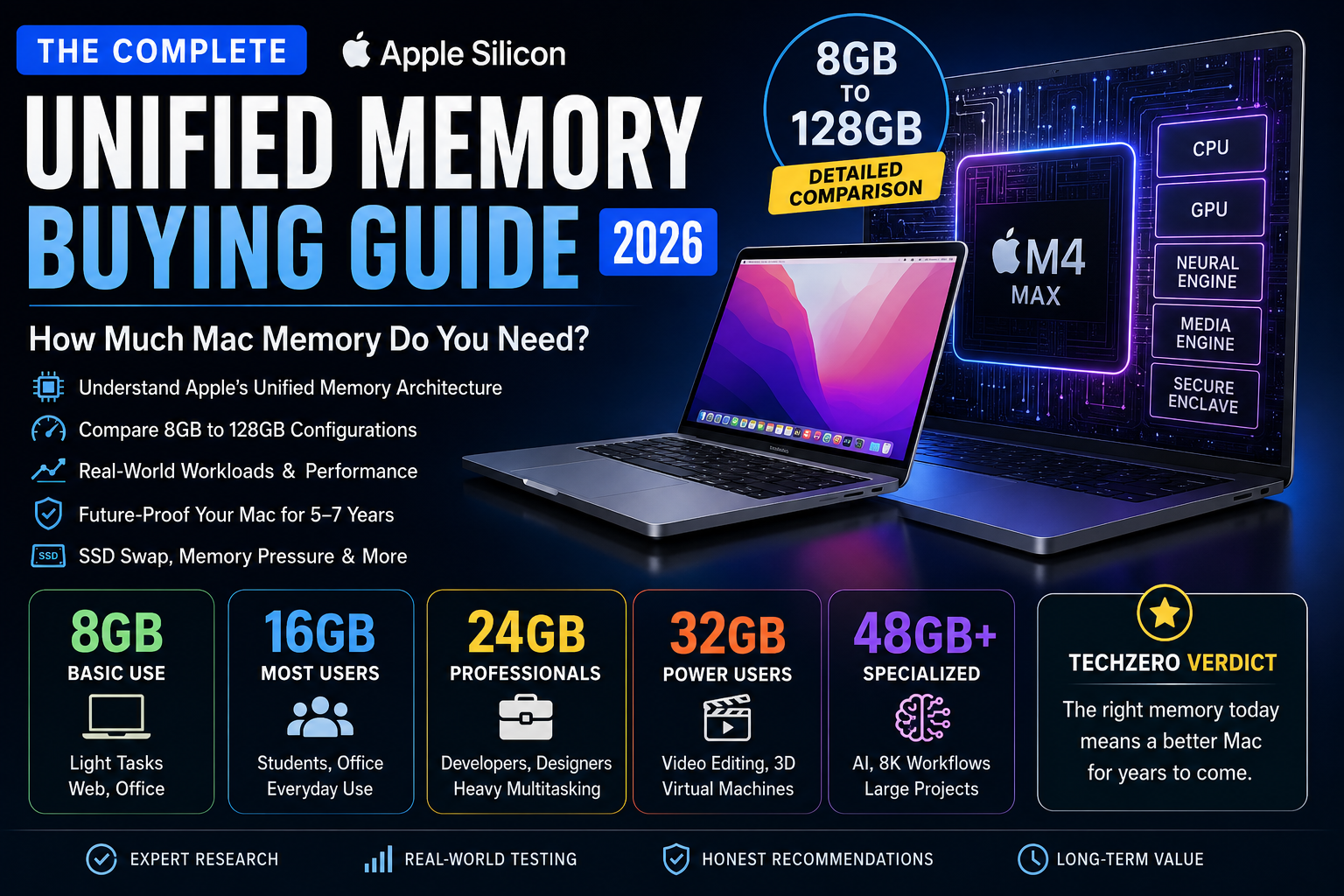
Choosing the right amount of Unified Memory is one of the most important decisions when buying a Mac because it cannot be upgraded later. Unlike traditional PCs, Apple Silicon allows the CPU, GPU, and Neural Engine to share the same high-speed memory pool, improving efficiency and reducing unnecessary data transfers. However, Unified Memory does not create additional physical memory—it simply uses the available memory more effectively.
For most buyers, 16GB offers the best balance of price, performance, and longevity. 24GB is ideal for professionals who regularly multitask or use creative and development tools. 32GB is recommended for power users running demanding workflows such as professional video editing, software development, or multiple virtual machines. Configurations of 48GB and above are best reserved for AI workloads, large creative projects, scientific computing, and other workstation-class tasks.
This guide explains how Unified Memory works, how macOS manages memory through compression and SSD swap, how much memory different applications actually use, and how to choose a configuration that will remain capable for years to come. By the end, you’ll know exactly which memory option best matches your workflow, budget, and expected ownership period.
Part Goal: Before deciding between 16GB, 24GB, 32GB or higher memory configurations, you must first understand how Apple’s Unified Memory works and why it differs from traditional PC memory. This section builds the technical foundation needed for the buying decisions covered later in the guide.
Chapter 1 — Why Apple Reinvented Memory
Introduction
Apple’s transition from Intel processors to Apple Silicon was more than a CPU upgrade. It represented a complete redesign of the computer’s internal architecture.
For decades, desktop and laptop computers relied on separate processing units with separate memory systems. While this approach worked well, it also introduced inefficiencies that became increasingly difficult to overcome as applications demanded more performance, especially in graphics, video editing, artificial intelligence, and machine learning.
Apple addressed these limitations by redesigning how processors access memory.
The Traditional Memory Problem
CPU and GPU Used Different Memory
In a conventional PC architecture:
The CPU accesses System RAM.
The GPU accesses dedicated Video Memory (VRAM).
Both memories are physically separate.
Whenever both processors need the same data, it has to be copied from one memory pool to another.
Why This Matters
Imagine editing a large RAW photo.
The CPU prepares the image.
The GPU then needs the same image for rendering.
Instead of directly accessing it, the image must first be copied into VRAM.
For large files, this copying happens repeatedly and consumes both time and bandwidth.
Multiple Copies of the Same Data
A modern application may simultaneously use:
CPU
GPU
AI Accelerator
Video Encoder
Image Processor
On a traditional computer, each processor often creates or requires its own copy of the data.
This results in:
Higher memory usage
Increased latency
More bandwidth consumption
Higher power draw
What Is Unified Memory?
Unified Memory is Apple’s memory architecture in which the CPU, GPU, Neural Engine, Media Engine, and other processing units access a single shared pool of high-speed memory.
Instead of maintaining separate copies of the same data, all major processors work with the same information simultaneously.
This eliminates unnecessary data transfers while improving efficiency and responsiveness.
Definition
Unified Memory is one physical memory pool shared by multiple processors inside Apple Silicon.
It is not additional memory.
It is not compressed memory.
It is not virtual memory.
It is a different hardware architecture.
Traditional Memory vs Unified Memory
Traditional PC
Apple Silicon
CPU has System RAM
CPU uses Unified Memory
GPU has dedicated VRAM
GPU uses Unified Memory
Data copied between RAM and VRAM
Shared data access
Duplicate memory allocation
Single allocation
Higher latency
Lower latency
Higher power consumption
Better efficiency
Diagram — Traditional PC vs Apple Silicon
TechZero Custom Illustration
Visual Concept
Left Side — Traditional Computer
CPU
System RAM
GPU
VRAM
Multiple arrows showing data copies
Labels indicating duplicated memory
Right Side — Apple Silicon
CPU
GPU
Neural Engine
Media Engine
Unified Memory
Single shared memory pool
No duplicated data paths
Caption:
Traditional computers move data between separate memory pools. Apple Silicon allows multiple processors to work on the same data directly through Unified Memory.
TechZero Insight
Unified Memory is often misunderstood as “better RAM.”
In reality, its greatest advantage is better utilization of the available memory. By reducing duplicate data and unnecessary transfers, the system spends more time processing information and less time moving it.
Reality Check
A Mac with 16GB Unified Memory does not magically behave like a PC with 32GB RAM.
If your workload genuinely requires more than 16GB of active memory, no architectural improvement can eliminate that requirement.
Traditional computers maintain separate memory pools.
Apple Silicon shares one memory pool across major processors.
Less duplication leads to lower latency and better efficiency.
Unified Memory changes how memory is used—not how much memory exists.
Chapter 2 — Why Apple Moved to Unified Memory
Introduction
Apple’s goal with Apple Silicon was not simply to build a faster processor. The objective was to create a platform that delivered higher performance while consuming less power.
Unified Memory became one of the key architectural changes that made this possible.
The Limitations of Traditional Architecture
Data Duplication
Moving information between System RAM and VRAM consumes valuable processing time.
Large video projects, RAW images, and AI models often require multiple copies of the same data, reducing overall efficiency.
Real-World Example
A 6GB video frame may exist simultaneously in:
System RAM
GPU VRAM
Rendering buffers
Application cache
This increases total memory consumption even though the underlying content is identical.
Higher Latency
Every memory transfer introduces delay.
For workloads that constantly switch between CPU and GPU, these delays accumulate and reduce responsiveness.
Increased Power Consumption
Moving large amounts of data requires additional energy.
Reducing unnecessary transfers helps improve battery life and reduce heat generation.
Apple’s Design Philosophy
Apple chose to integrate the CPU, GPU, Neural Engine, Media Engine, and memory controller into a single System on a Chip (SoC).
Rather than forcing processors to exchange data through multiple buses, they communicate directly through an integrated high-bandwidth fabric connected to Unified Memory.
Table — Traditional vs Apple Silicon Design
Traditional Architecture
Apple Silicon
Multiple chips
Integrated SoC
Separate memory pools
Shared memory pool
Frequent data transfers
Direct shared access
Higher latency
Lower latency
Higher energy usage
Better efficiency
Diagram — Data Flow Comparison
TechZero Custom Illustration
Traditional PC:
CPU → RAM → Copy → VRAM → GPU
Apple Silicon:
CPU ⇄ Unified Memory ⇄ GPU
Neural Engine ⇄ Unified Memory
Media Engine ⇄ Unified Memory
TechZero Insight
Unified Memory is only one piece of Apple’s performance strategy.
Its benefits are amplified by:
High memory bandwidth
Large on-chip caches
Efficient CPU cores
Powerful GPU architecture
Specialized media engines
Tight macOS integration
Together, these components create an efficient computing platform.
Key Takeaway
Unified Memory reduces unnecessary data movement, allowing Apple Silicon to deliver better performance per watt without increasing memory capacity.
Chapter 3 — How Unified Memory Works
Introduction
Understanding Unified Memory becomes much easier when viewed as a shared workspace rather than multiple independent storage areas.
One Shared Memory Pool
The CPU, GPU, Neural Engine, Media Engine, and Image Signal Processor all access the same physical memory.
Each processor reads or modifies the required data without creating additional copies.
Example
While editing a 4K video:
CPU manages the timeline.
GPU renders effects.
Media Engine encodes video.
Neural Engine powers AI-based features.
All processors work on the same underlying data.
Diagram — Shared Memory Architecture
TechZero Custom Illustration
Central Block:
Unified Memory
Connected Components:
CPU
GPU
Neural Engine
Media Engine
Image Signal Processor
Display Engine
Arrows should show simultaneous shared access rather than data copying.
Reality Check
Shared memory does not mean unlimited memory.
All processors consume capacity from the same pool.
Heavy GPU usage can reduce the memory available to the CPU, and vice versa.
Key Takeaway
Unified Memory enables simultaneous access to shared data, improving efficiency while requiring users to choose an appropriate total memory capacity.
Chapter 4 — Understanding the System on a Chip (SoC)
Introduction
Unified Memory is possible because Apple designed the processor, graphics engine, AI hardware, and memory subsystem as one tightly integrated chip.
What Is a System on a Chip?
A System on a Chip (SoC) combines multiple computing components into one package.
Instead of communicating across separate chips on a motherboard, these components communicate internally at very high speeds.
Major Components
CPU
GPU
Neural Engine
Media Engine
Secure Enclave
Memory Controller
Cache
Unified Memory
Table — Components and Responsibilities
Component
Primary Responsibility
CPU
General-purpose computing
GPU
Graphics and parallel processing
Neural Engine
AI and machine learning
Media Engine
Hardware video encoding/decoding
Secure Enclave
Security and encryption
Unified Memory
Shared data storage
Diagram — Apple Silicon SoC
TechZero Custom Illustration
A labelled chip layout showing each processor block surrounding the Unified Memory interface, highlighting the integrated design.
TechZero Insight
The SoC is one of Apple’s greatest competitive advantages. Because Apple designs the silicon, operating system, and many core applications together, each layer can be optimized to work efficiently with the others.
Key Takeaway
Unified Memory is enabled by the SoC architecture. Without this tight integration, a shared memory model would not deliver the same efficiency gains.
Chapter 5 — Why 16GB on a Mac Feels Different
Introduction
One of the most common claims online is:
“8GB on a Mac is equivalent to 16GB on Windows.”
This statement is inaccurate.
Why the Myth Exists
Apple Silicon uses:
Unified Memory
High memory bandwidth
Memory compression
Fast SSD swap
Efficient scheduling
These technologies often allow macOS to complete common tasks using memory more efficiently than many traditional PCs.
Where the Myth Breaks Down
If a workload requires 24GB of active memory, a Mac with 16GB cannot avoid that limitation.
Professional applications such as:
Large Xcode projects
Docker environments
Virtual machines
Local AI models
8K video editing
still benefit significantly from larger memory configurations.
Table — Reality Behind the Claim
Statement
Reality
8GB Mac = 16GB Windows
❌ False
Unified Memory is more efficient
✅ True
Memory compression improves capacity utilization
✅ True
More demanding workloads still require more physical memory
✅ True
Myth vs Fact
Myth
Apple somehow creates extra memory through Unified Memory.
Fact
Unified Memory improves how efficiently memory is used. It does not increase physical capacity.
TechZero Verdict
Ignore blanket statements comparing Mac and Windows memory sizes. Choose memory based on your workload, not viral internet claims.
Key Takeaway
Unified Memory delivers measurable efficiency improvements, but the right memory capacity still depends on what you do with your Mac. Architecture can improve utilization, but it cannot replace physical memory when demanding workloads exceed available capacity.
EndPart II — Real Memory Usage
Part Goal: Understanding Unified Memory is only half the story. The next step is knowing how much memory your daily workloads actually consume. This section maps real-world tasks to realistic Unified Memory requirements so you can confidently choose the right Mac configuration.
Chapter 6 — How macOS Uses Memory
Introduction
Unlike traditional operating systems that try to keep RAM usage low, macOS is designed to maximize available memory for better performance. Unused memory is considered wasted memory. Therefore, seeing high memory usage in Activity Monitor does not necessarily indicate a problem.
Active Memory
What Is Active Memory?
Active Memory contains data currently being used by applications and system processes.
Examples include:
Open browser tabs
Documents being edited
Running applications
Active code compilation
Video rendering
Wired Memory
What Is Wired Memory?
Wired Memory contains critical system components that cannot be compressed or moved to SSD swap.
Examples include:
Kernel
Device drivers
Graphics frameworks
Security services
Compressed Memory
Why Does macOS Compress Memory?
When memory begins to fill, macOS compresses inactive data instead of immediately writing it to SSD.
Benefits include:
Faster response
Reduced SSD writes
Better multitasking
Cached Files
What Are Cached Files?
Cached files store recently used data that can be instantly reused if required.
Cached Memory is automatically released whenever applications need additional memory.
Swap Memory
What Is Swap Memory?
When physical memory becomes insufficient, macOS temporarily stores inactive data on the SSD.
Although modern Apple SSDs are extremely fast, swap memory is still significantly slower than physical Unified Memory.
Diagram — macOS Memory Flow
TechZero Custom Illustration
Flow:
Applications
↓
Active Memory
↓
Compressed Memory
↓
Swap Memory (SSD)
↓
Memory Released
Table — Memory Types in macOS
Memory Type
Purpose
Can Be Freed?
Performance Impact
Active
Running applications
No
None
Wired
System components
No
None
Compressed
Optimized inactive memory
Yes
Very Low
Cached
Previously used data
Yes
None
Swap
SSD-based temporary storage
Yes
Moderate
TechZero Insight
High memory usage is normal.
High Memory Pressure is not.
Always evaluate Memory Pressure rather than focusing solely on the amount of memory being used.
Key Takeaway
Understanding macOS memory categories is essential before interpreting Activity Monitor or deciding whether your Mac needs more Unified Memory.
Chapter 7 — Understanding Memory Pressure
Introduction
Apple recommends using Memory Pressure instead of free RAM as the primary indicator of system health.
What Is Memory Pressure?
Memory Pressure is a real-time indicator that measures how efficiently macOS is managing available memory.
Green Memory Pressure
What It Means
Plenty of available memory
No performance issues
Little or no swapping
Yellow Memory Pressure
What It Means
Memory resources becoming constrained
Increased compression
Occasional swapping
Red Memory Pressure
What It Means
Physical memory exhausted
Heavy swapping
Noticeable slowdowns
Reduced responsiveness
Diagram — Memory Pressure Meter
TechZero Custom Illustration
Green → Yellow → Red
Labels:
Healthy → Moderate Load → Memory Bottleneck
Reality Check
A Mac may use 90% of its memory while remaining in the green zone.
Conversely, another Mac may show lower utilization but still experience yellow or red memory pressure due to workload characteristics.
Key Takeaway
Memory Pressure is the most reliable indicator of whether your current memory capacity is sufficient.
Chapter 8 — Memory Usage by Everyday Tasks
Introduction
Most buyers purchase far more memory than they actually need.
This chapter estimates the memory requirements of common workloads.
Web Browsing
Typical Usage
10 browser tabs
Email
YouTube
Google Docs
Estimated Requirement:
6–8 GB
Office Productivity
Typical Usage
Microsoft Word
Excel
PowerPoint
Teams
Outlook
Estimated Requirement:
8–10 GB
Online Meetings
Typical Usage
Zoom
Google Meet
Teams
Screen Sharing
Estimated Requirement:
8–12 GB
Student Work
Typical Usage
Research
PDFs
Browser
Office Apps
Light Coding
Estimated Requirement:
8–12 GB
Diagram — Everyday Workload Illustration
TechZero Custom Illustration
Laptop surrounded by:
Browser
Word
Excel
Teams
Notes
PDF Reader
All connected to Unified Memory.
Table — Everyday Memory Usage
Workload
Typical Usage
Recommended Memory
Browsing
Light
8GB
Office
Moderate
16GB
Meetings
Moderate
16GB
Student
Moderate
16GB
TechZero Insight
Although many everyday tasks technically fit within 8GB, choosing 16GB provides significantly better longevity and multitasking flexibility.
Key Takeaway
Everyday users benefit most from 16GB, even if their current workloads appear modest.
Chapter 9 — Memory Usage for Professional Workloads
Introduction
Professional applications often use multiple processors simultaneously, making Unified Memory capacity far more important.
Software Development
Typical Workload
Xcode
VS Code
Docker
Local Database
Browser
Slack
Recommended:
16–32 GB
Android Development
Typical Workload
Android Studio
Emulator
Gradle
Browser
Recommended:
24–32 GB
Video Editing
Typical Workload
Final Cut Pro
DaVinci Resolve
Premiere Pro
Recommended:
24–48 GB
Photography
Typical Workload
Lightroom
Photoshop
Large RAW Library
Recommended:
24 GB
3D Design
Typical Workload
Blender
Cinema 4D
Recommended:
32–64 GB
Local AI Models
Typical Workload
Ollama
LM Studio
Apple MLX
Recommended:
32–64 GB
Virtual Machines
Typical Workload
Windows ARM
Linux
Multiple Containers
Recommended:
32–64 GB
Table — Professional Workload Recommendations
Workload
Recommended Memory
Software Development
16–32 GB
Android Development
24–32 GB
Photo Editing
24 GB
Video Editing
24–48 GB
Blender
32–64 GB
Local AI
32–64 GB
Virtual Machines
32–64 GB
TechZero Insight
Memory requirements increase dramatically when multiple professional applications run simultaneously. Buying only for today’s workload often results in an earlier upgrade than expected.
Key Takeaway
Professional users should choose memory based on their peak multitasking requirements rather than the needs of a single application.
Memory usage is cumulative. Individual applications may consume modest amounts, but running several together can quickly exhaust available Unified Memory.
Scenario 1 — Office Professional
Applications
Teams
Outlook
Excel
Chrome (20 Tabs)
PowerPoint
Recommended:
16 GB
Scenario 2 — Software Developer
Applications
Xcode
Docker
VS Code
Browser
Slack
Local Database
Recommended:
24–32 GB
Scenario 3 — Content Creator
Applications
Photoshop
Lightroom
Final Cut Pro
Browser
Music Streaming
Recommended:
24–48 GB
Scenario 4 — AI Developer
Applications
Ollama
VS Code
Docker
Browser
Python Notebook
Recommended:
32–64 GB
Table — Complete Workload Matrix
User Profile
Typical Applications
Recommended Unified Memory
Student
Browser, Office
16 GB
Office Professional
Office + Meetings
16 GB
Software Developer
IDE + Docker
24–32 GB
Photographer
Lightroom + Photoshop
24 GB
Video Editor
Final Cut Pro / Resolve
24–48 GB
AI Enthusiast
Ollama / MLX
32–64 GB
Virtualization
Windows + Linux VMs
32–64 GB
TechZero Verdict
Choose memory based on the applications you use together, not individually. The right configuration should comfortably handle your busiest workflow, not just your average day.
Key Takeaways
Memory usage is cumulative across applications.
macOS efficiently manages memory, but physical limits still matter.
16GB is the practical baseline for most users in 2026.
Professional workflows often justify 24GB, 32GB, or higher.
Buy for your peak workload and expected lifespan, not your lightest tasks.
Up Next:Part III — Choosing the Right Memory Capacity (8GB vs 16GB vs 24GB vs 32GB vs 48GB vs 64GB vs 96GB vs 128GB), where we’ll evaluate each memory configuration, identify the ideal users, discuss longevity, value for money, and provide TechZero’s recommendations.of Part I
Part III — Choosing the Right Memory Capacity
Part Goal: Understanding Unified Memory is important, but buying the right amount is what ultimately matters. This section evaluates every available Unified Memory configuration—from 8GB to 128GB—based on real-world workloads, multitasking capability, longevity, and value for money.
Chapter 11 — Is 8GB Unified Memory Still Worth Buying?
Introduction
For years, 8GB was Apple’s default memory configuration on entry-level Macs. With Apple Silicon’s Unified Memory Architecture, many users found that 8GB performed better than expected, leading to the widespread belief that “8GB is enough for everyone.”
The reality is more nuanced.
An 8GB Mac can provide an excellent experience for light workloads, but it has clear limitations that become apparent as multitasking, professional applications, or AI workloads increase.
This chapter helps you determine whether 8GB still meets your needs in 2026 and beyond.
Who Should Buy 8GB?
Ideal Users
An 8GB Mac is suitable for users whose computing needs are predictable and relatively light.
Typical users include:
Students with basic academic workloads
Casual home users
Web browsing and media consumption
Email and office productivity
Streaming video
Online classes
Light photo editing
Family computer
Everyday Experience
With Apple Silicon, an 8GB Mac can comfortably handle:
15–20 browser tabs
Microsoft Office
Apple iWork
Spotify
WhatsApp
Zoom meetings
PDF editing
For these workloads, the experience is often smooth because macOS intelligently compresses memory and utilizes fast SSD swap.
Who Should Avoid 8GB?
Professional Users
8GB is not recommended for users working with:
Software development
Docker
Android Studio
Xcode
Virtual Machines
AI tools
Lightroom catalogs
Photoshop with large PSD files
Final Cut Pro
DaVinci Resolve
Blender
Heavy Multitaskers
If your workflow regularly includes:
40+ browser tabs
Teams
Slack
Outlook
Office
Photoshop
Music streaming
simultaneously, 8GB will increasingly rely on memory compression and SSD swap.
Performance Expectations
What Feels Fast
Applications launch quickly.
macOS remains responsive.
Battery life remains excellent.
What Starts Slowing Down
As memory pressure increases, users may notice:
Browser tab reloads
Delayed application switching
Longer export times
Reduced responsiveness
Increased swap usage
Longevity
An 8GB Mac purchased today is likely to remain comfortable for:
Usage Type
Expected Comfortable Lifespan
Basic Users
4–5 Years
Students
3–5 Years
Professional Users
1–2 Years
AI Workloads
Not Recommended
Advantages
Lowest purchase price
Excellent battery life
Fast for everyday tasks
Great for casual users
Limitations
Limited multitasking headroom
Heavy dependence on SSD swap
Not suitable for AI
Limited future-proofing
Cannot be upgraded later
Table — 8GB Capability Matrix
Workload
Experience
Web Browsing
✅ Excellent
Office Work
✅ Excellent
Online Classes
✅ Excellent
Programming
⚠️ Acceptable
Photoshop
⚠️ Light Projects
Lightroom
⚠️ Small Catalogs
Video Editing
❌ Limited
Blender
❌ Poor
Local AI
❌ Not Suitable
Virtual Machines
❌ Not Recommended
TechZero Insight
The biggest advantage of 8GB isn’t that it’s “more than 8GB.” It’s that Apple Silicon uses those 8GB more efficiently than many traditional laptops. However, efficiency cannot replace physical memory when workloads become demanding.
TechZero Verdict
8GB remains a viable choice for casual users with predictable workloads. However, buyers planning to keep their Mac for five years or more should strongly consider upgrading to 16GB.
Key Takeaway
8GB is sufficient for basic computing but offers limited room for growth.
Chapter 12 — Why 16GB Is the Sweet Spot
Introduction
For most buyers, 16GB Unified Memory represents the best balance between performance, longevity, and price.
It provides enough headroom for modern multitasking while remaining affordable compared to higher configurations.
Who Should Buy 16GB?
Ideal Users
16GB is recommended for:
College students
Professionals
Software engineers
Office workers
Business users
Teachers
Bloggers
Content writers
Most photographers
Light video editors
Everyday Experience
A 16GB Mac comfortably handles:
40+ browser tabs
Office Suite
Slack
Teams
Outlook
Lightroom
Photoshop
VS Code
Xcode
Docker (light usage)
without frequent memory pressure.
Professional Capability
16GB supports:
Moderate software development
Figma
Adobe Photoshop
Lightroom
Final Cut Pro (1080p and light 4K)
Coding projects
Data analysis
Performance Expectations
Excellent For
Heavy multitasking
Office productivity
Coding
Photo editing
Student workloads
Where It Starts Reaching Limits
Multiple virtual machines
Large Docker environments
8K editing
Large AI models
Professional Blender projects
Longevity
Usage Type
Expected Comfortable Lifespan
Students
6–7 Years
Professionals
5–6 Years
Developers
4–5 Years
AI Users
2–3 Years
Advantages
Best value for money
Excellent multitasking
Suitable for most professionals
Better future-proofing
Lower swap usage
Limitations
Heavy AI workloads may exceed capacity
Multiple VMs require more memory
Professional video editing may benefit from 24GB+
Table — 16GB Capability Matrix
Workload
Experience
Browsing
✅ Excellent
Office
✅ Excellent
Programming
✅ Excellent
Photoshop
✅ Excellent
Lightroom
✅ Excellent
Final Cut Pro
✅ Very Good
DaVinci Resolve
⚠️ Moderate
Blender
⚠️ Moderate
AI Models
⚠️ Small Models
Virtual Machines
⚠️ One VM
TechZero Insight
If you’re unsure which memory option to choose, 16GB is the safest recommendation for the vast majority of Mac buyers in 2026.
TechZero Verdict
For around 80–90% of buyers, 16GB delivers the best combination of price, performance, and lifespan.
Key Takeaway
16GB is the new baseline for anyone planning to keep a Mac beyond three to four years.
Chapter 13 — Should You Upgrade to 24GB?
Introduction
24GB Unified Memory fills the gap between mainstream and professional configurations. It offers significantly more multitasking headroom than 16GB while remaining more affordable than 32GB.
Who Should Buy 24GB?
Ideal Users
Professional software developers
Advanced photographers
Frequent multitaskers
Content creators
YouTubers
UX/UI designers
Data analysts
AI enthusiasts using smaller local models
Everyday Experience
24GB allows multiple demanding applications to remain open simultaneously without significant memory pressure.
Typical workflow:
VS Code
Docker
Chrome (50+ Tabs)
Lightroom
Photoshop
Teams
Slack
Spotify
Professional Capability
24GB comfortably supports:
Large Xcode projects
Docker development
Adobe Creative Cloud
Medium 4K editing
Moderate Blender scenes
Local AI experimentation
Longevity
Usage Type
Expected Comfortable Lifespan
Professionals
6–8 Years
Developers
5–7 Years
Creators
5–7 Years
AI Enthusiasts
4–5 Years
Advantages
Excellent multitasking
Lower swap dependency
Better future-proofing
Great for creative professionals
Limitations
Higher cost than 16GB
Overkill for casual users
Table — 24GB Capability Matrix
Workload
Experience
Programming
✅ Excellent
Docker
✅ Excellent
Lightroom
✅ Excellent
Photoshop
✅ Excellent
4K Editing
✅ Excellent
Blender
✅ Good
AI Models
✅ Moderate
Virtual Machines
✅ One or Two
TechZero Insight
24GB is often the “comfort upgrade.” It may not dramatically improve today’s workloads over 16GB, but it provides valuable headroom as applications become more demanding.
TechZero Verdict
Choose 24GB if your Mac is a professional tool and you expect your workloads to grow over the next five to seven years.
Key Takeaway
24GB is an excellent choice for creators, developers, and professionals seeking additional longevity without moving to workstation-class memory capacities.
Continues in Part III…
Chapter 14 — Is 32GB the Professional Sweet Spot?
Introduction
For many professionals, 32GB Unified Memory represents the point where memory stops being a limitation and becomes an enabler.
Unlike 24GB, which is designed for demanding consumer and prosumer workloads, 32GB is built for users who routinely push their machines with multiple professional applications simultaneously.
It isn’t simply about running one heavy application.
It’s about running everything together.
Examples include:
Xcode compiling a large project
Docker running multiple containers
Chrome with 50+ tabs
Teams meeting
Slack
Spotify
Figma
Photoshop
Local database
—all at the same time.
This is where 32GB begins to justify its premium.
Who Should Buy 32GB?
Ideal Users
32GB is recommended for:
Professional Software Engineers
Senior Developers
DevOps Engineers
Product Managers running development environments
UX/UI Designers
Data Scientists
Professional Photographers
Professional Video Editors
Architects
Engineers using CAD software
Professional Experience
A 32GB Mac rarely experiences noticeable memory pressure during normal professional work.
Applications remain in memory longer, allowing instant switching without frequent reloads.
This becomes particularly valuable for users who spend their entire day moving between large applications.
Typical Workflow
A realistic professional setup might include:
Xcode
VS Code
Docker
Local PostgreSQL
Chrome (60 Tabs)
Teams
Slack
Figma
Photoshop
Apple Music
This workload generally remains comfortable on 32GB.
Performance Expectations
Excellent For
Large software projects
Full-stack development
Docker
Kubernetes learning
Android Studio
Xcode
Professional photography
Medium-to-heavy video editing
Large spreadsheets
Multiple displays
Starts Reaching Limits
Although 32GB is extremely capable, workloads such as:
Large LLM inference
Multiple Virtual Machines
8K RAW editing
Hollywood-scale VFX
Massive Blender scenes
may benefit from 48GB or higher.
Longevity
Usage Type
Expected Comfortable Lifespan
Professional Developers
6–8 Years
Creators
6–8 Years
Engineering Workstations
5–7 Years
AI Development
4–6 Years
Advantages
Excellent professional multitasking
Minimal SSD swap
Long lifespan
Handles demanding workloads comfortably
Better resale value
Limitations
Expensive upgrade
Overkill for most students
Not fully sufficient for large AI workloads
Table — 32GB Capability Matrix
Workload
Experience
Programming
✅ Outstanding
Docker
✅ Outstanding
Android Studio
✅ Excellent
Photoshop
✅ Excellent
Lightroom
✅ Excellent
DaVinci Resolve
✅ Excellent
Final Cut Pro
✅ Excellent
Blender
✅ Very Good
Local AI
✅ Good
Multiple VMs
⚠️ Moderate
Diagram — Professional Workflow on 32GB
TechZero Custom Illustration
Visual:
Center:
32GB Unified Memory
Connected Applications:
Xcode
Docker
Browser
Teams
Photoshop
Database
Figma
Slack
Caption:
32GB provides sufficient memory headroom for multiple professional applications to remain active simultaneously with minimal swapping.
TechZero Insight
For professionals whose Mac generates income every day, memory should be viewed as an investment rather than an expense. Saving a few hundred dollars today can cost many hours of lost productivity over the next several years.
TechZero Verdict
32GB is the professional sweet spot for buyers who expect to keep their Mac for five to eight years while handling demanding creative or development workloads.
Key Takeaway
32GB delivers workstation-class multitasking for most professionals without entering the territory of highly specialized memory configurations.
Chapter 15 — Who Really Needs 48GB?
Introduction
48GB Unified Memory exists for users who consistently push beyond traditional professional workloads.
This isn’t a configuration for occasional heavy tasks.
It’s designed for sustained high-memory workflows.
Who Should Buy 48GB?
Ideal Users
48GB is recommended for:
Professional 4K/8K Video Editors
Large Lightroom Catalog Users
Motion Graphics Artists
Advanced Blender Users
AI Researchers
Machine Learning Engineers
Multiple VM Users
Heavy Docker Users
Professional Experience
With 48GB, memory pressure is rarely a concern.
Creative professionals can keep multiple Adobe applications, browser windows, AI tools, and communication apps open simultaneously without noticeable slowdowns.
Typical Workflow
Example:
DaVinci Resolve
After Effects
Photoshop
Lightroom
Chrome
Teams
Docker
Ollama
VS Code
Performance Expectations
Excellent For
Professional video editing
Large RAW photo libraries
Motion graphics
Large Docker environments
Medium AI models
Software development
Multiple virtual machines
Starts Reaching Limits
Very large AI models (30B–70B+), enterprise virtualization, and complex scientific simulations may require 64GB or more.
Longevity
Usage Type
Expected Comfortable Lifespan
Professional Creators
7–8 Years
AI Enthusiasts
5–7 Years
Enterprise Developers
6–8 Years
Advantages
Massive multitasking headroom
Ideal for professional creators
Excellent AI capability
Extremely low swap usage
Limitations
Significant price increase
Little benefit for casual users
Table — 48GB Capability Matrix
Workload
Experience
Software Development
✅ Outstanding
4K Editing
✅ Outstanding
8K Editing
✅ Excellent
Blender
✅ Excellent
Local AI
✅ Excellent
Multiple VMs
✅ Excellent
Diagram — Creative Professional Workflow
TechZero Custom Illustration
Center:
48GB Unified Memory
Connected:
Resolve
After Effects
Photoshop
Blender
Ollama
Browser
Teams
TechZero Insight
The jump from 32GB to 48GB isn’t about making today’s applications faster. It’s about eliminating workflow interruptions when many demanding applications run together.
TechZero Verdict
48GB is ideal for creators and AI users whose workflows consistently consume large amounts of memory.
Key Takeaway
Choose 48GB when memory limitations begin affecting your productivity rather than your benchmark scores.
After evaluating every memory tier, the final step is choosing the configuration that best matches your workload and budget.
Table — Unified Memory Comparison
Memory
Casual Users
Students
Developers
Creators
AI
Future-Proofing
8GB
⭐⭐⭐⭐
⭐⭐⭐
⭐
⭐
❌
⭐⭐
16GB
⭐⭐⭐⭐⭐
⭐⭐⭐⭐⭐
⭐⭐⭐⭐
⭐⭐⭐⭐
⭐⭐
⭐⭐⭐⭐
24GB
⭐⭐⭐⭐
⭐⭐⭐⭐
⭐⭐⭐⭐⭐
⭐⭐⭐⭐⭐
⭐⭐⭐
⭐⭐⭐⭐⭐
32GB
⭐⭐⭐
⭐⭐⭐
⭐⭐⭐⭐⭐
⭐⭐⭐⭐⭐
⭐⭐⭐⭐
⭐⭐⭐⭐⭐
48GB
⭐⭐
⭐
⭐⭐⭐⭐⭐
⭐⭐⭐⭐⭐
⭐⭐⭐⭐⭐
⭐⭐⭐⭐⭐
64GB+
⭐
⭐
⭐⭐⭐⭐
⭐⭐⭐⭐⭐
⭐⭐⭐⭐⭐
⭐⭐⭐⭐⭐
TechZero Buying Matrix
If You Are…
Buy
Student
16GB
Office Professional
16GB
Blogger / Writer
16GB
Software Developer
24GB–32GB
UX/UI Designer
24GB
Photographer
24GB
Video Editor
32GB–48GB
AI Enthusiast
32GB–48GB
AI Researcher
64GB+
Enterprise Developer
32GB–64GB
Diagram — Memory Decision Flow
TechZero Custom Illustration
Decision Tree:
Start
↓
What is your primary workload?
↓
Student → 16GB
↓
Office → 16GB
↓
Developer → 24GB–32GB
↓
Creator → 32GB–48GB
↓
AI → 48GB–64GB+
TechZero Verdict
For most buyers in 2026:
16GB offers the best value.
24GB is the ideal upgrade for professionals.
32GB is the long-term choice for power users.
48GB and above should be purchased only when your workflow consistently demands it.
Key Takeaways
Buy memory for your peak workload, not your average day.
Unified Memory improves efficiency but does not replace physical capacity.
Because Unified Memory cannot be upgraded after purchase, choosing the right amount at the time of purchase is one of the most important decisions you’ll make.
Avoid paying for capacity you’ll never use—but don’t underbuy if your Mac is a critical work machine.
Up Next:Part IV — SSD Swapping: How macOS Extends Memory and When It Becomes a Bottleneck, where we’ll explore memory compression, SSD swap, wear concerns, performance impact, and common myths surrounding virtual memory on Apple Silicon.
Part IV — SSD Swapping: How macOS Extends Memory and When It Becomes a Bottleneck
Part Goal: One of the biggest reasons Apple Silicon Macs perform so well with relatively small memory configurations is their intelligent use of Memory Compression and SSD Swap. This section explains exactly how swap works, when it’s beneficial, when it becomes a performance bottleneck, and whether frequent swapping shortens SSD lifespan.
Chapter 18 — What Is Swap Memory?
Introduction
No matter how much Unified Memory your Mac has, there may come a time when your applications demand more memory than is physically available.
Instead of abruptly closing applications or displaying an “Out of Memory” error, macOS intelligently extends available memory by temporarily storing less frequently used data on the SSD.
This mechanism is known as Swap Memory or Virtual Memory.
Although swap significantly improves system stability, it should not be confused with physical RAM. Even the fastest SSD is considerably slower than Unified Memory.
What Happens When Memory Fills Up?
Step 1 — Unified Memory Begins Filling
As you launch applications, open browser tabs, edit photos, or compile code, more of your Unified Memory is occupied.
Initially, this has no impact on performance.
Step 2 — macOS Compresses Inactive Data
Before using the SSD, macOS first attempts to compress inactive memory.
Compressed memory occupies less physical space while remaining much faster to access than SSD storage.
Step 3 — Swap Begins
If compressed memory is still insufficient, macOS moves inactive pages from Unified Memory to the SSD.
These pages remain available and are retrieved automatically whenever needed.
Step 4 — Applications Continue Running
From the user’s perspective, applications remain open.
However, switching back to swapped applications may take slightly longer because their data must first be read from the SSD.
Diagram — How Swap Works
TechZero Custom Illustration
Applications

       │

       ▼

Unified Memory

       │

Memory Nearly Full

       ▼

Memory Compression

       │

Still Insufficient

       ▼

SSD Swap

       │

Application Requested Again

       ▼

Restore to Unified Memory
Table — Memory Management Pipeline
Stage
What Happens
Performance Impact
Unified Memory
Normal execution
None
Memory Compression
Data compressed in RAM
Very Low
SSD Swap
Data moved to SSD
Moderate
Heavy Swap
Frequent SSD reads/writes
High
TechZero Insight
Swap is a feature, not a failure.
Modern operating systems are designed to use swap whenever it improves responsiveness.
Problems arise only when swapping becomes continuous.
Key Takeaway
Occasional swap is completely normal.
Persistent heavy swapping usually indicates insufficient Unified Memory for your workload.
Chapter 19 — Memory Compression Explained
Introduction
Before macOS writes anything to the SSD, it first tries to reduce memory usage through compression.
This is one of the reasons Apple Silicon often performs better than users expect.
What Is Memory Compression?
Memory Compression reduces the size of inactive memory pages while keeping them in Unified Memory.
Instead of moving data to slower storage, macOS simply stores it more efficiently.
Why Compression Is Faster Than Swap
Reading compressed memory from RAM is significantly faster than reading the same data from the SSD.
Therefore, macOS always prefers compression over swapping whenever possible.
Example
Imagine 2GB of inactive application data.
Instead of immediately writing 2GB to the SSD, macOS compresses it to a much smaller size and keeps it in memory.
Only if additional space is still required does swap begin.
Table — Compression vs Swap
Feature
Memory Compression
SSD Swap
Location
Unified Memory
SSD
Speed
Very Fast
Slower
SSD Wear
None
Minimal Writes
Preferred By macOS
Yes
Only When Needed
Diagram — Compression Before Swap
TechZero Custom Illustration
Unified Memory

↓

Compression

↓

Enough Space?

↓

YES → Continue Working

↓

NO

↓

SSD Swap
TechZero Insight
Compression is invisible to most users.
A Mac may compress several gigabytes of memory without any noticeable slowdown.
Key Takeaway
Memory Compression delays SSD swapping and significantly improves multitasking efficiency.
Chapter 20 — Is SSD Swap Bad for Performance?
Introduction
One of the biggest myths surrounding Apple Silicon is that swap makes a Mac unusably slow.
The truth depends on how much swapping occurs.
Occasional Swap
Normal Usage
Examples:
Opening a few extra browser tabs
Switching between office applications
Editing a few photos
Impact:
Almost impossible to notice.
Moderate Swap
Heavier Multitasking
Examples:
Xcode
Docker
Chrome
Teams
Lightroom
Impact:
Small delays when switching applications.
Heavy Swap
Memory Exhaustion
Examples:
Multiple Virtual Machines
Large AI Models
Massive Blender Scenes
8K Editing
Impact:
Slower application switching
Longer export times
Reduced responsiveness
Increased SSD activity
Table — Performance Impact
Swap Level
User Experience
None
Excellent
Light
Excellent
Moderate
Slight Delay
Heavy
Noticeable Slowdown
Constant
Upgrade Memory
Reality Check
A Mac using 2–3GB of swap is not automatically “running out of memory.”
Many professional Macs use swap occasionally without affecting productivity.
TechZero Verdict
Swap becomes a problem only when it is constant enough to push Memory Pressure into the yellow or red zones.
Key Takeaway
Judge your Mac by responsiveness and Memory Pressure—not by swap size alone.
Chapter 21 — Does Swap Damage the SSD?
Introduction
This question has generated countless online debates.
Fortunately, the answer is reassuring for most users.
Why People Worry
SSD cells have a limited number of write cycles.
Since swap continuously writes data to the SSD, some users fear that frequent swapping will dramatically shorten SSD lifespan.
Modern SSD Endurance
Apple SSDs are designed to handle enormous amounts of data over many years.
Typical users are unlikely to reach endurance limits during the practical life of the Mac.
When SSD Wear Can Increase
Higher SSD activity occurs when users consistently exceed available memory.
Examples include:
Running large LLMs on insufficient memory
Enterprise virtualization
Continuous video rendering
Heavy scientific simulations
Table — SSD Wear Risk
User Type
Wear Risk
Casual User
Very Low
Student
Very Low
Office Professional
Very Low
Developer
Low
Video Editor
Moderate
AI Researcher
Moderate
Myth vs Fact
Myth
Using Swap will quickly destroy your SSD.
Fact
Normal swap usage has an insignificant impact on SSD lifespan for the overwhelming majority of users.
TechZero Insight
Buying more memory solely to reduce SSD wear is rarely justified.
Choose more memory for performance—not fear.
Key Takeaway
For everyday users, SSD wear caused by swap is not a practical concern.
Chapter 22 — How to Know If You Need More Memory
Introduction
Rather than guessing, macOS provides several indicators that reveal whether your current Unified Memory is sufficient.
Check Memory Pressure
Green
Your Mac has enough memory.
Yellow
Memory resources are becoming constrained.
Monitor your workload.
Red
Your Mac is consistently running out of physical memory.
Consider upgrading on your next purchase.
Check Swap Usage
Occasional swap:
✅ Normal
Continuous heavy swap:
⚠ Indicates memory limitations.
Check Application Responsiveness
Common warning signs include:
Frequent browser reloads
Slow application switching
Export delays
IDE lag
Constant spinning beachball
Table — Upgrade Indicators
Symptom
Recommendation
Green Memory Pressure
Keep Current Memory
Yellow During Heavy Work
Acceptable
Frequent Red Pressure
Upgrade Next Time
Constant Heavy Swap
More Unified Memory Recommended
Workflow Interruptions
Upgrade Recommended
Diagram — Should You Upgrade?
TechZero Custom Illustration
Memory Pressure Green?

↓

YES

↓

Keep Current Mac

↓

NO

↓

Frequent Yellow?

↓

YES

↓

Monitor Usage

↓

NO

↓

Red Pressure

↓

Upgrade Memory Next Purchase
TechZero Verdict
Don’t upgrade because Activity Monitor shows swap.
Upgrade because your workflow is being limited.
Key Takeaways
Swap is a normal part of macOS memory management.
Memory Compression always occurs before SSD swapping.
Occasional swap has little effect on performance.
Modern Apple SSDs are designed to tolerate normal swap activity.
If Memory Pressure frequently enters the red zone, your next Mac should include more Unified Memory.
Up Next:Part V — Future-Proofing Your Mac, where we’ll determine how much memory you’ll need over the next 3, 5, and 7 years, explore the impact of AI, future versions of macOS, and whether buying extra memory today is worth the investment.
Part V — Future-Proofing Your Mac
Part Goal: Buying a Mac is usually a long-term investment. Since Unified Memory cannot be upgraded after purchase, choosing the right capacity today means balancing your current needs against future software requirements, AI workloads, and the expected lifespan of your Mac. This section helps you buy once and buy wisely.
Chapter 23 — Why Future-Proofing Matters
Introduction
Unlike traditional desktop PCs, almost every modern Mac has soldered Unified Memory.
Once you purchase a Mac, the memory capacity is permanently fixed.
Unlike SSDs that can often be supplemented with external storage, insufficient memory cannot be expanded later.
This makes memory one of the most important buying decisions.
Unified Memory Cannot Be Upgraded
Why Apple Doesn’t Allow Upgrades
Unified Memory is physically integrated into the Apple Silicon package.
This design delivers:
Higher bandwidth
Lower latency
Better power efficiency
Reduced motherboard complexity
The trade-off is simple:
Better performance in exchange for zero upgradeability.
The Real Cost of Buying Too Little
Buying insufficient memory usually doesn’t create problems on Day One.
The problems appear gradually as:
Applications become larger.
Browsers consume more memory.
AI features become common.
New versions of macOS demand additional resources.
Eventually, a perfectly functioning Mac begins feeling slow—not because the processor is outdated, but because memory becomes the bottleneck.
Diagram — Why Memory Matters More Than SSD
TechZero Custom Illustration
Mac Purchase

↓

CPU
(Not Upgradeable)

↓

Unified Memory
(Not Upgradeable)

↓

SSD
(Expandable with External Storage)

↓

Accessories
(Can Be Added Anytime)
Reality Check
Many users regret buying too little memory far more often than buying too much.
However, buying excessive memory “just in case” can also waste money.
The goal is to buy enough, not the maximum.
Key Takeaway
Because Unified Memory cannot be upgraded, choosing the right capacity is one of the most important decisions you’ll make when purchasing a Mac.
Chapter 24 — Planning for the Next 3, 5 and 7 Years
Introduction
Your memory requirements today are not necessarily the same as your requirements three or five years from now.
Software becomes more capable—and more demanding—with every release.
Buying for 3 Years
Recommended Buyers
Suitable for users who replace their Macs frequently.
Recommended Memory:
16GB
24GB
Buying for 5 Years
Recommended Buyers
Ideal for most professionals.
Recommended Memory:
24GB
32GB
Buying for 7 Years
Recommended Buyers
For users expecting long-term ownership.
Recommended Memory:
32GB
48GB
Table — Future-Proof Recommendation
Planned Ownership
Recommended Unified Memory
Up to 3 Years
16GB
4–5 Years
24GB
6–7 Years
32GB
7+ Years (Professional)
48GB
Diagram — Future-Proof Timeline
TechZero Custom Illustration
Purchase

↓

Years 1–3

↓

Years 4–5

↓

Years 6–7

↓

Heavy AI Era

↓

Replacement Decision
TechZero Insight
Future-proofing should be based on how long you plan to keep your Mac—not on unrealistic worst-case scenarios.
Key Takeaway
The longer you plan to own your Mac, the more valuable additional Unified Memory becomes.
Chapter 25 — The AI Revolution and Memory Requirements
Introduction
Artificial Intelligence is changing personal computing faster than any previous software trend.
Many AI features now execute directly on-device instead of relying entirely on cloud services.
This significantly increases memory requirements.
Why AI Uses So Much Memory
Large Language Models
Running local language models requires memory for:
Model weights
Context window
Inference engine
Operating system
Other applications
Even relatively small models can consume several gigabytes of Unified Memory.
Apple Intelligence
Apple Intelligence processes many requests directly on the device before securely accessing cloud-based models when necessary.
As Apple expands these capabilities, future versions are likely to benefit from additional memory.
Local AI Applications
Examples include:
Ollama
LM Studio
MLX
Stable Diffusion
Whisper
Local coding assistants
These applications benefit substantially from larger Unified Memory capacities.
Table — AI Recommendation
AI Usage
Recommended Memory
Casual AI Features
16GB
AI Productivity
24GB
Local Small Models
32GB
Regular Local LLMs
48GB
Large Models
64GB+
Diagram — AI Memory Consumption
TechZero Custom Illustration
Operating System

+

Applications

+

Browser

+

AI Model

↓

Unified Memory Usage
Reality Check
Buying 64GB solely because “AI is the future” is unnecessary for most users.
Only buyers who intend to run local models regularly should prioritize higher memory capacities.
TechZero Verdict
AI is a compelling reason to avoid 8GB for new purchases, but it isn’t a reason for every buyer to jump to 64GB.
Key Takeaway
AI is increasing memory requirements, making 16GB the practical minimum and 24GB–32GB attractive for professionals planning long-term ownership.
Chapter 26 — Will Future Versions of macOS Need More Memory?
Introduction
Every major operating system gradually increases hardware requirements.
macOS is no exception.
Although Apple optimizes software exceptionally well, modern features inevitably consume more memory than older versions.
Why Requirements Increase
More Features
Examples include:
Apple Intelligence
Live Translation
Better Spotlight
Improved multitasking
Advanced graphics
Enhanced security
Larger Applications
Modern applications include:
AI assistants
Cloud synchronization
Background indexing
Real-time collaboration
All of these consume additional memory.
Table — Expected Trend
Time Period
Memory Demand
Today
Current Baseline
2–3 Years
Moderate Increase
5 Years
Significant Increase
7 Years
AI-Centric Workloads
TechZero Insight
Apple consistently supports Macs for many years, but software evolution means a configuration that feels comfortable today may feel restrictive several years later.
Key Takeaway
Choosing slightly more memory today often extends the useful life of your Mac significantly.
Chapter 27 — Should You Spend More on Memory?
Introduction
Every Mac buyer eventually faces the same question:
Should I spend more on Unified Memory—or save the money?
The answer depends on your workload, budget, and expected ownership period.
Spend More When…
Your Mac Generates Income
Examples:
Development
Design
Video Editing
Photography
AI
Engineering
Productivity gains quickly justify the additional investment.
You Keep Devices for Many Years
If you typically upgrade every six to eight years, additional memory often provides better long-term value.
Save Your Money When…
Your Usage Is Predictable
If your workflow consists primarily of:
Office
Web
Streaming
Email
higher memory configurations may never provide noticeable benefits.
Table — When Spending More Makes Sense
Situation
Upgrade Memory?
Student
Optional
Office Work
Usually No
Software Development
Yes
Professional Creative Work
Yes
AI Work
Definitely
Long-Term Ownership
Yes
Diagram — Should You Spend More?
TechZero Custom Illustration
Professional Work?

↓

YES

↓

Upgrade Memory

↓

NO

↓

Keeping Mac 6+ Years?

↓

YES

↓

Consider Upgrade

↓

NO

↓

Base Recommendation
TechZero Verdict
Spend more on Unified Memory only when it improves your workflow or extends the useful life of your Mac.
Buying the highest configuration without a clear need is rarely the smartest investment.
Key Takeaways
Unified Memory is a permanent decision.
Future software and AI workloads will gradually require more memory.
Buyers planning to keep their Mac for many years should prioritize additional memory over unnecessary processor upgrades.
Buy enough memory to support both your current workflow and realistic future needs—not hypothetical worst-case scenarios.
Up Next:Part VI — The Ultimate Buying Guide & TechZero Verdict, where we’ll bring everything together with buyer personas, decision trees, comparison matrices, common mistakes, FAQs, and final recommendations for every type of Mac user.
Part VI — The Ultimate Buying Guide & TechZero Verdict
Part Goal: You’ve learned how Unified Memory works, how macOS manages memory, how much different workloads consume, and which memory capacities suit different users. This final section converts that knowledge into a practical buying decision using buyer personas, decision frameworks, recommendation matrices, common mistakes, and TechZero’s final verdict.
Chapter 28 — Find Yourself: Which Mac User Are You?
Introduction
The easiest way to choose Unified Memory is not by comparing specifications but by identifying the type of user you are.
Choose the profile that best matches your heaviest workload—not your lightest one.
Student
Typical Applications
Safari / Chrome
Microsoft Office
Notion
Canva
Zoom
ChatGPT
PDF Reader
Recommended Memory
16GB
Office Professional
Typical Applications
Outlook
Excel
PowerPoint
Teams
Browser
Adobe Acrobat
Recommended Memory
16GB
Software Developer
Typical Applications
VS Code
Xcode
Docker
GitHub Desktop
Browser
Local Database
Recommended Memory
24GB–32GB
Product Manager
Typical Applications
Jira
Confluence
Teams
Figma
Browser (40+ Tabs)
Excel
Power BI
Recommended Memory
24GB
UX / UI Designer
Typical Applications
Figma
Photoshop
Illustrator
Browser
Teams
Recommended Memory
24GB
Photographer
Typical Applications
Lightroom
Photoshop
Capture One
Recommended Memory
24GB
Video Creator
Typical Applications
Final Cut Pro
DaVinci Resolve
Photoshop
Lightroom
Recommended Memory
32GB–48GB
AI Enthusiast
Typical Applications
Ollama
LM Studio
VS Code
Docker
Recommended Memory
32GB–48GB
AI Researcher
Typical Applications
MLX
Local LLMs
Python
Docker
Jupyter
Recommended Memory
64GB+
Table — Buyer Persona Matrix
User Type
Recommended Unified Memory
Student
16GB
Office User
16GB
Teacher
16GB
Blogger
16GB
Product Manager
24GB
Developer
24–32GB
UX Designer
24GB
Photographer
24GB
Video Editor
32–48GB
AI Enthusiast
32–48GB
AI Researcher
64GB+
TechZero Insight
When in doubt, choose memory based on the most demanding task you perform every week, not the task you perform most often.
Key Takeaway
Your workload—not Apple’s marketing or online opinions—should determine your memory configuration.
Chapter 29 — The Complete Decision Flow
Introduction
If you’re still unsure which configuration to buy, this decision tree simplifies the process.
Diagram — TechZero Memory Decision Flow
TechZero Custom Illustration
Start

↓

What is your primary workload?

↓

Student / Office

↓

16GB

↓

Professional Development?

↓

YES

↓

24GB–32GB

↓

Professional Creative Work?

↓

YES

↓

32GB–48GB

↓

AI / Virtual Machines?

↓

YES

↓

48GB–64GB+

↓

Enterprise / Research?

↓

64GB–128GB
Alternative Decision Path
Buying for 3 Years?
→ 16GB
Buying for 5 Years?
→ 24GB
Buying for 7 Years?
→ 32GB+
Reality Check
No decision tree can replace understanding your own workflow.
If your usage spans multiple categories, always choose the higher recommendation.
Key Takeaway
When your workload grows, memory requirements grow with it. Buying slightly above today’s needs often extends your Mac’s useful life.
Chapter 30 — Common Memory Buying Mistakes
Introduction
Every year, buyers make the same mistakes when configuring a new Mac.
Avoiding these mistakes can save both money and frustration.
Mistake #1
Buying Based Only on Today’s Workload
Your workflow will likely become more demanding over the next several years.
Mistake #2
Believing “8GB Equals 16GB”
Unified Memory improves efficiency but does not double physical memory.
Mistake #3
Buying the Maximum Configuration Without a Need
Unused memory provides no performance benefit.
Mistake #4
Ignoring Multitasking
Running multiple applications simultaneously often consumes far more memory than individual applications alone.
Mistake #5
Forgetting Memory Cannot Be Upgraded
Unlike external storage, Unified Memory is permanent.
Table — Mistakes & Better Decisions
Common Mistake
Better Approach
Buy Cheapest Model
Buy for Expected Lifespan
Ignore AI
Consider Future Workloads
Compare Only Specs
Compare Real Usage
Believe Internet Myths
Understand Architecture
Underestimate Multitasking
Measure Peak Workflow
TechZero Insight
Most buyers regret purchasing too little memory—not too much. However, overspending on memory you’ll never use also reduces value for money.
Key Takeaway
Buy for realistic future growth—not fear, hype, or marketing.
Chapter 31 — TechZero Recommendation Matrix
Introduction
After evaluating architecture, workloads, multitasking, AI, and longevity, these are TechZero’s recommendations.
Table — TechZero Final Recommendations
User Profile
Memory
Confidence
Student
16GB
⭐⭐⭐⭐⭐
Office Professional
16GB
⭐⭐⭐⭐⭐
Product Manager
24GB
⭐⭐⭐⭐⭐
Software Developer
24–32GB
⭐⭐⭐⭐⭐
Photographer
24GB
⭐⭐⭐⭐⭐
Video Editor
32–48GB
⭐⭐⭐⭐⭐
AI Enthusiast
32–48GB
⭐⭐⭐⭐☆
AI Researcher
64GB+
⭐⭐⭐⭐⭐
TechZero Gold Recommendation 🥇
16GB
Best value for the majority of Mac buyers.
TechZero Platinum Recommendation 💎
24GB
Ideal for professionals planning to keep their Mac for five years or longer.
TechZero Workstation Recommendation 🚀
32GB–48GB
Designed for creators, developers, and AI users.
TechZero Enterprise Recommendation 🏢
64GB+
Only for highly specialized professional workloads.
Key Takeaway
There is no universally “best” memory configuration.
There is only the best configuration for your workload.
Chapter 32 — Final Verdict
Introduction
Unified Memory is one of the defining technologies behind Apple Silicon.
It doesn’t create extra memory, nor does it eliminate the need for choosing the right capacity.
Instead, it uses available memory more intelligently than traditional architectures.
TechZero Verdict
If You Want the Short Answer
Buy:
16GB → Most people
24GB → Most professionals
32GB → Power users
48GB+ → Specialized workflows
Anything below or above these recommendations should be based on a clear understanding of your workload—not assumptions.
The Golden Rule
Buy Once. Buy Right.
Since Unified Memory cannot be upgraded, choosing the right configuration today will have a greater impact on your Mac’s long-term usability than almost any other hardware decision.
Table — One-Page Buying Guide
If You Are…
Buy This
Student
16GB
Office User
16GB
Blogger
16GB
Product Manager
24GB
Software Developer
24–32GB
Photographer
24GB
Video Editor
32–48GB
AI Enthusiast
32–48GB
AI Researcher
64GB+
TechZero’s Final Recommendation
If you’re still undecided:
Choose 16GB if you’re a casual or mainstream user.
Choose 24GB if your Mac is your primary work machine.
Choose 32GB if your livelihood depends on demanding professional software.
Choose 48GB or more only when your workflows genuinely require workstation-class resources.
You won’t regret buying enough memory—but you’ll almost certainly regret buying too little.
Final Key Takeaways
Unified Memory improves efficiency, not physical capacity.
Choose memory based on peak workload and ownership duration.
16GB is the practical minimum for most new Mac buyers.
24GB offers the best balance for professionals.
32GB is the professional sweet spot.
48GB and above are for specialized, memory-intensive workflows.
Unified Memory is permanent—plan for the future before you buy.
End of Guide
Congratulations! You now understand not only how Apple’s Unified Memory works but also how to choose the right configuration confidently for your needs—without relying on myths, marketing claims, or oversimplified recommendations.
Part VII — Quick Reference Toolkit
Part Goal: Not everyone wants to read 20+ pages every time they buy a Mac. This section summarizes the entire guide into printable checklists, quick-reference tables, decision trees, and buying cheat sheets.
Chapter 33 — 30-Second Smart Summary
If You Only Read One Minute
Buy 16GB If…
You are a student.
You primarily browse the web.
You use Microsoft Office.
You attend online meetings.
You edit occasional photos.
You want the best value.
Buy 24GB If…
You are a software developer.
You use Docker.
You multitask heavily.
You edit photos professionally.
You plan to keep your Mac for 5–7 years.
Buy 32GB If…
You edit 4K video regularly.
You use multiple professional applications simultaneously.
Your Mac earns you money.
You develop large software projects.
You run multiple virtual machines.
Buy 48GB+ If…
You run local AI models.
You edit large 8K projects.
You create complex Blender scenes.
You work with enterprise development environments.
You need workstation-class performance.
TechZero Verdict
If you’re confused:
Buy 16GB.
If your Mac is your profession:
Buy 24GB.
If your Mac is your workstation:
Buy 32GB.
Chapter 34 — One-Page Buying Cheat Sheet
Complete Recommendation Table
User
Memory
Student
16GB
Office
16GB
Blogger
16GB
Teacher
16GB
Product Manager
24GB
Software Developer
24–32GB
UX Designer
24GB
Photographer
24GB
Video Editor
32GB
AI Enthusiast
32–48GB
AI Researcher
64GB+
Ownership Recommendation
Keep Mac For
Buy
3 Years
16GB
5 Years
24GB
7 Years
32GB
8+ Years
32–48GB
Budget Recommendation
Budget
Recommendation
Tight
Upgrade to 16GB before anything else
Moderate
24GB is the best long-term investment
Flexible
Buy based on workload, not the highest specification
☐ Can I afford one memory upgrade today instead of replacing the Mac earlier?
Things You Should Ignore
Marketing claims
Viral YouTube opinions
“8GB equals 16GB” myths
Benchmark scores without context
Things That Matter
Your workflow
Your budget
Your ownership period
Your multitasking habits
Future software requirements
TechZero Gold Rule
Buy memory for the Mac you’ll use three years from now, not just the Mac you need today.
Chapter 37 — Top 10 Buying Mistakes
Mistake #1
Buying for today’s workload only.
Mistake #2
Buying 8GB to save money.
Mistake #3
Buying 64GB because of fear.
Mistake #4
Ignoring AI.
Mistake #5
Ignoring multitasking.
Mistake #6
Believing internet myths.
Mistake #7
Confusing SSD with RAM.
Mistake #8
Ignoring memory pressure.
Mistake #9
Buying based on benchmarks.
Mistake #10
Not planning for future software.
Final Advice
The most expensive Mac isn’t the best Mac.
The best Mac is the one whose memory matches your workflow for the next five to seven years.
Part VIII — Frequently Asked Questions (FAQ)
Part Goal: Answer the most common questions Mac buyers ask about Unified Memory, helping readers make informed decisions while improving the article’s visibility for search engines and AI-powered search results.
Chapter 38 — General Questions
Is Unified Memory the Same as RAM?
Answer
Yes and no.
Unified Memory performs the same fundamental role as RAM—it temporarily stores data that the processor needs. However, unlike traditional RAM, it is shared by the CPU, GPU, Neural Engine, and other processors through a single high-speed memory pool.
Is Unified Memory Faster Than Traditional RAM?
Answer
Not necessarily.
Performance depends on several factors, including memory bandwidth, latency, processor architecture, and workload.
Unified Memory’s biggest advantage is shared access, not raw speed alone.
Can Unified Memory Be Upgraded Later?
Answer
No.
Unified Memory is integrated into the Apple Silicon package and cannot be upgraded after purchase.
Why Doesn’t Apple Allow Memory Upgrades?
Answer
Integrating memory into the SoC reduces latency, increases bandwidth, lowers power consumption, and improves overall efficiency.
The trade-off is that memory becomes permanent.
Chapter 39 — Buying Questions
Is 8GB Enough in 2026?
Answer
For light users, yes.
For professionals or buyers planning to keep their Mac for several years, 16GB is the safer minimum.
Is 16GB Enough for Programming?
Answer
For most developers, yes.
Developers using multiple IDEs, Docker, Android Studio, or virtual machines should consider 24GB or 32GB.
Should I Buy 24GB or 32GB?
Answer
Choose 24GB if you:
Develop software
Edit photos
Multitask heavily
Want excellent longevity
Choose 32GB if you:
Edit professional video
Use multiple VMs
Run large development environments
Need workstation-level multitasking
Is 32GB Overkill?
Answer
For casual users, yes.
For professionals whose work depends on demanding applications, it is often a worthwhile long-term investment.
Is More Memory Better Than a Faster Processor?
Answer
It depends.
If your current workload is limited by memory, increasing Unified Memory often produces a greater improvement than upgrading the processor.
If your applications are CPU-intensive but memory-light, investing in a faster processor may provide better value.
Chapter 40 — Performance Questions
Does Swap Memory Slow Down My Mac?
Answer
Occasional swap has little noticeable impact.
Constant heavy swapping can reduce responsiveness and increase application loading times.
Does Swap Damage the SSD?
Answer
For most users, no.
Modern Apple SSDs are designed to handle many years of normal swap activity.
How Can I Check If I Need More Memory?
Answer
Open Activity Monitor → Memory.
Pay attention to:
Memory Pressure
Swap Usage
Application responsiveness
These indicators provide a better picture than simply looking at “Free Memory.”
Why Is My Memory Always Full?
Answer
macOS intentionally uses available memory for caching and performance.
High memory usage alone is normal.
High Memory Pressure is what should concern you.
Chapter 41 — AI & Future-Proofing Questions
Is More Memory Better for Apple Intelligence?
Answer
Additional memory provides more headroom when multiple AI features and demanding applications run simultaneously.
However, Apple’s exact memory requirements for future features may evolve over time.
Do Local AI Models Need More Memory?
Answer
Yes.
Local LLMs, image generation, and AI development typically require significantly more Unified Memory than standard productivity applications.
How Much Memory Should I Buy for the Next Seven Years?
Answer
TechZero recommends:
16GB → General users
24GB → Most professionals
32GB → Power users
48GB+ → Specialized professional workflows
Is It Better to Buy More Memory or More SSD Storage?
Answer
If your workflow is memory-intensive, prioritize Unified Memory because it cannot be upgraded later.
External SSDs can expand storage, but they cannot replace physical memory.
Final FAQ Summary
TechZero’s Short Answer
If you’re still unsure:
16GB is the safest recommendation for most buyers.
24GB offers the best long-term value for professionals.
32GB is ideal for demanding creative and development work.
48GB+ should be reserved for specialized workloads.
Choose memory based on your real workflow—not on internet myths or marketing claims.
Part IX — Glossary
Part Goal: Apple uses several technical terms that can be confusing, especially for first-time Mac buyers. This glossary explains the most important concepts in simple language, helping readers understand the guide without needing a technical background.
Chapter 42 — Apple Silicon & Memory Terminology
Active Memory
Definition
The portion of Unified Memory currently being used by applications and system processes.
Examples include:
Open browser tabs
Running applications
Active documents
Ongoing video exports
Apple Silicon
Definition
Apple’s family of processors designed specifically for Macs, iPads, and other Apple devices.
Examples include:
M1
M2
M3
M4
M5
Apple Silicon integrates the CPU, GPU, Neural Engine, and other components into a single System on a Chip (SoC).
Cache Memory
Definition
A very small but extremely fast type of memory located inside the processor.
Its purpose is to provide frequently accessed data to the CPU without needing to access Unified Memory.
Compressed Memory
Definition
Memory that macOS has compressed to free additional space while keeping the data in RAM.
Compression is much faster than moving data to the SSD.
CPU (Central Processing Unit)
Definition
The general-purpose processor responsible for executing instructions, running applications, and managing system operations.
GPU (Graphics Processing Unit)
Definition
The processor responsible for graphics rendering and highly parallel workloads such as image processing, video editing, and machine learning.
In Apple Silicon, the GPU shares Unified Memory with the CPU.
Memory Bandwidth
Definition
The amount of data that can move between the processor and memory every second.
Higher bandwidth allows processors to access data more quickly, improving performance in graphics, AI, and creative workloads.
Memory Compression
Definition
A macOS feature that reduces the size of inactive memory pages before resorting to SSD swap.
Its goal is to improve multitasking while minimizing performance loss.
Memory Pressure
Definition
Apple’s preferred indicator of memory health.
Instead of measuring free memory, Memory Pressure reflects how efficiently macOS is managing available memory.
Indicators:
Green → Healthy
Yellow → Moderate pressure
Red → Memory bottleneck
Neural Engine
Definition
Apple’s dedicated AI processor designed to accelerate machine learning and Apple Intelligence features while using minimal power.
RAM (Random Access Memory)
Definition
Temporary storage used by the processor while applications are running.
On Apple Silicon, this temporary memory is implemented as Unified Memory.
SSD (Solid-State Drive)
Definition
Permanent storage used for macOS, applications, documents, photos, videos, and swap memory.
Unlike Unified Memory, SSD storage retains data after the Mac is powered off.
Swap Memory
Definition
Temporary storage on the SSD used when Unified Memory becomes full.
Swap improves stability but is slower than physical memory.
System on a Chip (SoC)
Definition
A processor package that integrates multiple computing components into one chip.
Apple Silicon combines:
CPU
GPU
Neural Engine
Media Engine
Memory Controller
Secure Enclave
Other specialized processors
Unified Memory
Definition
Apple’s shared memory architecture in which the CPU, GPU, Neural Engine, and other processors access the same pool of physical memory.
The goal is to reduce duplication, lower latency, and improve efficiency.
Unified Memory Architecture (UMA)
Definition
The hardware design that enables multiple processors to share one physical memory pool.
Unified Memory is the implementation; UMA is the architectural approach behind it.
Virtual Memory
Definition
A memory management technique that extends available memory by using SSD storage when physical Unified Memory becomes insufficient.
Swap Memory is one implementation of Virtual Memory.
Wired Memory
Definition
Critical system memory that macOS cannot compress or move to swap because it is required for core operating system functions.
Workload
Definition
The collection of tasks and applications running on a computer at a given time.
Examples:
Web browsing
Programming
Video editing
AI inference
Running virtual machines
Chapter 43 — Workload & Buying Terminology
Multitasking
Definition
Running multiple applications simultaneously.
The heavier the multitasking, the more Unified Memory is typically required.
Virtual Machine (VM)
Definition
Software that allows another operating system—such as Windows or Linux—to run inside macOS.
Each virtual machine consumes its own share of Unified Memory.
Docker
Definition
A platform for running applications inside lightweight containers.
Although containers are more efficient than virtual machines, running many of them can significantly increase memory usage.
Local AI Model
Definition
An artificial intelligence model that runs directly on your Mac instead of using cloud-based servers.
Examples include language models, coding assistants, image generation models, and speech recognition systems.
Apple Intelligence
Definition
Apple’s suite of AI-powered features integrated into macOS, iOS, and iPadOS, combining on-device processing with cloud-based capabilities where appropriate.
Future-Proofing
Definition
Purchasing hardware with enough performance and memory to remain useful as software and workloads evolve over the coming years.
TechZero Tip
How to Use This Glossary
Whenever you encounter an unfamiliar term in this guide, return to this glossary for a quick explanation. Understanding these concepts will make it much easier to choose the right Mac configuration with confidence.
Key Takeaways
Unified Memory is shared by multiple processors, unlike traditional RAM.
Memory Pressure is more meaningful than free memory when evaluating performance.
Memory Compression and Swap work together to extend available memory.
Higher memory capacity improves multitasking and future-proofing but should always be matched to your actual workload.
Understanding these terms helps you make informed buying decisions instead of relying on marketing claims or online myths.
Up Next:Part X — Sources & References, where you’ll find the technical documentation, official Apple resources, developer references, and independent research that support the explanations and recommendations throughout this guide.
Part X — Sources, Methodology & Editorial Standards
Part Goal: Explain where the information in this guide comes from, how TechZero evaluates Mac memory recommendations, and the editorial principles followed while creating this article. Transparency helps readers understand the basis for every recommendation.
Chapter 44 — Official Sources
Introduction
This guide prioritizes official technical documentation whenever possible. Marketing material is referenced only to understand product positioning, while technical claims are based on engineering documentation and real-world behavior.
Apple Documentation
Primary References
This guide is based on publicly available documentation and technical resources from Apple, including:
Apple Silicon architecture documentation
Apple Platform Security documentation
macOS User Guide
Apple Developer Documentation
Apple Support Articles
Apple Product Specifications
Apple Platform Technologies documentation
Apple Developer Resources
Technical References
Developer documentation helps explain:
Memory management
Virtual memory
Performance optimization
Metal framework
Core ML
Activity Monitor metrics
Hardware Specifications
Product Information
Hardware capabilities referenced in this guide include:
Unified Memory capacities
Memory bandwidth
Processor specifications
GPU core counts
Neural Engine specifications
Storage configurations
Chapter 45 — Independent Research & Industry References
Introduction
Official documentation explains how technologies are designed. Independent testing helps validate how they perform in real-world scenarios.
Performance Analysis
Areas Reviewed
Industry testing was reviewed for:
Memory scaling
Application performance
Video editing
Software development
Creative workloads
AI inference
Battery efficiency
Thermal performance
Community Knowledge
Practical Experience
Where appropriate, this guide also considers insights from experienced developers, creative professionals, enterprise users, and long-term Mac owners.
Community experience is never treated as factual evidence on its own but is useful for identifying recurring real-world usage patterns.