How Apple Keeps MacBooks Cool Without a Fan: The Engineering Behind MacBook Neo & MacBook Air

📌Quick Summary
Apple’s fanless MacBooks don’t stay cool because they have a revolutionary cooling system—they stay cool because they generate far less heat in the first place. Instead of relying on noisy fans, Apple combines Apple Silicon’s exceptional performance per watt, Unified Memory, dedicated hardware engines, intelligent macOS power management, and a passive cooling system that uses copper heat spreaders, graphite sheets and the aluminum unibody to dissipate heat silently.
For everyday workloads such as web browsing, Microsoft Office, programming, photo editing and video conferencing, the MacBook Neo and MacBook Air remain cool, quiet and highly responsive without requiring active cooling. During prolonged processor-intensive tasks like 4K video rendering, Blender, AI inference or large software builds, the processor may gradually reduce its clock speed—a normal process known as thermal throttling—to remain within safe operating temperatures.
TechZero Takeaway: Apple’s engineering philosophy is fundamentally different from traditional PC manufacturers. Rather than removing large amounts of heat with bigger fans, Apple minimizes heat generation through efficient chip architecture and intelligent software, making fanless laptops practical for the vast majority of users.
Looking for the Shorter Version?
If you don’t need the full engineering deep dive, read our concise version covering the key ideas behind Apple’s fanless MacBook cooling.
← Read the Quick GuidePart 1 — Introduction: The Fanless Mystery
Modern laptops have become thinner, lighter and more powerful, but one engineering challenge has remained constant: heat. Every processor converts electrical energy into heat, and as performance increases, managing that heat becomes increasingly difficult. For decades, laptop manufacturers addressed this challenge by adding larger heat pipes, faster cooling fans and more complex ventilation systems.
Apple chose a different path.
With Apple Silicon, the company proved that a modern laptop could deliver excellent performance while operating silently. Both the MacBook Neo and MacBook Air achieve this without a cooling fan, challenging decades of conventional laptop design.
At first glance, this seems impossible. A powerful processor, an ultra-thin chassis and no active cooling appear to be a recipe for overheating. Yet millions of users run office applications, development tools, creative software and even professional workflows on fanless MacBooks every day.
The explanation lies in engineering rather than marketing. Apple redesigned the processor architecture, operating system, memory subsystem and thermal design to work as a single integrated platform. Instead of relying primarily on fans to remove heat after it is generated, Apple focuses on reducing unnecessary heat generation from the beginning.
This guide explains that engineering in simple, practical terms. You’ll learn where laptop heat originates, how Apple Silicon minimizes it, how passive cooling works, when a fanless MacBook becomes warm, and why MacBook Pro models still require active cooling.
By the end of this article, you’ll understand why Apple’s fanless laptops remain among the most efficient notebooks available today.
Chapter 1 — A Laptop That Shouldn’t Exist
For decades, laptop engineering followed a straightforward principle:
Higher performance requires more cooling.
As processors became faster, manufacturers increased cooling capacity by adding larger heat sinks, multiple heat pipes and high-speed cooling fans. Modern gaming laptops often contain two or three fans because their processors and graphics chips can generate well over 100 watts of heat during sustained workloads.
A traditional laptop cooling system follows a familiar path:
Processor → Heat Pipe → Heat Sink → Cooling Fan → Hot Air Exhaust
Without continuous airflow, temperatures rise rapidly, forcing the processor to reduce its operating speed to protect itself. This behaviour is known as thermal throttling and is common in thin laptops performing demanding tasks.
Apple challenged this design philosophy.
Rather than building a larger cooling system, Apple redesigned the processor itself. The result was Apple Silicon—a family of chips engineered to deliver high performance while consuming significantly less power than traditional laptop processors.
Lower power consumption produces less heat.
Less heat reduces the need for active cooling.
Reduced cooling requirements make a fanless laptop practical.
This represents a fundamental shift in laptop engineering. Instead of focusing primarily on removing heat after it is created, Apple concentrates on preventing excessive heat from being generated in the first place.
Why This Is Engineering, Not Magic
The MacBook Neo and MacBook Air often appear almost effortless during everyday use. They wake instantly, remain silent and rarely become uncomfortably hot. This has led many users to believe that Apple somehow eliminated the heat problem entirely.
The reality is different.
Apple did not eliminate heat—it dramatically reduced how much heat the processor generates under typical workloads.
Every Processor Generates Heat
Every processor—regardless of manufacturer—produces heat.
Whenever billions of transistors switch billions of times every second, electrical resistance converts part of that energy into heat.
This applies equally to:
- Apple Silicon
- Intel processors
- AMD processors
- Qualcomm Snapdragon processors
Heat generation is governed by the laws of physics and cannot be eliminated completely.
Performance Per Watt Matters More Than Raw Speed
Many buyers compare processors using benchmark scores alone.
Engineers often use a different metric:
Performance per Watt
This measures how much useful computing work a processor performs for each watt of electrical power consumed.
Higher performance per watt delivers several advantages:
- Lower heat generation
- Longer battery life
- Smaller cooling systems
- Quieter operation
- Better sustained performance
Apple Silicon has become widely recognized for its excellent performance-per-watt efficiency, allowing Apple to design powerful laptops that remain completely silent during most everyday workloads.
Fanless Does Not Mean Cold
One of the most common misconceptions is that a silent laptop never becomes warm.
This is incorrect.
A fanless MacBook still dissipates heat through:
- Aluminum chassis
- Internal graphite sheets
- Copper thermal spreaders
- Natural air convection
- Thermal radiation
During demanding tasks such as software compilation, video rendering or AI workloads, the bottom surface may feel noticeably warm. This is expected behaviour and indicates that the cooling system is transferring heat away from the processor.
Warm does not automatically mean overheating.
Why Most Users Rarely Notice Heat
Most laptop owners spend the majority of their time performing relatively light workloads.
Examples include:
- Web browsing
- Microsoft Office
- Google Workspace
- Video conferencing
- Streaming
- Programming
- Document editing
These activities rarely push Apple Silicon anywhere near its thermal limits. As a result, the MacBook Neo and MacBook Air often remain cool, quiet and highly responsive without requiring a fan.
Only sustained professional workloads—such as long 4K video exports, Blender rendering, AI inference or large software builds—generate enough heat for thermal management to become a significant factor.
What You’ll Learn in This Guide
This article progresses from basic engineering principles to real-world behaviour, making it suitable for both everyday buyers and technology enthusiasts.
Topics Covered
- Where laptop heat actually comes from.
- Why processors become hot.
- How traditional fan-based cooling works.
- How Apple’s passive cooling system operates.
- Why Apple Silicon generates less heat.
- How macOS contributes to thermal management.
- What thermal throttling is and when it occurs.
- Why MacBook Pro models still require active cooling.
- Practical tips for keeping your Mac cool and performing efficiently for years.
Understanding these concepts will help you separate marketing claims from engineering reality and make more informed purchasing decisions based on your actual workload.
Part 2 — Understanding Heat
Heat is not a flaw in modern processors—it’s an unavoidable by-product of computing. Every calculation performed by a processor requires billions of microscopic transistors to switch on and off at extremely high speeds. That switching consumes electrical energy, and a portion of that energy is always released as heat.
The faster a processor works, the more electrical activity occurs. Unless that heat is controlled efficiently, processor temperatures rise, reducing performance, shortening battery life and potentially affecting the lifespan of electronic components.
Understanding where heat originates is the first step toward understanding why Apple’s fanless MacBooks work so differently from conventional laptops.
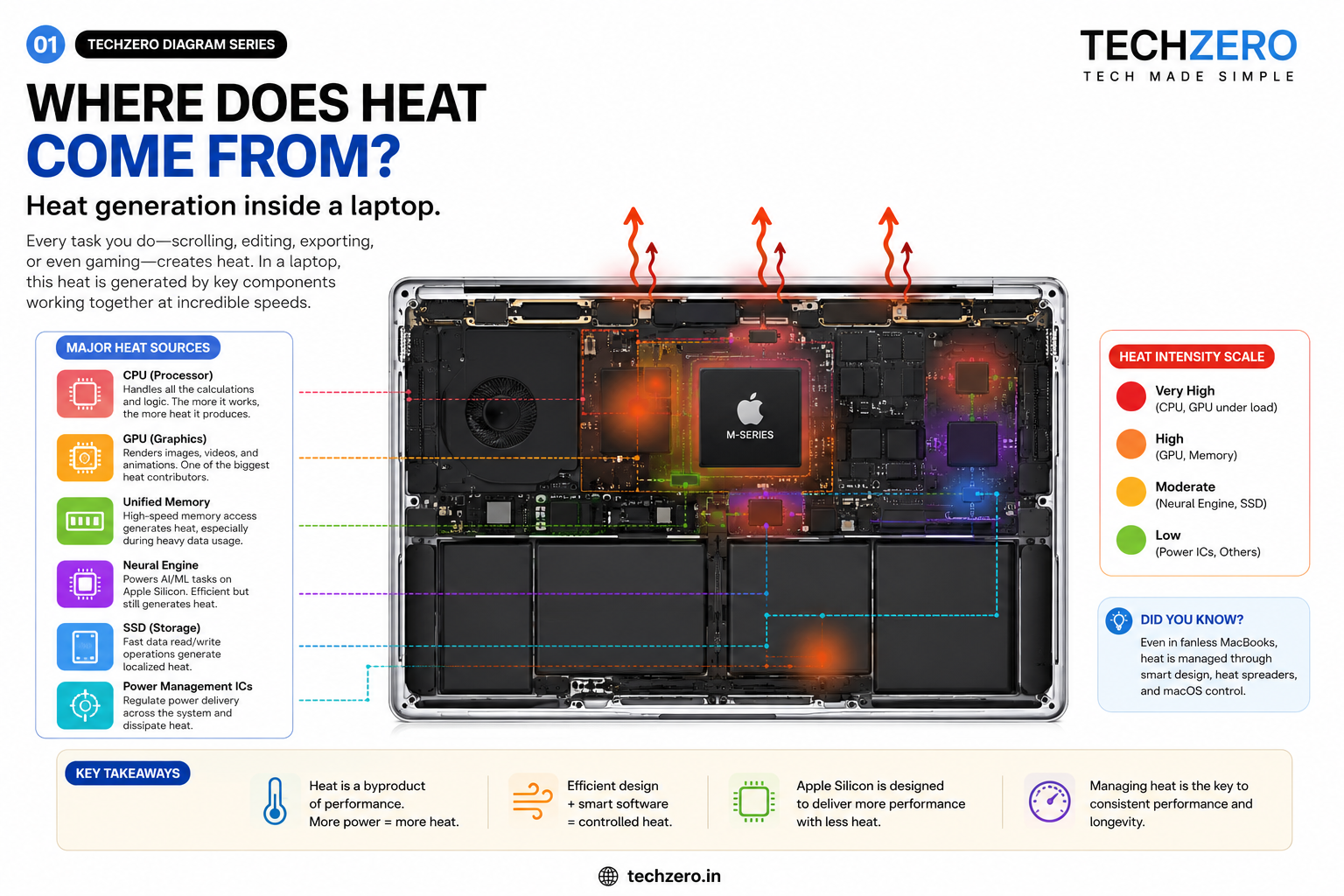
Chapter 2 — Where Does Laptop Heat Come From?
Many people assume the processor is the only component that becomes hot. In reality, several components inside a laptop generate heat simultaneously. Some produce large amounts, while others contribute gradually over long periods.
Apple’s engineering approach focuses on minimizing heat generation across the entire system rather than cooling only the processor.
CPU — The Primary Heat Source
The CPU (Central Processing Unit) performs billions of calculations every second. Every instruction—opening a browser tab, compiling code or exporting a video—passes through the processor.
Why the CPU Gets Hot
Every transistor inside the processor acts like an electronic switch.
Modern processors contain tens of billions of transistors, each switching billions of times every second.
Every switch consumes energy.
Every energy transfer generates heat.
Even though each transistor produces only a tiny amount of heat, their combined effect creates the temperatures measured inside a laptop.
More Work Means More Heat
Processor temperature depends largely on workload.
| Workload | Heat Generated |
|---|---|
| Idle | Very Low |
| Web Browsing | Low |
| Office Applications | Low |
| Programming | Moderate |
| Photo Editing | Moderate |
| Video Editing | High |
| 3D Rendering | Very High |
| AI Processing | Very High |
This explains why a laptop remains cool while reading emails but becomes noticeably warmer during video rendering.
GPU — Graphics Processing
The GPU (Graphics Processing Unit) handles graphics, video processing and parallel computation.
Unlike the CPU, which focuses on sequential tasks, the GPU performs thousands of operations simultaneously.
Activities That Increase GPU Temperature
- Video playback
- Photo editing
- 3D rendering
- Gaming
- Machine learning
- Image generation
- Motion graphics
Professional GPUs often consume more power than CPUs, which is why gaming laptops require large cooling systems.
Apple’s integrated GPU is engineered for high efficiency, reducing overall heat generation compared with many dedicated graphics solutions.
Unified Memory
Memory itself generates relatively little heat.
However, inefficient memory architectures force processors to move enormous amounts of data between separate components, increasing power consumption.
Apple’s Unified Memory Architecture minimizes unnecessary data movement, reducing both latency and energy consumption.
Why Unified Memory Generates Less Heat
- Shared memory pool
- Shorter communication paths
- Fewer duplicated datasets
- Reduced memory controllers
- Lower power requirements
This architecture is discussed in greater detail later in the guide.
SSD Storage
Modern SSDs are significantly faster than traditional hard drives.
That speed comes from sophisticated storage controllers performing millions of operations every second.
SSD Activities That Generate Heat
- Large file transfers
- Installing applications
- Video editing
- Database operations
- Software compilation
- AI datasets
During normal office work, SSD temperatures remain relatively low.
Heavy sustained writes, however, can noticeably increase SSD temperature.
Battery
The battery also produces heat, particularly while charging.
This heat results from internal chemical reactions rather than computing activity.
Battery Conditions That Increase Temperature
- Fast charging
- High ambient temperature
- Simultaneous charging and heavy workloads
- Continuous maximum brightness
- High processor utilization while plugged in
Apple continuously monitors battery temperature to protect both performance and battery lifespan.
Display
Modern displays consume a significant amount of power.
Higher brightness requires more electrical energy, increasing overall system heat.
Display Factors That Affect Temperature
- Maximum brightness
- HDR playback
- Outdoor usage
- Long display-on time
Although the display is not a major heat source, it contributes to the laptop’s overall thermal load.
Charging Circuit
Power management components regulate electricity flowing between the charger, battery and processor.
These circuits naturally generate heat during energy conversion.
Factors Affecting Charging Heat
- Charger wattage
- Battery level
- System workload
- Ambient temperature
This is why a laptop often feels warmer while charging than when operating on battery power alone.
Chapter 3 — Why Heat Is a Problem
Generating heat is normal.
Failing to manage it is not.
As processor temperatures increase, computers must balance three competing priorities:
- Performance
- Battery life
- Component safety
If temperatures continue rising without control, permanent hardware damage could occur.
Modern laptops therefore include sophisticated thermal management systems designed to keep temperatures within safe operating limits.
Performance Reduction
Heat directly affects processor speed.
Thermal Throttling
When internal temperatures approach predefined safety limits, the processor automatically reduces its operating frequency.
Lower frequency means:
- Lower power consumption
- Reduced heat generation
- Slower performance
This protective mechanism is known as thermal throttling.
Every modern processor—including Apple Silicon, Intel and AMD—uses thermal throttling when necessary.
Battery Degradation
Lithium-ion batteries dislike excessive heat.
High temperatures accelerate chemical aging inside battery cells.
Long-Term Effects
- Reduced battery capacity
- Shorter runtime
- Faster battery wear
- Earlier battery replacement
Managing heat therefore improves both performance and battery longevity.
Component Lifespan
Heat affects more than the processor.
Repeated exposure to high temperatures gradually stresses electronic components.
Components Affected
- CPU
- GPU
- Battery
- SSD
- Voltage regulators
- Motherboard components
Well-designed thermal management helps maximize the lifespan of the entire system.
User Comfort
A laptop is designed to rest on a desk—or sometimes on your lap.
Surface temperature therefore matters almost as much as internal temperature.
Why Surface Temperature Matters
- Comfortable typing
- Lap usage
- Palm rest temperature
- Overall user experience
Apple’s passive cooling system spreads heat across a larger aluminum surface rather than concentrating it in one location, helping maintain user comfort during everyday workloads.
Heat Is Wasted Energy
One of the most important engineering principles is often overlooked:
Every watt that becomes heat is a watt that is no longer available for computing.
Reducing unnecessary heat improves:
- Battery life
- Processor efficiency
- Sustained performance
- Cooling requirements
This principle forms the foundation of Apple Silicon’s design philosophy.
Key Takeaways
Heat Is Generated By
- CPU
- GPU
- SSD
- Battery
- Display
- Charging circuitry
Heat Affects
- Performance
- Battery life
- Component lifespan
- User comfort
- Energy efficiency
The next part explains how traditional Windows laptops remove this heat using fans, heat pipes and vapor chambers—and why Apple decided to take a completely different approach.
Part 3 — How Traditional Laptops Stay Cool
Before understanding Apple’s fanless design, it’s important to understand how conventional laptops manage heat.
For decades, laptop cooling followed the same engineering principle:
Generate heat → Move heat away from the processor → Remove it using airflow.
This approach is known as active cooling because it depends on mechanical fans to continuously move air through the laptop.
The system works well and allows processors to deliver very high performance. However, it also introduces compromises such as fan noise, dust accumulation, higher power consumption and thicker chassis.
Chapter 4 — Active Cooling Explained
Most Windows laptops—from budget notebooks to high-end gaming machines—use a similar cooling architecture.
Although the size and complexity vary, the basic components remain the same.
Step 1 — Heat Is Generated
The processor begins producing heat as soon as it starts executing instructions.
Light workloads generate relatively little heat.
Heavy workloads such as gaming, software compilation or video rendering can increase processor temperatures rapidly.
Common High-Heat Workloads
- AAA gaming
- 4K video editing
- Blender rendering
- AI inference
- Machine learning
- Large software builds
- Virtual machines
Without cooling, processor temperatures would quickly exceed safe operating limits.
Step 2 — Thermal Paste Transfers Heat
The processor itself cannot directly cool down.
A thermal interface material (commonly called thermal paste) fills microscopic air gaps between the processor and the cooling system.
Why Thermal Paste Is Necessary
- Improves heat transfer
- Eliminates tiny air pockets
- Reduces thermal resistance
- Improves cooling efficiency
Even premium laptops rely heavily on this small but essential material.
Step 3 — Heat Pipes Move the Heat
Heat pipes are sealed copper tubes containing a tiny amount of working fluid.
They transport heat away from the processor far more efficiently than solid metal alone.
How Heat Pipes Work
- Processor heats one end.
- Internal liquid evaporates.
- Vapor travels through the pipe.
- Heat reaches the cooler end.
- Vapor condenses.
- Liquid returns to repeat the cycle.
This process occurs continuously while the laptop operates.
Step 4 — Heat Sink Dissipates Heat
The heat pipe transfers thermal energy into a metal heat sink.
A heat sink contains dozens of thin metal fins designed to maximize surface area.
Purpose of the Heat Sink
- Increases cooling surface area
- Releases heat into surrounding air
- Prepares heat for fan removal
Without airflow, however, the heat sink eventually becomes saturated.
Step 5 — Cooling Fan Removes Heat
The cooling fan draws cool air into the laptop and forces hot air across the heat sink.
This continuous airflow prevents excessive heat buildup.
Fan Responsibilities
- Draw cool air inside
- Remove hot air
- Maintain processor temperature
- Support sustained performance
As processor temperatures increase, fan speed automatically increases.
Step 6 — Hot Air Leaves the Laptop
After absorbing heat, the air exits through exhaust vents.
Typical Exhaust Locations
- Rear hinge
- Side vents
- Bottom vents
This completes one cooling cycle.
The entire process repeats thousands of times every second during heavy workloads.
Chapter 5 — Why Fans Become Loud
Many users associate fan noise with poor laptop quality.
In reality, louder fans usually indicate that the cooling system is working harder.
Why Fan Speed Changes
Modern laptops continuously monitor processor temperatures.
As temperatures rise, the system automatically increases fan speed.
Higher Fan Speed Occurs During
- Gaming
- Video exports
- Large software builds
- AI workloads
- Stress testing
- Hot environments
More heat requires more airflow.
More airflow requires higher fan speed.
Higher fan speed creates more noise.
Why Thin Laptops Struggle More
Thin laptops have less internal space for cooling components.
Smaller cooling systems reach their thermal limits more quickly.
Engineering Challenges
- Smaller heat sinks
- Shorter heat pipes
- Smaller fans
- Reduced airflow
- Limited ventilation
This is one reason ultrabooks often become louder than larger laptops during demanding workloads.
Why Gaming Laptops Need Multiple Fans
Gaming laptops contain two major heat sources.
Components Producing Heat
- CPU
- Dedicated GPU
Both may generate significant heat simultaneously.
To manage this thermal load, manufacturers often include:
- Multiple heat pipes
- Large vapor chambers
- Dual or triple cooling fans
- Large exhaust vents
This explains why gaming laptops are thicker, heavier and noisier than ultraportable notebooks.
Chapter 6 — Limitations of Fan-Based Cooling
Active cooling is effective, but it is not perfect.
Every fan introduces mechanical, acoustic and maintenance-related compromises.
Fan Noise
The most obvious disadvantage is noise.
Noise Increases During
- Gaming
- Rendering
- Software compilation
- AI processing
- Charging under heavy load
Premium laptops reduce noise, but no mechanical fan is completely silent.
Dust Accumulation
Fans constantly pull air into the laptop.
Along with that air comes dust.
Long-Term Effects
- Blocked vents
- Reduced airflow
- Higher temperatures
- Increased fan speed
- More frequent thermal throttling
Dust is one of the leading causes of declining cooling performance over time.
Mechanical Wear
Unlike processors, fans contain moving parts.
Moving components eventually wear out.
Possible Failures
- Bearing wear
- Motor failure
- Vibration
- Increased noise
- Complete fan failure
Although modern fans are reliable, they remain mechanical devices with finite lifespans.
Higher Power Consumption
Cooling itself consumes electricity.
Every spinning fan draws power from the battery.
Impact
- Shorter battery life
- Additional heat generation
- Reduced efficiency
This is one reason Apple focuses on reducing heat generation rather than simply increasing cooling capacity.
Larger Internal Space
Fans require physical space.
That space cannot be used for:
- Larger batteries
- Additional speakers
- Structural reinforcement
- Smaller motherboard design
Removing the fan gives engineers greater flexibility when designing the laptop.
Chapter 7 — Why Apple Took a Different Approach
Apple did not eliminate fans because fans are ineffective.
It eliminated them because Apple Silicon produces significantly less heat under everyday workloads.
Instead of improving traditional cooling systems, Apple redesigned the processor itself.
Lower power consumption meant:
- Less heat generation
- Smaller cooling requirements
- Silent operation
- Better battery life
- Simpler internal design
The cooling system became a consequence of the processor architecture rather than the primary engineering solution.
Key Takeaways
Traditional Laptop Cooling Uses
- Thermal paste
- Heat pipes
- Heat sink
- Cooling fan
- Air intake
- Air exhaust
Advantages
- Excellent sustained performance
- Handles very high power processors
- Ideal for gaming and workstations
Disadvantages
- Fan noise
- Dust buildup
- Mechanical wear
- Higher battery consumption
- Larger chassis
In the next part, we’ll examine how Apple eliminated the fan entirely by redesigning both the processor and the laptop around passive cooling Next
Part 4 — Apple’s Fanless Philosophy
Removing a cooling fan is not simply a design decision—it is the result of an entirely different engineering philosophy.
Most laptop manufacturers begin with a powerful processor and then design a cooling system capable of removing the resulting heat.
Apple reverses this process.
Instead of asking, “How do we cool a hot processor?”, Apple asks, “How do we build a processor that generates less heat without sacrificing performance?”
This philosophy influences every component inside a MacBook, from the processor architecture to the memory design, motherboard layout and even the aluminum enclosure.
The result is a laptop that remains silent during everyday use while still delivering performance that rivals many actively cooled notebooks.
Chapter 8 — Why Apple Silicon Changed Everything
The transition from Intel processors to Apple Silicon was more than a processor upgrade.
It fundamentally changed how Macs generate, distribute and manage heat.
Performance Per Watt Became the Primary Goal
For decades, processor manufacturers largely pursued higher clock speeds and increased performance.
Apple shifted its focus toward Performance per Watt.
What Is Performance per Watt?
Performance per Watt measures how much useful computing work a processor performs for every watt of electrical power it consumes.
Higher Performance per Watt provides several advantages:
- Less heat generation
- Lower electricity consumption
- Longer battery life
- Smaller cooling requirements
- Better sustained performance
This single engineering goal forms the foundation of Apple’s fanless laptop strategy.
Apple Silicon Is a System-on-a-Chip (SoC)
Traditional laptops contain multiple large chips connected across the motherboard.
Apple combines many of these components into a single package called a System-on-a-Chip (SoC).
Components Inside Apple Silicon
- CPU
- GPU
- Neural Engine
- Media Engine
- Memory Controller
- Secure Enclave
- Image Signal Processor
- Display Engine
Instead of communicating across long motherboard traces, these components communicate internally at extremely high speed while consuming less power.
Shorter communication paths reduce electrical losses, which also reduces heat.
Smaller Motherboard, Shorter Signal Paths
Electrical signals lose energy while travelling across a circuit board.
Longer distances require more power.
More power produces more heat.
Benefits of Shorter Signal Paths
- Lower latency
- Lower energy consumption
- Reduced electrical resistance
- Improved efficiency
- Less heat generation
Apple’s compact SoC architecture minimizes unnecessary electrical travel throughout the system.
Chapter 9 — Passive Cooling Explained
Without a fan, heat must still leave the processor.
Apple accomplishes this using passive cooling.
Passive cooling relies on materials and physics rather than moving mechanical parts.
Step 1 — Heat Leaves the Processor
The processor is the first component to become warm.
Rather than immediately blowing air across it, Apple first spreads the heat away from the chip.
Objective
- Prevent localized hot spots
- Spread thermal energy evenly
- Reduce peak temperatures
Step 2 — Thermal Interface Material
Between the processor and the internal cooling components sits a highly conductive thermal interface material.
Purpose
- Eliminate microscopic air gaps
- Improve heat transfer
- Reduce thermal resistance
- Increase cooling efficiency
Even fanless laptops rely heavily on efficient thermal interfaces.
Step 3 — Copper Heat Spreaders
Copper conducts heat exceptionally well.
Apple uses carefully engineered copper components to move heat away from the processor before temperatures become excessive.
Why Copper?
- Excellent thermal conductivity
- Fast heat transfer
- High reliability
- Long lifespan
Copper spreads heat across a much larger area instead of allowing it to remain concentrated above the processor.
Step 4 — Graphite Sheets
Graphite is one of the most effective materials for distributing heat across thin surfaces.
Benefits of Graphite
- Extremely lightweight
- Excellent thermal conductivity
- Uniform heat distribution
- Minimal thickness
Graphite sheets help prevent individual areas of the laptop from becoming excessively hot.
Step 5 — Aluminum Unibody
Many people assume Apple’s aluminum enclosure exists primarily for appearance.
In reality, it is also an important part of the cooling system.
The Aluminum Chassis Functions As
- Structural frame
- Protective enclosure
- Large passive heat spreader
Instead of trapping heat inside the laptop, the aluminum body distributes thermal energy over a much larger surface.
This lowers peak internal temperatures while keeping external temperatures more uniform.
Step 6 — Natural Air Convection
Warm air naturally rises.
As internal components warm the surrounding air, that air slowly moves away from the laptop without requiring a fan.
Passive Air Movement
- Warm air rises
- Cooler air replaces it
- Continuous natural circulation
- No moving parts
Although far slower than active cooling, natural convection is sufficient for low- to moderate-power processors like Apple Silicon.
Step 7 — Thermal Radiation
Every warm object continuously emits infrared energy.
This process is known as thermal radiation.
Characteristics
- Requires no airflow
- Requires no moving parts
- Occurs continuously
- Becomes more effective as temperature increases
While radiation removes less heat than convection, it still contributes to the MacBook’s overall cooling system.
Chapter 10 — Why the Aluminum Body Gets Warm
One of the most common questions asked by MacBook owners is:
“Why is the bottom of my MacBook warm if it doesn’t have a fan?”
The answer is simple.
The aluminum body is intentionally designed to absorb and spread heat.
Warm Exterior, Cooler Processor
When heat moves into the aluminum enclosure:
- Processor temperature decreases.
- Heat spreads over a larger surface.
- Localized hot spots are reduced.
- Internal cooling becomes more effective.
A warm chassis often indicates that the passive cooling system is working exactly as intended.
Warm Does Not Mean Overheating
Surface temperature and processor temperature are not the same.
The processor may remain within safe operating limits even when the aluminum enclosure feels warm.
Apple continuously monitors internal sensors rather than relying solely on external surface temperatures.
This distinction is important because many users mistake normal heat dissipation for overheating.
Chapter 11 — Why Fanless Doesn’t Mean Slow
A common misconception is that removing the fan automatically reduces performance.
The reality is more nuanced.
For short and moderate workloads, Apple Silicon often completes tasks before traditional laptops even need to increase fan speed.
Examples
- Opening applications
- Browsing
- Office work
- Programming
- Photo editing
- Video conferencing
Only prolonged heavy workloads eventually exceed the limits of passive cooling.
This is precisely why Apple offers actively cooled MacBook Pro models for professional users.
Key Takeaways
Apple’s Fanless Design Depends On
- Apple Silicon efficiency
- High Performance per Watt
- System-on-a-Chip architecture
- Copper heat spreaders
- Graphite thermal layers
- Aluminum unibody cooling
- Natural convection
- Thermal radiation
The Biggest Engineering Difference
Traditional laptops remove heat after it is generated.
Apple Silicon is engineered to generate significantly less heat in the first place, allowing passive cooling to handle workloads that previously required mechanical fans.
The next part explores the real hero behind this engineering achievement: Apple Silicon itself, including Performance Cores, Efficiency Cores, Unified Memory and dedicated hardware engines that dramatically reduce both power consumption and heat generation.
Part 5 — The Real Hero: Apple Silicon
Apple’s passive cooling system is only one half of the story.
The real breakthrough is Apple Silicon itself.
A fanless laptop would not be practical if the processor generated as much heat as traditional laptop CPUs. Apple therefore redesigned the processor architecture to maximize efficiency before focusing on cooling.
Instead of relying on brute-force performance, Apple Silicon intelligently decides where, when, and how power is used. Every unnecessary watt saved is one less watt converted into heat.
This philosophy allows the MacBook Neo and MacBook Air to remain silent during workloads that would often activate cooling fans on conventional laptops.
Chapter 12 — Performance Cores and Efficiency Cores
One of the biggest differences between Apple Silicon and older processor designs is the use of two different types of CPU cores.
Rather than making every core equally powerful, Apple assigns different jobs to different cores.
This approach is known as a Hybrid CPU Architecture.
Performance Cores (P-Cores)
Performance Cores are designed for demanding tasks that require maximum processing power.
Typical Workloads
- Software compilation
- RAW photo editing
- Video rendering
- AI inference
- Large spreadsheets
- Professional creative applications
Performance Cores deliver exceptional speed but consume more electrical power.
Higher power naturally generates more heat.
Apple therefore activates them only when necessary.
Efficiency Cores (E-Cores)
Efficiency Cores handle everyday computing tasks while consuming only a fraction of the power required by Performance Cores.
Typical Workloads
- Web browsing
- Microsoft Office
- Streaming
- Music playback
- Notes
- Calendar
- Messaging
- Background synchronization
These cores allow the laptop to remain cool while significantly extending battery life.
Most users spend the majority of their day using Efficiency Cores rather than Performance Cores.
Why This Reduces Heat
Instead of running powerful cores continuously, macOS intelligently schedules work across both core types.
Result
- Lower average power consumption
- Lower average temperature
- Longer battery life
- Reduced fan requirement
- Better sustained efficiency
This intelligent workload distribution is one of Apple’s most important thermal advantages.
Chapter 13 — Unified Memory Architecture
Traditional computers treat CPU memory and GPU memory as separate resources.
Whenever both processors need the same data, it often has to be copied between memory pools.
Copying data requires:
- Time
- Energy
- Memory bandwidth
Every unnecessary data transfer also produces additional heat.
Apple eliminates much of this overhead using Unified Memory Architecture (UMA).
One Shared Memory Pool
Instead of separate memory systems, Apple Silicon allows multiple processors to access the same memory.
Components Sharing Memory
- CPU
- GPU
- Neural Engine
- Media Engine
No unnecessary copying.
No duplicated datasets.
No additional memory transfers.
Why Unified Memory Improves Efficiency
Data remains in one location.
Every processor accesses the same information directly.
Engineering Benefits
- Lower latency
- Lower power consumption
- Less motherboard traffic
- Higher efficiency
- Reduced heat generation
This is one reason Apple’s relatively modest memory capacities often perform better than expected.
Chapter 14 — Dedicated Hardware Engines
General-purpose CPUs are extremely flexible.
They are not always the most efficient solution.
Apple therefore includes specialized hardware designed for specific workloads.
Dedicated hardware performs individual tasks much faster while consuming significantly less power.
Lower power means lower heat.
Neural Engine
Artificial Intelligence calculations normally place heavy demands on the CPU or GPU.
Apple instead uses a dedicated Neural Engine.
Typical Tasks
- AI writing tools
- Image recognition
- Speech recognition
- Language processing
- Photo enhancements
- Machine learning inference
By handling these workloads independently, the CPU remains cooler.
Media Engine
Video processing is traditionally one of the most power-hungry computing tasks.
Apple includes dedicated hardware specifically for video.
Supported Tasks
- H.264 encoding
- HEVC encoding
- ProRes encoding
- Video decoding
- Hardware playback
Instead of forcing the CPU to process every video frame, specialized circuits perform the work far more efficiently.
The result is:
- Faster exports
- Lower power consumption
- Reduced processor heat
Image Signal Processor (ISP)
Every webcam image passes through the Image Signal Processor before appearing on screen.
Responsibilities
- Noise reduction
- Exposure adjustment
- White balance
- Color correction
- Face optimization
Because the ISP performs these calculations independently, the CPU remains available for other tasks.
Secure Enclave
Modern computers perform encryption continuously.
Passwords, Touch ID authentication and secure storage all require cryptographic processing.
Apple isolates these workloads inside the Secure Enclave.
Benefits
- Improved security
- Lower CPU utilization
- Reduced background processing
- Better energy efficiency
Chapter 15 — Dynamic Power Management
Perhaps the most impressive feature of Apple Silicon is that it rarely runs at maximum power unless absolutely necessary.
Instead, it continuously adjusts itself hundreds of times every second.
Dynamic Voltage Scaling
Higher voltage enables higher performance.
It also produces more heat.
Apple continuously lowers processor voltage whenever full performance is unnecessary.
Benefits
- Reduced power consumption
- Lower temperatures
- Better battery life
Dynamic Frequency Scaling
Processor frequency determines how many operations the CPU performs every second.
Apple constantly adjusts clock speed based on workload.
Examples
| Workload | Processor Behaviour |
|---|---|
| Idle | Very Low Frequency |
| Low Frequency | |
| Browsing | Moderate Frequency |
| Programming | High Frequency |
| Video Rendering | Maximum Frequency |
Instead of remaining at maximum speed all day, the processor operates only as fast as necessary.
Clock Gating
Not every processor component is needed all the time.
Apple disables the clock signal to unused sections of the chip.
Result
Inactive circuits consume almost no power.
Lower power means less heat.
Power Gating
Clock Gating reduces activity.
Power Gating goes further.
It completely disconnects electrical power from unused parts of the processor.
Advantages
- Nearly zero power consumption
- Lower idle temperatures
- Longer battery life
- Improved efficiency
Power Gating is one reason Apple Silicon consumes remarkably little energy while idle.
Chapter 16 — Why Apple Silicon Feels Faster Without Getting Hot
Many users associate higher performance with higher temperatures.
Apple demonstrates that efficient engineering can often produce both higher responsiveness and lower heat.
Why Everyday Tasks Feel Instant
Most daily activities require short bursts of processing rather than sustained maximum performance.
Examples include:
Everyday Workloads
- Opening Safari
- Launching Mail
- Searching Spotlight
- Switching applications
- Editing documents
- Browsing websites
Apple Silicon completes these tasks quickly before returning to low-power operation.
The processor spends surprisingly little time operating at maximum power.
This “finish quickly, return to idle” strategy reduces both energy consumption and heat generation.
Efficiency Is the Real Advantage
Apple Silicon is not revolutionary because it ignores the laws of physics.
It succeeds because it wastes less energy.
Less wasted energy produces:
Benefits
- Less heat
- Longer battery life
- Quieter operation
- Better sustained performance
- Smaller cooling requirements
This engineering philosophy makes fanless MacBooks possible.
Key Takeaways
Apple Silicon Reduces Heat Through
- Performance and Efficiency Cores
- Unified Memory Architecture
- Dedicated Hardware Engines
- Dynamic Voltage Scaling
- Dynamic Frequency Scaling
- Clock Gating
- Power Gating
- High Performance per Watt
Apple’s cooling system begins long before heat reaches the aluminum chassis. The processor itself is engineered to minimize unnecessary power consumption, making passive cooling practical for millions of everyday workloads.
In the next part, we’ll explore how macOS works alongside Apple Silicon, using intelligent software to manage workloads, control temperatures and maximize both performance and battery life.
Part 6 — How macOS Helps Control Heat
Hardware alone cannot keep a laptop cool.
Even the world’s most efficient processor can overheat if the operating system continuously keeps it busy, wastes CPU cycles or schedules tasks inefficiently.
This is where macOS plays a critical role.
Unlike most PC manufacturers, Apple designs both the operating system and the processor. This allows macOS to understand exactly how Apple Silicon behaves and make intelligent decisions about power consumption, processor scheduling and thermal management.
Rather than reacting after temperatures rise, macOS continuously predicts workloads, distributes tasks efficiently and minimizes unnecessary processor activity.
Chapter 17 — Intelligent Workload Scheduling
Every second, thousands of processes compete for processor time.
macOS decides which tasks should run first, which can wait and which processor cores should execute them.
This process is known as task scheduling.
Matching the Right Core to the Right Job
Apple Silicon contains both Performance Cores and Efficiency Cores.
macOS decides where each task should run.
Efficiency Cores Handle
- Email synchronization
- Calendar updates
- Music playback
- Notifications
- Messaging
- Cloud synchronization
- Background indexing
These activities consume very little power.
Performance Cores Handle
- Video rendering
- Software compilation
- Photo editing
- AI processing
- Large spreadsheets
- Professional creative applications
Powerful cores activate only when necessary.
This reduces average processor temperature throughout the day.
Intelligent Core Migration
A task does not remain permanently assigned to one processor core.
As workloads change, macOS moves them dynamically.
Example
- Open Safari.
- Page loads on Performance Core.
- Website finishes loading.
- Background activity moves to Efficiency Core.
The processor immediately returns to a lower-power state.
This transition occurs automatically and is invisible to the user.
Chapter 18 — Background Activity Optimization
Many computers waste processing power on unnecessary background tasks.
Apple aggressively limits background activity whenever possible.
App Nap
Applications that are not actively being used consume significantly fewer resources.
App Nap Reduces
- CPU usage
- Memory activity
- Background timers
- Power consumption
- Heat generation
For example, an inactive document editor does not continuously consume processor resources while you are browsing the web.
Background Refresh Management
Not every application needs constant updates.
macOS intelligently determines when background synchronization should occur.
Examples
- Mail checks periodically.
- Cloud files synchronize intelligently.
- Photos update when resources are available.
- Indexing pauses during demanding workloads.
This prevents unnecessary processor activity.
Chapter 19 — Memory Compression
Memory shortages often increase processor workload.
Instead of immediately writing inactive memory contents to storage, macOS first compresses memory.
Why Compression Helps
Compressed memory occupies less physical RAM.
This delays expensive storage operations.
Benefits
- Faster multitasking
- Reduced SSD activity
- Lower power consumption
- Better responsiveness
Less data movement also contributes to lower overall system temperatures.
Chapter 20 — Dynamic Thermal Management
Apple Silicon continuously reports temperature information to macOS.
Rather than waiting until the processor overheats, macOS makes gradual adjustments before temperatures become excessive.
Real-Time Temperature Monitoring
Modern Macs contain numerous thermal sensors.
Sensors Monitor
- CPU temperature
- GPU temperature
- SSD temperature
- Battery temperature
- Power delivery components
- Internal enclosure temperature
This information updates continuously.
Intelligent Performance Adjustment
If temperatures begin rising rapidly, macOS adjusts processor behaviour gradually.
Possible Adjustments
- Lower processor frequency
- Reduce voltage
- Delay non-essential background tasks
- Shift workloads to Efficiency Cores
- Optimize power distribution
Most users never notice these adjustments because they occur incrementally.
Thermal Throttling Is the Last Resort
Many people believe thermal throttling occurs frequently.
In reality, macOS treats it as a final safety mechanism.
Thermal Management Priority
- Schedule work intelligently.
- Reduce unnecessary activity.
- Lower voltage.
- Lower clock speed.
- Thermal throttle only if required.
This layered approach allows Apple Silicon to maintain performance for longer before reducing speed.
Chapter 21 — Low Power Mode
macOS includes an optional Low Power Mode.
Instead of simply reducing screen brightness, it optimizes the entire system.
What Low Power Mode Changes
Processor
- Lower peak frequency
- Reduced power consumption
Background Tasks
- Less frequent synchronization
- Delayed indexing
- Reduced background processing
Graphics
- Lower GPU activity
- Better battery efficiency
Overall Benefits
- Longer battery life
- Lower operating temperatures
- Quieter operation
- Improved efficiency during travel
Low Power Mode is particularly useful when working away from a charger.
Chapter 22 — Why Macs Often Feel Fast Even at Lower Power
Many Windows laptops attempt to maintain maximum processor speed for extended periods.
Apple takes a different approach.
Instead of remaining fast continuously, Apple Silicon completes work quickly and immediately returns to an energy-efficient state.
Short Bursts of Performance
Most daily activities require only brief periods of maximum processing power.
Examples
- Opening applications
- Switching browser tabs
- Searching Spotlight
- Launching Photoshop
- Saving documents
- Exporting PDFs
Once these tasks finish, processor activity drops dramatically.
The result is:
- Lower temperatures
- Longer battery life
- Reduced fan requirement
- Less energy waste
This strategy explains why Apple Silicon often feels exceptionally responsive despite consuming relatively little power.
Chapter 23 — Hardware and Software Working Together
The biggest advantage of Apple’s thermal management strategy is integration.
Instead of treating hardware and software as separate systems, Apple designs them together.
Hardware Responsibilities
Apple Silicon
- Efficient processing
- Lower heat generation
- Intelligent power management
Passive Cooling System
- Heat spreading
- Heat dissipation
- Silent operation
Software Responsibilities
macOS
- Intelligent scheduling
- Background optimization
- Memory compression
- Temperature monitoring
- Power management
- Thermal protection
Neither system alone would produce the same results.
Together, they create one of the most efficient laptop platforms currently available.
Key Takeaways
macOS Reduces Heat By
- Scheduling tasks intelligently
- Using Efficiency Cores whenever possible
- Limiting background activity
- Compressing memory
- Monitoring temperatures continuously
- Dynamically adjusting processor behaviour
- Delaying unnecessary workloads
- Using thermal throttling only when absolutely necessary
Apple’s fanless design is therefore not solely a hardware achievement. It is the result of close integration between Apple Silicon and macOS, allowing the entire system to generate less heat while maintaining excellent responsiveness.
In the next part, we’ll examine how the MacBook Neo and MacBook Air behave during real-world workloads, including programming, video editing, AI processing, Blender rendering and other demanding tasks.
Part 7 — What Happens During Real-World Workloads?
Most laptops spend very little time running synthetic benchmarks. Their true performance is determined by how they handle everyday workloads such as web browsing, programming, video editing and content creation.
This is where Apple’s thermal philosophy becomes most apparent.
The MacBook Neo and MacBook Air are designed to deliver excellent performance during light and moderately demanding workloads while remaining completely silent. As workloads become heavier and more sustained, passive cooling eventually reaches its physical limits.
Understanding where those limits lie helps buyers choose the right Mac.
Chapter 24 — Office and Productivity Workloads
Office applications represent one of the easiest workloads for modern Apple Silicon.
Most productivity software relies more on responsiveness than sustained processor power.
Microsoft Office
Typical Workloads
- Word
- Excel
- PowerPoint
- Outlook
Expected Experience:
- Instant application launch
- Silent operation
- Cool chassis
- Minimal battery consumption
Even with multiple Office applications open simultaneously, processor utilization remains relatively low.
Google Workspace
Typical Workloads
- Google Docs
- Google Sheets
- Google Slides
- Gmail
- Google Meet
Browser-based applications depend primarily on efficient CPU scheduling.
Apple Silicon handles these tasks comfortably while consuming very little power.
Video Conferencing
Modern video meetings combine multiple demanding tasks:
- Camera processing
- Audio processing
- Video encoding
- Network communication
- Screen sharing
Common Applications
- Zoom
- Microsoft Teams
- Google Meet
- Webex
Despite these simultaneous workloads, MacBook Neo and MacBook Air generally remain quiet because dedicated hardware engines perform much of the video processing.
Chapter 25 — Programming Workloads
Programming workloads vary enormously.
Writing code requires little processing power.
Compiling that code can require substantially more.
Light Development
Examples
- Visual Studio Code
- Python
- JavaScript
- HTML
- CSS
- React
- Node.js
Expected Behaviour
- Silent operation
- Low temperatures
- Excellent battery life
Large Software Builds
Compiling thousands of source files places sustained load on multiple processor cores.
Examples
- Xcode
- Android Studio
- Large C++
- Enterprise Java
- Rust projects
Expected Behaviour
- Chassis becomes warm
- Performance cores remain active
- Higher battery usage
- No fan noise
Compilation performance remains strong, although prolonged builds eventually approach the limits of passive cooling.
Chapter 26 — Photo Editing
Photo editing consists primarily of short bursts of processing rather than continuous heavy computation.
Typical Applications
Professional Software
- Adobe Photoshop
- Lightroom
- Affinity Photo
- Pixelmator Pro
Expected Behaviour
- Smooth editing
- Silent operation
- Moderate temperatures
Even large RAW photo libraries remain well within the capabilities of Apple’s passive cooling system.
Chapter 27 — Video Editing
Video editing is one of the most demanding consumer workloads.
Whether the MacBook remains cool depends largely on the type of editing being performed.
Timeline Editing
Activities
- Cutting clips
- Trimming
- Color adjustments
- Titles
- Audio editing
Expected Behaviour
- Smooth playback
- Moderate temperatures
- Silent operation
Video Export
Exporting video requires continuous processor activity.
Activities
- H.264 export
- HEVC export
- ProRes export
- 4K rendering
Expected Behaviour
- Noticeably warmer chassis
- Higher processor utilization
- Excellent export efficiency due to Media Engine
Dedicated hardware video encoders dramatically reduce processor workload compared with traditional CPUs.
Chapter 28 — 3D Rendering
3D rendering stresses both CPU and GPU continuously.
Unlike office applications, rendering may continue for several minutes or even hours.
Applications
Examples
- Blender
- Cinema 4D
- Maya
Expected Behaviour
- High temperatures
- Sustained processor load
- Reduced performance over extended sessions
Professional rendering is better suited to actively cooled MacBook Pro models.
Chapter 29 — AI Workloads
Artificial Intelligence workloads vary from lightweight cloud services to computationally intensive local inference.
Cloud AI
Examples
- ChatGPT
- Gemini
- Claude
- Microsoft Copilot
These services perform most computation on remote servers.
Local processor demand remains relatively low.
Local AI
Examples
- Large Language Models
- Stable Diffusion
- Local image generation
- Machine learning inference
Expected Behaviour
- High processor utilization
- Increased memory usage
- Higher temperatures
- Faster battery drain
Passive cooling can handle occasional AI tasks, but prolonged AI workloads benefit from active cooling.
Chapter 30 — Gaming
Gaming produces one of the highest continuous thermal loads.
Unlike productivity applications, games simultaneously stress the CPU, GPU and memory subsystem.
Casual Gaming
Examples
- Minecraft
- Apple Arcade
- Indie games
Expected Behaviour
- Comfortable temperatures
- Silent operation
- Good battery efficiency
AAA Gaming
Examples
- Modern AAA titles
- Competitive esports
- High-refresh gaming
Expected Behaviour
- Continuous processor load
- Higher temperatures
- Possible thermal throttling during long sessions
Gaming remains one of the few workloads where Windows laptops with dedicated GPUs maintain a clear advantage.
Chapter 31 — When Does Thermal Throttling Occur?
Thermal throttling is often misunderstood.
It does not occur every time the laptop becomes warm.
Instead, it activates only when temperatures approach predefined safety limits.
Typical Situations
Likely to Trigger Thermal Throttling
- Long Blender renders
- Large software compilation
- Extended 4K exports
- AI model inference
- Continuous stress testing
These workloads maintain maximum processor utilization for prolonged periods.
Unlikely to Trigger Thermal Throttling
- Web browsing
- Office applications
- Programming
- Streaming
- Photo editing
- Everyday multitasking
Most users will rarely encounter thermal throttling during normal usage.
Chapter 32 — Workload Comparison
Typical Thermal Behaviour
Performance Summary
| Workload | Heat Level | Fan Needed? |
|---|---|---|
| Web Browsing | ⭐ | No |
| Office Work | ⭐ | No |
| Streaming | ⭐ | No |
| Programming | ⭐⭐ | No |
| Photo Editing | ⭐⭐⭐ | No |
| Video Editing | ⭐⭐⭐⭐ | No |
| Video Export | ⭐⭐⭐⭐ | Occasionally Helpful |
| Blender Rendering | ⭐⭐⭐⭐⭐ | Yes |
| AI Processing | ⭐⭐⭐⭐⭐ | Yes |
| AAA Gaming | ⭐⭐⭐⭐⭐ | Yes |
Chapter 33 — The Practical Reality
The internet often focuses on worst-case scenarios.
In reality, most MacBook owners spend over 90% of their time performing productivity tasks.
These workloads rarely stress Apple Silicon enough to require active cooling.
For these users, a fan would spend most of its life sitting idle while adding:
- Weight
- Noise
- Dust
- Mechanical complexity
- Battery consumption
Apple therefore optimized the MacBook Neo and MacBook Air for the workloads that most people actually perform rather than the rare scenarios that require maximum sustained performance.
Key Takeaways
Passive Cooling Excels At
- Productivity
- Programming
- Education
- Business
- Web browsing
- Photo editing
- Everyday multitasking
Active Cooling Becomes Beneficial For
- Professional video production
- Long software compilation
- Blender rendering
- AI development
- Continuous heavy GPU workloads
- AAA gaming
The next part compares the MacBook Neo, MacBook Air and MacBook Pro, explaining why Apple offers both fanless and actively cooled laptops and helping you determine which cooling design best matches your workload.
Part 8 — MacBook Neo vs MacBook Air vs MacBook Pro: Why Some Macs Need a Fan
Apple currently offers both fanless and actively cooled MacBooks. At first glance, this may appear inconsistent.
If fanless cooling is so effective, why does the MacBook Pro still include one or more cooling fans?
The answer lies in workload duration, not simply workload intensity.
A processor can safely operate at high temperatures for short periods. The challenge begins when that workload continues uninterrupted for several minutes or hours.
Apple therefore designs each MacBook for a different thermal envelope rather than a different level of intelligence.
Chapter 34 — Three Different Cooling Philosophies
Although all modern Macs use Apple Silicon, they are engineered for different types of users.
MacBook Neo
The MacBook Neo is designed for everyday productivity.
Best For
- Students
- Teachers
- Writers
- Bloggers
- Office professionals
- Business users
- Everyday home users
Cooling System
- Passive cooling
- Aluminum heat spreader
- Copper thermal components
- Graphite sheets
- Natural air convection
The focus is maximum efficiency with completely silent operation.
MacBook Air
The MacBook Air uses a similar fanless philosophy but is paired with more capable Apple Silicon.
Best For
- Developers
- Photographers
- Designers
- Frequent travellers
- Content creators
- Professional productivity
Its larger thermal capacity allows heavier workloads while remaining completely silent.
MacBook Pro
The MacBook Pro targets professionals whose workloads remain heavy for long periods.
Best For
- Video editors
- Software engineers
- 3D artists
- Music producers
- AI developers
- Scientific computing
Instead of avoiding fans entirely, Apple uses active cooling to sustain maximum processor performance.
Chapter 35 — Passive Cooling vs Active Cooling
Both cooling methods obey the same laws of physics.
The difference is how quickly heat leaves the processor.
Passive Cooling
Advantages
- Silent operation
- No moving parts
- No fan maintenance
- Less dust accumulation
- Lower power consumption
- Greater reliability
- Simpler internal design
Limitations
- Lower sustained thermal capacity
- Heat dissipates more slowly
- Performance eventually decreases during prolonged heavy workloads
Passive cooling is ideal when processor utilization fluctuates throughout the day.
Active Cooling
Advantages
- Removes heat continuously
- Maintains peak performance longer
- Better for rendering
- Better for AI workloads
- Better for software compilation
- Better for long exports
Limitations
- Fan noise
- Dust buildup
- Mechanical wear
- Higher power consumption
- More complex internal design
Active cooling becomes increasingly valuable as workload duration increases.
Chapter 36 — Why the MacBook Pro Includes Fans
Apple did not add fans because Apple Silicon runs hot.
Apple added fans because professional users demand maximum sustained performance.
Short Workloads
Examples include:
Tasks
- Opening Photoshop
- Compiling a small project
- Exporting a PDF
- Editing documents
The processor finishes these tasks before passive cooling reaches its limits.
A fan provides little benefit.
Long Workloads
Professional users often perform tasks lasting thirty minutes—or several hours.
Examples
- 8K video exports
- Blender rendering
- Large software builds
- AI inference
- Machine learning
- Scientific simulations
These workloads continuously generate heat faster than passive cooling can remove it.
A fan allows the processor to maintain higher clock speeds for much longer.
Chapter 37 — What Happens Without a Fan?
Consider a simplified example.
Video Export
A long video export begins.
Stage 1
The processor operates at maximum performance.
Temperature rises steadily.
Stage 2
Heat spreads into the copper components and aluminum chassis.
Performance remains high.
Stage 3
The chassis approaches its maximum passive cooling capacity.
Processor temperature continues increasing.
Stage 4
macOS gradually reduces processor frequency.
Power consumption decreases.
Heat generation decreases.
Performance drops slightly.
This is thermal throttling.
A MacBook Pro reaches this stage much later because the fan continuously removes heat.
Chapter 38 — Which Cooling System Is Better?
Neither cooling system is universally superior.
Each is optimized for different workloads.
Choose Passive Cooling If
Your Work Includes
- Office applications
- Education
- Programming
- Browsing
- Business
- Blogging
- Photography
- General productivity
Benefits include:
- Silence
- Better battery life
- No fan maintenance
- Greater portability
Choose Active Cooling If
Your Work Includes
- Professional video editing
- Blender rendering
- AI development
- Scientific computing
- Continuous software compilation
- Long creative sessions
The fan enables the processor to sustain maximum performance for much longer.
Chapter 39 — Cooling Comparison
MacBook Cooling Systems
Comparison Table
| Feature | MacBook Neo | MacBook Air | MacBook Pro |
|---|---|---|---|
| Cooling Method | Passive | Passive | Active |
| Fan | ❌ | ❌ | ✅ |
| Noise | Silent | Silent | Quiet under light load |
| Office Work | Excellent | Excellent | Excellent |
| Programming | Excellent | Excellent | Excellent |
| Photography | Very Good | Excellent | Excellent |
| Video Editing | Good | Very Good | Excellent |
| 3D Rendering | Limited | Moderate | Excellent |
| AI Workloads | Limited | Moderate | Excellent |
| Sustained Performance | Good | Better | Best |
| Dust Maintenance | None | None | Periodic Cleaning |
Chapter 40 — Choosing the Right Mac
Cooling should never be the primary purchasing factor.
Instead, choose the Mac whose cooling system matches your workload.
TechZero Recommendations
Buy the MacBook Neo If
- You primarily perform productivity work.
- You value silent operation.
- You rarely push the processor continuously.
- Budget is important.
Buy the MacBook Air If
- You want additional performance headroom.
- You occasionally edit videos.
- You multitask heavily.
- You expect your workload to grow.
Buy the MacBook Pro If
- Your income depends on sustained performance.
- You render professionally.
- You build large software projects daily.
- You train AI models.
- You regularly push the processor for hours.
The cooling system should support your workflow—not define it.
Key Takeaways
Fanless Cooling Is Best For
- Everyday productivity
- Portability
- Battery life
- Silent operation
- Low maintenance
Active Cooling Is Best For
- Long professional workloads
- Continuous processor-intensive tasks
- Maximum sustained performance
- Professional creative work
- Scientific and engineering applications
Apple doesn’t build one cooling system for every Mac because every user has different performance requirements. The MacBook Neo and MacBook Air prioritize efficiency and silence, while the MacBook Pro prioritizes sustained performance. Each design is optimized for its intended audience rather than being universally “better.”
The next part separates engineering facts from common myths, addressing widespread misconceptions such as “warm means overheating,” “fanless laptops are slow,” and “cooling pads improve Mac performance.”
Part 9 — Myths and Misconceptions About Fanless MacBooks
Apple’s fanless MacBooks have challenged decades of conventional laptop engineering. As a result, they have also generated numerous myths—many based on outdated experiences with older laptops or misconceptions about how modern processors behave.
Understanding these myths helps buyers separate engineering facts from internet speculation.
Chapter 41 — Myth 1: “A Warm MacBook Is Overheating”
This is the most common misconception among new Mac owners.
A warm aluminum chassis is not evidence of overheating.
It is often evidence that the cooling system is functioning correctly.
Why the Chassis Feels Warm
Apple intentionally uses the aluminum enclosure as part of the passive cooling system.
Instead of trapping heat around the processor, thermal energy spreads across the metal body.
What Happens
- Processor generates heat.
- Heat moves into copper spreaders.
- Graphite distributes the heat.
- Aluminum absorbs and spreads it.
- Heat dissipates into the surrounding air.
The warmth you feel is heat leaving the processor—not remaining inside it.
When Should You Be Concerned?
A warm MacBook is normal.
A problem exists only if symptoms appear alongside high temperatures.
Warning Signs
- Unexpected shutdowns
- Continuous freezing
- Severe performance loss
- Persistent overheating while idle
- System temperature warnings
These situations are rare and usually indicate a software or hardware issue rather than normal operation.
Chapter 42 — Myth 2: “Fanless Means Slow”
Many people assume that removing the fan automatically reduces performance.
The opposite is often true.
For everyday computing, Apple Silicon frequently outperforms older fan-cooled laptops while consuming significantly less power.
Why It Feels Fast
Most daily tasks finish within seconds.
Examples include:
Everyday Tasks
- Opening applications
- Launching Safari
- Switching browser tabs
- Editing documents
- Searching files
- Sending emails
These activities complete long before passive cooling reaches its thermal limits.
For short workloads, a fan provides almost no advantage.
Where Fans Still Win
Fans become valuable during continuous heavy workloads.
Examples
- Blender rendering
- AI inference
- Large software compilation
- Multi-hour video exports
These tasks maintain maximum processor utilization for extended periods.
Chapter 43 — Myth 3: “Cooling Pads Improve Mac Performance”
Cooling pads are popular accessories for gaming laptops.
They provide far less benefit for fanless MacBooks.
Why Cooling Pads Help Gaming Laptops
Gaming laptops contain intake vents.
Cooling pads force additional air through those vents.
This increases airflow across the internal heat sink.
Why Fanless Macs Are Different
The MacBook Neo and MacBook Air have no internal fan pulling air through the chassis.
Cooling pads therefore cannot dramatically increase internal airflow.
What Actually Helps
- Hard desk surface
- Cool room temperature
- Good natural airflow
- Avoiding direct sunlight
A quality desk provides more benefit than most cooling pads.
Chapter 44 — Myth 4: “Closing Apps Always Cools the Mac”
Closing applications does not automatically reduce processor temperature.
Modern operating systems manage inactive applications efficiently.
What Actually Matters
Processor utilization—not the number of open windows.
Examples
Twenty inactive browser tabs often consume less processor power than:
- One Blender render
- One video export
- One AI workload
Closing inactive applications rarely produces dramatic cooling improvements.
Chapter 45 — Myth 5: “Aluminum Makes the Laptop Hotter”
This misunderstanding comes from confusing heat generation with heat transfer.
Aluminum does not generate additional heat.
It simply transfers existing heat more effectively.
Why Apple Uses Aluminum
Aluminum has excellent thermal conductivity.
Advantages
- Spreads heat rapidly
- Prevents localized hot spots
- Improves passive cooling
- Increases structural strength
The chassis feels warmer because aluminum transfers heat to your hand more efficiently than plastic.
The processor itself may actually be running cooler.
Chapter 46 — Myth 6: “Charging Damages the Battery”
Modern lithium-ion batteries contain sophisticated charging electronics.
Leaving the charger connected during normal use does not continuously overcharge the battery.
How Apple Protects the Battery
macOS continuously monitors:
Battery Factors
- Charge level
- Temperature
- Charging history
- Usage habits
- Battery health
Optimized Battery Charging delays full charging when appropriate to reduce long-term battery wear.
Chapter 47 — Myth 7: “The MacBook Should Always Feel Cold”
A processor performing useful work must consume energy.
Energy inevitably produces heat.
A completely cold processor under heavy workload would violate basic physics.
Normal Temperature Behaviour
During Light Work
- Cool
- Slightly warm
During Moderate Work
- Warm keyboard area
- Warm underside
During Heavy Work
- Noticeably warm chassis
- Stable performance
- Intelligent thermal management
Warmth during demanding workloads is expected and usually indicates normal operation.
Chapter 48 — Myth 8: “Thermal Throttling Means the Laptop Is Bad”
Every modern processor thermal throttles.
Intel.
AMD.
Apple Silicon.
Qualcomm.
Even desktop processors.
Thermal throttling is not a defect.
It is a built-in safety mechanism.
Why It Exists
Processors operate within safe temperature limits.
When those limits approach, clock speed decreases slightly.
Benefits
- Prevents overheating
- Protects hardware
- Maintains reliability
- Extends component lifespan
Without thermal throttling, processors could permanently damage themselves.
Chapter 49 — Myth 9: “Fanless Laptops Cannot Be Used Professionally”
Many professionals successfully use fanless MacBooks every day.
The key is understanding workload duration.
Suitable Professional Work
Examples
- Software development
- UI/UX design
- Photography
- Writing
- Teaching
- Consulting
- Business management
- Financial analysis
These workloads rarely require continuous maximum processor output.
Professional Work Better Suited to MacBook Pro
Examples
- Feature film editing
- Hollywood post-production
- Large AI models
- Scientific computing
- Enterprise rendering
These users benefit from sustained active cooling.
Chapter 50 — Engineering Facts
After separating myths from reality, several engineering principles become clear.
Facts
Apple’s Fanless Design
- Generates less heat rather than simply removing more heat.
- Uses the aluminum chassis as part of the cooling system.
- Relies on processor efficiency instead of high airflow.
- Benefits from tight integration between hardware and macOS.
- Is optimized for the workloads most people perform every day.
Understanding these principles explains why the MacBook Neo and MacBook Air remain among the quietest and most efficient laptops available.
Key Takeaways
Myth vs Reality
| Myth | Reality |
|---|---|
| Warm Mac = Overheating | Warm usually means heat is being dissipated correctly. |
| Fanless = Slow | Short workloads remain extremely fast. |
| Cooling Pad Improves Cooling | Minimal benefit for fanless Macs. |
| Closing Apps Always Helps | Processor activity matters more than open apps. |
| Aluminum Gets Hotter | Aluminum transfers heat more efficiently. |
| Charging Always Damages Battery | Battery management prevents overcharging. |
| Thermal Throttling Is Bad | Every modern processor uses it. |
| Fanless Macs Are Not Professional | Depends entirely on workload duration. |
The final part of this guide focuses on practical maintenance, explaining how to keep a fanless MacBook running efficiently for years through proper charging habits, temperature management, cleaning and everyday usage practices.
Part 10 — Keeping Your Fanless Mac Cool for Years
One of the biggest advantages of a fanless MacBook is that there are no cooling fans to clean, replace or maintain. However, this does not mean the laptop requires no thermal care.
Heat remains the single biggest factor affecting battery health, sustained performance and long-term reliability.
Fortunately, keeping a MacBook Neo or MacBook Air running efficiently for six years or more requires only a few simple habits.
This final chapter explains the engineering-backed practices that actually matter—and separates them from internet myths.
Chapter 51 — Give the Laptop Room to Breathe
Even though the MacBook Neo and MacBook Air don’t have cooling fans, they still rely on natural airflow.
Heat leaves the aluminum chassis and transfers into the surrounding air.
If that air cannot circulate, cooling becomes less effective.
Use Hard, Flat Surfaces
A hard surface allows heat to dissipate evenly.
Recommended Surfaces
- Wooden desk
- Study table
- Glass desk
- Metal desk
- Laptop stand
Avoid Soft Surfaces
Soft materials trap heat around the bottom chassis.
Avoid
- Bed
- Blanket
- Pillow
- Sofa cushion
- Thick carpet
These surfaces act as insulation, slowing natural heat dissipation.
Chapter 52 — Ambient Temperature Matters
Your room temperature directly affects laptop cooling.
A laptop can never become cooler than the surrounding air.
Ideal Operating Environment
Best Temperature
- 18°C–28°C (64°F–82°F)
Within this range, passive cooling performs most efficiently.
High Ambient Temperature
During hot summers, the laptop starts from a higher temperature.
Effects
- Faster heat buildup
- Earlier thermal throttling
- Higher chassis temperature
- Faster battery aging
This is why a MacBook feels warmer in May than in December, even while running the same application.
Chapter 53 — Battery Care
Heat is the biggest long-term enemy of lithium-ion batteries.
Fortunately, Apple includes sophisticated battery management features.
Enable Optimized Battery Charging
macOS learns your charging habits.
Instead of immediately charging to 100%, it intelligently delays the final stage when appropriate.
Benefits
- Reduced battery aging
- Lower charging temperature
- Longer battery lifespan
Leave this feature enabled unless you have a specific reason to disable it.
Avoid Continuous High Heat While Charging
Charging naturally generates heat.
Running demanding workloads while charging increases heat further.
Heavy Charging Workloads
- Video rendering
- Blender
- AI inference
- Gaming
- Large software compilation
Whenever possible, allow demanding exports to finish before charging or vice versa.
Chapter 54 — Storage Also Affects Heat
Many users never associate storage with thermal performance.
However, a nearly full SSD must work harder to manage data efficiently.
Keep Free Space Available
Apple recommends maintaining sufficient free storage.
Practical Guideline
Keep at least 15–20% of the SSD free.
Benefits include:
- Better SSD performance
- Lower write amplification
- Reduced controller workload
- Improved system responsiveness
Chapter 55 — Software Maintenance
Keeping software updated is about more than security.
Apple frequently improves power management and thermal efficiency through macOS updates.
Install macOS Updates
Updates May Improve
- Processor scheduling
- Battery optimization
- Graphics efficiency
- Background task management
- Thermal management
Small improvements accumulate over years of ownership.
Update Applications
Poorly optimized software can consume unnecessary processor resources.
Keeping applications current often improves both performance and efficiency.
Chapter 56 — Cleanliness Matters
Dust affects fan-cooled laptops far more than fanless Macs.
However, cleanliness still contributes to long-term reliability.
Keep the Exterior Clean
Recommended
- Microfiber cloth
- Soft brush for ports
- Occasional display cleaning
- Clean keyboard regularly
Avoid
- Household cleaners
- Excess liquid
- Compressed air directly into ports
- Abrasive cloths
Proper cleaning protects both appearance and functionality.
Chapter 57 — Travel Smart
Frequent travel exposes laptops to temperature extremes.
During Travel
Best Practices
- Use a padded sleeve
- Avoid direct sunlight
- Do not leave inside parked vehicles
- Keep chargers organized
- Allow the laptop to return to room temperature before heavy use if exposed to extreme heat or cold
Extreme temperatures affect batteries far more than processors.
Chapter 58 — Monitor Battery Health
Battery degradation is normal.
Monitoring it helps identify unusual wear early.
Check Battery Health Periodically
Monitor
- Maximum Capacity
- Cycle Count
- Service Recommendations
Most users only need to check a few times each year.
Obsessing over battery percentage daily provides little practical benefit.
Chapter 59 — Common Mistakes That Increase Heat
Most overheating complaints result from usage habits rather than hardware limitations.
Avoid These Habits
Common Mistakes
- Using the laptop on a bed
- Blocking the bottom surface with blankets
- Running unnecessary background software
- Ignoring software updates
- Filling the SSD completely
- Leaving the laptop inside a hot car
- Using counterfeit chargers
- Running heavy workloads in direct sunlight
These habits reduce thermal efficiency regardless of processor performance.
Chapter 60 — Final Engineering Verdict
Apple did not eliminate laptop fans through marketing or cosmetic design.
The company achieved it by reducing heat generation at nearly every level of the system.
Apple Silicon minimizes wasted power.
Unified Memory reduces unnecessary data movement.
Dedicated hardware engines perform specialized tasks efficiently.
macOS intelligently schedules workloads.
The aluminum chassis spreads heat over a larger surface.
Passive cooling removes that heat silently.
Each improvement alone is incremental.
Together, they create one of the most thermally efficient laptop platforms available today.
TechZero Final Verdict
Apple’s Fanless Engineering Succeeds Because It Focuses On
- Generating less heat rather than removing more heat.
- Maximizing performance per watt.
- Tight hardware and software integration.
- Intelligent workload scheduling.
- Efficient passive cooling.
- Long-term reliability.
- Silent everyday computing.
For students, professionals, developers, writers and most content creators, the MacBook Neo and MacBook Air demonstrate that excellent performance does not always require loud fans or bulky cooling systems.
Professional users with sustained workloads will still benefit from the active cooling of the MacBook Pro. But for the vast majority of users, Apple’s fanless engineering proves that smarter design can often outperform larger cooling systems.
TechZero Takeaway: The secret behind Apple’s fanless MacBooks isn’t a revolutionary cooling system—it’s that they generate remarkably little unnecessary heat in the first place. Cooling is the final step in Apple’s thermal strategy, not the first.
Appendix A — Frequently Asked Questions (FAQ)
Does the MacBook Neo have a cooling fan?
No. The MacBook Neo uses a passive cooling system consisting of thermal interface materials, copper heat spreaders, graphite sheets and the aluminum unibody chassis. Heat dissipates naturally without a mechanical fan.
Can a fanless MacBook overheat?
Under normal workloads, no.
During prolonged processor-intensive tasks like Blender rendering, AI inference or large 4K exports, the processor may reduce its clock speed through thermal throttling to remain within safe operating temperatures.
Does the MacBook Air also use passive cooling?
Yes.
Like the MacBook Neo, the MacBook Air operates without a cooling fan and relies on Apple’s highly efficient Apple Silicon architecture and passive cooling design.
Why does the bottom of my MacBook feel warm?
The aluminum chassis is part of the cooling system.
Heat is intentionally transferred from the processor into the aluminum body where it spreads over a larger surface before dissipating into the surrounding air.
Should I use a cooling pad?
Generally, no.
Unlike gaming laptops, fanless MacBooks do not pull air through internal vents, so cooling pads provide minimal improvement.
A hard desk surface is usually more effective.
Can I use my MacBook on my lap?
Yes.
However, during heavy workloads, a hard surface provides better heat dissipation than blankets, pillows or soft cushions.
Does charging make the MacBook hotter?
Yes.
Charging naturally generates heat inside lithium-ion batteries.
Running demanding applications while charging increases overall system temperature further.
Does thermal throttling damage the processor?
No.
Thermal throttling is a built-in safety feature that protects the processor by reducing clock speed before temperatures become unsafe.
Why doesn’t Apple simply install a fan?
Because most users rarely perform workloads that require one.
Adding a fan would increase noise, dust accumulation, power consumption and internal complexity for relatively little benefit during everyday computing.
Which Mac should professionals buy?
Professionals performing sustained workloads such as large software builds, AI processing, 3D rendering or professional video editing should consider the actively cooled MacBook Pro.
Appendix B — Engineering Glossary
| Term | Meaning |
|---|---|
| Apple Silicon | Apple’s custom ARM-based processors. |
| SoC | System-on-a-Chip integrating CPU, GPU and other components. |
| Performance per Watt | Amount of computing performance produced for each watt of electrical power. |
| Passive Cooling | Cooling without mechanical fans. |
| Active Cooling | Cooling using one or more fans. |
| Thermal Interface Material | Material improving heat transfer between processor and cooling system. |
| Heat Spreader | Component distributing heat across a larger surface. |
| Graphite Sheet | Lightweight material used to spread heat. |
| Unified Memory | Shared memory accessible by CPU, GPU and Neural Engine. |
| Thermal Throttling | Automatic reduction in processor speed to prevent overheating. |
| Dynamic Voltage Scaling | Automatic adjustment of processor voltage. |
| Dynamic Frequency Scaling | Automatic adjustment of processor clock speed. |
| Clock Gating | Disabling unused processor sections without removing power. |
| Power Gating | Completely disconnecting power from inactive processor blocks. |
| Neural Engine | Dedicated AI accelerator inside Apple Silicon. |
| Media Engine | Dedicated hardware for video encoding and decoding. |
| Thermal Envelope | Maximum sustained heat a cooling system can safely dissipate. |
Appendix C — Further Reading
Continue learning about Apple engineering:
- MacBook Neo Buying Guide
- MacBook Air Buying Guide
- MacBook Pro Buying Guide
- Apple Silicon Explained
- Unified Memory Explained
- Media Engine Explained
- Why Apple Silicon Has Better Battery Life
- MacBook Neo vs MacBook Air
- MacBook Neo vs Windows Laptops
- Best Accessories for MacBook Neo
.
Official Apple Resources
Want to go deeper into how MacBooks are designed and managed? These official Apple resources provide additional information on Apple Silicon, Mac hardware, macOS power management, performance and thermal behaviour.
Official Mac lineup and hardware information Apple Silicon
Apple’s silicon architecture and performance information Mac Support
Official Mac support, maintenance and troubleshooting Mac User Guide
Official macOS features, settings and system guidance Keep Your Mac Notebook Within Operating Temperatures
Apple guidance on operating temperature and Mac notebook use MacBook Air
Official MacBook Air specifications and design information
External links lead to Apple’s official website and support resources. Specifications, features and support information may change as Apple updates its products and software.
Go Deeper Into MacBook Heat & Battery Health
MacBook thermal management and battery health are closely connected. If you want to understand what heat does to your devices and how to manage it during everyday use, explore these TechZero guides.
Charging, heat, battery health, storage and everyday battery care MacBook Air Thermal Throttling: Causes & Solutions
Understand what happens when sustained heat affects MacBook performance MacBooks Buying Guide
Choose the right MacBook for your workload, performance and long-term use
TechZero connects thermal management, battery health and long-term device ownership so you can understand not just how a MacBook works, but how to get the most from it over time.