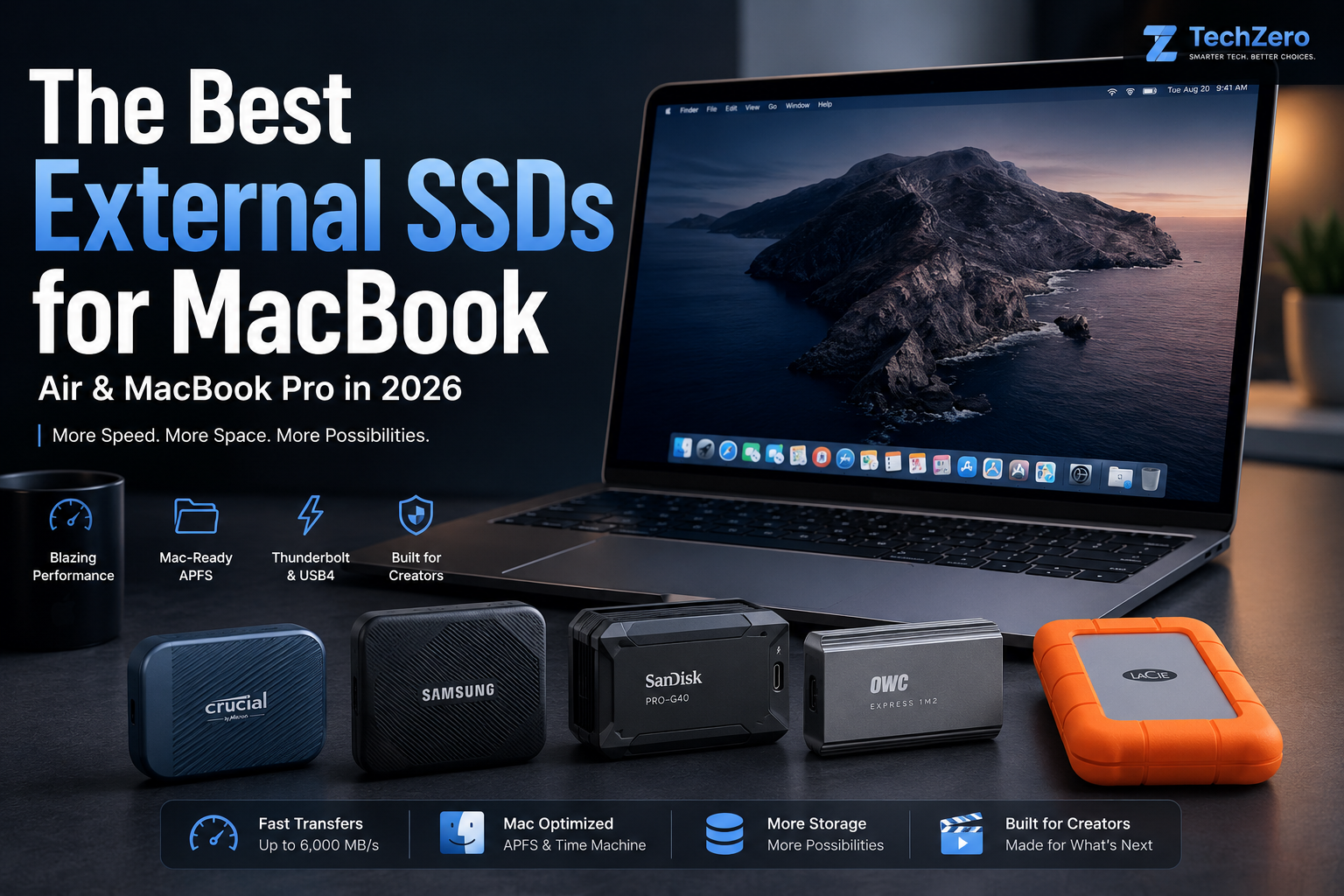

TL;DR: The Ultimate External SSD Buying Guide for Apple Users – Thinking about whether you should buy an external SSD instead of paying Apple’s steep internal storage markups for your MacBooks, iPads, or iPhones? External NVMe drives deliver blazing-fast storage expansion at a fraction of the cost per terabyte. To maximize your setup, choose Thunderbolt or USB4 protocols over USB 3.2 Gen 2×2 (which is throttled on macOS), format your drive in APFS for seamless integration, and always prioritize sustained transfer speeds and thermal performance over empty peak-speed marketing hype.
Apple’s pricing strategy for internal storage upgrades is notoriously steep—charging hundreds of dollars extra just to jump from 512GB to 1TB or 2TB. For creative professionals, video editors, and heavy multitaskers dealing with massive 4K video files, local Xcode projects, or massive photo libraries, external solid-state drives (SSDs) are an absolute necessity.
However, pairing an external drive with a Mac requires understanding more than just gigabyte capacity. Choosing the right drive means navigating USB-C vs. Thunderbolt speeds, file formatting formats (APFS vs. exFAT), cache behavior, and sustained thermal performance to prevent thermal throttling during heavy data transfers.
This comprehensive guide doesn’t just tell you what to buy—it teaches you why it matters.
🔬 Section 1: Why External SSDs Work (And Why They Throttle)
An external SSD is much more than just flash memory housed inside an enclosure; it is a sophisticated miniature computer system containing hardware and software layers that dictate speed, thermal behavior, and long-term durability.
1. The Core Components Inside an External SSD
- NAND Flash Memory: The non-volatile storage cells where your files physically reside. Modern drives use two primary types:
- TLC (Triple-Level Cell): Stores 3 bits per cell, offering an optimal balance of high read/write speeds, durability, and longevity.
- QLC (Quad-Level Cell): Stores 4 bits per cell, lowering production costs for high-capacity drives at the expense of reduced sustained write speeds and lower write endurance.
- The Controller: Acting as the “brain” of the drive, the controller manages data placement, wear leveling, error correction, and background garbage collection.
- DRAM Cache vs. DRAM-less: High-end professional drives feature a dedicated DRAM chip to maintain a quick-access map of file locations, which excels during heavy random read/write tasks. Budget drives are “DRAM-less,” relying on smaller internal buffers or host memory instead.
2. The Truth About SLC Caching (Why Speeds Drop Midway)
Manufacturers frequently advertise staggering peak transfer speeds, but users often notice performance plummeting mid-transfer during massive file copies. This is due to Pseudo-SLC Caching:
- To make drives feel lightning-fast during everyday use, manufacturers configure a designated portion of TLC or QLC flash to act as Single-Level Cell (SLC) memory, which writes data instantly.
- The Performance Cliff: Once a massive data transfer (such as a 100GB video cache or RAW photo library) exceeds the capacity of this cache, the drive can no longer sustain burst speeds. It drops back down to its native TLC or QLC speeds, explaining why a transfer starts at peak velocity and slows down significantly halfway through.
3. Thermal Throttling: The Physics of Heat
As data moves at gigabytes-per-second through compact aluminum or rubberized enclosures, electrical resistance generates intense heat.
- The Threshold: High-performance NVMe drives can rapidly reach internal temperatures exceeding 50°C to 60°C under heavy, sustained workloads.
- The Safety Mechanism: To prevent permanent silicon damage or catastrophic failure, the drive controller triggers thermal throttling, automatically dialing back operating speeds to let the chassis or heatsink dissipate heat. Drives with poor thermal dissipation or cheap plastic housings will throttle much faster than those built with thick aluminum cores or thermal pads.
4. Background Maintenance: TRIM and Wear Leveling
- TRIM Commands: Signals sent by macOS to inform the drive which blocks of data contain deleted files. This enables the drive to wipe those blocks cleanly in the background before new data arrives, preserving peak performance.
- Wear Leveling: Internal algorithms ensure that write cycles are distributed evenly across all flash cells, preventing any single block from wearing out prematurely and ensuring a multi-year lifespan.
💰 Section 2: Should You Upgrade Internal Storage Instead?
Before buying an external drive, look at the math. Apple’s internal storage upgrade pricing is notoriously punishing across all regions, charging steep premiums to jump across storage tiers.
(Note: On 13-inch MacBook models, selecting 1TB storage or higher automatically packages an upgrade to the M5 chip with a 10-core GPU, further compounding the manufacturer’s tier pricing structure).
| Storage Tier | Apple Internal (India) | Apple Internal (USA) | Typical External SSD Cost | Cost-per-TB (External) |
| 512GB to 1TB | + ₹36,000 | + $300.00 | ₹11,000 / $120 (1TB) | ~₹11,000 / ~$120 per TB |
| 1TB to 2TB | + ₹96,000 | + $800.00 | ₹18,000 / $200 (2TB) | ~₹9,000 / ~$100 per TB |
| 2TB to 4TB | + ₹216,000 | + $1,800.00 | ₹35,000 / $380 (4TB) | ~₹8,750 / ~$95 per TB |
- Apple Internal SSD: Blazing fast (~7,000 MB/s), integrated directly onto the motherboard, completely unupgradable, and subject to heavy manufacturer markups (such as the hefty base tier jump fee of ₹36,000 / $300.00).
- External SSD: Slower (1,000 to 3,000 MB/s depending on the protocol), significantly cheaper per terabyte, pocket-portable, and easily replaced or upgraded as your storage needs scale over time.
Verdict: Unless you require internal scratch disks for extreme multi-stream 8K RAW video workflows or are intentionally upgrading your silicon configuration, external storage wins hands down for overall cost-efficiency and long-term flexibility.
👥 Section 3: Reader Profiles — Find Your Match
| User Type | Recommended SSD | Why It Fits |
| Student / Everyday User | Crucial X10 Pro | Compact, affordable, fast enough for documents and media libraries. |
| Photographer | Samsung Portable SSD T9 | Superior drop protection, rock-solid thermal control for lightroom catalogs. |
| Video Editor (Pro) | SanDisk Professional Pro-G40 | Sustained Thunderbolt speeds, dual-protocol resilience, handles heavy multi-cam files. |
| Software Developer | OWC Express 1M2 | Desktop-class speeds over USB4/Thunderbolt for heavy Xcode builds and Docker containers. |
| Traveller / Field Worker | Samsung Portable SSD T9 | 3-meter drop resistance, rugged housing, reliable under extreme conditions. |
| Mac mini / Studio Owner | OWC Express 1M2 | Matches desktop performance requirements for permanent desk setups. |
| Time Machine Backup | Crucial X10 Pro (2TB+) | Reliable, cool-running, cost-effective for automated system snapshots. |
🔌 Section 4: The Cable & Protocol Confusion Explained
Every Mac user eventually falls into the cable trap. A USB-C connector shape does not guarantee fast speeds.
TechZero Tip: If you’re buying an SSD specifically for a Mac, don’t pay extra for a USB 3.2 Gen 2×2 drive unless you also use it with compatible Windows PCs. Most modern Macs negotiate those drives at 10 Gbps, so a USB4 or Thunderbolt SSD is often the better high-performance choice despite the higher initial cost.
- The Golden Rule: Always use the manufacturer-certified cable included in the box. Using an old charging cable or a random cable from an old phone will bottleneck your expensive SSD down to crawling USB 2.0 speeds (480 Mbps).
⚡ Section 5: Performance Benchmarks & Sustained Speeds
Raw marketing numbers can be deceiving. Here is how these drives handle real-world file copies and sustained loads:
| SSD Model | 10GB Copy Time | 100GB Copy Time | Peak Speed | Sustained Speed (Post-Cache) | Approximate Peak Temp (°C) |
| Crucial X10 Pro | ~6 sec | ~55 sec | Up to 2,100 MB/s (Windows) / ~1,000 MB/s (Mac) | ~850 MB/s | 52°C |
| Samsung Portable SSD T9 | ~6.5 sec | ~58 sec | Up to 2,000 MB/s (Windows) / ~1,000 MB/s (Mac) | ~900 MB/s | 48°C |
| SanDisk Pro-G40 | ~4 sec | ~38 sec | 3,000 MB/s | ~2,200 MB/s | 58°C |
| OWC Express 1M2 | ~3.8 sec | ~32 sec | 3,150 MB/s | ~2,800 MB/s | 62°C |
| LaCie Rugged SSD Pro | ~4.5 sec | ~42 sec | 2,800 MB/s | ~1,800 MB/s | 55°C |
📊 Section 6: Master Specifications & Compatibility Matrix
Compatibility Matrix
| SSD Model | Works on USB-C Ports | Works on Thunderbolt Ports | Intel Macs | Apple Silicon Macs | iPad (USB-C) | Windows PC |
| Crucial X10 Pro | Yes | Yes | Yes | Yes | Yes | Yes |
| Samsung Portable SSD T9 | Yes | Yes | Yes | Yes | Yes | Yes |
| SanDisk Pro-G40 | Yes | Yes | Yes | Yes | Yes | Yes |
| OWC Express 1M2 | Yes | Yes | Yes | Yes | Yes | Yes |
| LaCie Rugged SSD Pro | Yes | Yes | Yes | Yes | Yes | Yes |
Endurance & Specifications Table
| SSD Model | Warranty | Hardware Encryption | IP Rating | Drop Rating |
| Crucial X10 Pro | 5 Years | AES 256-bit | IP55 | 2 meters |
| Samsung Portable SSD T9 | 5 Years | AES 256-bit | None (Drop-focused) | 3 meters |
| SanDisk Pro-G40 | 5 Years | Password Protection | IP68 | 3 meters / 4000 lbs crush |
| OWC Express 1M2 | 5 Years | Dependent on NVMe | None (Enclosure) | Varies |
| LaCie Rugged SSD Pro | 5 Years | AES 256-bit | IP67 | 3 meters |
🏆 Section 7: TechZero Awards & Final Buying Recommendations
By this stage, you should already understand the differences between USB, Thunderbolt, NVMe, and real-world Mac performance. The final decision now comes down to your workflow, budget, and storage requirements.
Rather than recommending products based on fixed price brackets—which change frequently—we’ve selected the best external SSDs based on overall value, real-world Mac performance, reliability, and long-term ownership experience.
🏅 TechZero SSD Awards
| Award | Winner | Typical Price (India)* | Typical Price (USA)* | Best For |
|---|---|---|---|---|
| 🏆 Best Overall | Crucial X10 Pro (1TB) | ₹17,000–22,000 | $180–210 | Most Mac users |
| ⭐ Best Value | Crucial X10 Pro | ₹17,000–22,000 | $180–210 | Best balance of price and performance |
| 💰 Best Budget Choice | Crucial X9 (1TB) | ₹13,000–16,000 | $135–150 | Everyday storage expansion |
| 🎬 Best for Professional Creators | SanDisk Professional PRO-G40 (1TB) | ₹40,000–50,000 | $260–320 | Video editing & production |
| ⚡ Fastest Overall | OWC Express 1M2 + NVMe SSD | Enclosure ₹13,000–15,000 + SSD | Enclosure $120–140 + SSD | Maximum performance |
| 💻 Best for MacBook Air | Crucial X10 Pro | ₹17,000–22,000 | $180–210 | Portable everyday workflows |
| 🖥️ Best for MacBook Pro & Mac Studio | OWC Express 1M2 / SanDisk PRO-G40 | Premium Pricing | Premium Pricing | Professional workflows |
| 💾 Best Time Machine Drive | Crucial X10 Pro | ₹17,000–22,000 | $180–210 | Reliable automated backups |
| ✈️ Best Travel SSD | Samsung Portable SSD T9 (2TB) | ₹50,000–60,000 | $260–320 | Travel, photography & field work |
*Typical street prices observed across major online retailers. Prices fluctuate frequently depending on capacity, availability, promotions, exchange rates and regional taxes.
🥇 Best Overall & Best Value — Crucial X10 Pro
If we had to recommend one external SSD for the majority of Mac users, it would be the Crucial X10 Pro.
It strikes the ideal balance between performance, portability, durability, reliability, and price. Instead of paying a premium for benchmark numbers that current Macs cannot fully utilize, you get an SSD that performs exceptionally well in real-world workflows.
Why We Recommend It
- Excellent build quality
- Compact pocket-sized design
- IP55-rated dust and splash resistance
- Reliable sustained performance
- Available in multiple capacities
- Excellent warranty and brand reputation
Real-World Mac Performance
Although Crucial advertises speeds above 2,000 MB/s, those numbers require USB 3.2 Gen 2×2, which current Macs do not support.
On Apple Silicon Macs, you can realistically expect around:
- Read: 1,000–1,100 MB/s
- Write: 900–1,000 MB/s
That is already fast enough for:
- 4K video editing
- Lightroom & Apple Photos libraries
- Logic Pro projects
- Xcode development
- Steam game libraries
- Time Machine backups
- Everyday file transfers
⭐ TechZero Verdict
The easiest recommendation in this guide. Unless your workflow genuinely requires Thunderbolt bandwidth, the Crucial X10 Pro delivers the best overall ownership experience for most Mac users.
🎬 Best for Professional Video Editors — SanDisk Professional PRO-G40
The SanDisk Professional PRO-G40 is designed for professionals who move massive files every day and require consistent high-speed performance rather than short benchmark bursts.
Unlike many portable SSDs, its strength lies in maintaining transfer speeds throughout prolonged workloads while offering both Thunderbolt and USB compatibility.
Why We Recommend It
- Thunderbolt 3 performance
- USB compatibility
- Outstanding sustained transfer speeds
- Premium aluminium enclosure
- Excellent heat dissipation
- Rugged professional construction
Best For
- Final Cut Pro
- DaVinci Resolve
- Adobe Premiere Pro
- ProRes workflows
- Multi-camera editing
- Professional photographers
⭐ TechZero Verdict
A premium SSD built for professionals where reliability and sustained performance matter more than initial benchmark numbers.
⚡ Best Performance — OWC Express 1M2
The OWC Express 1M2 is unlike traditional portable SSDs.
Instead of fixed internal storage, it allows you to install and upgrade your own NVMe SSD, giving you desktop-class performance together with the flexibility to expand capacity in the future.
Why We Recommend It
- USB4 and Thunderbolt support
- Upgradeable NVMe storage
- Desktop-class performance
- Excellent cooling
- Supports high-capacity SSDs
- Long-term investment
Best For
- Professional editors
- Developers
- Virtual machines
- Large media libraries
- Power users
⭐ TechZero Verdict
The fastest recommendation in this guide and the closest thing to carrying an internal PCIe SSD in your pocket.
✈️ Best Travel SSD — Samsung Portable SSD T9
Samsung’s T-series has earned its reputation through years of dependable performance, and the Portable SSD T9 continues that legacy.
It combines rugged construction, excellent thermal management, hardware encryption, and dependable reliability, making it one of the safest choices for creators who travel frequently.
Why We Recommend It
- Rugged portable design
- Excellent thermal control
- 256-bit AES hardware encryption
- Reliable long-term performance
- Strong Samsung software ecosystem
Real-World Mac Performance
Like many premium USB SSDs, the T9 advertises transfer speeds approaching 2,000 MB/s.
However, on current Macs you should expect approximately 1,000 MB/s, which remains more than sufficient for photo editing, video production, backups, and everyday professional workflows.
⭐ TechZero Verdict
If reliability, durability, and thermal consistency matter more than chasing benchmark numbers, the Samsung T9 is one of the most dependable portable SSDs you can buy.
💡 TechZero Final Buying Advice
If you’re still unsure which SSD to buy, use this simple decision guide:
| If you are… | Buy… |
|---|---|
| Student or everyday user | Crucial X9 |
| Most MacBook users | Crucial X10 Pro |
| Photographer | Samsung Portable SSD T9 |
| Video editor | SanDisk Professional PRO-G40 |
| Professional creator | OWC Express 1M2 |
| Need the best value | Crucial X10 Pro |
🏁 Quick Verdict
Don’t buy an external SSD solely based on its advertised transfer speed.
For current Mac users, once an SSD consistently delivers around 1,000 MB/s, improvements in real-world productivity become increasingly difficult to notice. Factors such as capacity, thermal management, reliability, warranty, build quality, and long-term durability have a much greater impact on the ownership experience.
Our recommendation is simple:
- Buy the Crucial X9 if your priority is affordability.
- Buy the Crucial X10 Pro if you want the best balance of price and performance.
- Buy the Samsung Portable SSD T9 if you travel frequently or need maximum reliability.
- Buy the SanDisk Professional PRO-G40 if your work depends on sustained Thunderbolt performance.
- Buy the OWC Express 1M2 if you want the fastest, most upgradeable external storage solution available for Mac.
TechZero Smart Buy: For over 90% of Mac users, the Crucial X10 Pro remains the sweet spot. It offers the best combination of speed, portability, durability, and value without paying for bandwidth that most current Macs cannot fully utilize.
🎬 Section 8: Real-World Workload Recommendations
Different workflows stress external drives in unique ways. Here is where you should point your data:
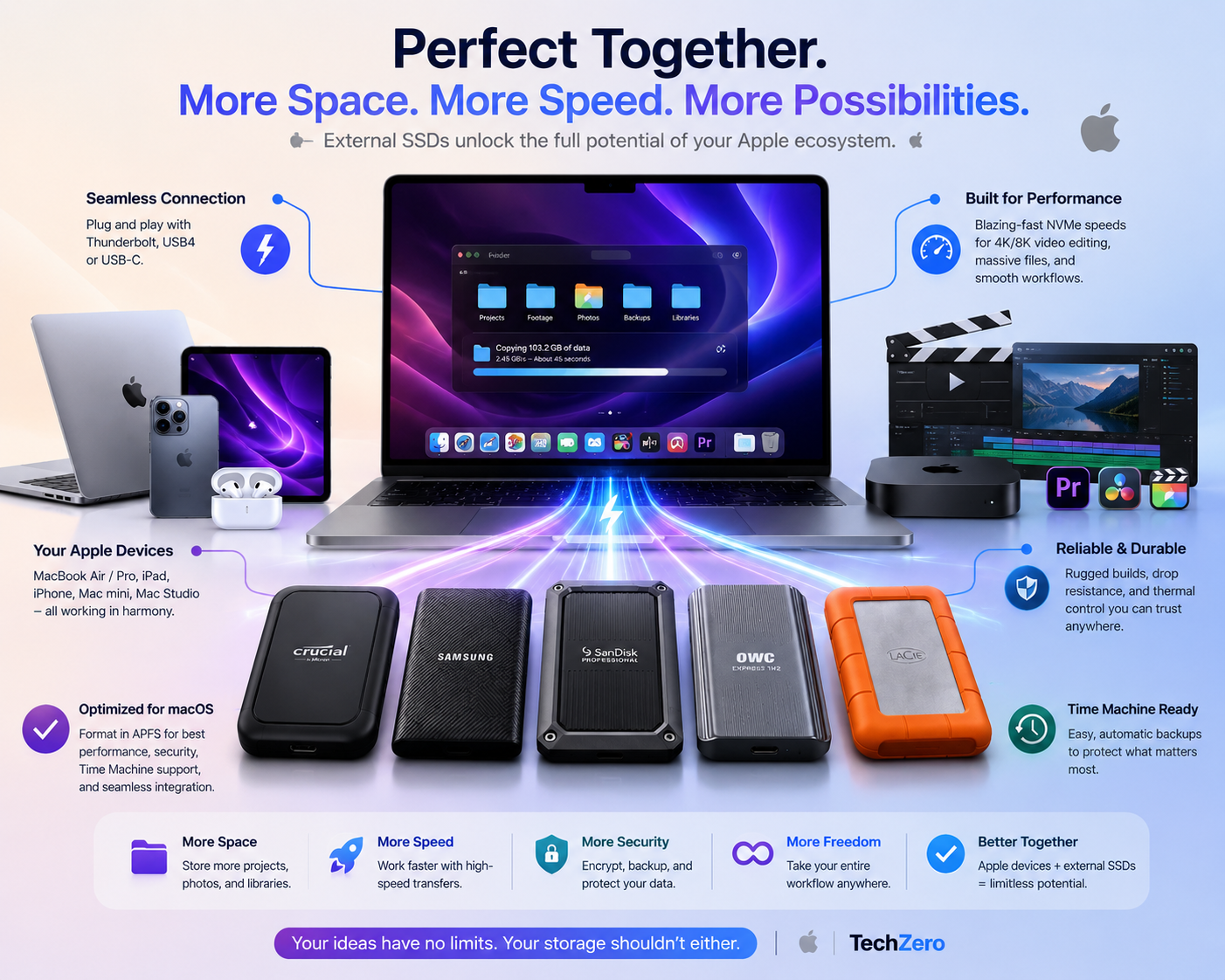
- Final Cut Pro Library: Keep active libraries on a Thunderbolt or fast USB-C drive (SanDisk Pro-G40 or Crucial X10 Pro) with APFS formatting to prevent dropped frames during multi-cam scrubbing.
- DaVinci Resolve Cache: Assign your Cache and Render files to a high-sustained-write drive like the OWC Express 1M2 to keep timeline playback buttery smooth.
- Logic Pro Projects: Excellent for storing massive sample libraries (Kontakt, EastWest). Sustained read speed is key here to stream orchestral instruments instantly.
- Xcode Derived Data: Moving your Derived Data folder to an external NVMe drive speeds up heavy compilation tasks on base-model MacBooks.
- Lightroom Catalog: Store your catalog and Smart Previews on a fast SSD to ensure lightning-fast image culling and raw rendering.
- Steam Library: Great for running macOS-compatible games directly off an external drive without cluttering your main drive.
⏰ Section 9: The Time Machine Masterclass
One of the biggest reasons to buy an external SSD isn’t just expanding your Mac’s storage—it’s protecting your data.
Time Machine is Apple’s built-in backup solution that automatically creates hourly, daily, and weekly backups of your Mac. Whether you accidentally delete a file, your SSD fails, or you need to restore your Mac after reinstalling macOS, Time Machine allows you to recover everything with minimal effort.
If you’re investing in a Mac, investing in a dedicated backup drive is one of the smartest purchases you can make.
Why Use an SSD for Time Machine?
Time Machine works with both traditional hard drives (HDDs) and solid-state drives (SSDs), but an SSD offers several important advantages.
| SSD | HDD |
|---|---|
| Much faster initial backup | Slower backup process |
| Significantly faster restores | Slower recovery times |
| Silent operation | Audible spinning and vibration |
| No moving parts | Mechanical parts are vulnerable to shock |
| Better suited for travel | Best used as a stationary backup drive |
For MacBook users who travel frequently, an SSD is the safer and more reliable choice.
Setting Up Time Machine Correctly
Format the Drive Using APFS
Before configuring Time Machine:
- Open Disk Utility.
- Select the external SSD.
- Click Erase.
- Choose:
- Format: APFS
- Scheme: GUID Partition Map
- Click Erase.
Modern versions of macOS automatically use the APFS file system for Time Machine, enabling snapshots, faster incremental backups, and improved reliability.
Enable Backup Encryption
If your Mac contains personal documents, financial information, work files, passwords, or family photos, always encrypt your backups.
While adding the backup disk:
- Open System Settings → General → Time Machine
- Select Add Backup Disk
- Enable Encrypt Backups
Encryption ensures that your data remains inaccessible if the external SSD is ever lost or stolen.
Should You Partition the SSD?
For most users, No.
Instead of creating traditional partitions, use multiple APFS volumes.
Unlike fixed partitions, APFS volumes dynamically share free space, making storage management far more flexible.
Example:
4TB External SSD

├── Work Files
├── Time Machine
└── Archive
Each volume automatically grows or shrinks as required without permanently reserving storage.
Traditional partitioning should only be used when different file systems or operating systems are required.
Choosing the Right Capacity
Apple recommends using a backup drive that’s at least twice the capacity of your Mac’s internal storage.
| Internal Storage | Recommended Backup SSD |
|---|---|
| 256GB | 1TB |
| 512GB | 1TB–2TB |
| 1TB | 2TB |
| 2TB | 4TB or larger |
A larger backup drive allows Time Machine to preserve a longer history before older backups are automatically removed.
What Does Time Machine Back Up?
Included
Time Machine automatically backs up:
- Documents
- Photos
- Videos
- Applications
- User accounts
- Desktop files
- Downloads
- Messages
- Music
- System settings
- Most application data
Not Included
Time Machine generally does not back up:
- Files stored only in iCloud
- Temporary cache files
- Certain system caches
- Files or folders you’ve manually excluded
Backup Schedule
Once configured, Time Machine works automatically in the background.
It creates:
- Hourly backups for the previous 24 hours
- Daily backups for the previous month
- Weekly backups for older data
When the backup disk becomes full, Time Machine automatically removes the oldest backups to free up space.
Best SSD for Time Machine
The Crucial X10 Pro remains our top recommendation for Time Machine.
It offers an excellent combination of:
- Reliable performance
- Cool operating temperatures
- Compact design
- Silent operation
- Excellent build quality
- Good long-term value
For most Mac users, spending significantly more on a Thunderbolt SSD provides little benefit for automated backups.
Common Time Machine Mistakes
Avoid These
- Formatting the drive as exFAT or NTFS
- Disconnecting the SSD during an active backup
- Buying a backup drive that’s too small
- Never verifying that backups can actually be restored
- Mixing heavy day-to-day file transfers and Time Machine on a single volume without proper organization
⭐ TechZero Recommendation
Your backup drive is not just another storage device—it’s your safety net.
Choose a reliable SSD, format it correctly, enable encryption, and let Time Machine run automatically. You may never think about it again, but the day something goes wrong, it will likely become the most valuable accessory connected to your Mac.
🛑 Section 10: Reality Check & Common Myths
Reality Check
Buying a 6,000 MB/s Thunderbolt SSD will not magically make your Mac faster if your workload consists of Word documents, PDFs, Netflix, and email. Most users will never notice the difference between 1,000 MB/s and 3,000 MB/s in everyday tasks. Spend your money on capacity before speed.
Common Myths vs. Facts
- Myth: Thunderbolt SSDs are always faster than USB-C drives.
- Fact: Not if your Mac or hub only supports USB 10Gbps. The speed is capped by the slowest link in the chain.
- Myth: Leaving your drive formatted as exFAT is fine for Mac and Windows.
- Fact: exFAT lacks journaling and permissions support, making it prone to data corruption on macOS during unexpected unmounts. Always use APFS for Mac-exclusive workflows.
⚠️ Section 11: 10 External SSD Buying Mistakes to Avoid
- Buying a USB 20Gbps (USB 3.2 Gen 2×2) drive for a MacBook Air: Apple Silicon Macs do not support USB 20Gbps natively; you will be downgraded to 10Gbps speeds. Stick to USB-C 10Gbps or Thunderbolt/USB4.
- Using a cheap charging cable: Results in significant speed bottlenecks.
- Keeping exFAT forever: Invites file corruption and slow indexing in Spotlight.
- Ignoring APFS: Missing out on instant file cloning and space-saving snapshots.
- Ignoring heat: Buying a drive that aggressively thermal throttles during long video exports.
- Ignoring enclosure build quality: Buying unbranded cheap plastic enclosures that trap heat.
- Buying fake ultra-cheap SSDs: Avoid unverified online marketplaces offering 4TB drives for $40.
- Buying a DRAM-less drive for heavy video editing: Suffers massive slowdowns during sustained writes.
- Ignoring firmware updates: Failing to check manufacturer utility apps for performance patches.
- Buying more speed than your workflow demands: Overspending on Thunderbolt when 1,000 MB/s USB-C is plenty for your needs.
📖 Glossary of Terms
- NVMe (Non-Volatile Memory Express): A high-performance protocol designed specifically for flash storage media.
- APFS: Apple File System; optimized for solid-state drives, encryption, and cloning on macOS.
- Thermal Throttling: When a drive automatically reduces its operating speed to cool itself down during intense data operations.
- Scratch Disk: Temporary storage space utilized by applications like Photoshop or Premiere Pro to store working project data.


[…] Best External SSD for MacBook — Find the most reliable portable storage options to expand your Mac’s capacity. […]