
If you’ve spent any time looking for the best accessories for your MacBook, you’ve likely seen the Logitech MX Master 3S pop up over and over again. It is essentially the default recommendation for Mac power users.
But if you are used to Apple’s Magic Mouse or the built-in trackpad, switching to a chunky, heavily contoured mouse can feel like a big leap. You’re probably wondering: Is it actually worth it? Does it lag on a Mac? Will I miss my gestures?
This isn’t a spec-sheet review. Having used the MX Master 3S daily alongside our MacBooks here at TechZero, this is an educational breakdown of what you actually gain in your workflow, what you give up, and whether you should buy it—especially now that the pricier MX Master 4 is on the market.
Quick Verdict
| Workflow | Recommendation |
| Office Work | Highly recommended |
| Coding | Excellent choice |
| Video Editing | Highly recommended |
| Graphic Design | Excellent |
| Casual Browsing | ⭐⭐⭐☆☆ |
| Gaming | ⭐⭐☆☆☆ |
MX Master 3S vs. Apple Magic Mouse
This is the biggest debate for Mac users. Should you stick to Apple’s native mouse, or go third-party?
| Feature | MX Master 3S | Apple Magic Mouse |
| Ergonomics | Fully contoured, hand-supporting | Flat, low profile |
| Scrolling | Dual mechanical wheels (MagSpeed) | Multi-touch surface |
| Charging | USB-C, usable while charging | USB-C, not usable while charging |
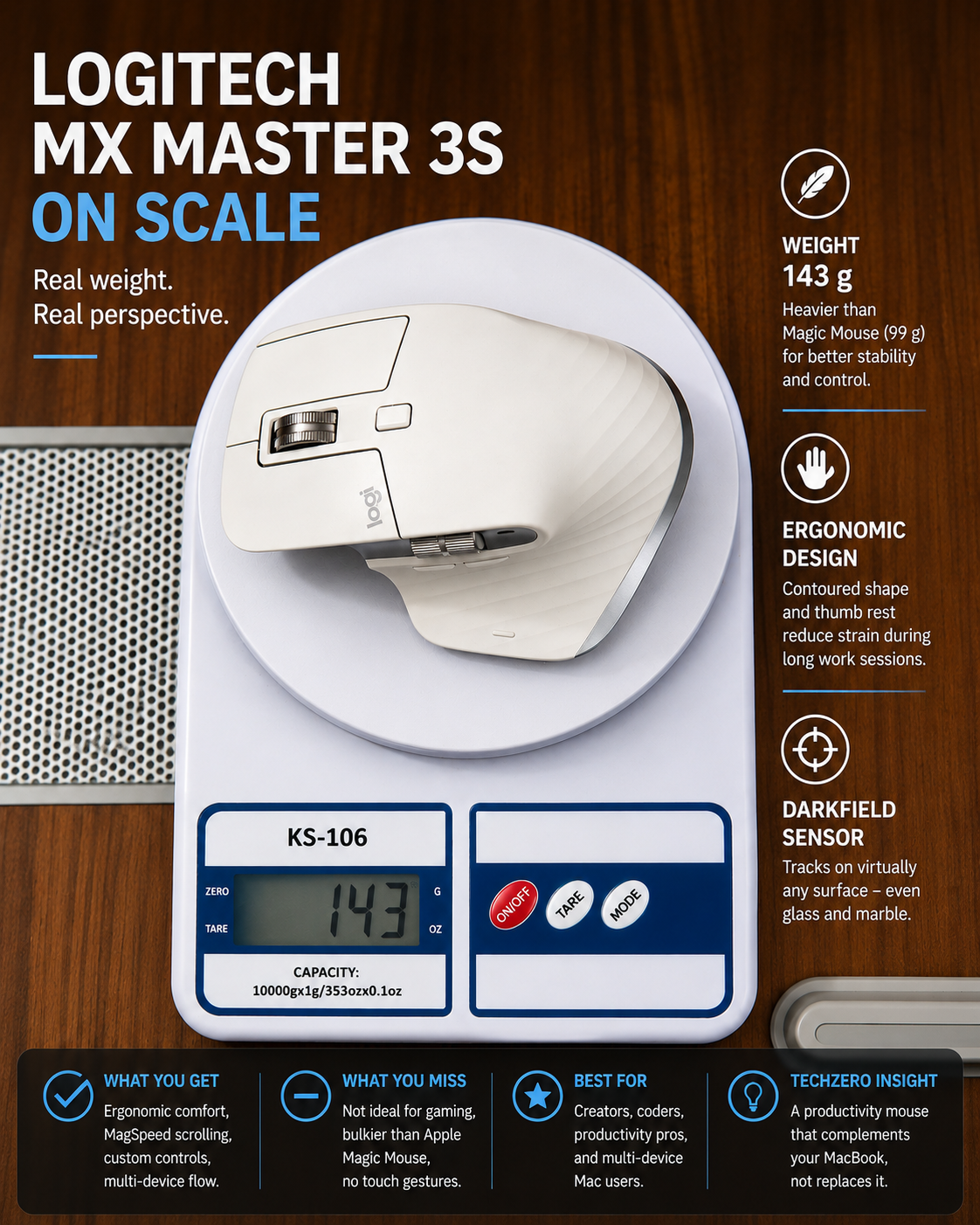
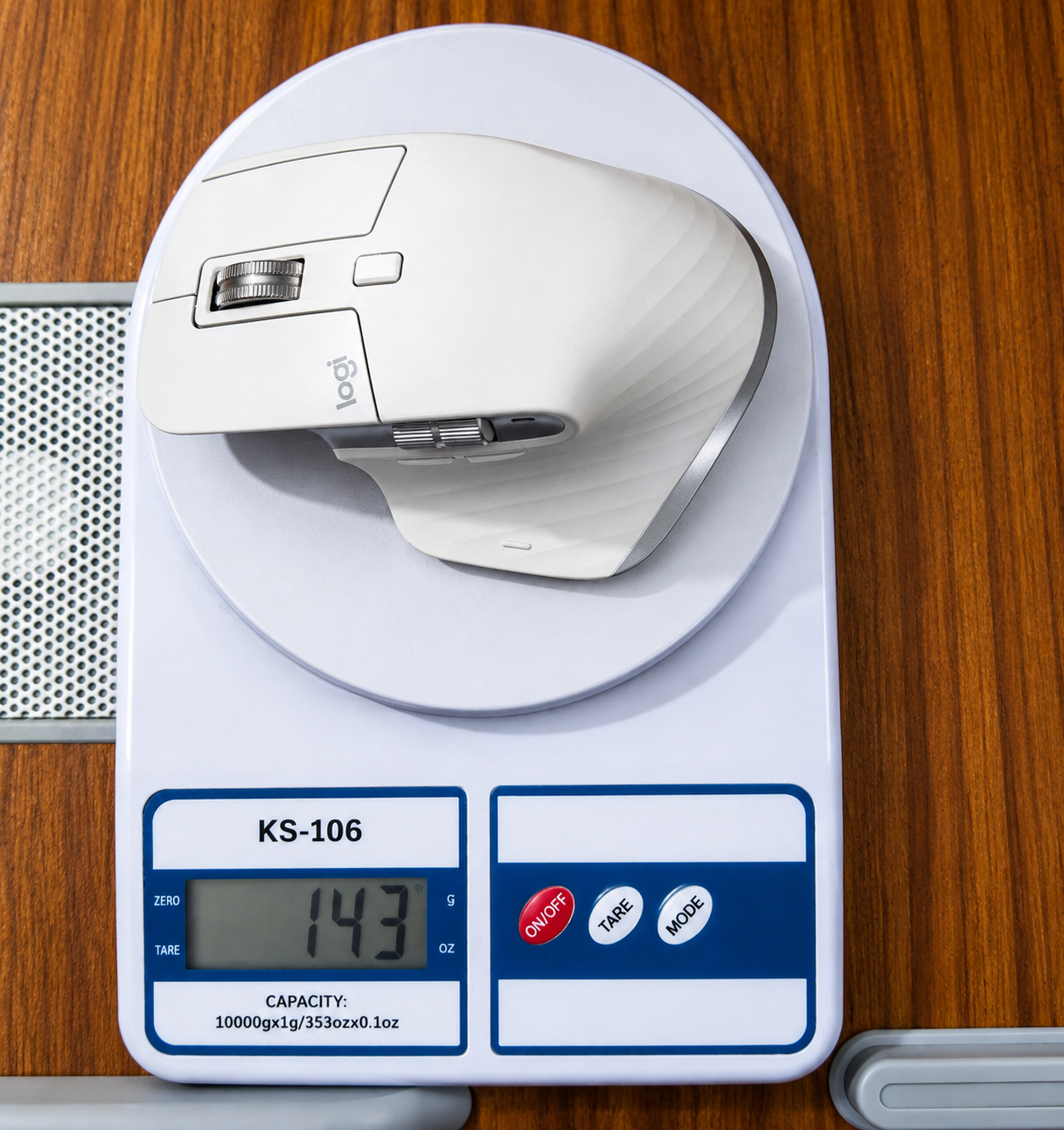
| Weight | Heavy (143g) | Light (99g) |
| Customization | Extensive (via Logi Options+) | Basic macOS settings |
The easiest way to summarize the difference: The Magic Mouse is designed for simplicity. The MX Master is designed for productivity.
For some users, the Magic Mouse’s low, flat profile can become uncomfortable during prolonged work, while the MX Master 3S provides much more palm support. If your day consists of light web browsing and answering emails, the Magic Mouse’s touch surface is wonderful. But if you spend hours a day in Excel, Final Cut, or VS Code, the MX Master provides the precision and comfort you need for prolonged work.
Does It Replace Apple’s Trackpad?
Not quite. It’s more of a complementary tool. The biggest question for a MacBook owner isn’t usually “Is the MX Master 3S good?”, it’s “Why would I use this instead of Apple’s trackpad?”
Here is how they break down in a real workflow:
| Task | Better Choice |
| Web browsing gestures | Trackpad |
| Pinch-to-zoom | Trackpad |
| Precise selection | MX Master 3S |
| Long documents | MX Master 3S |
| Timeline editing | MX Master 3S |
| Mission Control | Trackpad / Gesture button |
| Drag & drop | MX Master 3S |
Many desktop professionals actually use both—keeping the mouse on the right for precision work and a standalone Magic Trackpad on the left for zooming and swiping.
What Actually Works Better on a Mac
Apple products are known for their seamless ecosystem, but Logitech brings a few hardware tricks of its own that genuinely elevate macOS.
MagSpeed Scrolling
The MagSpeed wheel uses electromagnetic switching between precise ratcheted scrolling and near-frictionless free spinning. Scroll slowly, and you feel precise, tactile bumps. Flick it hard, and the magnets disengage, letting the wheel spin freely through thousands of lines in seconds. If you read long documentation, scroll through massive GitHub repositories, or navigate endless PDFs, this single feature can make a noticeable difference.
Horizontal Scrolling
A dedicated thumb wheel for horizontal movement is a godsend. Whether you’re panning across a timeline in Premiere Pro, scrubbing through Lightroom catalogs, or navigating wide spreadsheets in Excel, it feels completely natural.
Gesture Button
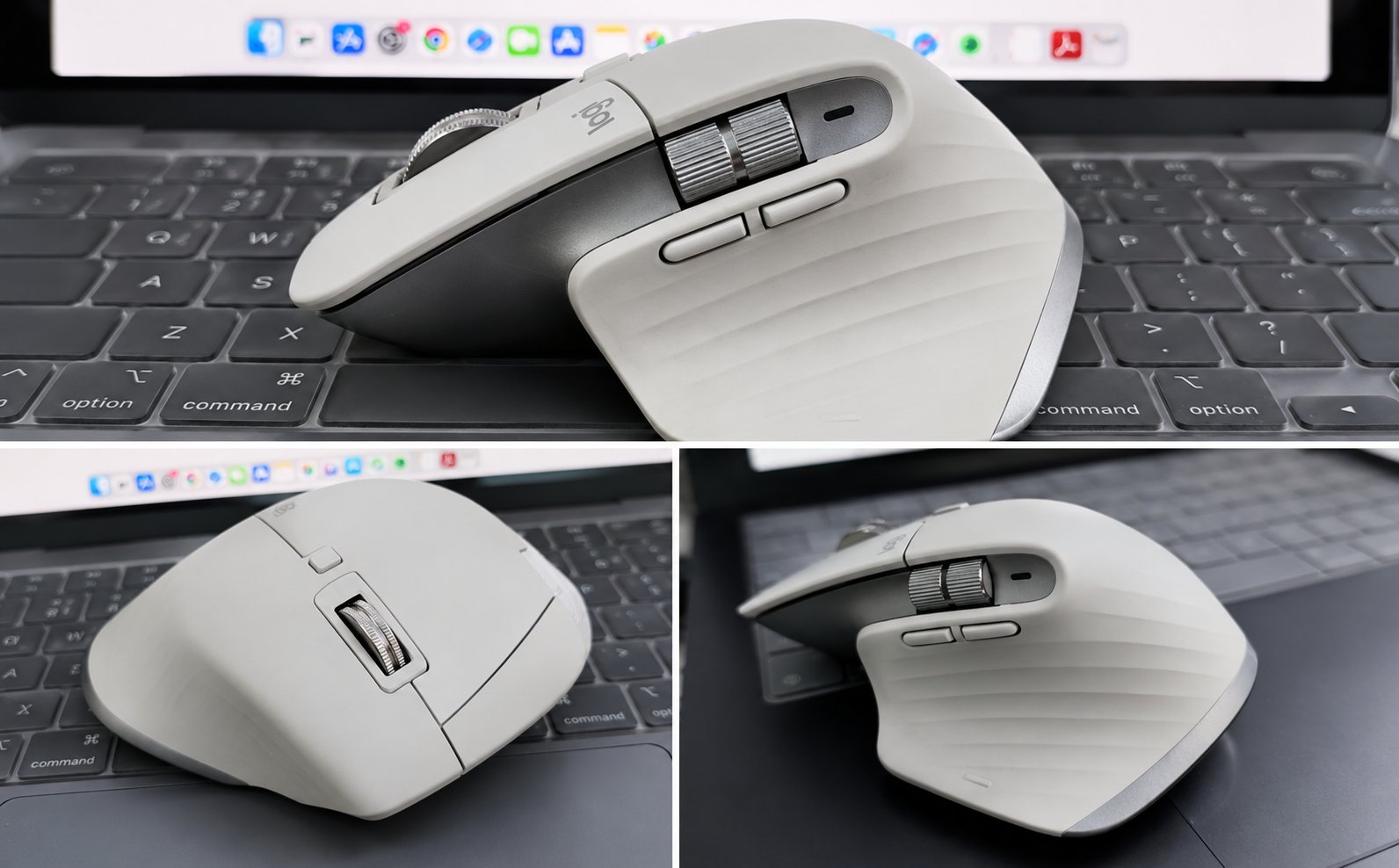
The thumb rest is actually a hidden button. Hold it down and swipe the mouse up, down, left, or right to trigger native macOS gestures. You can map this to Mission Control, Launchpad, or switching between virtual desktops. It brilliantly mimics trackpad gestures without needing a trackpad.
Tracking on Glass
Thanks to its 8,000 DPI Darkfield sensor, the MX Master 3S tracks on virtually anything. It can track on surfaces such as glass, marble, and wood, so a traditional mousepad isn’t always necessary.
Size and Feel in the Hand
The first thing you notice when switching from a Magic Mouse or trackpad is the sheer volume of the MX Master 3S. It is a substantial, towering mouse.
Instead of hovering your fingers or using a “claw” grip, your entire hand rests on the device. The deep contour on the left side cradles your thumb, aligning it perfectly with the horizontal scroll wheel and gesture button. More importantly, this shape forces your wrist to tilt slightly outward into a more natural, handshake-like angle, which significantly reduces forearm fatigue during long work sessions.
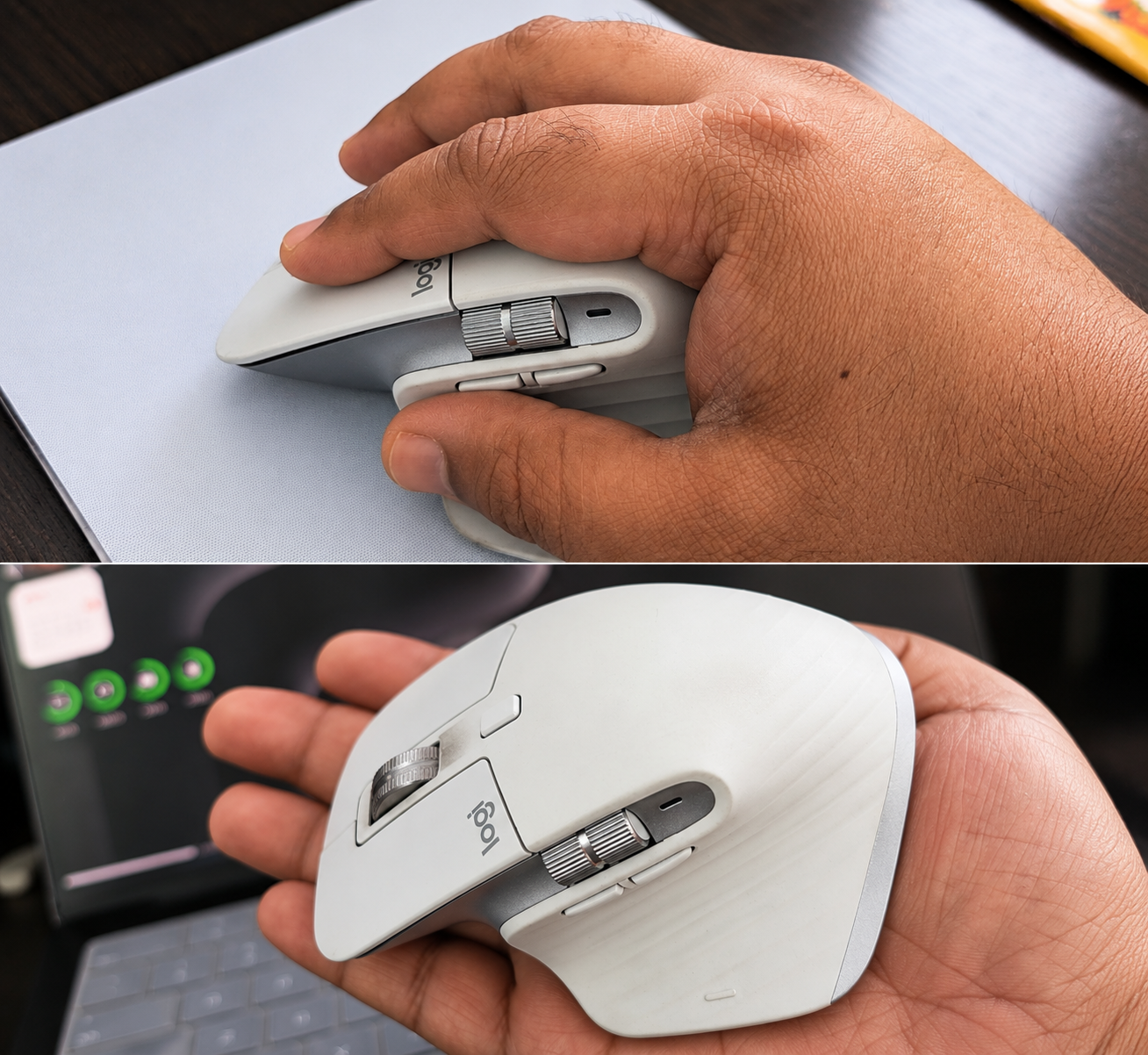
Because it is so heavily sculpted, the mouse is highly opinionated about how you hold it. If you have medium to large hands, it feels like it was custom-molded for your palm. However, if you have smaller hands, the high arch and substantial footprint can feel a bit unwieldy to maneuver all day.
Note: The MX Master 3S is strictly designed for right-handed users. If you are a lefty, you will unfortunately need to look elsewhere.
Real Productivity Gains
Instead of just telling you it has “programmable buttons,” here is how you can actually map them to save time:
- For Video Editing: Use the thumb wheel to zoom in and out of your timeline. Map the side buttons to Undo and Redo.
- For Coding & Research: Map the side buttons to switch between browser tabs or virtual desktops, keeping your hands moving fast without hunting for keyboard shortcuts.
- For AI Workflows: Map a button to open ChatGPT or Claude, launch Spotlight, or trigger a frequently used AI workflow.
When your most-used actions are instantly accessible under your thumb, your workflow becomes remarkably fluid.
Should You Buy the MX Master 3S or Spend More on the MX Master 4?
This is probably the biggest question today. The MX Master 4 is the latest model, so it’s naturally the one getting all the attention. But once you look at the price, the decision isn’t as straightforward.
| Feature | MX Master 3S | MX Master 4 |
| Positioning | Value-focused | Newer flagship |
| Core Ergonomics | ✅ | ✅ |
| MagSpeed Scroll | ✅ | ✅ |
| 8K Sensor | ✅ | ✅ |
| Quiet Clicks | ✅ | ✅ |
| Multi-device | ✅ | ✅ |
| Connectivity | Standard | Improved / stronger |
| Haptic Feedback | ❌ | ✅ |
| Actions Ring | ❌ | ✅ |
| Best reason to buy | Value | New interaction features |
(Note: Check current retail prices. The MX Master 4 carries a premium flagship price tag, while the 3S can often be found heavily discounted during seasonal sales.)
So, what does the extra money actually buy? You are paying primarily for new interaction features and improved connectivity, not for a radically different productivity foundation.
If your daily work revolves around writing, coding, spreadsheets, browsing, video editing, or general office work on a MacBook, the MX Master 3S still delivers the core experience that made the series so popular. The comfortable shape is the same. The MagSpeed scroll wheel is still fantastic. Horizontal scrolling is just as useful.
💡 TechZero Smart Buy: If someone handed me the budget for a flagship mouse today, I’d probably recommend the MX Master 4. But if I were spending my own money and the MX Master 3S was available on sale, I’d buy the 3S without thinking twice. It gives you almost everything people love about the MX Master lineup while leaving enough money in your pocket for something else that genuinely improves your MacBook setup—like a quality laptop stand, an external SSD, or putting that amount toward a better monitor.
Battery Life
Battery anxiety simply isn’t a thing with this mouse. Logitech rates it for up to 70 days of typical use, so most users won’t need to think about charging it frequently. Better yet, if it dies in the middle of a workday, plugging it into a USB-C cable for just one minute gives you roughly three hours of use.
Best Settings for macOS
To get the most out of it, download the Logi Options+ app. Here is how we recommend setting it up:
- Pointer Speed: Start around the macOS default and adjust it until you can cross the screen without excessive wrist movement.
- Smooth Scrolling: Enable it if you prefer a trackpad-like feel; disable it if you prefer more predictable wheel movement.
- SmartShift Sensitivity: Adjust this so the wheel flips into hyper-fast mode precisely when you flick it, but remains ratcheted for normal reading.
- Gesture Button: Map to Mission Control (press) and Desktop Switching (swipe left/right).
Note: Some power users prefer lightweight, third-party utilities like Mac Mouse Fix or LinearMouse over Logi Options+ to fine-tune scrolling behavior. It’s largely a matter of personal preference!
What I Didn’t Like
To keep things perfectly balanced, here is what you give up or might not love:
- It is heavy: At around 143g, the MX Master 3S is considerably heavier than Apple’s Magic Mouse. That weight contributes to its planted, substantial feel, but users who prefer quick, lightweight mice may find it tiring.
- It’s bulky: If you have smaller hands, it might feel a bit unwieldy.
- Not for gaming: It’s too heavy for competitive first-person shooters, and its polling rate isn’t designed for esports.
- Portability: It takes up a lot of room in a laptop bag.
- Software quirks: Occasionally, after major macOS updates, the Logi Options+ software can be a bit temperamental until Logitech patches it.
Who Should Buy It?
| User | Our Advice |
| Programmer | Excellent choice |
| YouTuber / Editor | Highly recommended |
| Designer / Photographer | Excellent |
| Office User | Highly recommended |
| Student | Great if your budget allows, but potentially overkill |
| Traveler | Skip it. Look at the smaller MX Anywhere 3S instead |
Alternatives
If the MX Master 3S doesn’t sound like a perfect fit, consider these:
- Apple Magic Mouse: Best for users who prioritize sleek Apple aesthetics, native multi-touch gestures, and lightweight portability.
- Logitech MX Anywhere 3S: The Master’s little sibling. It has the same amazing scroll wheel and sensor but in a much smaller, travel-friendly body.
- Logitech Lift or MX Vertical: Best if you actively suffer from wrist pain or RSI, as they force a fully vertical, ergonomic handshake grip.
- Apple Magic Trackpad: The ultimate choice if you simply cannot live without smooth, pinch-to-zoom fluidity.
TechZero Verdict
If your MacBook is your primary work machine and you spend hours every day writing, coding, editing, or working with spreadsheets, the MX Master 3S is one of the few accessories that can genuinely change how you interact with your Mac. It doesn’t replace the trackpad. It complements it.
While Apple’s Magic Mouse remains the better choice for native multi-touch gestures, the MX Master 3S is the stronger productivity tool for professionals.
Looking for more ways to upgrade your workspace? Check out the TechZero Mac Buying Bible, our guide to the Best Monitors for MacBook, and our Complete macOS Settings Guide for more setup inspiration.
External Resources
For official specifications, compatibility information, and macOS guidance, refer to these resources:
- Logitech MX Master 3S — Official Specifications — Official specifications, supported operating systems, weight, sensor, buttons, connectivity, and battery information.
- Apple Support — Use Multi-Touch Gestures on Mac — Apple’s official guide to MacBook trackpad and Magic Mouse gestures.
- Apple Magic Mouse (USB-C) — Technical Specifications — Official specifications for the current USB-C Magic Mouse, including its Multi-Touch surface, charging and dimensions.
- Apple Support — Mouse Settings on Mac — Official guidance for tracking speed, scrolling, clicking, gestures and other macOS mouse settings.
Related TechZero Guides
Looking to further optimize your MacBook setup or transition smoothly to macOS? Explore our other deep-dive guides:
- Best Mice and Trackpads for MacBooks — Compare all top-tier pointing devices to find the perfect fit for your daily workflow.
- Complete macOS Settings Guide — Discover the system-level macOS settings that affect your everyday productivity and mouse configuration.
- Best Monitors for MacBook — Upgrade your workspace with the best external displays for crisp text and Apple ecosystem harmony.
- Best External SSD for MacBook — Find the most reliable portable storage options to expand your Mac’s capacity.
- Adobe vs Apple Pro Apps vs Affinity — Choose the right creative software to match your professional hardware and editing setup.
- Mac Buying Guide — Our definitive guide to choosing the perfect MacBook configuration for your performance needs.