Skip to content
techzero.in

Laptop Decisions Simplified

techzero.in

Laptop Decisions Simplified

  • AI
  • Smart Phones
  • Gadgets
  • Software
  • Reviews
  • Comparisons
  • How To ..
  • Games
  • AI
  • Smart Phones
  • Gadgets
  • Software
  • Reviews
  • Comparisons
  • How To ..
  • Games
techzero.in

Laptop Decisions Simplified

techzero.in

Laptop Decisions Simplified

  • AI
  • Smart Phones
  • Gadgets
  • Software
  • Reviews
  • Comparisons
  • How To ..
  • Games
  • AI
  • Smart Phones
  • Gadgets
  • Software
  • Reviews
  • Comparisons
  • How To ..
  • Games
Home/How To ../macOS Settings Guide (2026): Every Mac Setting Explained + Best Recommendations
How To ..LaptopsMac

macOS Settings Guide (2026): Every Mac Setting Explained + Best Recommendations

By Onima Ranjan
August 2, 2026 17 Min Read
4
Updated on August 24, 2026

🎯 Executive Summary: Complete macOS Settings Guide (2026)

The TechZero macOS Settings Guide is a comprehensive, evidence-based resource designed to help users master every major system setting on Apple Silicon and Intel Macs. Built like a professional hardware buying guide, it cuts through default configurations to deliver actionable recommendations, performance impacts, and Windows equivalents.

🔍 Core Focus Areas Covered

  • Speed Up Your Mac: Learn how to reclaim system RAM and accelerate boot times by pruning unnecessary startup daemons (Login Items) and optimizing background file indexing (Spotlight).
  • Improve Battery Life: Maximize mobile runtime and protect long-term battery health using energy-saving toggles like Low Power Mode and Optimized Battery Charging.
  • Secure Your Mac: Enforce baseline system security by activating hardware-accelerated FileVault full-disk encryption and configuring the built-in application Firewall for public networks.
  • Customize macOS: Enhance day-to-day navigation ergonomics by enabling features like Tap-to-Click for smoother trackpad workflows.
  • Advanced Settings: Optimize internet lookup speeds and privacy by configuring trusted public DNS resolvers such as Cloudflare (1.1.1.1).

💡 Key Editorial Takeaways

  • Target Audience: Tailored for new Mac owners, Windows switchers, students, professionals, and developers looking for peak system efficiency.
  • Structured Format: Features clear editorial verdicts, risk levels, common user mistakes, expert deep-dives, and quick-action checklists for every setting.

Navigation
Toggle
    • 🎯 Executive Summary Complete macOS Settings Guide (2026)
      • 🔍 Core Focus Areas Covered
      • 💡 Key Editorial Takeaways
  • Complete macOS Settings Guide (2026) Every Setting Explained
      • 👤 Who is this guide for?
    • Quick Summary What To Do…
      • 📋 Settings Covered in This Guide
    • Speed Up Your Mac
      • Manage Login Items to Speed Up Your Mac
          • Apple’s Default
          • TechZero Recommendation
          • ⚠️ Common Mistakes
      • Customize Spotlight Search Categories
          • Apple’s Default
          • TechZero Recommendation
          • ⚠️ Common Mistakes
        • ✓ Performance & Speed Checklist
    • Improve Battery Life
      • Enable Low Power Mode to Extend Battery Life
          • Apple’s Default
          • TechZero Recommendation
          • ⚠️ Common Mistakes
      • Enable Optimized Battery Charging
          • Apple’s Default
          • TechZero Recommendation
          • ⚠️ Common Mistakes
        • ✓ Battery & Power Checklist
    • Secure Your Mac
      • Enable FileVault Full-Disk Encryption
          • Apple’s Default
          • TechZero Recommendation
          • ⚠️ Common Mistakes
      • Turn On the macOS Firewall for Public Networks
          • Apple’s Default
          • TechZero Recommendation
          • ⚠️ Common Mistakes
        • ✓ Security & Privacy Checklist
    • Customize macOS
      • Enable Tap-to-Click for Easier Navigation
          • Apple’s Default
          • TechZero Recommendation
          • ⚠️ Common Mistakes
        • ✓ Customization & Ergonomics Checklist
    • Advanced Settings
      • Configure Custom DNS Servers for Better Speed
          • Apple’s Default
          • TechZero Recommendation
          • ⚠️ Common Mistakes
        • ✓ Advanced Power User Checklist
    • Frequently Asked Questions (FAQ)
      • Where are System Settings on Mac?
      • Why did Apple replace System Preferences?
      • How do I reset all macOS settings?
      • Which macOS settings improve battery life?
      • Which settings make a Mac faster?
      • What are the best privacy settings on Mac?
      • How do I stop apps from opening at startup?
      • What does FileVault do?
      • Should I enable Firewall on Mac?
    • References & Links Hub
      • 🌐 Part 1 Official External Sources
Complete macOS Settings Guide (2026): Best Settings for Every Mac – TechZero
🛡️ Reviewed by: TechZero Editorial ✅ Last fact-checked: August 2026 🔄 Sources updated: August 2026 ♾️ Status: Continuously updated

SEO Title: Complete macOS Settings Guide (2026): Best Settings for Every Mac

Meta Description: Master every macOS setting with expert editorial verdicts, concrete performance benefits, Windows equivalents, and anti-mistake guides.

URL: /macos-settings-guide/

Complete macOS Settings Guide (2026): Every Setting Explained

Navigating macOS System Settings shouldn’t feel like guessing codes in a dark room. Every single toggle, menu, and slider inside macOS exists for a specific operational purpose—whether it is managing low-level kernel security, regulating energy draw on Apple silicon, or adjusting spatial audio parameters. For official reference documentation, consult the Apple macOS User Guide.

Designed like a definitive guide for your operating system, this guide separates Apple’s default behavior from TechZero’s evidence-based recommendations, providing performance impacts, Windows equivalents, and clear editorial verdicts. If you are transitioning platforms for the first time, check out our guide on Switching from Windows to Mac.

👤 Who is this guide for?

  • ✓ New Mac users
  • ✓ Windows switchers
  • ✓ Students
  • ✓ Professionals
  • ✓ Developers
  • ✓ Anyone who wants to optimize macOS
🔍

Quick Summary: What To Do…

If you want to… Go to section
Speed up my MacSpeed Up Your Mac
Improve batteryImprove Battery Life
Secure my MacSecure Your Mac
Customize macOSCustomize macOS
Advanced networkingAdvanced Settings

📋 Settings Covered in This Guide

This guide explains:

  • ✓ Login Items
  • ✓ Spotlight
  • ✓ Low Power Mode
  • ✓ Optimized Charging
  • ✓ FileVault
  • ✓ Firewall
  • ✓ Tap to Click
  • ✓ DNS

…and 80+ other macOS settings.

Speed Up Your Mac

⏱ 12 minutes read • Target: Reclaim RAM, CPU cycles, boot speed, and search indexing
🟢 Action Required: Remove apps you don’t need at startup ⏱️ 1 minute
🔍 Related Problems: Mac starts slowly | Fan always running | Too many background apps

Manage Login Items to Speed Up Your Mac

Best for reclaiming system memory, eliminating background helper bloat, and accelerating startup boot times.

📍 Path: System Settings → General → Login Items
🟢 Beginner 🟢 Risk: Safe Ventura ✓ | Sonoma ✓ | Sequoia ✓ | Tahoe ✓
TechZero Verdict
Default: Keep ON • Recommendation: Remove unused apps
⭐⭐⭐⭐⭐ Recommended
🚫 Who should NOT change this: Do not disable background daemons if you rely on continuous automated cloud syncing or real-time password management helpers that require background hooks.

Controls which third-party applications, helper daemons, and cloud updaters automatically launch into your system RAM the moment your Mac boots up or run silently in the background. For deeper startup management insights, refer to our Mac Buying Guide and Apple Silicon Explained.
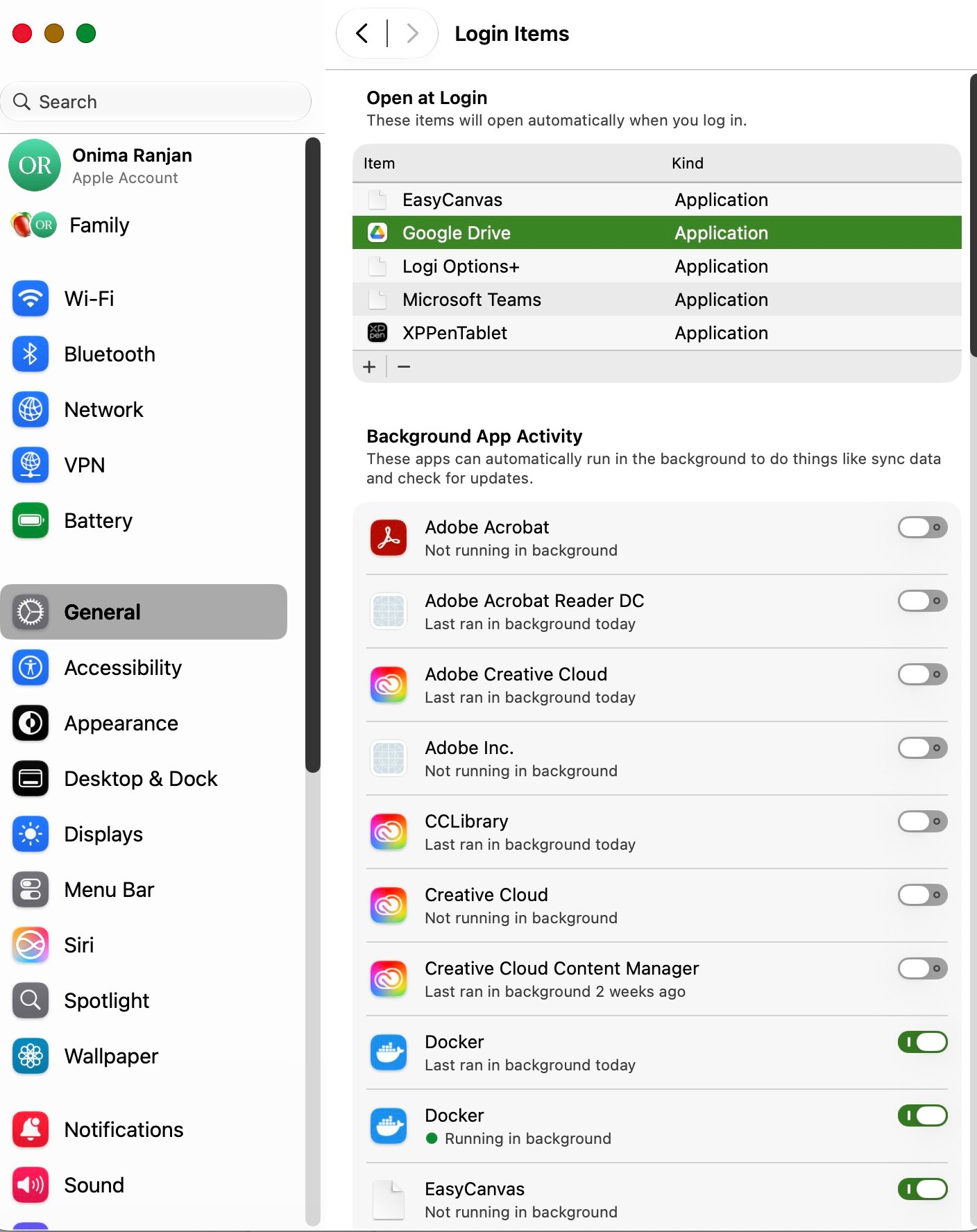
macOS Login Items configuration in System Settings

Visual Workflow: Review both sections to toggle off persistent third-party updaters.

Startup Benefit5–20s Faster*
RAM Saved200–800 MB*
Performance ImpactNoticeable Boost
Ease of Use⭐⭐⭐⭐⭐

*Typical improvement (depends on installed apps and Mac model).

🪟 Windows Equivalent: Task Manager → Startup Apps
Apple’s Default

Every installed utility app automatically registers background helper daemons and startup hooks during installation.

TechZero Recommendation

Remove apps you don’t need at startup, keeping only essential password managers or chat updaters.

Startup Speed
Higher Boost
RAM Savings
Good Savings
Battery Impact
Reduces Drain
Best For: 🎓 Students 💼 Office Workers 💻 Developers ✈️ Travelers
💡 Expert Deep-Dive: Common Mistakes, Myths & Smart Tips
⚠️ Common Mistakes
  • Disabling essential cloud storage synchronization daemons (like OneDrive or Dropbox) while expecting automatic file backups.
  • Accidentally removing password manager helper hooks, breaking browser autofill functionality.
❌ Common Myth: “Background helper apps don’t matter if I’m not actively using them.”
✔️ Reality Check: Dozens of idle background updaters consume system resources over time, affecting overall system responsiveness and battery life.
💡 TechZero Smart Tip: If you see background helpers from apps you deleted months ago, toggle them off. Many apps leave orphaned helper daemons behind.
🔗 You may also want to configure: Storage (Disk Space) | Spotlight Search Guide | Desktop & Dock (Widgets)
📚 Read Next: Complete Mac Performance & Speed Optimization Guide →
🟡 Optional: Customize search categories to reduce indexing overhead ⏱️ 1 minute
🔍 Related Problems: Spotlight running slow | Excessive disk activity

Customize Spotlight Search Categories

Best for decluttering search results and preventing continuous disk indexing on massive external scratch disks.

📍 Path: System Settings → Spotlight
🟢 Beginner 🟢 Risk: Safe Ventura ✓ | Sonoma ✓ | Sequoia ✓ | Tahoe ✓
TechZero Verdict
Default: All Categories Enabled • Recommendation: Filter Unused Types
⭐⭐⭐☆☆ Optional
🚫 Who should NOT change this: Avoid disabling standard system file or application categories if you rely heavily on universal Spotlight command lookups daily.

Spotlight builds a background database of all files on your Mac so you can hit Command + Space and find documents instantly. Restricting categories cuts down background CPU usage. For more search configurations, review our dedicated Spotlight Search Guide and Finder Explained for Windows Users.
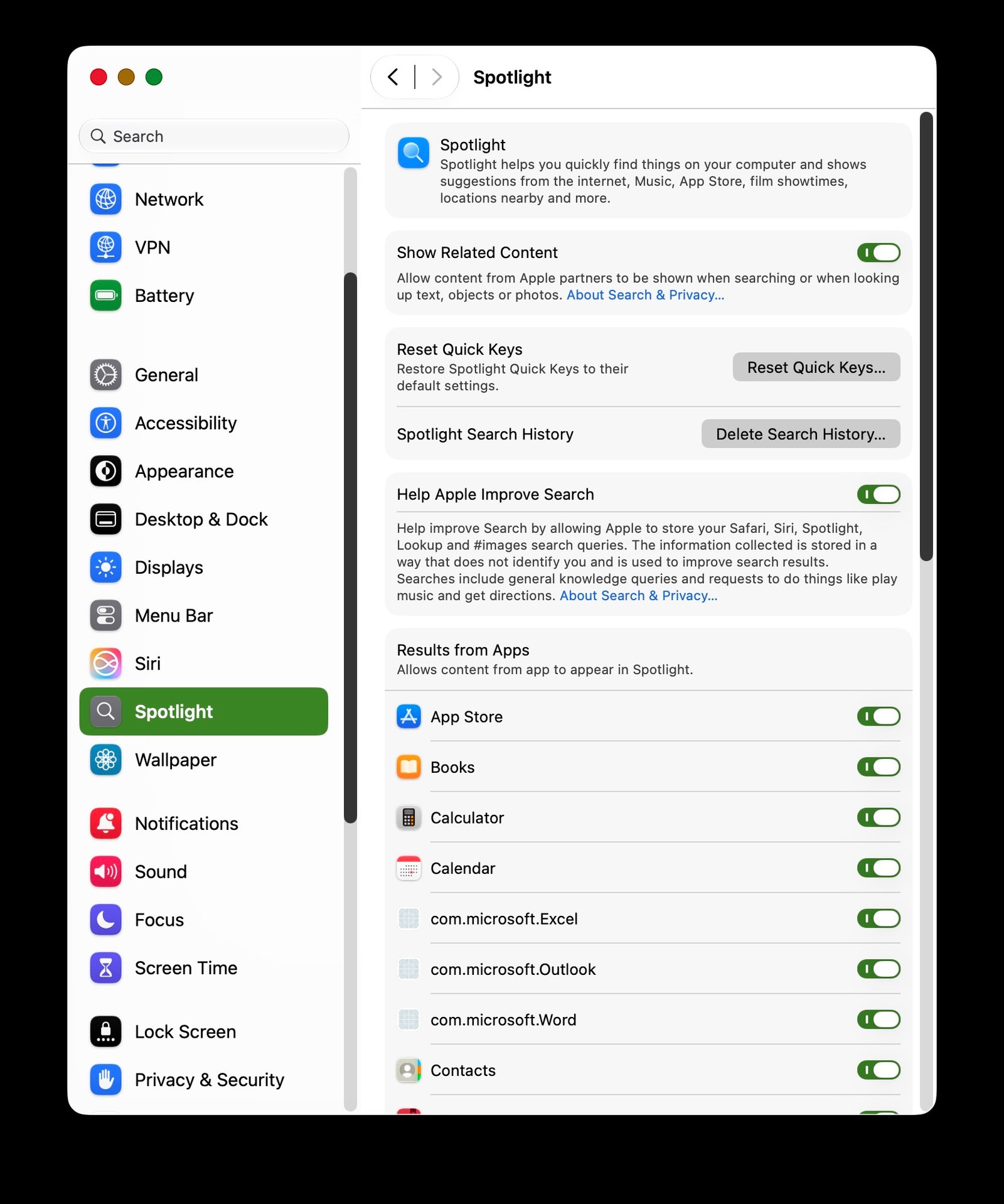
macOS Spotlight settings category selection

Visual Workflow: Uncheck redundant data types to speed up search popups.

Importance⭐⭐⭐☆☆
Search Speed⭐⭐⭐⭐☆
Performance CostLow
Ease of Use⭐⭐⭐⭐⭐
🪟 Windows Equivalent: Windows Search Indexing Options
Apple’s Default

Indexes every single file category across your entire hard drive automatically.

TechZero Recommendation

Disable indexing for heavy code directories or archives you never search via Spotlight.

Search Cleanliness
Cleaner Results
CPU Savings
Minimal
Battery Impact
Low
Best For: 💻 Developers 🎬 Creators 💼 Professionals
💡 Expert Deep-Dive: Common Mistakes, Myths & Smart Tips
⚠️ Common Mistakes
  • Completely turning off indexing globally instead of utilizing privacy folder exclusions for massive scratch drives.
❌ Common Myth: “Turning off Spotlight completely disables Mac file searching.”
✔️ Reality Check: You can keep system search active while hiding specific folders or file categories from cluttering your dropdown menu.
💡 TechZero Smart Tip: Use the “Spotlight Privacy” tab to drag and drop entire external hard drives or virtual machine containers that you do not want indexed.
🔗 You may also want to configure: Privacy & Security | Finder Preferences | Storage
📚 Read Next: Complete Spotlight Search Guide →

✓ Performance & Speed Checklist

  • ✓ Remove unused Login Items
  • ✓ Keep at least 15% free storage space
  • ✓ Exclude heavy developer or archive folders from Spotlight indexing
  • ✓ Reduce heavy desktop widgets if running older hardware configurations

Improve Battery Life

⏱ 10 minutes read • Target: Stretch mobile runtime and battery health longevity
🟢 Action Required: Turn ON when traveling or running low on battery ⏱️ 15 seconds
🔍 Related Problems: Mac battery drains quickly | Laptop runs warm on battery

Enable Low Power Mode to Extend Battery Life

Best for maximizing laptop battery life during travel, fieldwork, or when working away from a wall charger.

📍 Path: System Settings → Battery → Low Power Mode
🟢 Beginner 🟢 Risk: Safe Monterey ✓ | Ventura ✓ | Sonoma ✓ | Sequoia ✓ | Tahoe ✓
TechZero Verdict
Default: Only on Battery • Recommendation: Set to Always When Traveling
⭐⭐⭐⭐⭐ Recommended
🚫 Who should NOT change this: Skip setting this to “Always” if you are currently rendering 4K video or compiling heavy software builds while plugged into AC power.

Low Power Mode dials back CPU clock speed spikes, slightly reduces screen brightness, and pauses background mail syncs and cloud uploads to reduce power consumption when you are away from an electrical outlet. Combine this with our Battery Health Guide for optimal mobile lifespan.
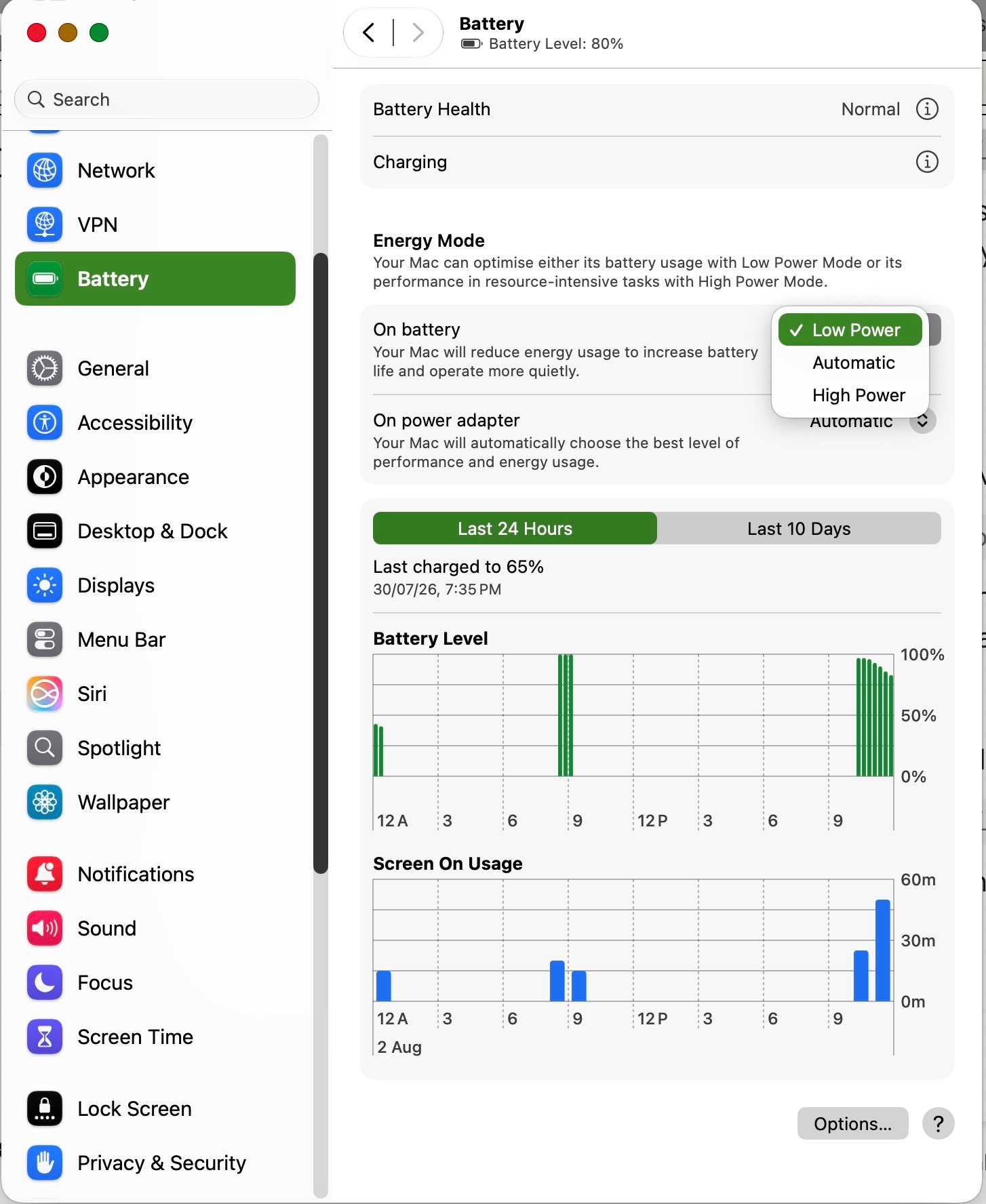
macOS Low Power Mode battery panel options

Visual Workflow: Click dropdown menu to switch behavior from default to Always.

Runtime Gain+15–30 Mins*
Thermal DropCooler Operation
Performance CostMild Throttle
Ease of Use⭐⭐⭐⭐⭐

*Typical improvement (depends on active apps and workload).

🪟 Windows Equivalent: Windows Battery Saver / Energy Recommendation mode
Apple’s Default

Configured to trigger “Only on Battery” or remain entirely disabled depending on initial power setup profiles.

TechZero Recommendation

Set to “Always” when traveling or working remotely without AC access to optimize thermal efficiency.

Battery Extension
Extended Runtime
Performance Cost
Mild Throttle
Privacy Impact
None
Best For: 🎓 Students ✈️ Travelers 💼 Remote Workers
💡 Expert Deep-Dive: Common Mistakes, Myths & Smart Tips
⚠️ Common Mistakes
  • Leaving Low Power Mode active permanently even when docked to high-power studio displays and AC chargers, needlessly throttling workstation CPU performance.
❌ Common Myth: “Low Power Mode permanently damages your processor speed.”
✔️ Reality Check: It only temporarily caps maximum turbo frequencies. The moment you plug your Mac back into wall power, full performance is instantly restored.
💡 TechZero Smart Tip: Add the Battery module to your Control Center for one-click toggling whenever you unplug your MacBook.
🔗 You may also want to configure: Battery Health Guide | Energy Mode | Displays
📚 Read Next: Complete Battery Health & Longevity Guide →
🟢 Action Required: Keep ON to extend long-term battery cell health ⏱️ 5 seconds
🔍 Related Problems: Battery degrades quickly | Swollen battery risk

Enable Optimized Battery Charging

Best for users who keep their MacBook plugged into a desktop dock for days at a time.

📍 Path: System Settings → Battery → Battery Health (Info icon)
🟢 Beginner 🟢 Risk: Safe Monterey ✓ | Ventura ✓ | Sonoma ✓ | Sequoia ✓ | Tahoe ✓
TechZero Verdict
Default: Enabled • Recommendation: Verify ON
⭐⭐⭐⭐⭐ Recommended
🚫 Who should NOT change this: Disable only if you have unpredictable travel hours and require your laptop to charge instantly to 100% at random times throughout the day.

Your Mac uses machine learning to study your charging habits. If you leave it plugged in overnight or at a desk, it holds the charge at 80% and finishes topping it off to 100% right before you typically unplug.
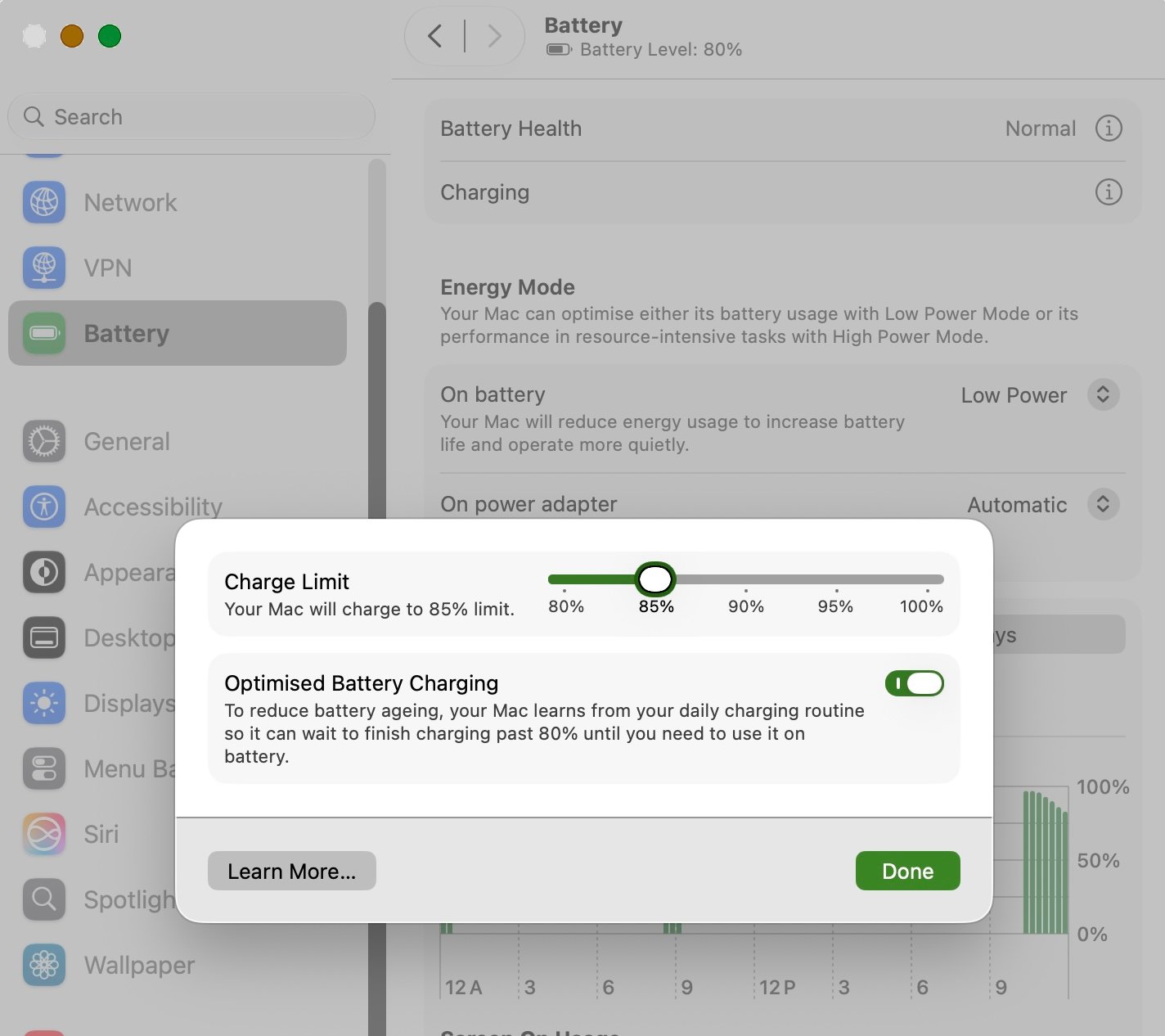
macOS Optimized Battery Charging settings

Visual Workflow: Toggle Optimized Battery Charging to ON in Battery Health.

Importance⭐⭐⭐⭐⭐
Battery Lifespan⭐⭐⭐⭐⭐
Performance CostNone
Ease of Use⭐⭐⭐⭐⭐
🪟 Windows Equivalent: OEM Battery Charge Limit Utilities (Lenovo Vantage / Dell Power Manager)
Apple’s Default

Enabled by default on modern macOS installations.

TechZero Recommendation

Verify that it remains ON, especially if your laptop is docked to an external monitor 24/7.

Cell Longevity
Improved Lifespan
Daily Runtime
Full 100% When Needed
Performance Cost
None
Best For: 💼 Office Workers 💻 Developers 🎓 Students
💡 Expert Deep-Dive: Common Mistakes, Myths & Smart Tips
⚠️ Common Mistakes
  • Assuming the Mac is broken when it holds at 80% charge; this is intentional behavior to preserve lithium-ion chemical lifespan.
❌ Common Myth: “Leaving your MacBook plugged into power overnight overcharges and ruins the battery.”
✔️ Reality Check: Modern Apple Silicon chargers and macOS power management controllers halt current intake once full, but chemical degradation occurs when held at 100% under high heat—which Optimized Charging prevents.
💡 TechZero Smart Tip: If your work schedule is highly irregular, macOS might take a week or two to learn your routine before the 80% hold engages consistently.
🔗 You may also want to configure: Low Power Mode | Energy Mode | Displays
📚 Read Next: Complete Battery Health & Longevity Guide →

✓ Battery & Power Checklist

  • ✓ Enable Low Power Mode when traveling
  • ✓ Enable Optimized Battery Charging
  • ✓ Reduce default display brightness
  • ✓ Set display auto-sleep intervals to 2–5 minutes

Secure Your Mac

⏱ 10 minutes read • Target: Enforce disk encryption, firewalls, and anti-theft baselines
🟢 Action Required: Verify ON for data protection ⏱️ 30 seconds
🔍 Related Problems: Securing personal data | Laptop theft prevention

Enable FileVault Full-Disk Encryption

Best for safeguarding personal documents, passwords, and banking records against physical device theft.

📍 Path: System Settings → Privacy & Security → FileVault
🟢 Beginner 🟢 Risk: Safe Ventura ✓ | Sonoma ✓ | Sequoia ✓ | Tahoe ✓
TechZero Verdict
Default: Prompted on Setup • Recommendation: Keep enabled for most users
⭐⭐⭐⭐⭐ Recommended
🚫 Who should NOT change this: Most Mac users should keep FileVault enabled. Organizations with specialized security workflows or alternate disk management policies may have different requirements.

FileVault encrypts every single file on your startup disk using hardware-accelerated algorithms. Even if someone physically steals your MacBook, removes the internal SSD, and connects it to another computer, your personal documents, photos, and credentials remain unreadable. For low-level security compliance specs, see Apple Platform Security and our FileVault Guide.
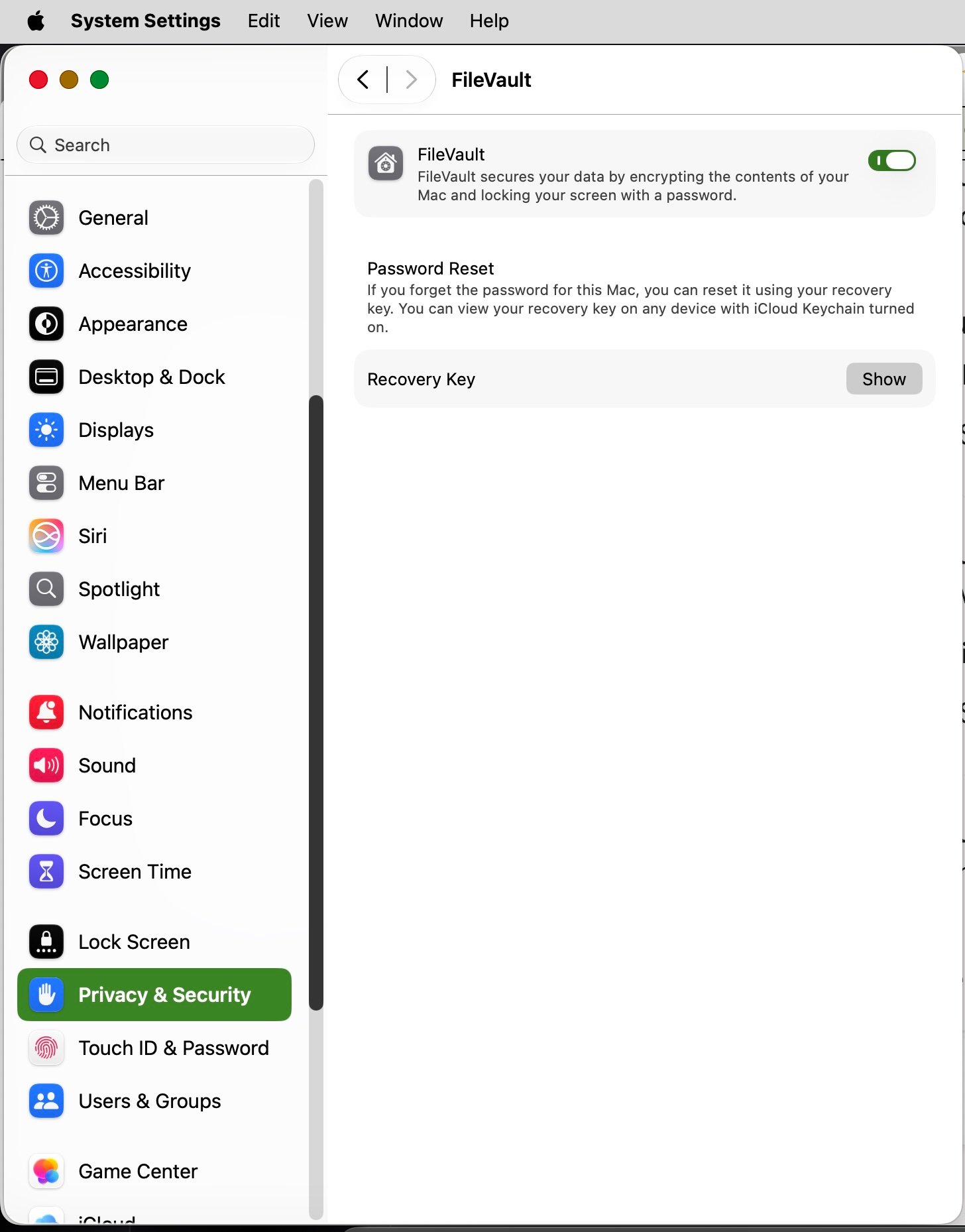
macOS FileVault full-disk encryption settings

Visual Workflow: Click Turn On and store your recovery key securely.

Security ImpactHigh Protection
Performance CostNegligible (Hardware Encrypted)
Data ProtectionRecommended
Ease of Use⭐⭐⭐⭐⭐
🪟 Windows Equivalent: BitLocker Device Encryption
Apple’s Default

Prompted during initial macOS setup assistant, but sometimes left disabled on custom corporate image builds.

TechZero Recommendation

Verify and keep enabled to ensure physical data security against unauthorized disk extraction.

Security Impact
Strong Protection
Performance Cost
Negligible
Battery Drain
None
Best For: 🎓 Students 💼 Professionals ✈️ Travelers 🏢 Business Users
💡 Expert Deep-Dive: Common Mistakes, Myths & Smart Tips
⚠️ Common Mistakes
  • Failing to record or store the FileVault recovery key offline, risking permanent data lockout if iCloud account credentials are lost.
❌ Common Myth: “FileVault slows down disk read/write speeds and drains battery.”
✔️ Reality Check: On Apple Silicon chips, encryption is handled entirely by a dedicated hardware co-processor (the Secure Enclave). Performance impact is negligible.
💡 TechZero Smart Tip: Always save your FileVault recovery key offline in a secure vault or physical paper note. If you forget your password and lose your iCloud recovery link, Apple cannot recover your files.
🔗 You may also want to configure: Firewall | Find My | Touch ID | Lock Screen | Private Wi-Fi Address
📚 Read Next: Complete FileVault & Data Security Guide →
🟢 Action Required: Turn ON when connecting to unsecured public Wi-Fi ⏱️ 20 seconds
🔍 Related Problems: Public Wi-Fi security | Preventing unauthorized inbound network probes

Turn On the macOS Firewall for Public Networks

Best for travelers and coffee shop workers who frequently log onto public wireless networks.

📍 Path: System Settings → Privacy & Security → Firewall
🟢 Beginner 🟢 Risk: Safe Ventura ✓ | Sonoma ✓ | Sequoia ✓ | Tahoe ✓
TechZero Verdict
Default: Off • Recommendation: Turn ON for Public Networks
⭐⭐⭐⭐☆ Recommended
🚫 Who should NOT change this: Users on strict trusted home networks may find it redundant unless traveling frequently.

The firewall acts as a digital bouncer at your Mac’s network doorway. It blocks unsolicited incoming connection attempts from malicious actors trying to probe your device on shared public networks.
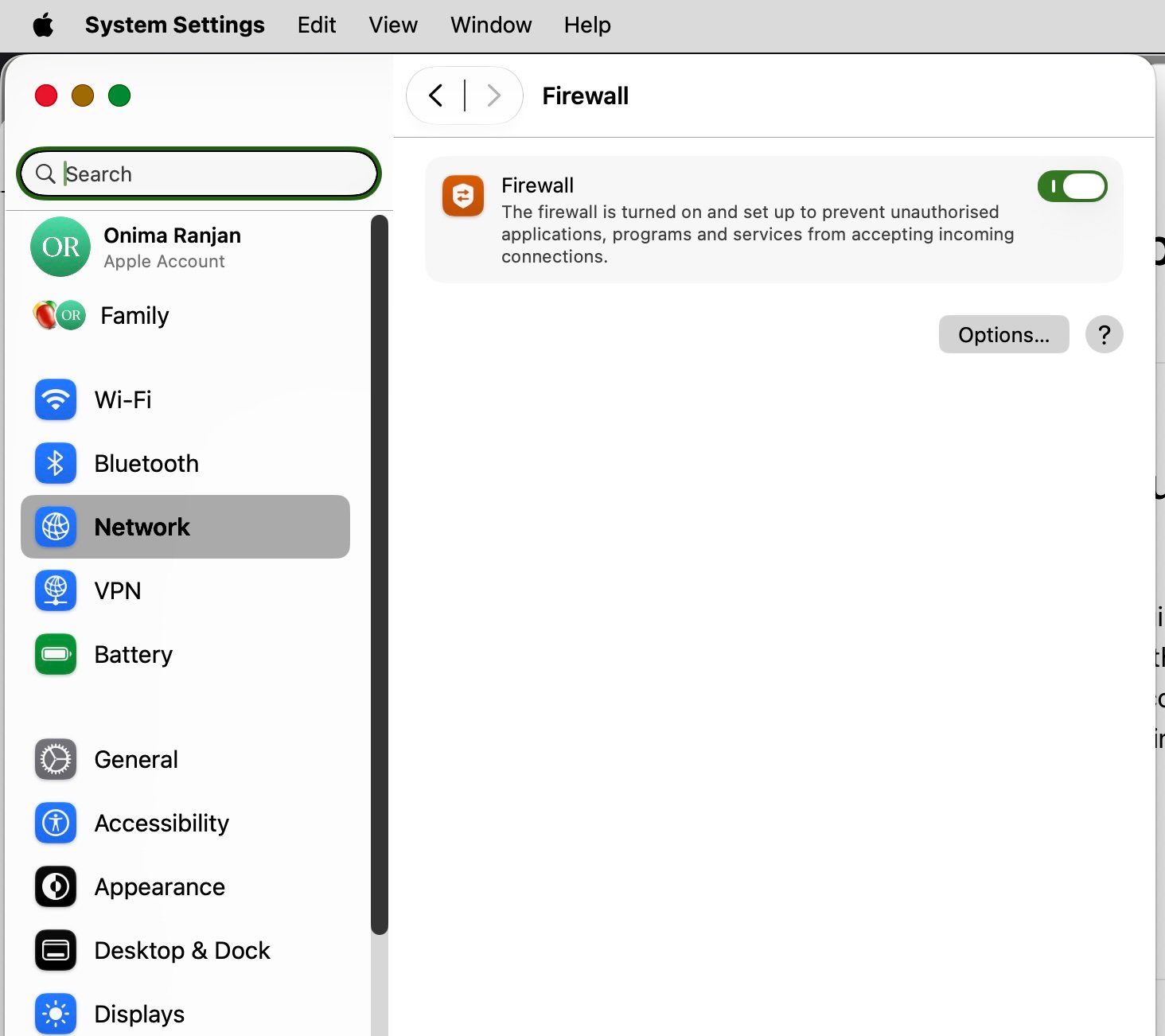
macOS Application Firewall settings panel

Visual Workflow: Toggle the master Firewall switch to ON and configure block options.

Importance⭐⭐⭐⭐☆
Security Impact⭐⭐⭐⭐☆
Performance CostNone
Ease of Use⭐⭐⭐⭐⭐
🪟 Windows Equivalent: Windows Defender Firewall
Apple’s Default

Disabled by default in standard macOS home installations.

TechZero Recommendation

Turn ON, especially if you frequently travel and connect to hotel or cafe Wi-Fi networks.

Inbound Security
Blocks Probes
Network Speed
No Impact
Battery Impact
None
Best For: ✈️ Travelers 🎓 Students 💼 Remote Workers
💡 Expert Deep-Dive: Common Mistakes, Myths & Smart Tips
⚠️ Common Mistakes
  • Assuming the firewall blocks outbound traffic; macOS firewall is strictly designed for unsolicited inbound connection blocking.
❌ Common Myth: “Enabling the Mac firewall breaks file sharing and AirDrop between trusted Apple devices.”
✔️ Reality Check: macOS automatically allows essential signed system services and AirDrop handshakes through the firewall while blocking unknown inbound network probes.
💡 TechZero Smart Tip: Click “Options” under Firewall settings and enable “Block all incoming connections” if you are working in high-risk foreign environments where you want total network invisibility.
🔗 You may also want to configure: FileVault | Private Wi-Fi Address | VPN
📚 Read Next: Complete Privacy & Security Masterclass Guide →

✓ Security & Privacy Checklist

  • ✓ Turn ON FileVault encryption
  • ✓ Enable Find My Mac
  • ✓ Turn ON the macOS Firewall for public networks
  • ✓ Set Lock Screen password requirement to Immediately

Customize macOS

⏱ 10 minutes read • Target: Tailor desktop dock, trackpad gestures, and window controls
🟢 Action Required: Enable Tap to Click for effortless daily navigation ⏱️ 10 seconds
🔍 Related Problems: Trackpad feels stiff | Hard to click without pressing down

Enable Tap-to-Click for Easier Navigation

Best for reducing finger joint fatigue and improving everyday trackpad interaction speed.

📍 Path: System Settings → Trackpad → Tap to click
🟢 Beginner 🟢 Risk: Safe Ventura ✓ | Sonoma ✓ | Sequoia ✓ | Tahoe ✓
TechZero Verdict
Default: Off • Recommendation: Enable for most users
⭐⭐⭐⭐⭐ Recommended
🚫 Who should NOT change this: Users who heavily prefer a firm physical haptic click press or those accustomed strictly to legacy mechanical mice.

Allows you to register a simple light tap with one finger on the trackpad surface as a mouse click, eliminating the need to physically depress the click mechanism. For advanced gesture navigation, check out our Trackpad Gestures Guide and Mission Control Guide.
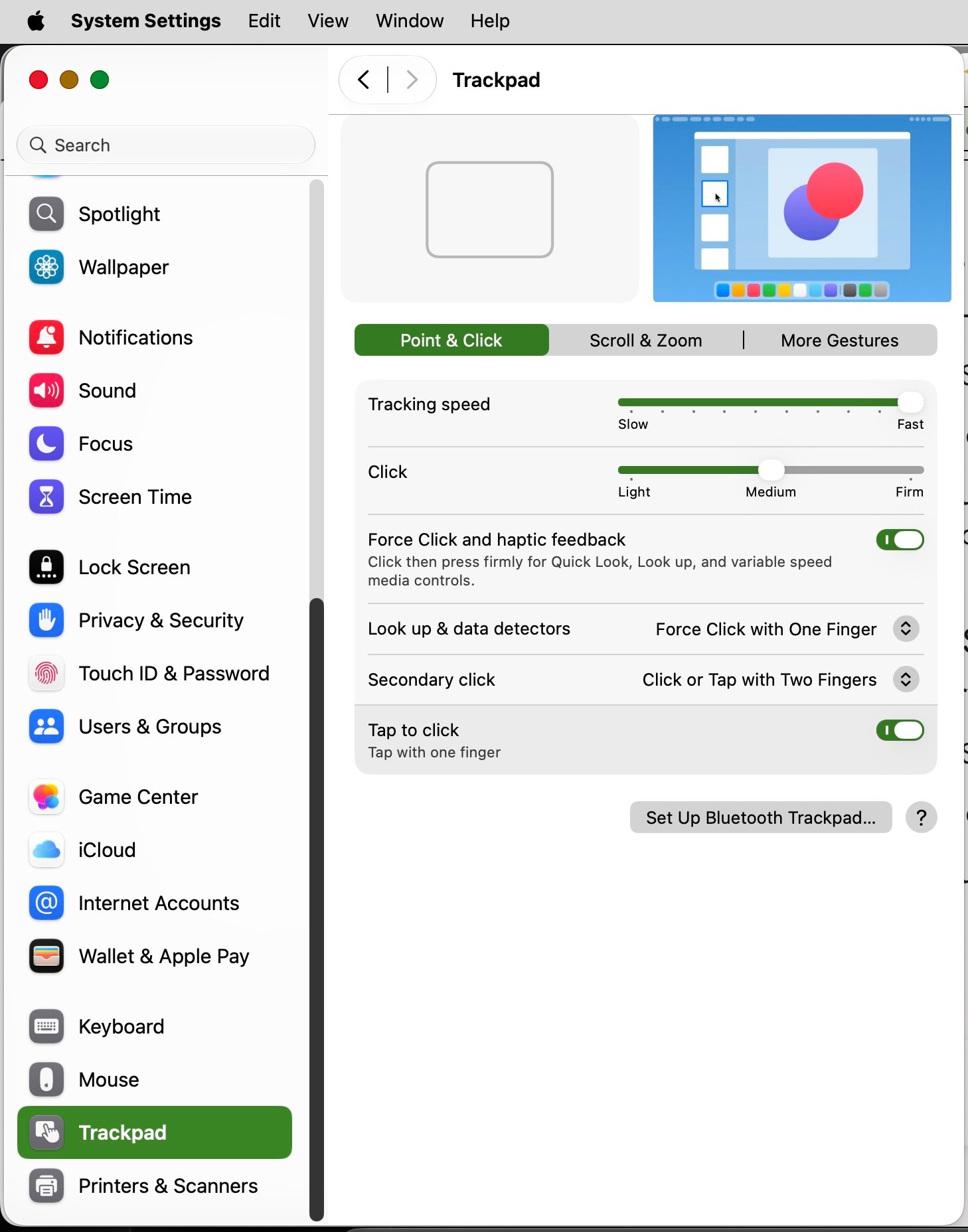
macOS Trackpad Tap to Click settings

Visual Workflow: Check the box to activate single-finger tapping.

Ergonomic StrainReduced
Input SpeedFaster Navigation
Performance CostNone
Ease of Use⭐⭐⭐⭐⭐
🪟 Windows Equivalent: Touchpad Properties → Tap to Click
Apple’s Default

Disabled out of the box, requiring a physical mechanical click down on the haptic trackpad surface.

TechZero Recommendation

Enable to reduce physical finger fatigue during extended typing or writing sessions.

Ergonomic Comfort
High Relief
Navigation Speed
Faster Input
Battery Impact
None
Best For: 🎓 Students 💼 Office Workers 💻 Developers
💡 Expert Deep-Dive: Common Mistakes, Myths & Smart Tips
⚠️ Common Mistakes
  • Assuming tapping will trigger accidental clicks while typing without realizing modern macOS palm-rejection filters out resting wrists automatically.
❌ Common Myth: “Tap to click causes accidental clicks while typing.”
✔️ Reality Check: Modern macOS palm rejection algorithms ignore accidental hand contact while your wrists rest on the keyboard chassis.
💡 TechZero Smart Tip: If you’re switching from Windows, turn off Natural Scrolling if it feels inverted to your muscle memory.
🔗 You may also want to configure: Tracking Speed | Force Click | Hot Corners
📚 Read Next: Complete Trackpad Gestures & Navigation Guide →

✓ Customization & Ergonomics Checklist

  • ✓ Enable Tap-to-Click in Trackpad settings
  • ✓ Assign Hot Corners for rapid Quick Notes or Desktop views
  • ✓ Enable auto-hide behavior for the Dock to maximize screen space

Advanced Settings

⏱ 8 minutes read • Target: DNS routing, terminal overrides, and developer safeguards
🟡 Optional: Customize DNS for faster web resolution ⏱️ 2 minutes
🔍 Related Problems: Slow web page lookups | Custom network routing

Configure Custom DNS Servers for Better Speed

Best for accelerating domain name resolution and bypassing slow ISP router bottlenecks.

📍 Path: System Settings → Network → Wi-Fi / Ethernet → Details → DNS
🔴 Advanced 🟢 Risk: Safe Ventura ✓ | Sonoma ✓ | Sequoia ✓ | Tahoe ✓
TechZero Verdict
Default: ISP Automatic • Recommendation: Switch to Cloudflare (1.1.1.1)
⭐⭐⭐⭐☆ Recommended
🚫 Who should NOT change this: Avoid modifying DNS if your corporate IT department mandates strict internal DNS routing or custom enterprise VPN split-tunnel configurations.

DNS servers act as the phone book of the internet, translating website names (like techzero.in) into machine-readable IP addresses. Faster DNS means web pages start loading faster. For complementary setup checks, see our Official Apple Support Documentation and our Keyboard Shortcuts Guide.
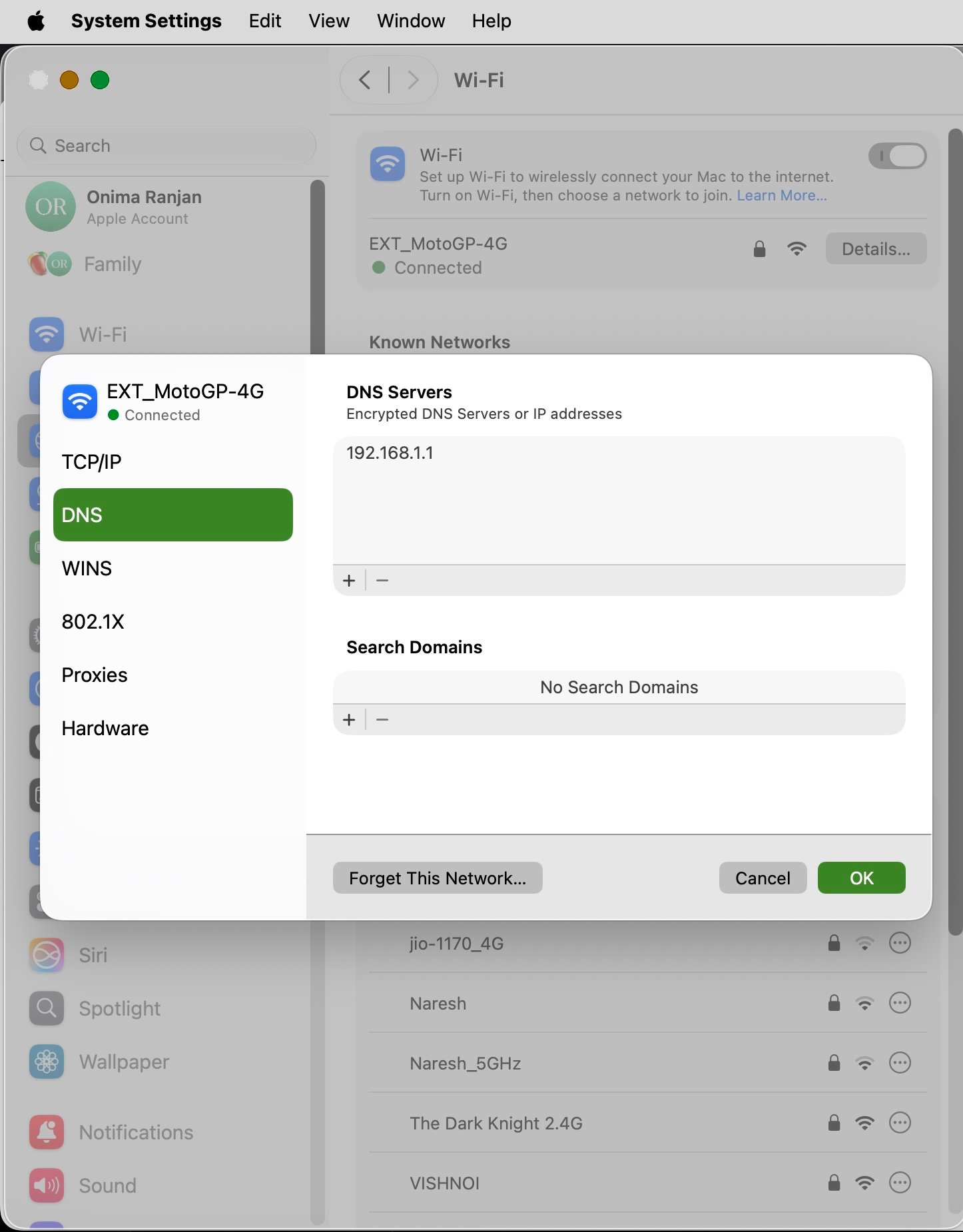
macOS Network DNS settings configuration

Visual Workflow: Add IPv4 addresses for Cloudflare (1.1.1.1) or Google (8.8.8.8).

Lookup BoostFaster Lookups*
ISP LoggingReduced
Performance CostNone
Ease of Use⭐⭐⭐☆☆

*Typical improvement (depends on ISP routing and location).

🪟 Windows Equivalent: Control Panel → Network Connections → TCP/IPv4 Properties
Apple’s Default

Automatically inherits whichever default Domain Name System (DNS) servers your local Internet Service Provider (ISP) assigns.

TechZero Recommendation

Switch to public DNS resolvers like Cloudflare (1.1.1.1) or Quad9 (9.9.9.9) for faster lookups and reduced tracking.

Lookup Speed
Faster Resolution
ISP Tracking
Alternative DNS
Battery Impact
None
Best For: 💻 Developers 💼 Professionals ✈️ Travelers
💡 Expert Deep-Dive: Common Mistakes, Myths & Smart Tips
⚠️ Common Mistakes
  • Confusing custom DNS settings with virtual private networks (VPNs) or believing that changing DNS servers alters your physical internet bandwidth caps.
❌ Common Myth: “Changing DNS servers changes your internet service provider or bypasses paid data caps.”
✔️ Reality Check: DNS only speeds up name translation; your actual physical internet connection bandwidth remains managed entirely by your ISP plan.
💡 TechZero Smart Tip: If you connect to public hotel Wi-Fi and experience lagging web page loads, switching your DNS to 1.1.1.1 can help bypass congested router bottlenecks.
🔗 You may also want to configure: VPN | Firewall | Private Wi-Fi Address | Limit IP Tracking
📚 Read Next: Complete Network & Privacy Security Guide →

✓ Advanced Power User Checklist

  • ✓ Configure secure public DNS servers like Cloudflare 1.1.1.1
  • ✓ Verify Network Priority order (Ethernet over Wi-Fi)
  • ✓ Maintain default SIP and security states unless actively developing software

Frequently Asked Questions (FAQ)

Where are System Settings on Mac?

Click the Apple icon () in the top-left corner of your screen and select System Settings…, or open it directly from your Applications folder or Spotlight search.

Why did Apple replace System Preferences?

Apple replaced System Preferences with System Settings starting in macOS Ventura to establish a unified design language across iOS, iPadOS, and macOS, featuring a sidebar layout optimized for instant keyword searching.

How do I reset all macOS settings?

macOS does not have a single master “Reset All Settings” button like iOS. To clear configurations, you must target specific property list (.plist) files in user library folders or use the Transfer or Reset tool in General settings to factory wipe the machine.

Which macOS settings improve battery life?

Enabling Low Power Mode, turning down display brightness, enabling Optimized Battery Charging, and quitting heavy background processes in Login Items extend mobile runtime.

Which settings make a Mac faster?

Pruning startup items in General → Login Items, reducing visual transparency effects, maintaining free SSD storage, and limiting active background browser tabs optimize overall responsiveness.

What are the best privacy settings on Mac?

Enabling FileVault, turning on Private Wi-Fi Addresses, restricting application tracking permissions under Privacy & Security, and enforcing strict Location Services permissions.

How do I stop apps from opening at startup?

Go to System Settings → General → Login Items, and toggle off any unwanted applications listed under “Open at Login” or “Allow in the Background”.

What does FileVault do?

FileVault encrypts your startup drive data using encryption algorithms, ensuring that if your Mac is physically stolen, data cannot be read without your login password or recovery key.

Should I enable Firewall on Mac?

Yes, enabling the built-in macOS Application Firewall adds a layer of protection against unsolicited inbound network connections, especially when connecting to unsecured public Wi-Fi networks.

References & Links Hub

🌐 Part 1: Official External Sources

  • Apple macOS User Guide
  • Apple Platform Security Documentation
  • Official Apple Support

Tags:

Applemacos
Author

Onima Ranjan

Follow Me
Other Articles
Side-by-side Windows and Mac keyboard comparison highlighting the Ctrl, Alt, Windows, Command, Option, and Function keys for users switching from Windows to macOS.
Previous

Switching from Windows to macOS? Unlearn These 50 Windows Habits

Samsung Galaxy S26 Ultra vs. Apple iPhone 17 Pro Max
Next

Samsung Galaxy S26 Ultra vs. Apple iPhone 17 Pro Max

4 Comments
  1. The Best External SSDs for MacBooks, iPads, iPhones: The SSD Buying Guide (1 TB, 2 TB) says:
    August 6, 2026 at 5:49 PM

    […] Essential macOS Settings Guide […]

    Reply
  2. Logitech MX Master 3s or 4 for MacBook: What You Gain, What You Miss says:
    August 8, 2026 at 8:42 AM

    […] Complete macOS Settings Guide — Discover the system-level macOS settings that affect your everyday productivity and mouse configuration. […]

    Reply
  3. How MacBook Air & Neo Stay Cool Without a Fan says:
    August 9, 2026 at 6:59 PM

    […] You can also explore practical macOS controls in our macOS Settings Guide. […]

    Reply
  4. The Best Mechanical Keyboards for MacBooks and iPads says:
    August 24, 2026 at 7:42 PM

    […] macOS Settings Guide – Optimize your system configurations for external resolutions and scaling. […]

    Reply

Leave a Reply Cancel reply

Your email address will not be published. Required fields are marked *

Know About US

  • Home
  • Affiliate Disclosure
  • About Us
  • Editorial Policy
  • Privacy Policy
  • Terms and Conditions
  • Authors
    • Ravi Ranjan
    • Onima Ranjan
  • Contact
  • Disclaimer
© 2026 https://techzero.in/ Contact: hello@techzero.in
Navigation
×
    • 🎯 Executive Summary Complete macOS Settings Guide (2026)
      • 🔍 Core Focus Areas Covered
      • 💡 Key Editorial Takeaways
  • Complete macOS Settings Guide (2026) Every Setting Explained
      • 👤 Who is this guide for?
    • Quick Summary What To Do…
      • 📋 Settings Covered in This Guide
    • Speed Up Your Mac
      • Manage Login Items to Speed Up Your Mac
          • Apple’s Default
          • TechZero Recommendation
          • ⚠️ Common Mistakes
      • Customize Spotlight Search Categories
          • Apple’s Default
          • TechZero Recommendation
          • ⚠️ Common Mistakes
        • ✓ Performance & Speed Checklist
    • Improve Battery Life
      • Enable Low Power Mode to Extend Battery Life
          • Apple’s Default
          • TechZero Recommendation
          • ⚠️ Common Mistakes
      • Enable Optimized Battery Charging
          • Apple’s Default
          • TechZero Recommendation
          • ⚠️ Common Mistakes
        • ✓ Battery & Power Checklist
    • Secure Your Mac
      • Enable FileVault Full-Disk Encryption
          • Apple’s Default
          • TechZero Recommendation
          • ⚠️ Common Mistakes
      • Turn On the macOS Firewall for Public Networks
          • Apple’s Default
          • TechZero Recommendation
          • ⚠️ Common Mistakes
        • ✓ Security & Privacy Checklist
    • Customize macOS
      • Enable Tap-to-Click for Easier Navigation
          • Apple’s Default
          • TechZero Recommendation
          • ⚠️ Common Mistakes
        • ✓ Customization & Ergonomics Checklist
    • Advanced Settings
      • Configure Custom DNS Servers for Better Speed
          • Apple’s Default
          • TechZero Recommendation
          • ⚠️ Common Mistakes
        • ✓ Advanced Power User Checklist
    • Frequently Asked Questions (FAQ)
      • Where are System Settings on Mac?
      • Why did Apple replace System Preferences?
      • How do I reset all macOS settings?
      • Which macOS settings improve battery life?
      • Which settings make a Mac faster?
      • What are the best privacy settings on Mac?
      • How do I stop apps from opening at startup?
      • What does FileVault do?
      • Should I enable Firewall on Mac?
    • References & Links Hub
      • 🌐 Part 1 Official External Sources
→ Index