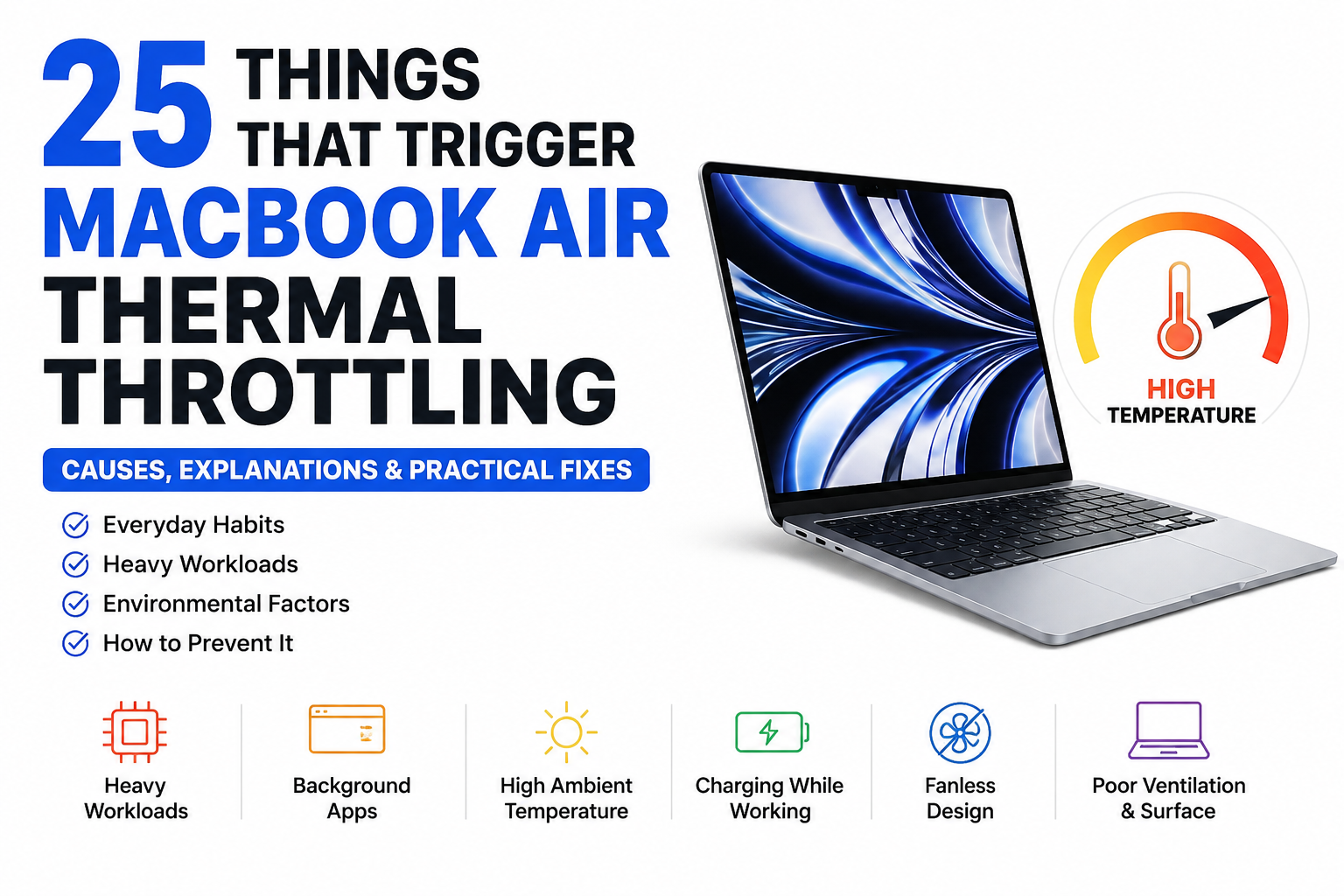

MacBook Air thermal throttling occurs when sustained workloads generate more heat than the fanless cooling system can dissipate. macOS automatically reduces CPU and GPU performance to protect the hardware from excessive temperatures.
The MacBook Air is arguably the best everyday laptop on the planet. Thanks to Apple Silicon, it’s razor-thin, dead silent, and incredibly fast. But that silence comes with a trade-off: it has no fan, But that doesn’t mean it overheats easily—but it does mean sustained heavy workloads are handled differently than on a MacBook Pro.
When you push this machine to its absolute limits, it eventually reaches its thermal ceiling. And when that happens, it slows down. This is called thermal throttling.
But what actually triggers this, and how can you delay or prevent it? Instead of just throwing benchmarks at you, we’ve put together a complete, practical guide on the everyday habits, heavy workloads, and environmental factors that push your Mac to its limits—and exactly how to manage them.
Although this guide focuses on the MacBook Air, most of the advice also applies to fanless Apple Silicon devices such as iPad Air and iPad Pro workflows under sustained load.
💡 Is This Guide for You?
This guide is for MacBook Air users who:
- Feel their Mac gets hot.
- Notice performance slowing during demanding tasks.
- Want practical ways to reduce thermal throttling.
- Are deciding whether the MacBook Air is the right laptop for their workload.
This guide applies to the MacBook Air M1, M2, M3, M4 and M5. While newer models generally sustain peak performance a little longer, the same principles apply across all fanless MacBook Air models. If you’re on the fence about which Mac to buy, check out our comprehensive [Mac Buying Guide] first.
Still deciding which Mac to buy? Before diving into thermal throttling, check out our comprehensive Mac Buying Guide, where we explain which Mac is best for students, professionals, creators, and developers.
📌 Quick Comparison: Throttling Likelihood
| Typical Workload | Throttling Risk |
|---|---|
| Word + Safari | 🟢 Very Low |
| Chrome (40+ tabs) + YouTube | 🟢 Low |
| Lightroom batch editing | 🟡 Moderate |
| 4K video export | 🟠 High |
| Blender rendering | 🔴 Very High |
| Local AI inference | 🔴 Very High |
This table is only a general guide. Actual thermal behavior depends on your MacBook Air model, workload duration, available RAM, ambient temperature, and background activity.
What Is Thermal Throttling? (And Why You Shouldn’t Panic)
First things first: thermal throttling is not a defect. It is a built-in safety mechanism.
Because the MacBook Air doesn’t have a cooling fan, it relies on “passive cooling.” The aluminum body of the laptop acts as a giant heatsink, absorbing the heat generated by the processor and radiating it out into the air.
However, under sustained, heavy loads, the processor generates heat faster than the aluminum chassis can shed it. To prevent the internal components from taking damage, macOS intentionally lowers the speed of the CPU and GPU. The laptop slows down so it can cool off. It’s exactly like a runner slowing down from a sprint to a jog to catch their breath.
Want a deeper explanation? Our detailed guide on How Apple Keeps MacBooks Cool Without a Fan explains Apple’s passive cooling system, aluminum chassis design, and why the MacBook Air doesn’t need a fan for most everyday tasks.
If your MacBook Air only becomes warm while exporting a 45-minute video or running a local AI model, that’s a sign it’s working exactly as designed—not that something is wrong.
Here are the 25 workloads, habits, and environmental factors that saturate the passive cooling system.
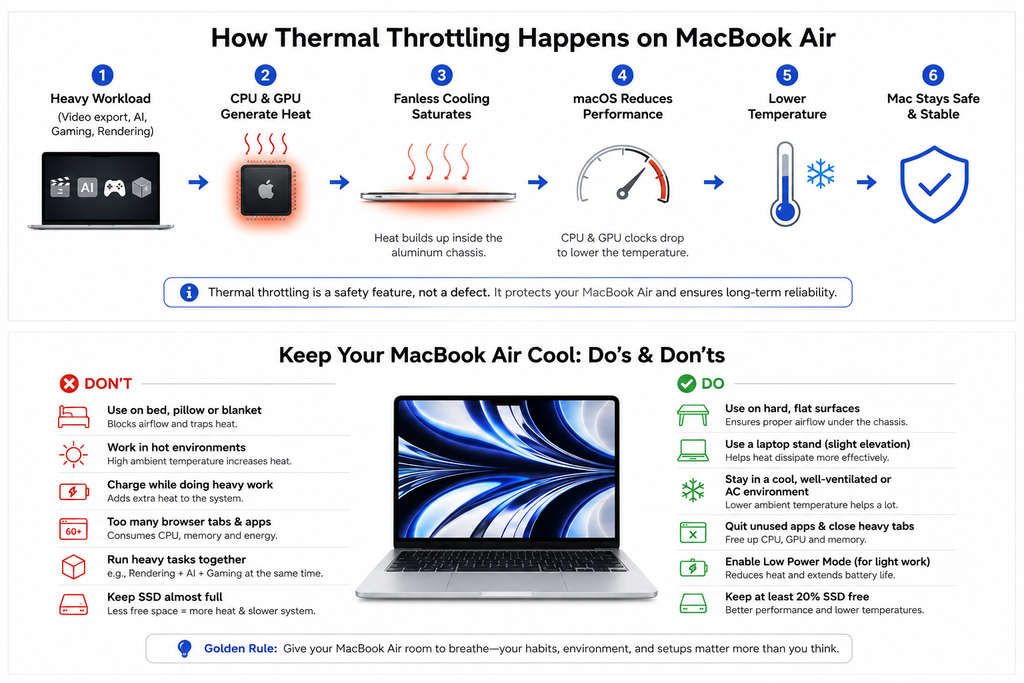
Workloads Most Likely to Trigger Thermal Throttling
1 Long 4K/8K Video Exports
🔴 Very High RiskShort video edits are a breeze for the Air. But if you are exporting a massive 4K documentary in Final Cut Pro or Premiere Pro, the Media Engine and GPU are pinned at 100% capacity. Depending on the project complexity, ambient temperature, and MacBook Air model, sustained exports may eventually trigger thermal throttling.
2 3D Rendering
🔴 Very High RiskApps like Blender, Cinema4D, and Maya are designed to squeeze every drop of power out of your hardware. If you are rendering complex 3D lighting and textures, your Air is likely to throttle as it sustains peak load.
3 Running Local AI & Apple Intelligence
🔴 Very High RiskRunning Large Language Models locally (via Ollama or LM Studio) relies heavily on the Neural Engine and your available RAM (learn more in our guide: [Unified Memory Explained]). Furthermore, certain Apple Intelligence features that perform sustained on-device processing may temporarily increase processor activity and contribute to heat buildup.
4 AI Image Generation
🔴 Very High RiskGenerating images locally through Stable Diffusion, Flux, or ComfyUI places sustained load on the GPU. Because image generation requires continuous effort, you will notice performance dips if you run large batch generations.
5 AAA Gaming
🟠 High RiskThe MacBook Air can comfortably play modern titles like Resident Evil Village or Death Stranding. However, modern gaming requires sustained max performance from both the CPU and GPU. Expect the frame rate to drop after 15–20 minutes as the system exceeds its cooling capacity.
6 Long Software Compiles
🟠 High RiskWhile short code scripts run instantly, compiling massive codebases in Xcode or Android Studio causes sustained CPU spikes, pushing the logic board toward its thermal limits.
7 Multiple Virtual Machines
🟠 High RiskRunning Windows via Parallels alongside Docker containers forces the processor to juggle multiple operating systems at once. This constant, heavy background processing generates significant heat.
8 Editing Hundreds of RAW Photos
🟠 High RiskApplying a preset to one photo in Lightroom is fine. Batch-exporting 500 high-resolution RAW images simultaneously will force the processor into overdrive, saturating the passive cooling system.
Hidden Software & Background Tasks
9 Heavy Browser Usage
🟡 Moderate RiskBrowsers can become surprisingly resource-intensive, especially with dozens of active tabs. Safari is generally the most power-efficient browser on macOS, but even Safari can increase CPU usage when media-rich tabs are active simultaneously. If you are running Chrome with 80 tabs, ChatGPT, and a heavy Figma board, your CPU will work overtime.
10 Streaming Video in Background Tabs
🟡 Moderate RiskMany users leave YouTube, Netflix, or an Apple Music visualizer running on a second monitor while working. Even in the background, this keeps the hardware video decoder, GPU, and browser active, adding unnecessary thermal load.
11 Background Cloud Syncs
🟡 Moderate RiskSometimes users start editing video or playing a game while iCloud Drive, Google Drive, or Dropbox is silently syncing 200 GB of files in the background. Your CPU, SSD, and Wi-Fi network all become highly active simultaneously.
12 Running Multiple Heavy Apps Together
🟠 High RiskMaybe Blender runs fine on its own. Maybe Docker runs fine on its own. But if you have Blender, Docker, Chrome, and Lightroom open simultaneously, the compounding effect will push your Air toward thermal throttling much faster.
13 Using Older “Rosetta” Apps
🟡 Moderate RiskNative Apple Silicon apps run flawlessly. But if you are using older apps designed for Intel Macs, macOS has to translate them in real-time using a background layer called Rosetta 2. This translation requires extra CPU cycles, producing more heat.
14 Closing Windows Instead of Quitting Apps
🟡 Moderate Risk💡 Tip: To completely close an app, choose App Name → Quit from the menu bar, press ⌘ + Q, or right-click its Dock icon and choose Quit. Closing the red window button usually closes only the window—not the application. Many new Mac users unknowingly leave heavy apps running silently in the background.
15 Too Many Startup Apps
🟡 Moderate RiskIf your Mac reaches its thermal limit the minute you turn it on, check your startup apps. Apps like Adobe Creative Cloud and Steam love to launch silently. Go to System Settings → General → Login Items & Extensions and toggle off what you don’t need. (See our [Complete macOS Settings Guide] for more).
16 Spotlight Indexing After Setup
🟡 Moderate RiskIf you just bought your Mac, updated macOS, or transferred terabytes of data, your Mac will feel warm and sluggish for a few hours. This is because Spotlight is indexing every single file in the background. Let it finish; it will return to normal soon. 🔍 Diagnostic Tip: If your Mac feels unexpectedly warm, open Activity Monitor and sort by CPU usage. A runaway app, browser tab, or sync process may be consuming resources in the background.
Environmental & Hardware Influences
17 Pushing Pixels to External 4K/5K/6K Displays
🟡 Moderate RiskPushing millions of pixels to a Studio Display takes GPU power. If you are just typing a document, it’s fine. But if you are rendering a 3D model while connected to a high-res external monitor, the system reaches its thermal ceiling much faster.
18 Charging While Running Heavy Workloads
🟡 Moderate RiskBatteries naturally generate heat when they take in power. Modern MacBooks intelligently manage charging, so the effect is generally modest. Charging simply adds another source of heat during already demanding workloads. 🔧 The Fix: If your battery is already at 85–100%, unplugging during a long export may slightly reduce the total thermal load. (Read our [MacBook Battery Health Guide] for more).
19 Large File & SSD Transfers
🟡 Moderate RiskCopying hundreds of gigabytes between internal storage, external SSDs, or network drives can also increase processor and storage activity. The Thunderbolt ports and internal storage controller will warm up rapidly during massive file dumps.
20 Working in Hot Weather
🟠 High RiskThis is especially relevant in hot North Indian summers, where indoor temperatures can exceed 35–40°C without air conditioning. Your MacBook starts at a severe disadvantage because it relies on ambient air to cool its shell. 🔧 The Fix: Work in an air-conditioned or well-ventilated room, avoid enclosed spaces, and never leave your Mac in direct sunlight.
21 Blocking Heat Dissipation
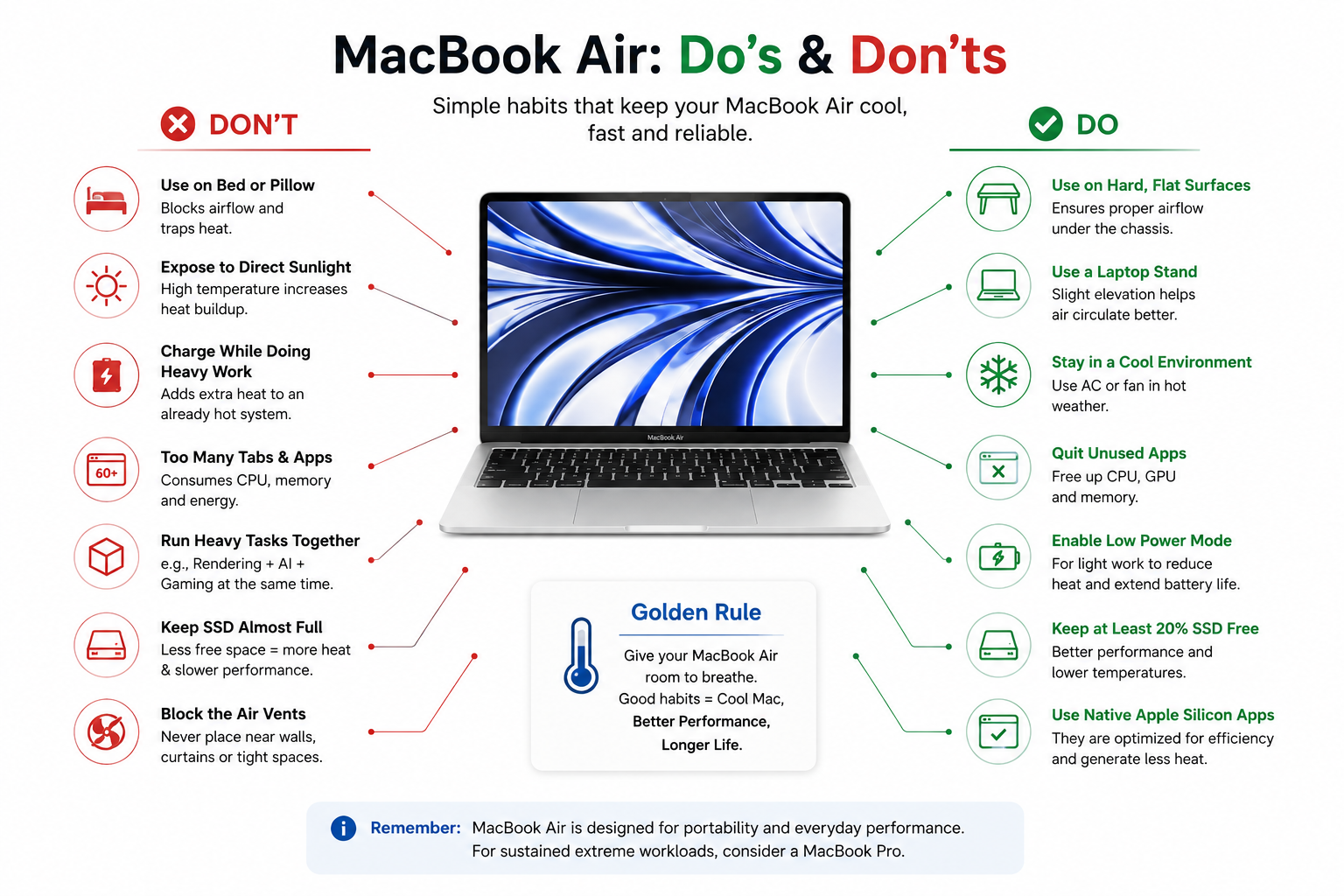
🟠 High Risk⚠️ Common Mistake: Using the MacBook Air on a bed doesn’t just warm the laptop—it traps heat against the chassis, drastically reducing its ability to cool itself. Fabric acts as a thermal insulator. Soft surfaces can also block the natural airflow around the chassis, making it harder for heat to escape. Always do heavy work on a hard, flat surface like a wooden desk, metal desk, or table.
Practical Ways to Manage or Delay Throttling
Because some heat is inevitable, here are the most effective ways to delay throttling and maximize your sustained performance.
22 Laptop Stands & Cooling Pads
🟢 PreventionEven on a desk, a flat laptop traps a thin layer of hot air underneath it. Elevating it with a stand improves airflow around the chassis. Additionally, cooling pads can slightly lower the temperature of the aluminum chassis, but because the MacBook Air has no intake fan, they provide only modest benefits. Think of them as a small optimization rather than a performance upgrade. (Looking for a good stand? Check our roundup of the [Best MacBook Accessories]).
23 Keeping a Buffer on Your SSD
🟢 PreventionWhen available storage becomes very low, macOS has less room for “swap files” and temporary data. That can prolong demanding tasks, indirectly increasing the time the processor remains under heavy load. Try to keep at least 15–20% of your storage free.
24 Enabling “Low Power Mode”
🟢 PreventionIf you are doing light work while traveling and want to guarantee a cool lap and endless battery, go to System Settings → Battery → Low Power Mode. This artificially caps peak performance, significantly reducing heat generation. (Lowering your screen brightness from 100% to 70% also helps reduce overall power consumption).
25 Keeping macOS Updated
🟢 PreventionApple is constantly tweaking the way macOS handles power delivery, scheduler tasks, and hardware efficiency. Ignoring updates means you are missing out on under-the-hood optimizations that could keep your Mac running cooler.
Things That Usually DON’T Cause Thermal Throttling
People often worry unnecessarily about hurting their fanless Mac. You do not need to baby this laptop. The following everyday tasks will rarely, if ever, saturate the passive cooling system:
Myth vs. Reality
The Air shouldn’t get warm at all.
A warm aluminum chassis is perfectly normal. That’s how it sheds internal heat.
Fanless means poor performance.
Apple Silicon delivers excellent burst performance; only long, sustained workloads expose the limits of passive cooling.
Thermal throttling damages the Mac.
No. Throttling is a built-in safety feature—it is exactly what protects the hardware from damage.
Buying more RAM prevents throttling.
More RAM improves multitasking and swap efficiency, but it doesn’t stop heat generation under maximum processing load.
Cooling pads will solve throttling.
They provide only modest benefits since the MacBook Air lacks intake vents to pull cool air inside the chassis.
Closing a window quits an app.
On macOS, most apps continue running in the background and using resources until you explicitly “Quit” (⌘+Q) them.
If you’re new to macOS, this is one of many habits that surprise Windows users. Our guide on Windows Habits Every macOS User Should Unlearn covers many more differences you’ll encounter.
Frequently Asked Questions (FAQ)
Does the MacBook Air M4 throttle?
Yes. While the M4 chip is incredibly efficient, all fanless laptops will eventually thermal throttle if kept under a maximum sustained load for long enough.
Is thermal throttling bad for my Mac?
No, it is the exact opposite. Thermal throttling is a self-preservation feature. It slows the processor down to ensure your internal components and battery are completely protected from heat damage.
Does a cooling pad actually help?
It helps slightly. Because the MacBook Air doesn’t have air intake vents, a cooling pad can only cool the bottom aluminum chassis, which provides modest relief but won’t stop throttling during peak workloads.
Why does my MacBook Air get hot while charging?
Batteries generate natural heat when taking in power. If you are doing heavy work while simultaneously fast-charging a dead battery, you are combining two distinct heat sources at once.
Can I stop thermal throttling completely?
On a fanless machine, you can’t bypass physics entirely. However, you can significantly delay it by working in a cool room, elevating the laptop on a stand, and ensuring unnecessary background apps are fully quit (⌘+Q).
The TechZero Verdict
Thermal throttling isn’t a design flaw—it’s the deliberate trade-off that allows the MacBook Air to remain fanless, totally silent, impossibly thin, and incredibly lightweight. For the vast majority of users, throttling will literally never be an issue. Everyday tasks like browsing, office work, coding, streaming, and light creative work simply don’t push modern Apple Silicon to its thermal limits.
However, if your workflow involves sustained professional workloads such as 4K/8K video exports, 3D rendering, or local AI inference, the MacBook Pro’s active cooling system is the better fit because it can maintain peak performance for much longer. Checking out our MacBook Air vs MacBook Pro comparison is a must.
💼 TechZero Recommendation
💻 Choose MacBook Air
- ✔ Productivity & Office Work
- ✔ Web Browsing & Research
- ✔ Coding & Studying
- ✔ Occasional Photo/Video Editing
🚀 Choose MacBook Pro
- ✔ Long 4K/8K Video Exports
- ✔ 3D Modeling & Rendering
- ✔ Running Local AI Models
- ✔ Professional Creative Workloads
If you’re still deciding between the MacBook Air and MacBook Pro, our complete MacBooks Buying Guide 2026 compares every model to help you choose the right one.
📚 Helpful External Resources
If you’d like to learn more about how Apple Silicon manages performance and thermals, these official resources are worth reading:
🔗 Related TechZero Guides
Continue exploring Apple performance, hardware optimization, and buying decisions with our in-depth guides:



[…] Understanding MacBook Air Thermal Throttling […]
[…] MacBook Air Thermal Throttling: Causes and What You Can Do […]
[…] For a deeper look at this specific behaviour, see our guide to MacBook Air thermal throttling. […]