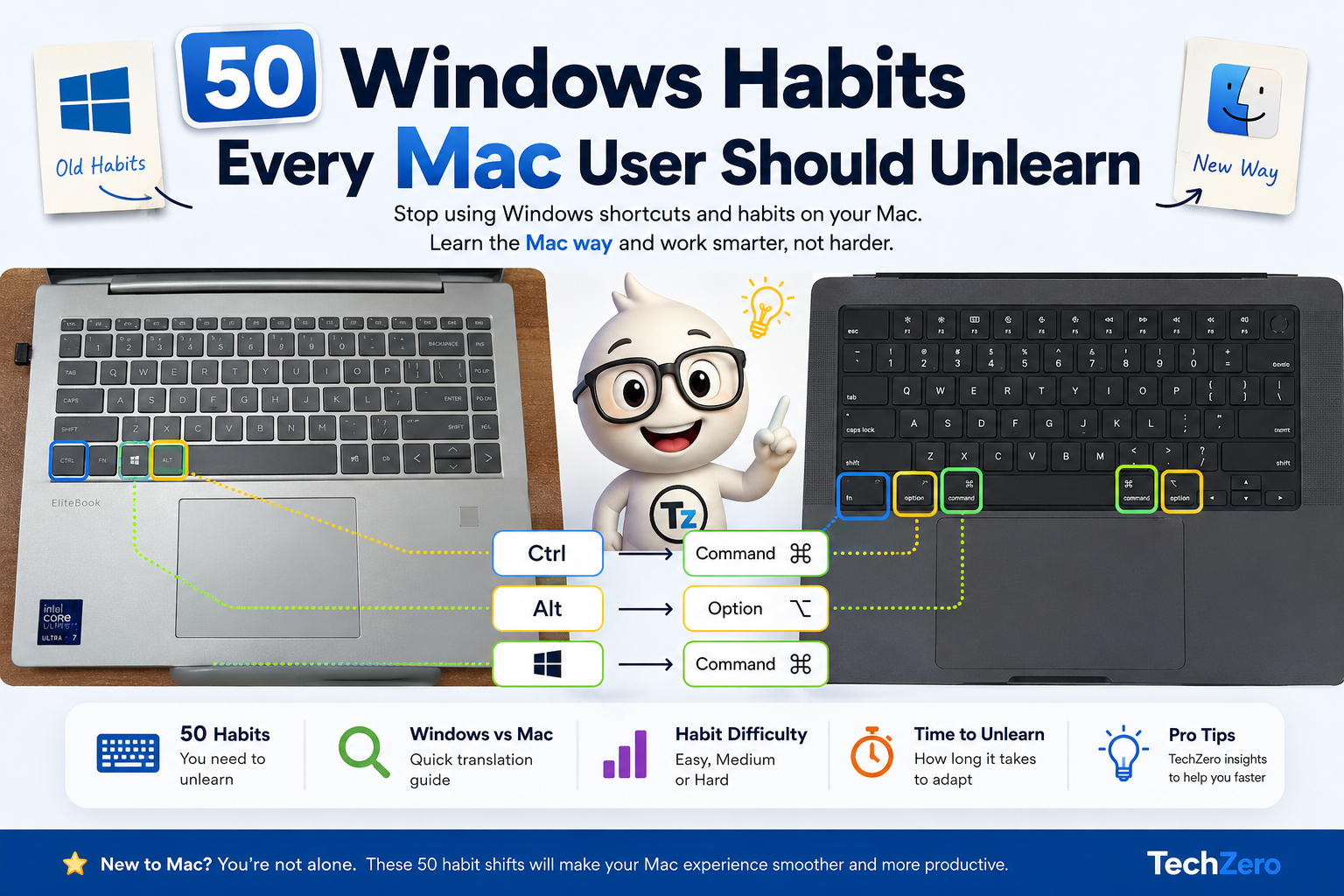

50 Windows Habits Every Mac User Should Unlearn
Your brain still thinks you’re using Windows. Your fingers still press Ctrl+C.
You still look for:
- C Drive
- Task Manager
- Print Screen
- Control Panel
- Alt+Tab
- Device Manager
None of those work the same way on macOS.
If you recently switched to a Mac, these are the 50 habits that keep slowing you down—and what to do instead.
The 10 Biggest Windows Habits to Break Instantly
- Using Ctrl instead of Command (⌘)
- Closing windows instead of quitting apps
- Searching for the C: Drive
- Using a File Explorer mindset instead of Finder
- Looking for Task Manager (Use Force Quit instead)
- Looking for Print Screen (Use ⌘⇧3 instead)
- Using Ctrl+X to cut files
- Expecting Window Snap by default
- Searching for Control Panel (Use System Settings instead)
- Ignoring Trackpad Gestures
🚨 The Hardest Windows Habit to Break
Nearly every new Mac user clicks the red “X” to close a window and assumes the application has quit. On macOS, it hasn’t.
macOS allows applications to run in the background without any active windows. If you keep hitting the red X, you will eventually have 30 apps silently eating up your RAM. Stop clicking the red X to close software. Press ⌘ + Q instead.
⚡ The Ultimate Translation Guide
Keyboard Shortcuts
| Windows Habit | Mac Way |
|---|---|
| Ctrl + C | ⌘ Command + C |
| Ctrl + V | ⌘ Command + V |
| Ctrl + X | ⌘ C then ⌘⌥V |
| Ctrl + Alt + Delete | ⌘⌥Esc |
| Print Screen | ⌘⇧3 / ⌘⇧4 |
App Translation
| If you’re looking for… | On Mac it’s called… |
|---|---|
| File Explorer | Finder |
| Control Panel | System Settings |
| Task Manager | Force Quit |
| Recycle Bin | Trash |
| Start Menu | Spotlight (⌘ + Space) |
| Paint | Preview |
| Notepad | TextEdit |
| Snipping Tool | Screenshot |
⏱️ How long does it take to unlearn?
| Habit / Feature | Average Time to Adapt |
|---|---|
| Using Spotlight instead of Start Menu | 1 day |
| Thumb on the Command Key (⌘) | 2 days |
| Using Finder efficiently | 4 days |
| Mastering Trackpad Gestures | 1 week |
| Mac Window Management (Spaces) | 2 weeks |
⌨️ Keyboard & Shortcuts
1 Relying on the Control (Ctrl) Key 🔴 Hard
In Windows, your pinky stretches to the Control key for almost everything. On a Mac, the Command (Cmd/⌘) key handles primary shortcuts, and it’s positioned right next to the spacebar. Stop stretching your pinky and start using your thumb for copying, pasting, and saving.

2 Pressing Enter to Open Files 🟡 Medium
If you highlight a file in macOS and press the Return (Enter) key, it doesn’t open the file—it highlights the text so you can rename it. To open a file using your keyboard, press Cmd + O or Cmd + Down Arrow.
3 Looking for the Print Screen Button 🟢 Easy
Macs don’t have a dedicated Print Screen key. Memorize these two shortcuts: Cmd + Shift + 3 takes a screenshot of your entire display, and Cmd + Shift + 4 turns your cursor into a crosshair to capture a specific selection.
4 Using Backspace to Delete Files 🟢 Easy
In Windows, hitting Backspace/Delete sends a file to the Recycle Bin. In Finder, hitting Delete does nothing. You must press Cmd + Delete to send a file to the Trash to prevent accidental deletions.
5 Alt-Tabbing Between Windows 🟡 Medium
On a PC, Alt-Tab cycles through every open window. On a Mac, Cmd-Tab cycles through open applications. To switch between specific windows within the same app, use Cmd + Tilde (~).
6 Pressing F2 to Rename Files 🟢 Easy
F2 is the classic Windows shortcut for renaming. On a Mac, pressing F2 usually changes screen brightness. Just press the Return key to instantly rename any selected file in Finder.
7 Using Ctrl-Alt-Delete for Everything 🟡 Medium
When a PC freezes, you hit Ctrl-Alt-Delete. On a Mac, the panic button is Cmd + Option + Esc. This brings up the “Force Quit” window, allowing you to kill unresponsive apps.
8 Expecting Dedicated Page Up/Down Keys 🟢 Easy
Compact Mac keyboards lack dedicated Page Up/Down keys. Hold the Function (Fn) key and use the arrows: Fn + Up is Page Up, Fn + Down is Page Down, Fn + Left is Home, and Fn + Right is End.
9 Typing Alt Codes for Special Characters 🟢 Easy
Instead of memorizing numeric Alt codes (Alt+0233), just press and hold a letter key on a Mac, and a pop-up menu of accented variants (é, è, ê) will seamlessly appear.
10 Trying to use the Windows Key 🔴 Hard
If using a standard PC keyboard on a Mac, the Windows key acts as the Command key, but it’s physically in the wrong spot. Go to System Settings > Keyboard > Keyboard Shortcuts to remap modifier keys properly.
🪟 Windows & Apps
11 Closing a Window to Quit an App 🔴 Hard
Clicking the red ‘X’ in macOS only closes the active window; the app remains running in the background. You must press Cmd + Q to truly quit and free up memory.
12 Maximizing Windows to Fill the Screen 🟡 Medium
Clicking the green dot on Mac pushes the app into a dedicated “Full Screen” Space, hiding the Menu Bar. To just resize the window to fit the screen without entering full-screen, hold Option and click the green dot.
13 Dragging Windows to Edges to Snap Them 🟡 Medium
macOS doesn’t natively snap windows when dragged to the edge. You have to hover over the green window dot and select “Tile Window.” Alternatively, download a third-party app like Magnet or Rectangle.
14 Searching for “Add/Remove Programs” 🟢 Easy
To remove 95% of Mac apps, open your Applications folder and drag the app’s icon into the Trash. Empty the trash, and it’s gone. No uninstaller wizard required.
15 Minimizing Everything to See the Desktop 🟡 Medium
Stop minimizing windows one by one. Use the “Show Desktop” gesture: spread your thumb and three fingers apart on the trackpad, or press Cmd + F3 to instantly push all windows aside.
16 Looking for Menus on the Window Itself 🟢 Easy
Windows attaches File/Edit menus to individual windows. On a Mac, the Menu Bar is permanently fixed to the very top of the screen and changes dynamically depending on which app is active.
17 Checking the Bottom Right for the System Tray 🟢 Easy
Background apps, volume, and Wi-Fi on Windows live in the bottom right corner. On a Mac, these “Menu Bar Extras” live in the top right corner. Look up, not down.
18 Using Alt-F4 to Force Close Apps 🟢 Easy
Alt-F4 is a PC staple. On a Mac, Cmd-W closes the current window, while Cmd-Q quits the entire application.
19 Double-Clicking the Title Bar to Maximize 🟡 Medium
In Windows, this maximizes the window. On modern versions of macOS, this behavior is configurable. Depending on your Desktop & Dock settings, double-clicking the title bar may zoom (maximize), minimize the window, or do absolutely nothing. Check your settings before you click!
20 Losing Track of Open Apps 🟡 Medium
Because Mac apps don’t quit when closed, beginners end up with 30 apps running invisibly. Pay attention to the small dots under the Dock icons and use Cmd-Q to prune them.
📁 Finder & Files
21 Searching for the C: Drive 🔴 Hard
Unix-based systems like macOS don’t use lettered drives (C:, D:). The root of your system is “Macintosh HD.” External drives mount as named volumes on your desktop or Finder sidebar.
22 Cutting and Pasting Files (Ctrl-X) 🔴 Hard
Finder prevents you from using “Cut” (Cmd-X) on files to prevent data loss. Instead, Copy the file (Cmd-C), go to the destination, and press Cmd + Option + V to move it instead of pasting a clone.
23 Looking for File Path Addresses 🟡 Medium
Finder hides the exact file path by default. To see exactly where you are, press Cmd + Option + P to toggle the Path Bar at the bottom of the Finder window.
24 Navigating with Backspace 🟡 Medium
Pressing Backspace in Explorer takes you up one folder level. In Finder, it does nothing. Press Cmd + Up Arrow to go up a level, or Cmd + [ to go back in history.
25 Wondering Where the Ribbon Went 🟢 Easy
Finder lacks the dense Windows Ribbon interface. For quick tools, right-click the top of the Finder window and select “Customize Toolbar” to add your preferred buttons.
26 Ignoring File Tags 🟡 Medium
Tags are a core Mac feature. You can assign colors to files across different folders and instantly pull them all up via the Finder sidebar. Stop relying purely on rigid folder structures.
27 Opening Multiple Finder Windows 🟢 Easy
Stop cluttering your screen with Finder windows. Finder supports tabbed browsing, just like Safari or Chrome. Press Cmd + T to open a new tab and keep your workspace clean.
28 Pressing F5 to Refresh 🟢 Easy
macOS updates the visual file system in real-time. There is no refresh button (F5) on the Mac desktop because you simply don’t need to manually refresh.
29 Expecting a Robust “Properties” Dialog 🟡 Medium
Select a file and press Cmd + I to open the “Get Info” panel. It provides metadata, permissions, and sizing, and it updates dynamically if you click on a different file.
30 Renaming File Extensions Manually 🟢 Easy
When changing a `.jpg` to `.png` manually, macOS will aggressively prompt you. Pay attention, as macOS heavily relies on extensions to associate files with the correct apps.
⚙️ System Settings
31 Searching for the Control Panel 🟢 Easy
The Control Panel is gone. Everything is located in “System Settings” (accessible via the Apple logo top left). It is organized much more like the settings menu on an iPhone or iPad.
32 Looking for Device Manager 🟡 Medium
To see hardware specs or USB statuses, hold Option, click the Apple logo, and select “System Information.” It provides an exhaustive, read-only hardware tree.
33 Running Disk Defragmenter 🟢 Easy
Modern Macs use SSDs formatted with APFS, which manages data instantly. Attempting to defragment a Mac SSD will degrade the drive’s lifespan without offering any speed benefits.
34 Installing Heavy Third-Party Antivirus 🟡 Medium
macOS has an invisible, built-in anti-malware system called XProtect. Unless mandated by your IT department, avoid installing system-slowing third-party antivirus suites like McAfee.
35 Wondering Where the Registry Is 🔴 Hard
macOS doesn’t use a registry. App settings are stored in individual `.plist` files. If an app misbehaves, simply deleting its specific `.plist` file usually acts as a factory reset.
36 Using Command Prompt (DOS) 🔴 Hard
Mac uses the Terminal app, a powerful Unix environment (Zsh). You’ll need to drop DOS commands (`dir`, `ipconfig`) and learn basic Unix commands (`ls`, `ifconfig`) instead.
37 Shutting Down the Computer Every Night 🟡 Medium
Macs are designed to sleep, not shut down. Just close the lid of your MacBook. They use negligible power in standby, perform maintenance tasks overnight, and wake instantly.
38 Formatting Drives by Right-Clicking 🟡 Medium
You can’t just right-click a USB drive to format it. You must open the dedicated “Disk Utility” app (Applications > Utilities) to erase, partition, or format storage devices.
39 Looking for the BIOS/UEFI 🔴 Hard
Smashing F2 on startup won’t open a BIOS menu. On Apple Silicon Macs, access startup options by pressing and holding the Power/Touch ID button while the machine is off.
40 Manually Updating Drivers 🟡 Medium
Hardware drivers are baked directly into macOS. When you update your operating system via System Settings, all your graphics, audio, and chipset drivers are updated simultaneously.
🚀 Everyday Mac Tips
41 Scrolling the “Right” Way 🔴 Hard
Macs default to “Natural Scrolling” (pushing up moves the page down, like a touchscreen). You can disable this in Trackpad settings, but give it a week—it eventually makes physical sense.
42 Right-Clicking the Old Way 🟡 Medium
Trackpads lack distinct left/right buttons. To right-click, tap the trackpad with two fingers simultaneously. You can also configure the bottom-right corner to act as a right-click in settings.
43 Looking for Microsoft Paint 🟢 Easy
The built-in Mac app “Preview” handles image viewing, PDF reading, cropping, resizing, and markup (arrows, text). Double-click an image and click the Markup icon.
44 Using Notepad for Quick Text 🟢 Easy
TextEdit is the Mac equivalent, but defaults to Rich Text. For a raw, stripped-down text editor like Notepad, press Cmd + Shift + T in TextEdit to convert it to Plain Text.
45 Searching for the Snipping Tool 🟢 Easy
Press Cmd + Shift + 5 to bring up Mac’s unified capture interface. It lets you capture specific windows, record screen video, and choose save locations easily.
46 Expecting Notifications in the Bottom Right 🟢 Easy
macOS Notifications slide in from the top right corner. Clicking the date and time in the Menu Bar reveals your Notification Center and customizable widgets.
47 Searching for “.exe” Installers 🟡 Medium
Macs use `.dmg` (Disk Image) files instead of `.exe`. Double-click the `.dmg`, drag the app icon into the Applications folder alias, and then safely eject the `.dmg` installer.
48 Looking for a Dedicated Print Queue Tray 🟢 Easy
On macOS, the printer app simply bounces in the Dock when active. You can manage your queues deeply by going to System Settings > Printers & Scanners.
49 Ignoring the Trackpad Gestures 🔴 Hard
The Mac trackpad is arguably its best feature. Learn the gestures: three-finger swipe up for Mission Control, two-finger swipe from the right edge for Notifications, and pinch-to-zoom.
50 The Fear of System Updates 🟡 Medium
Windows updates notoriously interrupt work or break drivers. macOS updates are generally safer and highly optimized for the specific hardware. Stop putting them off.
🤔 You’ll Miss These Windows Features
A balanced transition means acknowledging that Windows still does a few things better. Here is what you will likely miss, and how to cope on macOS:
- Better Window Snapping: Windows Aero Snap is built-in and perfect. On Mac, you’ll need to download apps like Rectangle or Magnet to get that seamless drag-to-edge snapping back.
- Better Gaming: The PC is the undisputed king of gaming. While Apple Silicon is powerful, the game library for Mac is much smaller. You can use tools like CrossOver, but it’s not native.
- Easier Upgradeability: You cannot pop open a modern MacBook to add RAM or a larger SSD. What you buy is what you’re stuck with. Utilize cloud storage or external Thunderbolt drives.
- Intuitive File Cut/Paste: Command+X to cut files natively in Finder is missed by everyone. You just have to learn the Command+C then Option+Command+V method.
🖨️ Download the Windows → Mac Shortcut Cheat Sheet
Keep this handy table near your desk for the first few weeks of your transition.
| Windows Action | Mac Equivalent |
|---|---|
| Ctrl | Command (⌘) |
| Alt | Option (⌥) |
| Windows Key | Command (⌘) |
| Delete (File) | Command + Delete |
| Task Manager | Force Quit (⌘⌥Esc) |
| File Explorer | Finder |
| Alt + Tab | Command + Tab |
| Ctrl + F | Command + F |
❓ Frequently Asked Questions (FAQ)
Why doesn’t Ctrl+C work on Mac?
Macs use the Command (⌘) key as the primary modifier instead of Control. While the physical Ctrl key exists on a Mac keyboard, it’s mostly reserved for terminal commands and right-clicking. Use Command+C to copy.
Is Command the same as Ctrl?
Functionally, yes. For 90% of your daily keyboard shortcuts (copy, paste, save, print, undo), you simply swap the PC Control key for the Mac Command key.
Why doesn’t Enter open files in Finder?
macOS maps the Return (Enter) key to the “rename” function to allow incredibly fast file management without clicking. To open a file, use Command + O or Command + Down Arrow.
Why don’t apps close when I click the red button?
The red dot closes the document window, not the application itself. macOS allows apps to run in the background without any open windows. Use Command + Q to completely exit.
How do I use Alt+Tab on Mac?
The equivalent is Command + Tab. However, remember that this cycles through open applications, not individual windows. To cycle through windows of the same app, use Command + ~ (Tilde).
Why is there no C: drive on macOS?
macOS is built on Unix, which uses a single unified file hierarchy instead of partitioning drives by letters. Your main drive is generally labeled “Macintosh HD” and found in the Finder sidebar.
How do I cut and paste files on Mac?
You cannot “Cut” a file in Finder to prevent accidental data loss. Instead, you Copy the file (Command + C), navigate to the new location, and hold Option while pasting (Command + Option + V) to move it.
Is Finder better than File Explorer?
It’s different. File Explorer provides more immediate technical info via the Ribbon, while Finder focuses on clean aesthetics, robust tagging, tabbed browsing, and Quick Look integration.
Do Macs need antivirus software?
For the vast majority of consumers, no. macOS has an underlying Unix architecture, a locked-down system volume, and a built-in background malware scanner (XProtect) that is highly effective.
How long does it take to get used to macOS?
It usually takes about 1 to 2 weeks for the muscle memory (especially the Command key) to set in. Once you embrace Mac-specific features like gestures and Spotlight, the workflow becomes very natural.
The Bottom Line
The biggest mistake new Mac users make is trying to force macOS to behave exactly like Windows.
Stop translating every single action and constantly searching for the Control Panel. Allow yourself the grace period to learn the Mac way. Utilize Spotlight, learn the trackpad gestures, and trust the operating system.
Within two weeks, most people stop reaching for the Ctrl key—and that’s exactly when macOS starts to feel natural.
❓ Frequently Asked Questions (FAQ)
How do I copy and paste on a Mac coming from Windows?
Instead of using the Ctrl key, you use the ⌘ Command key paired with your thumb. Copy is ⌘ Cmd + C and Paste is ⌘ Cmd + V.
What is the Mac equivalent of Ctrl + Alt + Delete?
The panic shortcut on a Mac is ⌘ Cmd + ⌥ Option + Esc. This opens the “Force Quit Applications” window to shut down frozen software.
How do I use Alt + Tab on a Mac?
The Mac equivalent is ⌘ Cmd + Tab, which cycles through open applications. To switch between different windows of the same application, use ⌘ Cmd + ~ (Tilde).
Is there a Print Screen button on Mac keyboards?
No dedicated button exists. Instead, use ⌘ Cmd + ⇧ Shift + 3 for a full-screen capture or ⌘ Cmd + ⇧ Shift + 4 for a selective area screenshot.
Windows Keyboard Shortcuts on Mac: The Ultimate Translation Guide
Stop guessing your keystrokes. Here is how every major Windows shortcut maps directly to macOS using the Command key.
🛠️ 1. The Everyday Essentials
The foundation of your workflow. Once you train your thumb to hit ⌘ Command instead of your pinky stretching for Ctrl, you’re 90% of the way there.
| Action | Windows | Mac |
|---|---|---|
| Copy | Ctrl + C | ⌘ Cmd + C |
| Paste | Ctrl + V | ⌘ Cmd + V |
| Cut | Ctrl + X | ⌘ Cmd + X |
| Undo | Ctrl + Z | ⌘ Cmd + Z |
| Redo | Ctrl + Y | ⌘ Cmd + ⇧ Shift + Z |
| Select All | Ctrl + A | ⌘ Cmd + A |
| Find / Search | Ctrl + F | ⌘ Cmd + F |
✍️ 2. Text Editing & Formatting
Macs don’t rely on dedicated Home or End keys. Instead, you use the ⌘ Command and ⌥ Option keys paired with your arrows to jump through text rapidly.
| Action | Windows | Mac |
|---|---|---|
| Jump to start of line | Home | ⌘ Cmd + ← |
| Jump to end of line | End | ⌘ Cmd + → |
| Jump word by word | Ctrl + ← / → | ⌥ Opt + ← / → |
| Delete previous word | Ctrl + Backspace | ⌥ Opt + Delete |
| Highlight line of text | Shift + End | ⌘ Cmd + ⇧ Shift + → |
| Bold / Italic / Underline | Ctrl + B / I / U | ⌘ Cmd + B / I / U |
📁 3. File Management (Finder)
File Explorer and Finder behave very differently. The most important lesson: Return renames files; it does not open them.
| Action | Windows | Mac |
|---|---|---|
| Open selected file | Enter | ⌘ Cmd + O or ⌘ Cmd + ↓ |
| Rename selected file | F2 | Return |
| Delete file (to Trash) | Delete | ⌘ Cmd + Delete |
| Quick preview file | Alt + P | Spacebar (Quick Look) |
| New Folder | Ctrl + Shift + N | ⌘ Cmd + ⇧ Shift + N |
| Cut & Paste a file (Move) | Ctrl+X then Ctrl+V | ⌘ Cmd+C then ⌘ Cmd+⌥ Opt+V |
🌐 4. Web Browsing (Chrome, Safari, Edge)
The good news? Browser shortcuts are almost identical. Just swap out Control for Command.
| Action | Windows | Mac |
|---|---|---|
| New Tab | Ctrl + T | ⌘ Cmd + T |
| Close Tab | Ctrl + W | ⌘ Cmd + W |
| Reopen closed tab | Ctrl + Shift + T | ⌘ Cmd + ⇧ Shift + T |
| Refresh page | F5 or Ctrl + R | ⌘ Cmd + R |
| Jump to Address Bar | Ctrl + L | ⌘ Cmd + L |
| Hard Refresh (Clear Cache) | Ctrl + F5 | ⌘ Cmd + ⌥ Opt + R |
🖥️ 5. System & App Navigation
Mastering these will make you faster on macOS than you ever were on Windows.
| Action | Windows | Mac |
|---|---|---|
| Switch Apps | Alt + Tab | ⌘ Cmd + Tab |
| Switch Windows (Same App) | N/A | ⌘ Cmd + ~ (Tilde) |
| Quit App Completely | Alt + F4 | ⌘ Cmd + Q |
| Task Manager / Force Quit | Ctrl + Alt + Del | ⌘ Cmd + ⌥ Opt + Esc |
| Start Menu / Universal Search | Win Key | ⌘ Cmd + Space (Spotlight) |
| Take a Screenshot | Print Screen | ⌘ Cmd + ⇧ Shift + 3 (or 4) |
| Lock Screen | Win Key + L | ⌘ Cmd + ⌃ Ctrl + Q |
❓ Frequently Asked Questions (FAQ)
How do I copy and paste on a Mac coming from Windows?
Instead of using the Ctrl key, you use the ⌘ Command key paired with your thumb. Copy is ⌘ Cmd + C and Paste is ⌘ Cmd + V.
What is the Mac equivalent of Ctrl + Alt + Delete?
The panic shortcut on a Mac is ⌘ Cmd + ⌥ Option + Esc. This opens the “Force Quit Applications” window to shut down frozen software.
How do I use Alt + Tab on a Mac?
The Mac equivalent is ⌘ Cmd + Tab, which cycles through open applications. To switch between different windows of the same application, use ⌘ Cmd + ~ (Tilde).
Is there a Print Screen button on Mac keyboards?
No dedicated button exists. Instead, use ⌘ Cmd + ⇧ Shift + 3 for a full-screen capture or ⌘ Cmd + ⇧ Shift + 4 for a selective area screenshot.
📚 Official References & Further Reading
To verify and expand on these shortcut mappings, you can consult official manufacturer documentation:
🔗 Related TechZero Migration Guides
Master your new machine by exploring the rest of our Windows-to-Mac migration hub:
🛡️ Verified & Trusted: Official Apple Documentation
We pride ourselves on absolute precision. To verify and expand on these shortcut mappings straight from the source, explore official manufacturer resources:


[…] 50 Windows Habits Every MacOS User Should Unlearn Switching from Windows to Mac isn't just about learning a… […]
[…] you’re new to macOS, this is one of many habits that surprise Windows users. Our guide on Windows Habits Every macOS User Should Unlearn covers many more differences you’ll […]