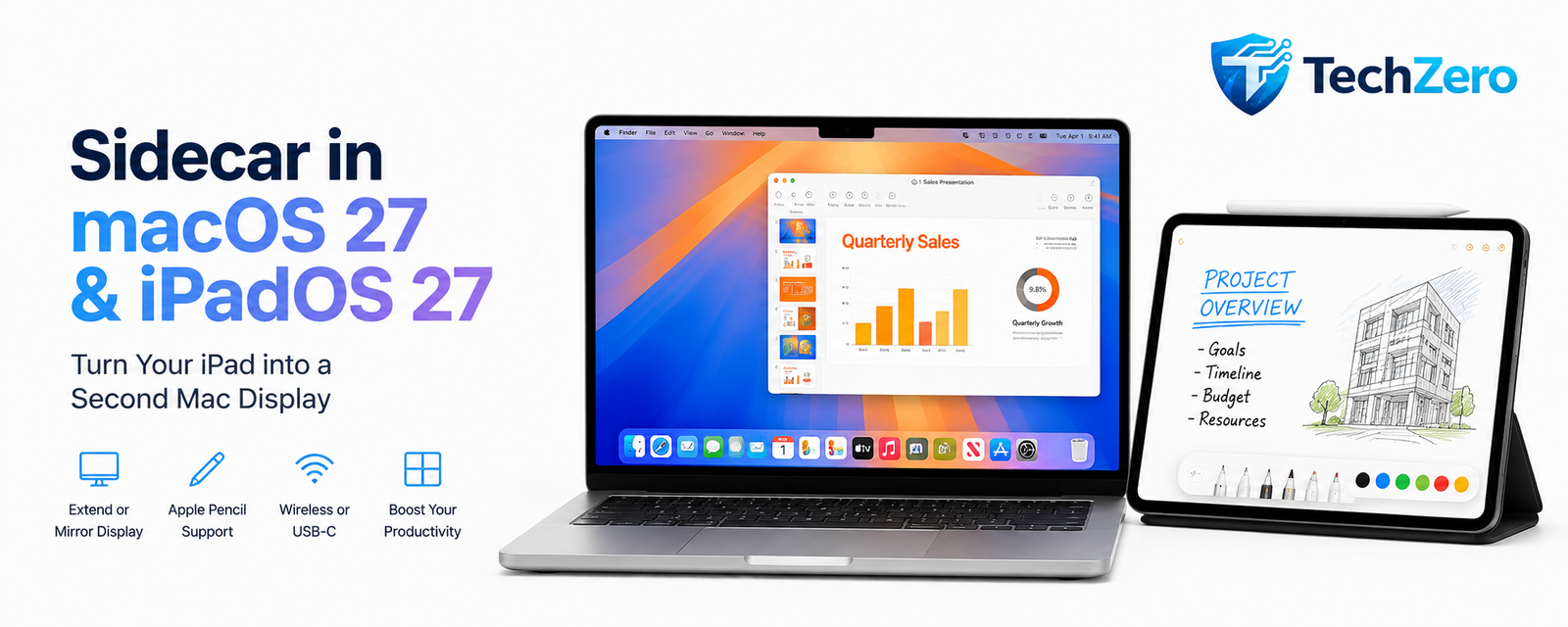
Sidecar in macOS 27 and iPadOS 27: The Complete Guide to Turning Your iPad into a Second Mac Display

Introduction
Apple users often spend thousands of rupees on external monitors to increase productivity. Yet many already own one of the best portable displays available: an iPad.
Apple’s Sidecar feature allows an iPad to function as a second display for a Mac, enabling users to extend their workspace, mirror their screen, use Apple Pencil as an input device, and create a more flexible workflow. With macOS 27 and iPadOS 27, Sidecar continues to evolve as part of Apple’s broader ecosystem strategy.
On paper, Sidecar sounds like the perfect productivity tool. Imagine writing on a MacBook while keeping email open on an iPad, or editing photos on a Mac while using Apple Pencil directly on the secondary display.
However, the real-world experience is more nuanced.
As someone who uses a MacBook Pro M4 Pro alongside a 13-inch iPad Pro M5 daily, I’ve spent months testing Sidecar for productivity, content creation, project management, note-taking, and multitasking. This guide explains how Sidecar works, where it excels, where it falls short, and whether it can truly replace a dedicated second monitor.
What Is Sidecar?
Sidecar is Apple’s built-in feature that transforms an iPad into an additional display for a Mac.
Unlike third-party solutions, Sidecar is deeply integrated into macOS and iPadOS.
You can use it to:
- Extend your desktop
- Mirror your Mac display
- Use Apple Pencil with Mac applications
- Create a portable dual-screen setup
- Move windows between Mac and iPad
The feature works wirelessly or through a USB-C cable.
Requirements for Sidecar
Mac Requirements
- Compatible Mac running macOS 27
- Same Apple ID as iPad
- Bluetooth enabled
- Wi-Fi enabled
iPad Requirements
- Compatible iPad running iPadOS 27
- Same Apple ID
- Apple Pencil (optional but recommended)
For best results, newer Apple Silicon Macs and modern iPads deliver the smoothest experience.
How to Enable Sidecar
Method 1: Control Center
- Open Control Center on your Mac.
- Click Screen Mirroring.
- Select your iPad.
- Choose:
- Mirror Display
- Extend Display
Within seconds, the iPad becomes part of your desktop.
Method 2: System Settings
- Open System Settings.
- Select Displays.
- Add Display.
- Choose your iPad.
Sidecar vs Screen Mirroring
Many users confuse these two modes.
Screen Mirroring
The iPad displays exactly what appears on the Mac.
Best for:
- Presentations
- Teaching
- Demonstrations
- Video recording
Extended Display
The iPad becomes a second monitor.
Best for:
- Productivity
- Research
- Multitasking
- Content creation
For most professionals, Extended Display is where Sidecar becomes truly useful.
Real-World Productivity Workflows
Workflow 1: Email on iPad, Work on Mac
One of the simplest and most effective Sidecar setups.
MacBook:
- Word documents
- PowerPoint
- Jira
- Excel
iPad:
- Outlook
- Teams
- Slack
Benefits:
- Fewer window switches
- Better focus
- Cleaner workspace
Workflow 2: Research and Writing
Mac:
- Article drafting
iPad:
- Browser
- Research sources
- Notes
Writers, bloggers, students, and researchers can significantly improve productivity using this arrangement.
Workflow 3: Project Management
As a Program Manager, I often use:
Mac:
- Jira
- Confluence
- PowerPoint
iPad:
- Teams
- Outlook
- Meeting notes
This setup reduces constant application switching and improves meeting efficiency.
Apple Pencil Integration
This is one of Sidecar’s most underrated features.
Applications that benefit include:
- Photoshop
- Illustrator
- Affinity Designer
- Pixelmator
- Lightroom
The Apple Pencil effectively becomes a graphics tablet.
Artists and designers often find this more valuable than Sidecar’s dual-screen capability.
Advantages of Sidecar
Portable Dual Monitor Setup
A traditional monitor:
- Heavy
- Requires power
- Occupies desk space
Sidecar provides:
- Instant second display
- No extra hardware
- Travel-friendly setup
Excellent Display Quality
Modern iPads feature some of the best displays available.
The OLED display on the latest iPad Pro models makes Sidecar visually impressive.
Tight Ecosystem Integration
Unlike third-party solutions, Sidecar feels native.
Connection is fast and setup is simple.
No Additional Cost
If you already own a Mac and iPad, Sidecar is effectively free.
Limitations of Sidecar
It Is Not a True Dual-Computer Workflow
This is the biggest misunderstanding surrounding Sidecar.
When Sidecar is active:
The iPad is functioning as a display for the Mac.
It is not simultaneously operating as a fully independent productivity device.
This distinction matters more than most reviewers acknowledge.
Window Management Still Feels Limited
Compared to a dedicated monitor:
- Window placement can feel restrictive
- Dragging content isn’t always seamless
- Complex multitasking workflows remain easier on larger displays
Wireless Reliability Can Vary
Although generally stable, wireless Sidecar occasionally experiences:
- Minor lag
- Brief disconnects
- Latency during heavy workloads
A wired USB-C connection remains the most reliable option.
Not a Full Monitor Replacement
For spreadsheets, dashboards, and large multitasking environments, a 27-inch monitor remains significantly more productive than a 13-inch iPad.
Editor’s Take
As someone who uses both a MacBook Pro M4 Pro and a 13-inch iPad Pro M5, I appreciate what Sidecar is trying to achieve.
However, after extensive use, I still view it as a useful feature rather than a complete workflow solution.
The biggest limitation is that Sidecar turns the iPad into an extension of the Mac rather than allowing both devices to operate independently in a truly seamless manner.
In my daily workflow, I often prefer keeping Teams, Outlook, or note-taking applications running natively on the iPad while using the MacBook for primary work. This allows both devices to contribute independently rather than forcing the iPad into the role of a secondary display.
That said, Sidecar remains one of the best portable dual-screen solutions available today and can dramatically improve productivity when used in the right scenarios.
Final Verdict
Sidecar is not a replacement for a large external monitor.
It is not a replacement for a dedicated iPad workflow.
What it does provide is an elegant, portable, and deeply integrated second-screen experience that works particularly well for travel, remote work, research, writing, project management, and creative tasks.
For many users, Sidecar will be a convenient bonus feature.
For professionals who regularly travel with both a Mac and an iPad, it can become an essential productivity tool.
Rating: 8.5/10