

While macOS features some of the best trackpad gesture controls in the industry, long hours of professional CAD work, video editing, complex financial modelling, or software development often demand a dedicated pointer. However, pairing a traditional PC mouse with a Mac can sometimes lead to jarring scroll acceleration, erratic tracking, and a frustrating lack of native gesture support.
Choosing the right pointer for macOS means balancing ergonomic architecture, high-precision optical sensors, and deep software customization that respects Apple’s distinct cursor acceleration curves. This comprehensive TechZero reference guide cuts through the marketing noise to bring you the ultimate handbook for Mac-compatible mice and trackpads in 2026.
👥 Who Should Read This?
This guide is built specifically for you if:
- [x] You find Apple’s default Magic Mouse flat, uncomfortable, and ergonomically exhausting over extended sessions.
- [x] You want to experience true multi-touch macOS desktop gestures without giving up the precision of a physical mouse.
- [x] You need advanced programmable buttons, custom touch rings, or macro shortcuts for creative and coding workflows.
- [x] You are building a clean, highly efficient wireless desk setup for your MacBook Air or MacBook Pro.
🛑 This Guide May Not Be Right for You
- ❌ You exclusively want an ultra-cheap, generic office mouse for basic web browsing. (Any basic plug-and-play Bluetooth pointer will suffice).
- ❌ You are shopping solely for professional, low-latency competitive esports gaming on Windows. (Specialized low-latency PC gaming peripherals with proprietary Windows software suites fit that niche far better).
Part I: How a Mouse Actually Works (The Physics & Engineering Layer)
Before diving into specific product recommendations, it is critical to understand the engineering principles that govern how physical hand movements translate into pixel-accurate cursor precision on your MacBook display.
Plaintext
[ Surface / Mousepad ]
         │ (Light Reflected)
         ▼
[ LED / Laser Emitter ] ──► [ Micro-Lens ] ──► [ CMOS Sensor (Image Capture) ]
                                                            │
                                                            ▼
[ USB Receiver / Bluetooth ] ◄── [ DSP (Digital Signal Processor) ]
1. Optical and Laser Sensor Anatomy
Every modern optical mouse is essentially a high-speed digital camera taking thousands of consecutive snapshots per second.
- The Emitter: An infrared or visible LED illuminates the tracking surface directly beneath the mouse.
- The Lens: Focuses the reflected light pattern onto the image sensor.
- The CMOS Sensor: Captures high-contrast microscopic snapshots of the surface texture (grains, fibers, microscopic imperfections).
- The DSP (Digital Signal Processor): Compares successive frames to calculate the direction, speed, and distance of movement, translating raw optical data into directional $X$ and $Y$ coordinates transmitted over Bluetooth or 2.4GHz RF.
2. The DPI Fallacy
DPI (Dots Per Inch) measures how many pixels the cursor moves per inch of physical mouse movement. A common marketing myth is that higher DPI always equals a better mouse.
- 800–1,200 DPI: The gold standard for professional graphic design, photo retouching, and precision vector work where micro-movements require absolute stability.
- 1,600–3,200 DPI: Ideal for standard multi-monitor desktop navigation, allowing you to cross a dual-4K setup with minimal wrist travel.
- 8,000+ DPI (e.g., Logitech Darkfield sensors): Built for high-speed fluidity across ultra-wide canvases, though it requires software sensitivity damping on macOS to avoid feeling hyper-twitchy.
3. Polling Rate Mechanics
The polling rate dictates how many times per second the mouse reports its position to your MacBook:
- 125Hz (Every 8ms): Standard for most Bluetooth productivity mice (including the MX Master series) to maximize battery longevity.
- 1,000Hz (Every 1ms): Found in gaming-grade peripherals, offering lightning-fast response times at the expense of increased battery draw. For productivity and coding, 125Hz is more than sufficient; for fast-paced video scrubbing or creative timelines, higher polling rates reduce input latency.
4. Lift-Off Distance (LOD)
Lift-off distance refers to the height at which the sensor stops tracking when the mouse is physically lifted off the desk. A low LOD prevents the cursor from jittering or drifting when repositioning your hand across a cramped workspace.
5. Glass Tracking: Standard vs. Darkfield
Standard optical sensors fail entirely on transparent glass because light passes straight through without bouncing back an image for the CMOS sensor. Darkfield laser sensors (pioneered by Logitech) use advanced micro-optics to track microscopic scratches and dust particles on glass, allowing flawless operation on clear tables or coffee shop glass tops.
6. Scroll Wheel Technologies
- Standard Mechanical Step Wheels: Uses a physical ratcheting gear wheel, giving tactile bumps for line-by-line navigation.
- MagSpeed Electromagnetic Scrolling: Uses magnets to dynamically shift between high-precision ratcheting and hyper-fast silent scrolling (capable of zipping through 1,000 lines per second).
Part II: The Heavyweight Face-Off — MX Master vs. Magic Mouse vs. Trackpad
Choosing a primary desktop pointing device for your MacBook usually comes down to three competing philosophies. Here is how they stack up directly against each other:
| Feature / Metric | Logitech MX Master 4 | Apple Magic Mouse | Apple Magic Trackpad |
| Primary Philosophy | Ultimate ergonomic productivity | Minimalist touch surface | Native macOS multi-touch workflow |
| Ergonomics & Hand Support | Sculpted right-hand thumb rest | Ultra-flat, low-profile design | Flat desktop surface |
| Gesture Integration | Custom thumb button + gestures | Full touch surface gestures | Full native macOS multi-touch support |
| Scrolling Mechanism | MagSpeed electromagnetic wheel | Touch capacitive smooth scroll | Two-finger touch surface pan |
| Multi-Computer Flow | Logi Options+ Flow (up to 3 devices) | Manual Bluetooth pairing switch | Manual Bluetooth pairing switch |
| Charging Port Position | Front USB-C port (use while charging) | Bottom Lightning/USB-C (unusable while charging) | Rear Lightning/USB-C port (use while charging) |
Part III: Reader Personas (Matching User to Pointer)
To help you find your exact match, let’s map out which pointing device fits specific professional workflows:
- The Software Engineer / Full-Stack Developer: Needs horizontal scrolling for wide code editors, macro shortcuts for terminal windows, and multi-device switching between a MacBook and a work laptop $\rightarrow$ Logitech MX Master 4.
- The UI/UX Designer & Illustrator: Requires fluid gesture zooming, canvas rotation, and precise node manipulation $\rightarrow$ Apple Magic Trackpad.
- The Video Editor & Color Grader: Demands timeline scrubbing via side thumb wheels, haptic feedback shortcuts, and all-day wrist comfort during 10-hour editing marathons $\rightarrow$ Logitech MX Master 4.
- The Digital Nomad / Mobile Professional: Needs something lightweight, pocket-friendly, and capable of tracking on glass café tables $\rightarrow$ Logitech MX Anywhere 3S.
- The Student / Budget Power User: Wants multi-button programmability, wireless flexibility, and solid build quality without crossing luxury pricing tiers $\rightarrow$ Keychron M6.
- The Financial Analyst / Spreadsheet Powerhouse: Relies heavily on rapid horizontal sheet navigation and custom cell-formatting macros $\rightarrow$ Logitech MX Master 4.
Part IV: Ergonomics & Grip Geometries
Hand fatigue, repetitive strain injuries (RSI), and carpal tunnel syndrome are major hazards for heavy computer users. Understanding how your hand interacts with a mouse is crucial.
1. The Three Primary Grip Styles
- Palm Grip: Your entire hand rests flat on the body of the mouse. Requires an ergonomic, high-hump mouse (like the MX Master series or vertical mice) to fully support your palm arch and prevent wrist dragging.
- Claw Grip: Your palm rests lightly on the rear, while your fingers arch upward like claws to click buttons. Common among fast-paced users who favor precision fingertips.
- Fingertip Grip: Only your fingertips touch the mouse; the palm never makes contact. Ideal for lightweight, compact travel mice.
2. Vertical Ergonomics
For users experiencing chronic wrist pronation pain, standard flat mice force your forearm bones (radius and ulna) to cross over each other, creating sustained tension. Vertical mice (such as the Logitech Lift) hold your hand at a natural 57-degree “handshake angle,” instantly neutralizing forearm muscle strain.
Part V: TechZero Evaluation Methodology
We evaluate every pointer through rigorous criteria weighted specifically for macOS environments:
| Evaluation Criteria | Weight | What We Check in Testing |
| Tracking Precision & Sensor | 25% | Glass tracking, DPI accuracy, and absence of jitter. |
| macOS Software Integration | 20% | Custom button mapping, gesture support, and smooth scrolling compatibility. |
| Ergonomics & Hand Comfort | 20% | Grip styles, weight balance, and wrist strain mitigation over 8+ hour days. |
| Connectivity & Latency | 15% | Bluetooth stability, 2.4GHz RF reliability, and multi-device switching. |
| Battery Life & Charging | 10% | Days per charge, USB-C fast charging, and charging port placement. |
| Value for Money | 10% | Price-to-performance ratio and long-term durability. |
Part VI: Master Specifications Comparison Table
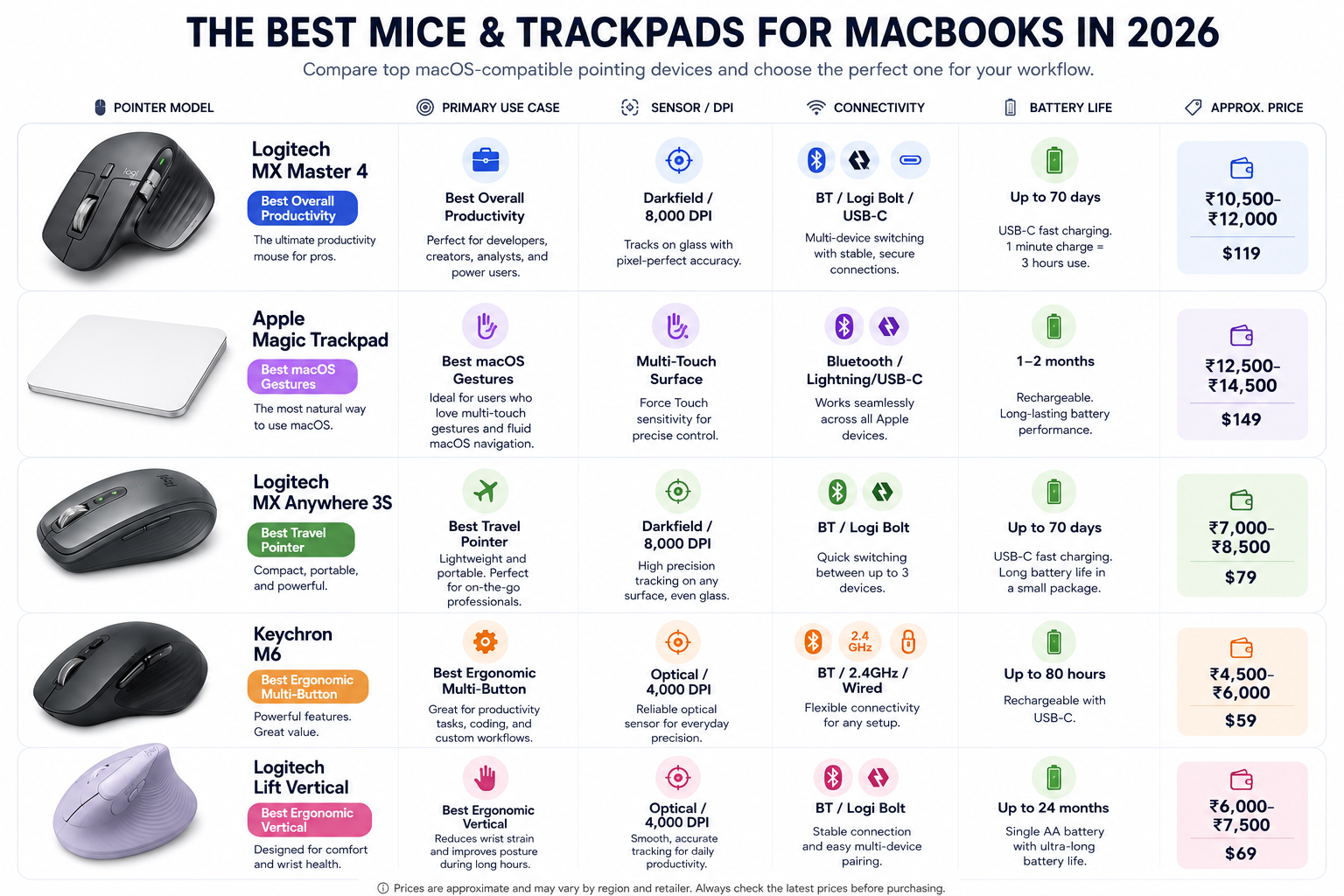
| Pointer Model | Primary Use Case | Sensor / DPI | Connectivity | Battery Life | Approx. Price |
| Logitech MX Master 4 | Best Overall Productivity | Darkfield / 8,000 DPI | BT / Logi Bolt / USB-C | Up to 70 days | ₹10,500–₹12,000 / $119 |
| Apple Magic Trackpad | Best macOS Gestures | Multi-Touch Surface | Bluetooth / Lightning/USB-C | 1–2 months | ₹12,500–₹14,500 / $149 |
| Logitech MX Anywhere 3S | Best Travel Pointer | Darkfield / 8,000 DPI | BT / Logi Bolt | Up to 70 days | ₹7,000–₹8,500 / $79 |
| Keychron M6 | Best Ergonomic Multi-Button | Optical / 4,000 DPI | BT / 2.4GHz / Wired | Up to 80 hours | ₹4,500–₹6,000 / $59 |
| Logitech Lift Vertical | Best Ergonomic Vertical | Optical / 4,000 DPI | BT / Logi Bolt | Up to 24 months | ₹6,000–₹7,500 / $69 |
Part VII: Detailed Reviews
1. Best Overall Productivity Mouse: Logitech MX Master 4
Building on the legendary status of its predecessors, the Logitech MX Master 4 is the undisputed king of productivity pointers for macOS.
- Why it wins: Features an ultra-precise 8,000 DPI Darkfield sensor that tracks flawlessly on glass, a quiet MagSpeed electromagnetic scroll wheel, a new haptic Action Ring, and seamless multi-computer switching via Logi Options+ software.
- TechZero Verdict: The ultimate luxury pointer for developers, data scientists, and creative professionals who demand maximum customization.
2. Best for Native Mac Gestures: Apple Magic Trackpad
If you love macOS trackpad gestures (pinch-to-zoom, swipe between spaces, mission control) but want a spacious stationary desktop workspace, Apple’s official Magic Trackpad is peerless.
- Why it wins: Full multi-touch surface area, Force Touch pressure sensitivity, and a wide glass surface that mirrors your MacBook’s built-in trackpad on a larger scale.
- TechZero Verdict (Note): Unlike the notoriously flawed Magic Mouse (which charges from the bottom), the Magic Trackpad can be used comfortably while plugged in.
3. Best Travel Companion: Logitech MX Anywhere 3S
All the performance of the MX Master series packed into a compact, pocket-friendly footprint.
- Why it wins: Weighing just 99g, it features silent clicks, MagSpeed scrolling, and robust glass-tracking sensors, making it ideal for working from coffee shops or flights.
- TechZero Verdict: The ultimate go-anywhere mouse for mobile professionals.
4. Best Ergonomic Vertical Mouse: Logitech Lift Vertical
If you suffer from wrist fatigue or carpal tunnel issues caused by flat mice, a vertical layout changes everything.
- Why it wins: Holds your hand at a natural 57-degree handshake angle, reducing forearm pronation while offering quiet clicks and multi-device Bluetooth pairing.
- TechZero Verdict: A mandatory health upgrade for anyone experiencing repetitive strain injuries during long desk sessions.
5. Best Value Multi-Button Powerhouse: Keychron M6
For users who want advanced multi-button utility and ergonomic thumb rests without spending top-tier luxury pricing, the Keychron M6 bridges the gap.
- Why it wins: Features dual scroll wheels (vertical and horizontal thumb wheel), lightweight construction, and tri-mode connectivity (Bluetooth, 2.4GHz wireless via dongle, and wired USB-C).
- TechZero Verdict: An incredible feature-packed alternative for power users on a sensible budget.
Part VIII: Pointer Buying Flowchart & TechZero Awards
🌳 Pointer Buying Flowchart
Plaintext
Do you need a pointing device?
  │
  ├──► Must have native macOS multi-touch gestures? ──► YES ──► Apple Magic Trackpad
  │    └── NO
  │        │
  ├──► Experiencing wrist pain / RSI? ───────────────► YES ──► Logitech Lift Vertical
  │    └── NO
  │        │
  ├──► Traveling frequently / mobile workflow? ──────► YES ──► Logitech MX Anywhere 3S
  │    └── NO
  │        │
  └──► Default Choice (All-around productivity) ─────► Logitech MX Master 4
🏆 TechZero Awards
| Badge | Meaning | Winner |
| 🏆 Editor’s Choice | Best overall productivity pointer | Logitech MX Master 4 |
| 🍎 Best Apple Experience | Native gesture integration | Apple Magic Trackpad |
| ✈️ Best Travel Pick | Lightweight, pocket-friendly performance | Logitech MX Anywhere 3S |
| 🩺 Best Ergonomic Pick | Vertical wrist-saving design | Logitech Lift Vertical |
| 💰 Best Value Multi-Button | Feature-rich powerhouse on a budget | Keychron M6 |
Part IX: The macOS Software Ecosystem & Settings Walkthrough
MacOS handles hardware input devices differently than Windows. Out of the box, unoptimized third-party mice can feel sluggish or erratic. Here is how to take complete control of your pointing experience.
1. Native macOS Settings Walkthrough
Navigate to System Settings > Mouse (and Trackpad) to tune core parameters:
- Tracking Speed: Adjust to a comfortable middle-high level so you don’t over-extend your wrist across large displays.
- Natural Scrolling: Toggle on or off depending on whether you prefer content tracking your finger movement (iOS style) or traditional wheel mechanics.
- Secondary Click: Ensure right-clicking is explicitly mapped to the right side of your mouse surface.
2. Third-Party Utilities Mastered
To bridge the gap between macOS and high-performance mice, power users rely on companion applications:
- Logi Options+: Essential for the MX Master and Anywhere series. Allows custom button bindings, app-specific profiles, Smart Actions, and configuring the MX Master 4’s Haptic Actions Ring.
- LinearMouse / Mos: Open-source utilities that completely strip out macOS’s aggressive, frustrating mouse acceleration curves, restoring smooth, predictable, line-by-line scrolling.
- BetterTouchTool (BTT): The ultimate power-user tool for mapping custom keyboard shortcuts, window snapping gestures, and multi-touch commands to any mouse button.
- SteerMouse / USB Overdrive: Lightweight preference panes that give you absolute low-level control over button clicks, wheel acceleration, and cursor sensitivity curves for non-Apple mice.
Part X: Essential Accessories & Maintenance
Protecting your investment and optimizing your workspace requires a few key secondary items:
- Micro-Textured Desk Mats: Provide a uniform tracking surface that prevents optical sensor dust accumulation and protects your wooden or glass desk.
- PTFE Mouse Skates (Glides): Over time, factory mouse feet wear down, creating friction and scratchiness. Replacing them with virgin-grade PTFE skates restores an effortless glide.
- Sensor Cleaning Kits: Isopropyl alcohol wipes and compressed air keep dust particles from obstructing the CMOS sensor aperture.
- Hard Travel Cases: Essential for mobile professionals tossing mice into backpacks to prevent button damage or scroll-wheel misalignment.
Part XI: Common Myths Debunked
- Myth:Higher DPI always makes a mouse better and faster.
- Fact: False. High DPI simply increases raw sensitivity. For precise creative work, lower DPI combined with deliberate hand movement yields much higher accuracy.
- Myth:The Apple Magic Mouse is the best mouse you can buy for a Mac because it’s made by Apple.
- Fact: False. While its touch surface is neat, its ultra-flat profile causes severe hand cramping, and charging from the bottom makes it functionally awkward.
- Myth:Bluetooth mice have too much lag for professional work.
- Fact: Modern Bluetooth Low Energy (BLE) 5.1+ and 2.4GHz RF dongles offer imperceptible latency (under 8ms), making them entirely indistinguishable from wired connections for productivity tasks.
Part XII: Troubleshooting macOS Pointer Quirks
- Jittery or Erratic Tracking: macOS handles mouse acceleration curves differently than Windows. Installing manufacturer software (like Logi Options+) or third-party utilities like LinearMouse or Mos allows you to normalize natural scrolling and disable harsh acceleration.
- Bluetooth Lag: If your mouse stutters, ensure it is paired directly via Bluetooth or using its dedicated 2.4GHz USB receiver plugged away from dense USB-C hubs causing radio frequency interference.
Part XIII: Glossary & Changelog
- Darkfield Sensor: Logitech’s proprietary sensor technology that allows mice to track smoothly on transparent glass surfaces.
- DPI (Dots Per Inch): A measurement of mouse sensitivity; higher DPI means the cursor moves further with less physical hand movement.
- Force Touch: Apple’s pressure-sensing technology built into trackpads that simulates physical clicks through haptic feedback.
- Polling Rate: The frequency (measured in Hertz) at which a mouse reports its coordinates to your computer.
Official Resources & Authoritative References
- Logitech Official Website – Explore hardware specifications, Darkfield sensor details, and download Logi Options+ software.
- LinearMouse Open-Source Project – The premier open-source utility for normalizing mouse acceleration and natural scrolling on macOS.
- BetterTouchTool Official Site – Advanced customization utility for configuring custom mouse gestures, macros, and window snapping.
- Apple Support & Peripherals – Official documentation for Magic Trackpad pairing, Force Touch customization, and Bluetooth troubleshooting.
- Bluetooth SIG Specifications – Official technical standards detailing Bluetooth Low Energy protocols and wireless transmission latency.

[…] Best Mice and Trackpads for MacBooks — Compare all top-tier pointing devices to find the perfect fit for your daily workflow. […]