🚀 Executive Summary: The Best External Monitors for Mac in 2026
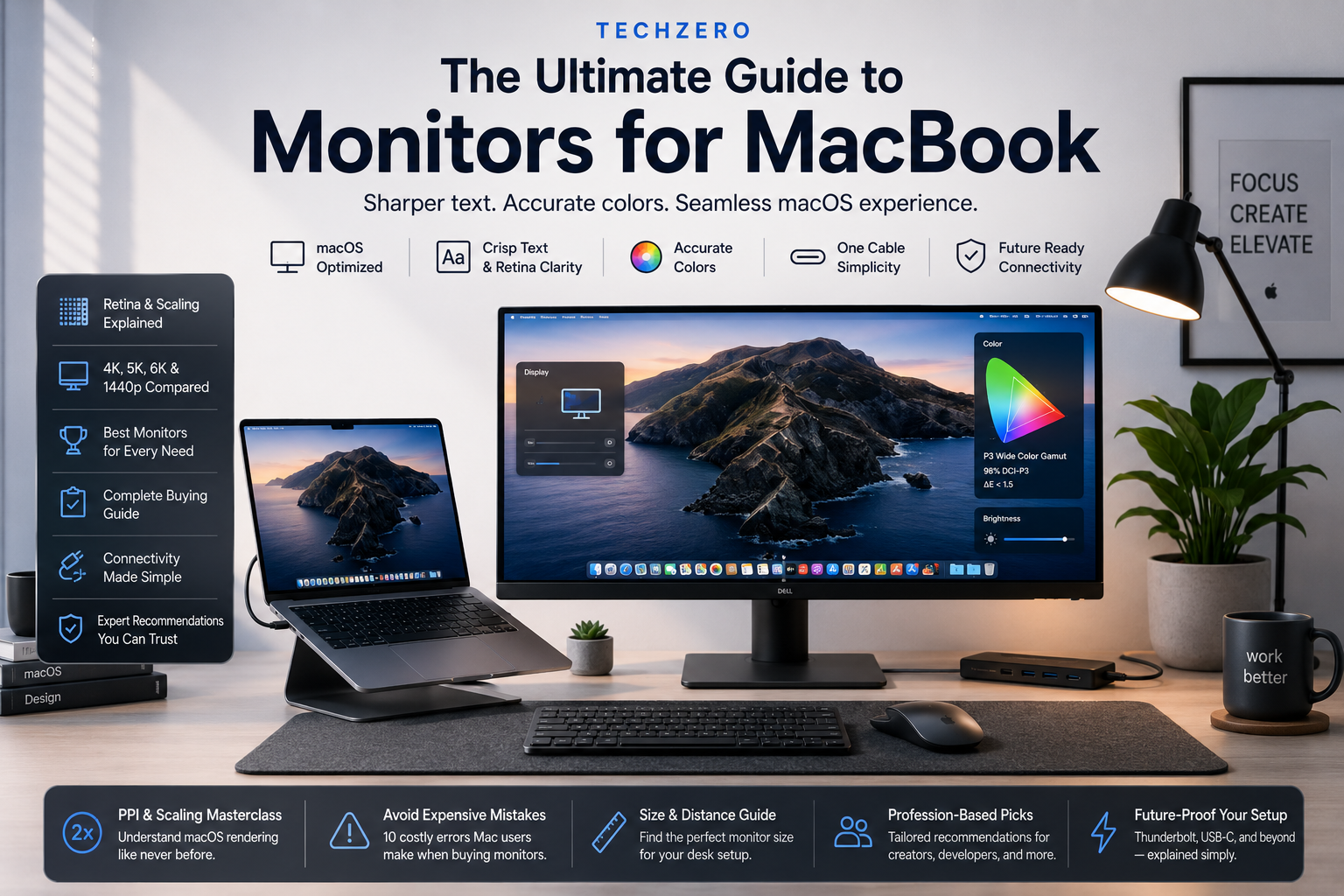
Pairing your MacBook Air or MacBook Pro with an external display unlocks desktop-class productivity, but macOS handles pixel density (HiDPI) and color science differently than Windows. This quick-reference guide cuts through the noise to showcase top-tested displays engineered for crisp text rendering, reliable USB-C/Thunderbolt power delivery, and seamless Apple ecosystem harmony.
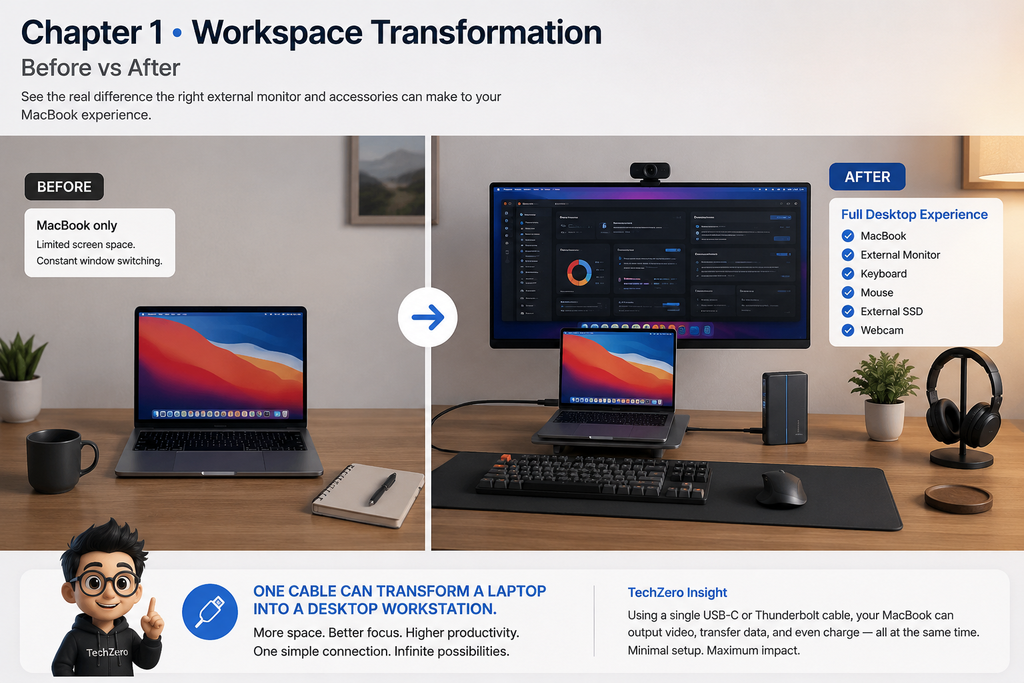
While the MacBook series features some of the best built-in laptop displays in the industry, screen real estate can quickly feel limiting when you are deep into multitasking, coding, video editing, or managing complex spreadsheets. Pairing your MacBook Air or MacBook Pro with an external monitor transforms it into a full desktop workstation.
However, choosing a monitor for macOS is fundamentally different than choosing one for Windows. Because of how macOS handles pixel scaling, font rendering, and color science, finding a display with the right pixel density, reliable USB-C/Thunderbolt connectivity, and accurate color reproduction is essential.
Who Should Read This?
This guide is for you if:
[x] You recently bought a MacBook Air or MacBook Pro.
[x] You are building a high-performance home office.
[x] You are confused between 4K, 5K, and 1440p resolutions.
[x] You don’t fully understand Retina scaling and text crispness on Macs.
[x] You edit photos or videos professionally.
[x] You write code and stare at text editors for 8+ hours a day.
[x] You work with complex financial spreadsheets and multi-window workflows.
[x] You simply want the sharpest text possible without eye strain.
🛑 This Guide May Not Be Right for You
Before you read further, let’s save you time if you fall into these categories:
❌ You only need a basic office monitor for a Windows PC. (Our recommendations focus heavily on macOS color profiles, HiDPI scaling, and USB-C/Thunderbolt power delivery).
❌ You’re shopping exclusively for competitive Windows gaming. (Look for 240Hz+ TN/Fast-IPS panels with G-Sync modules instead).
❌ You’re looking for portable travel monitors. (We focus strictly on permanent desk setups).
❌ You’re buying a monitor solely for console gaming (PS5 / Xbox Series X). (A 4K TV or high-refresh HDMI 2.1 gaming monitor will serve you better).
💡 TL;DR Verdict — If you remember only one thing from Part 1: Avoid 27-inch 1440p displays if sharp text is your top priority; a 27-inch 4K or 5K display provides the clean scaling macOS demands.
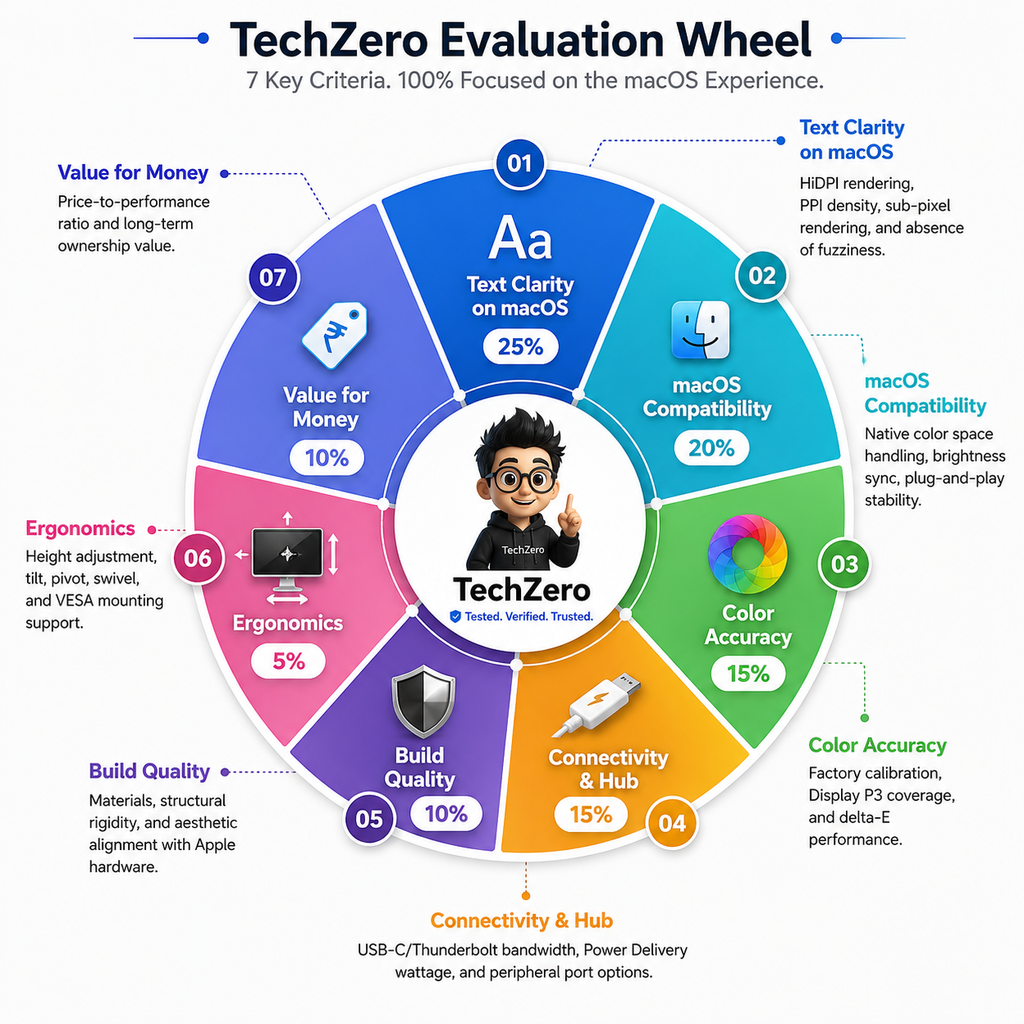
Google increasingly values editorial transparency. We evaluate every display through rigorous criteria weighted specifically for the macOS ecosystem:
Editorial Principles
No Sponsored Rankings: Manufacturers cannot buy their way onto our recommendation list. Every pick is earned through rigorous testing.
Real-World Usability Over Marketing Claims: We prioritize daily performance over inflated spec sheets.
macOS-First Evaluation: Every screen is tested against macOS color science and text rendering pipelines.
Long-Term Ownership: We look for stable firmware, reliable sleep/wake cycles, and durable physical construction.
Value, Not Just Premium Products: Great engineering should span across price tiers.
Testing Criteria & What We Check
Evaluation Criteria
Weight
What We Check in Testing
Text Clarity on macOS
25%
HiDPI rendering, PPI density, sub-pixel rendering, and absence of fuzziness.
macOS Compatibility
20%
Native color space handling, brightness sync, plug-and-play stability.
Color Accuracy
15%
Factory calibration, Display P3 coverage, and delta-E performance.
Connectivity & Hub
15%
USB-C/Thunderbolt bandwidth, Power Delivery wattage, and peripheral port options.
Build Quality
10%
Materials, structural rigidity, and aesthetic alignment with Apple hardware.
Ergonomics
5%
Height adjustment, tilt, pivot, swivel, and VESA mounting support.
Value for Money
10%
Price-to-performance ratio and long-term ownership value.
🧠 TechZero Insight Unlike Windows boxes where a monitor is treated as a simple dumb grid of pixels, macOS expects deep display synergy. Our weighting puts a massive 45% combined emphasis on text rendering and system compatibility because a gorgeous panel that stumbles on sleep/wake cycles or text scaling ruins the Mac experience.
How We Test
Every recommended monitor undergoes a standardized evaluation checklist simulating real-world professional environments:
[x] Text Sharpness: Evaluated under native and scaled HiDPI resolutions using dense coding environments (VS Code) and document editors.
[x] macOS Scaling: Tested for fractional scaling artifacts and UI smoothness across Apple Silicon chips.
[x] USB-C Compatibility & Wake from Sleep: Verified across multiple MacBook generations to ensure zero handshake failures or black screens upon waking.
[x] Power Delivery: Tested under peak CPU/GPU loads to ensure stable wattage delivery without battery drain.
[x] Color Accuracy & Uniformity: Analyzed using hardware colorimeters to verify advertised P3 color gamut coverage and backlight uniformity.
[x] Build & Port Selection: Inspected for stand ergonomics, wobble resistance, and functional dock replacement capabilities.
Chapter 3: The Apple Display Philosophy
Ever wondered why Apple’s own displays or high-end panels look strikingly crisp compared to standard PC monitors at the exact same resolution? It comes down to a deliberate engineering philosophy:
Retina & HiDPI Integration: Apple designs its operating system around specific pixel densities. Text and UI elements are rendered with vector-based precision rather than relying on crude bitmap resizing.
Color Management & P3 Wide Gamut: Most budget monitors focus heavily on sRGB. Apple hardware natively targets Display P3, offering roughly 25% more color space for richer reds, deeper greens, and truer skin tones.
Factory Calibration & Uniformity: Premium Mac-centric displays undergo rigorous individual factory color calibration to ensure Delta E values are well below 2.0, meaning colors match what you see on your iPhone or MacBook screen out of the box.
Anti-Reflective Coatings: Apple uses advanced nano-texture or high-grade multi-layer anti-reflective glass polarizers that cut glare without washing out black levels—a common flaw in matte PC panels.
True Tone Technology: Displays built for the Apple ecosystem dynamically adjust color temperature based on ambient room lighting to reduce eye fatigue.
📊 TechZero Reality Check: HDR400 doesn’t provide the same immersive experience as true HDR displays with local dimming zones. For daily office work and coding, text clarity and color accuracy matter far more than an entry-level HDR badge.
Chapter 4: PPI Calculator, Sizing & macOS Scaling Deep Dive
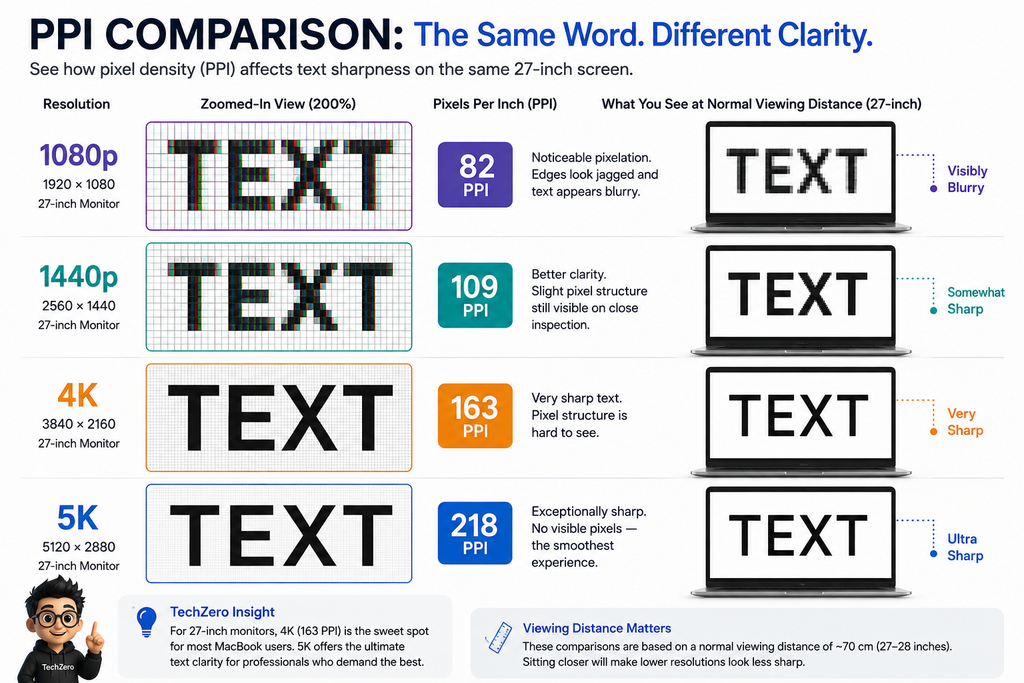
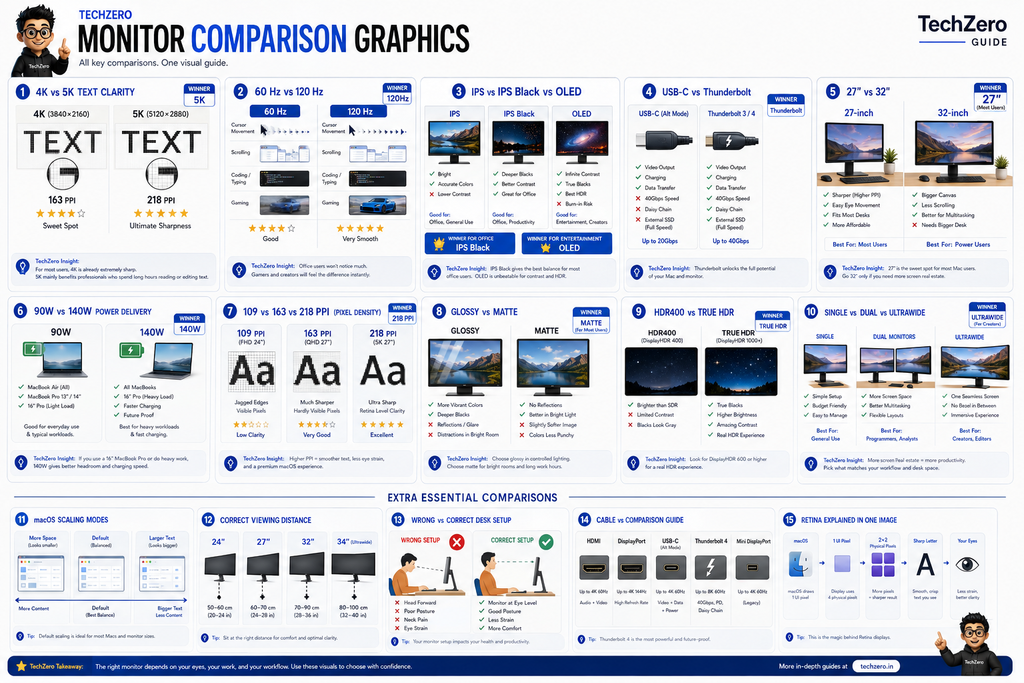
Pixels Per Inch (PPI) dictates whether text looks like printed ink or blocky pixels on macOS.
Size
Resolution
PPI Density
Mac Experience
TechZero Rating
24″
1080p
92 PPI
Poor (Visible pixels)
❌ Poor
27″
1440p
109 PPI
Acceptable, but soft text
⚠️ Acceptable
27″
4K
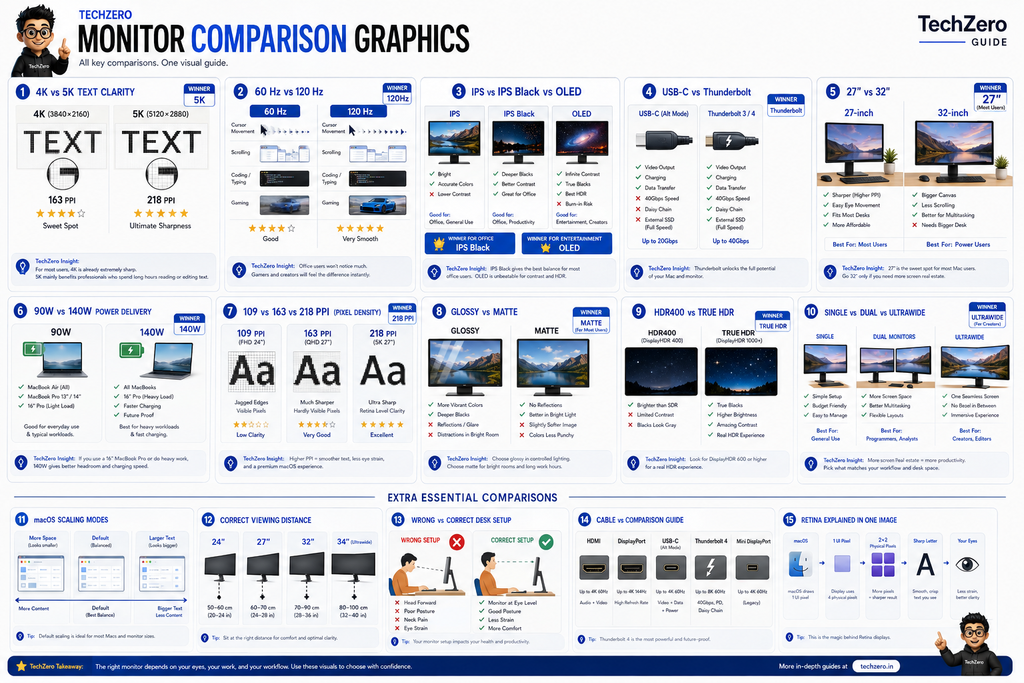
163 PPI
Sharp, clean scaling (The sweet spot)
✅ Very Good
27″
5K
218 PPI
Perfect, native Retina fidelity
⭐ Perfect
32″
4K
138 PPI
Good, but text is slightly larger
✅ Good
32″
6K
223 PPI
Ultimate professional studio canvas
⭐ Perfect
🧠 TechZero Insight 27-inch 4K isn’t mathematically pixel-doubled like 5K, but for nearly everyone it delivers the best balance of price, sharpness, GPU workload, and market availability.
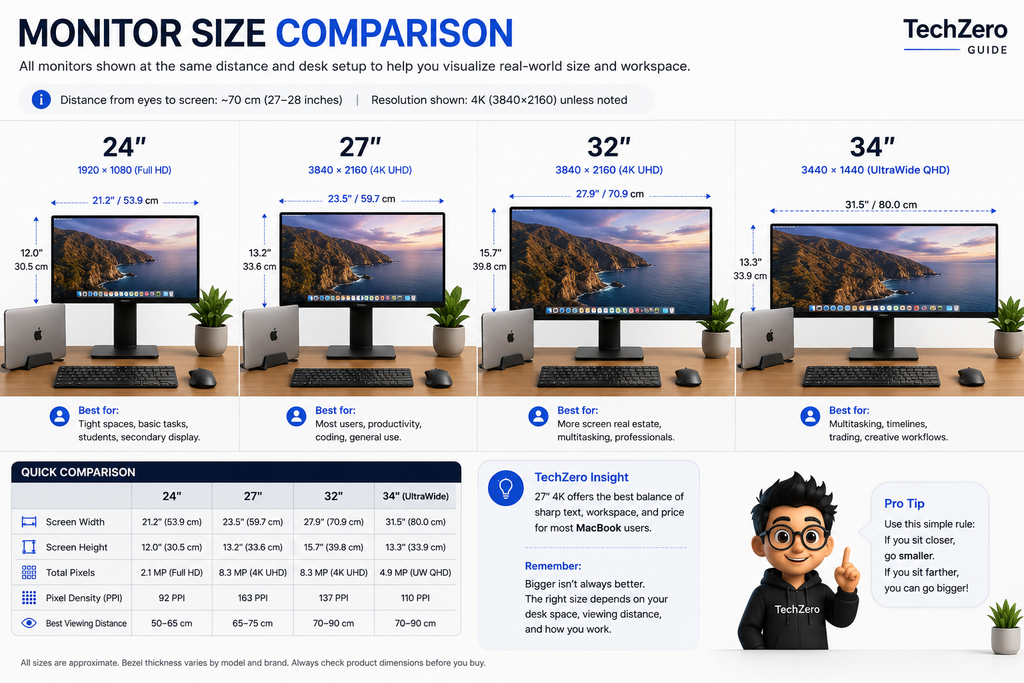
Who Should Buy Which Size?
24″ Screens: Ideal for cramped dorm desks, compact home offices, or secondary side displays.
27″ Screens: The absolute sweet spot for 90% of Mac users. Strikes a balance between desktop real estate and pixel density.
32″ Screens: Best for creative professionals, video editors, and users with lower visual acuity who prefer larger UI elements without severe scaling.
34″ Ultrawide Screens: Tailored for heavy multitasking, financial modeling, and wide timeline scrubbing.
40″+ Ultrawide / 8K Screens: Specialized workflows for audio engineers, multi-source coders, and stock traders.
macOS Scaling Mechanics
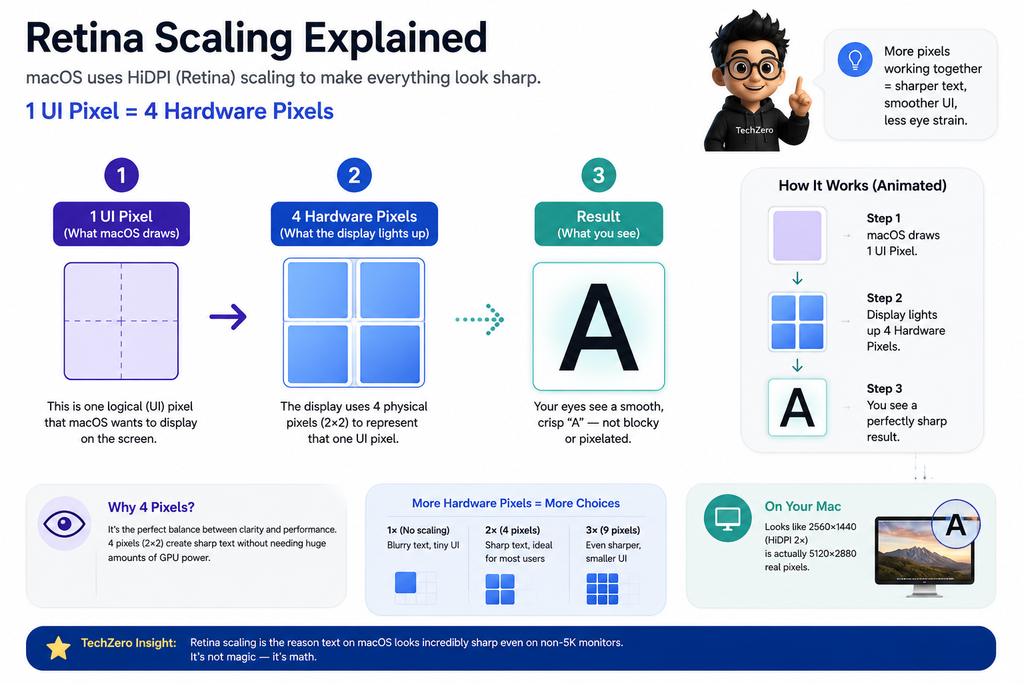
Windows handles fractional scaling natively. macOS, however, relies on integer pixel doubling (HiDPI).
When you use a 27-inch 4K monitor (163 PPI), macOS uses a fractional scaling factor because 4K is not an exact 2x multiple of 1440p. While modern Apple Silicon chips handle this sub-pixel rendering smoothly, a 5K monitor (218 PPI) achieves true integer scaling. This is why 5K text looks unmistakably sharper, cleaner, and closer to a printed page.
⚙️ Part 2: Compatibility & Hardware Matching
Chapter 5: MacBook Display Outputs Reference
Not all MacBooks drive external displays equally. Check your specific model below:
Mac Model
Native External Display Support
Max Resolution & Refresh Rate
Clamshell Mode Support
MacBook Air M2
1 External Display
Up to 6K at 60Hz
Yes
MacBook Air M3
Up to 2 External Displays (Lid Closed)
One 6K + One 5K
Yes
MacBook Air M4
Up to 2 External Displays (Lid Closed)
One 6K + One 5K
Yes
MacBook Pro M4 (Base)
Up to 2 External Displays
One 8K or Two 6K at 60Hz
Yes
MacBook Pro M4 Pro / Max
Up to 3–4 External Displays
Multiple 6K / 8K displays
Yes
Mac mini M4
Up to 2–3 External Displays
Dual 6K or Triple 4K
N/A
Mac Studio (M-Series)
Up to 4–5 External Displays
Pro Display XDR support
N/A
⏱️ Micro-Answer:Can I mix a 4K and 5K monitor? Yes, macOS handles mixed-resolution multi-monitor setups smoothly, though moving windows between a 218 PPI 5K screen and a 163 PPI 4K screen can cause slight UI scaling size shifts.
Chapter 6: Connectivity Guide: Ports & Docking
Port Type
Video Output
Laptop Charging
Data Transfer
Best For
HDMI
Yes
No
No
Connecting to TVs or consoles
DisplayPort
Yes
No
No
High-refresh desktop graphics cards
USB-C
Yes
Yes (65W–90W)
Yes (USB 3.2)
Single-cable MacBook setups
Thunderbolt (3/4/5)
Yes
Yes (90W–140W)
Ultra-fast (40–80 Gbps)
High-speed docks & daisy-chaining
⏱️ Micro-Answer:Can one cable charge my MacBook and drive the display? Absolutely. A certified Thunderbolt 4 or full-feature USB-C cable transmits video data, peripheral hub signals, and up to 90W–140W of power simultaneously through a single wire.
USB-C Dock vs. USB-C Monitor
The All-in-One Monitor Approach: Plugging your MacBook directly into a USB-C/Thunderbolt monitor that features an integrated hub (Ethernet, USB-A, extra USB-C ports) keeps your desk completely clutter-free.
The Dedicated Dock Approach: If you prefer a monitor with sublime picture quality (like a gaming or specialized creator panel) that lacks port selection, routing your Mac through a standalone Thunderbolt dock and then running a single cable to the screen makes more sense.
Chapter 7: Eye Comfort, Ergonomics & Accessories
If you spend 8 to 10 hours a day coding or writing, panel technology matters just as much as resolution:
Low Blue Light Hardware Filters: Shifts color temperatures away from harsh blue wavelengths without giving the screen an aggressive yellow tint.
Matte vs. Glossy: Matte screens diffuse harsh office reflections, whereas glossy glass panels (like Apple’s) preserve maximum color punch and contrast at the cost of catching bright overhead reflections.
⏱️ Micro-Answer:Should I buy a monitor arm now or later? Buy it now. Stock monitor stands take up valuable desk space; a VESA-compatible desk mount lets you fine-tune your screen height to eye level, eliminating neck strain during long coding sessions (refer to our Ultimate Home Office Ergonomics Setup Guide).
Essential Accessories
Certified Thunderbolt / USB-C Cables: Ensure high-bandwidth signal transmission and maximum power delivery.
Ergonomic Monitor Arm: Frees up desk space and allows precise height and tilt adjustments.
External 4K Webcam: (Unless using an Apple Studio Display) for crisp video conferencing.
Powered Desktop Speakers or Soundbar: To replace weak built-in monitor audio.
Extended Desk Mat & Ergonomic Mechanical Keyboard / Mouse: For all-day typing comfort.
💡 TL;DR Verdict — If you remember only one thing from Part 2: Ensure your display supports at least 90W power delivery over USB-C or Thunderbolt to charge your MacBook under load without draining the battery.
🏆 Part 3: The Definitive TechZero Recommendations
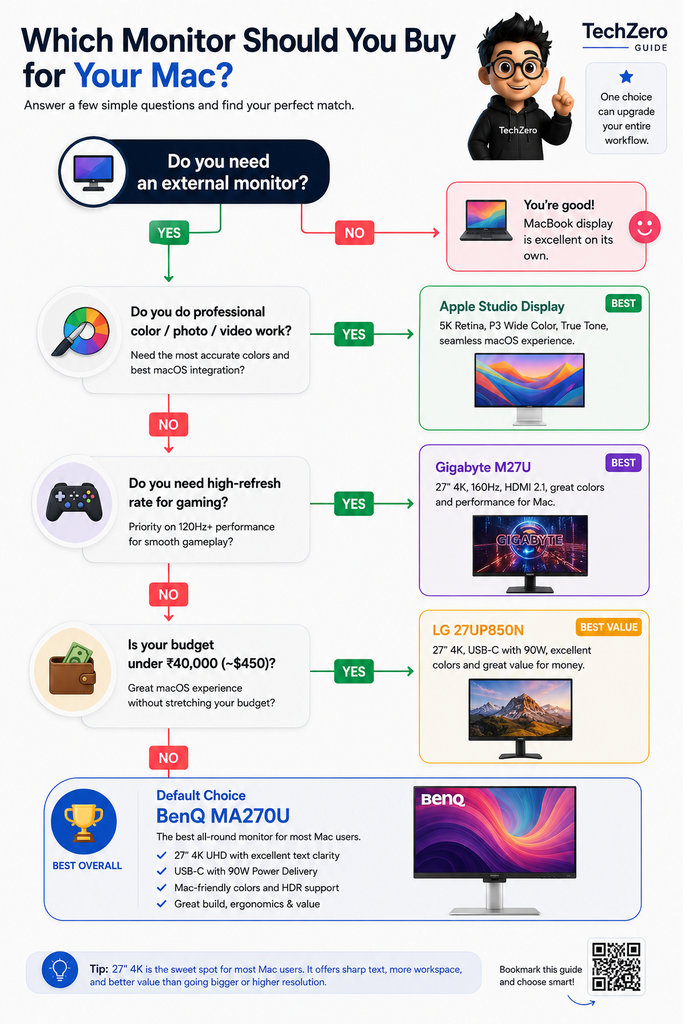
Chapter 8: Buying Flowchart & Quick Summary
Do you need an external monitor?
  │
  ├──► Professional color/photo work? ──► YES ──► Apple Studio Display
  │     └── NO
  │           │
  ├──► Need high-refresh gaming? ─────► YES ──► Gigabyte M27U
  │     └── NO
  │           │
  ├──► Budget under ₹40K (~$450)? ───► YES ──► LG 27UP850N
  │     └── NO
  │           │
  └──► Default Choice ───────────────► BenQ MA270U (Best Overall for Mac)
At-a-Glance Highlights
Best overall: BenQ MA270U / MA320U
Best for professionals: BenQ PD2725U
Best premium: Apple Studio Display
Best creators: Dell UltraSharp U2723QE / U2725QE
Best ultrawide: Dell U3423WE
Best budget: LG 27UP850N
Best gaming: Gigabyte M27U / LG 27GR93U
Best large display: Dell U3225QE
Chapter 8.5: Real-World Buying Scenarios
To help you match your personal setup and budget to the right hardware, consider these common reader profiles:
“I have a MacBook Air M3 and a budget around ₹35,000 (~$400).”
Your Best Match:LG 27UP850N. It provides clean 4K resolution, reliable USB-C connectivity with 90W Power Delivery, and robust colors without breaking the bank.
“I’m a software engineer staring at code for 9 hours a day.”
Your Best Match:Dell UltraSharp U2725QE. The combination of deep IPS Black contrast, a smooth 120Hz refresh rate, 140W power delivery, and built-in Ethernet makes it an ultimate productivity powerhouse.
“I’m a professional photographer and need absolute color precision.”
Your Best Match:Apple Studio Display or BenQ PD3225U. You get 218 PPI native Retina text or professional wide-gamut calibration out of the box.
“I’m upgrading from an old 1080p or fuzzy 1440p monitor.”
Your Best Match:BenQ MA270U. The jump to 163 PPI 4K with native keyboard brightness control will completely eliminate text blur and eye strain.
Chapter 9: Master Specifications Comparison Table
Monitor Model
Size
Resolution
PPI Density
USB-C / TB
Max Power Delivery
Refresh Rate
Price Tier
BenQ MA270U
27″
4K UHD
163 PPI
USB-C
90W
60Hz
Mid-Range
Dell U2725QE
27″
4K UHD
163 PPI
Thunderbolt 4
140W
120Hz
Premium
Apple Studio Display
27″
5K Retina
218 PPI
Thunderbolt
96W
60Hz
Flagship
LG 27UP850N
27″
4K UHD
163 PPI
USB-C
90W
60Hz
Budget
Gigabyte M27U
27″
4K UHD
163 PPI
USB-C
65W
160Hz
Gaming
Dell U3423WE
34″
UWQHD
109 PPI
USB-C
90W
60Hz
Ultrawide
Chapter 10: Detailed Expert Reviews & Smart Buys
1. BenQ MA270U
🏆 TechZero Smart Buy — ⭐ 4.9/5 Best For: Most Mac users seeking native Apple integration without the Apple tax.
Tailored from the ground up for macOS users, the BenQ MA270U bridges the gap between third-party pricing and Apple-like utility.
Key Specs: 27″ 4K IPS, 60Hz, 95% P3 color gamut, 90W USB-C Power Delivery.
Standout Feature: Direct synchronization with your MacBook’s physical keyboard for brightness and volume control.
Pros
Cons
• Native Mac keyboard brightness sync
• Excellent P3 color accuracy
• 90W USB-C Power Delivery | • 60Hz refresh rate only
• Lacks local dimming for true HDR |
🧠 TechZero Insight Third-party displays usually force you to use clumsy physical joystick buttons on the back of the monitor to change brightness. BenQ’s display software links your Mac keyboard keys directly to the hardware backlight control, replicating the native Apple experience.
🚨 Reality Check The BenQ MA270U is built for productivity, coding, and office workflows. If you are a competitive gamer or want 120Hz+ fluid motion, look elsewhere.
2. Apple Studio Display
🏆 TechZero Smart Buy — ⭐ 4.8/5 Best For: Uncompromised 218 PPI Retina fidelity.
The undisputed gold standard for anyone locked into the macOS ecosystem who refuses to compromise on text rendering.
Standout Feature: Pixel-perfect 218 PPI density that matches MacBook internal screens identically.
Pros
Cons
• Unmatched 218 PPI Retina crispness
• Premium aluminum build & speakers
• Excellent integrated camera & mic | • Extremely expensive
• Stand adjustments cost extra on base model |
🚨 Reality Check The Apple Studio Display is objectively the best 27-inch monitor for macOS text rendering. It is not the best value. You are paying a heavy premium for Apple’s glass polish, aluminium build, and ecosystem harmony.
3. Dell UltraSharp U2725QE
🏆 TechZero Smart Buy — ⭐ 4.8/5 Best For: Enterprise developers, high-speed docks, and 120Hz workflows.
A legendary corporate and creative workhorse featuring cutting-edge panel tech.
Key Specs: 27″ 4K IPS Black, 98% DCI-P3, up to 140W Power Delivery, Thunderbolt 4 hub, 2.5GbE RJ45 Ethernet, 120Hz refresh.
Standout Feature: IPS Black technology delivers double the static contrast ratio of standard IPS panels, alongside a fluid 120Hz refresh rate.
🧠 TechZero Insight The upgrade from standard IPS to IPS Black means blacks look deep and inky rather than glowing gray in a dark room. Combined with 140W power delivery, it can power even a 16-inch MacBook Pro M-Max under full load without breaking a sweat.
4. Dell U3423WE
🏆 TechZero Smart Buy — ⭐ 4.7/5 Best For: Financial modeling and multi-window spreadsheet workflows.
Standout Feature: Sprawling multi-window canvas ideal for financial modeling and timeline scrubbing. (Tip: Pair with Rectangle or BetterDisplay for smooth macOS window snapping).
Pros
Cons
• Massive ultrawide workspace
• Built-in KVM switch
• IPS Black contrast enhancement | • Lower pixel density (109 PPI)
Standout Feature: Reliable 4K USB-C performance at a fraction of the cost of premium displays.
Pros
Cons
• Excellent 4K value for money
• 90W USB-C Power Delivery
• Solid factory color calibration | • Basic plastic build
• Limited port selection compared to docks |
💡 TL;DR Verdict — If you remember only one thing from Part 3: Buy the BenQ MA270U if you want the best overall Mac balance, or splurge on the Dell UltraSharp U2725QE if you need 120Hz and 140W docking.
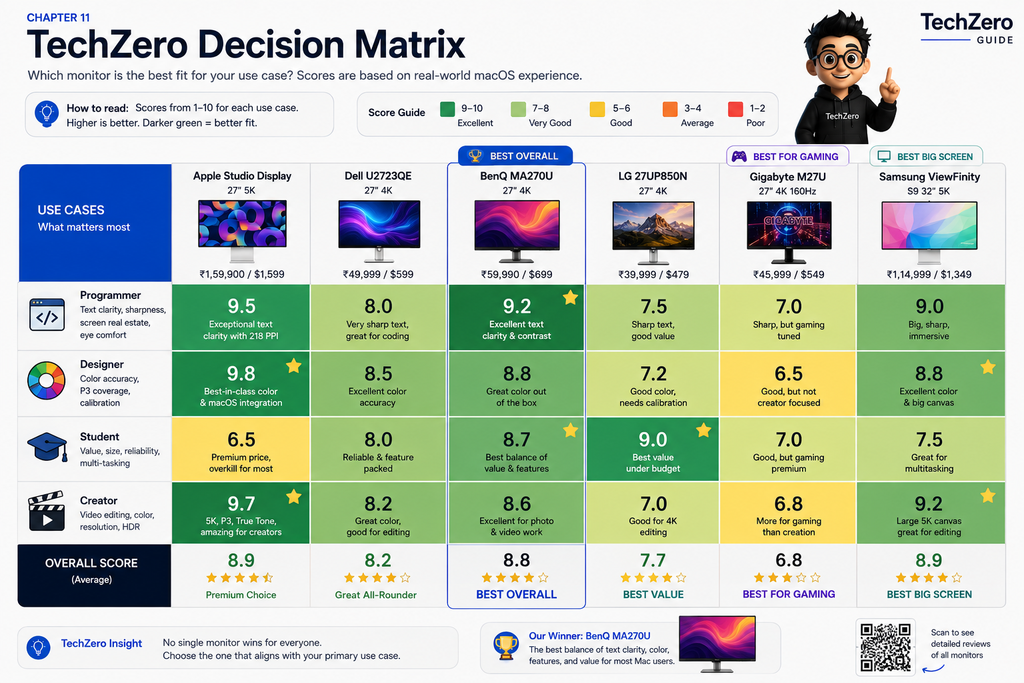
Chapter 11: Comprehensive Recommendation Matrices
Best Monitor by Profession
Profession
Top Recommendation
Why It Wins
Programming / Coding
Dell UltraSharp U2725QE
Deep IPS Black contrast, 120Hz smoothness, and robust hub.
Graphic Design
BenQ PD2725U
Exceptional factory color accuracy and ICC profile syncing.
Photography
Apple Studio Display
218 PPI Retina text and absolute color fidelity.
Finance / Data
Dell U3423WE
Massive ultrawide real estate for huge spreadsheets.
Video Editing
BenQ PD3225U
Expansive 32-inch 4K canvas with advanced color spaces.
General Office Work
BenQ MA270U
Seamless keyboard brightness synchronization.
Gaming
Gigabyte M27U
High-refresh 4K gaming with modern HDMI 2.1 inputs.
TechZero Recommendation Matrix
Use Case
Winner
Reason
Best Overall
BenQ MA270U
Best balance of macOS integration, brightness sync, and value.
Best Value
LG 27UP850N
Affordable 4K USB-C productivity without breaking the bank.
Best Premium
Apple Studio Display
Native 5K Retina fidelity and ecosystem harmony.
Best Coding
Dell U2725QE
Excellent text rendering, IPS Black contrast, and Thunderbolt 4 hub.
Best Gaming
Gigabyte M27U
High refresh rate 4K performance for hybrid Mac/console users.
Best Ultrawide
Dell U3423WE
Sprawling multi-window real estate for multitasking.
Best Creative
BenQ PD3225U
Professional color accuracy and wide canvas for video editors.
Buying Recommendations by Mac Model & Budget
Your Mac
Best Monitor Match
Price Bracket
Recommendation
MacBook Air M2 / M3
BenQ MA270U
Under ₹25K:
LG 27UP650
MacBook Air M4
LG 27UP850N
₹25K–40K:
LG 27UP850N
MacBook Pro M4
Dell U2725QE
₹40K–60K:
BenQ MA270U
MacBook Pro M4 Pro / Max
Apple Studio Display
₹60K–90K:
Dell U2725QE
Mac mini M4
Dell U3225QE
₹90K+:
Apple Studio Display
🛠️ Part 4: Troubleshooting, Maintenance & Future-Proofing
Chapter 12: Troubleshooting macOS Monitor Issues
Even the best external monitors can occasionally misbehave when paired with macOS. Here is how to fix the most common issues:
Blurry Text: Usually caused by fractional scaling or incorrect PPI selection. Ensure your display is running a true 4K or 5K resolution and enable HiDPI scaling in System Settings (or use third-party utilities like BetterDisplay).
USB-C Not Charging / Power Drop: Verify you are using a certified Thunderbolt 3/4 or full-feature USB-C cable (not a standard charging-only or basic data cable) capable of carrying high wattage.
Screen Flickering: Often triggered by unstable cable bandwidth or incorrect DisplayPort/HDMI handshake versions. Swap to a certified high-speed cable or toggle the monitor’s DisplayPort version in its OSD menu from 1.4 to 1.2 (or vice versa).
Wake-from-Sleep Failure: If your monitor stays black after waking your MacBook, disable “Energy Saving” mode on the monitor or reset your Mac’s SMC/NVRAM.
Color Mismatch: Ensure your macOS color profile matches the monitor’s native sRGB or Display P3 profile rather than a generic Windows RGB profile.
Chapter 13: Maintenance, Care & Calibration
Protect your investment with these simple upkeep guidelines:
Cleaning the Panel: Use a microfiber cloth slightly dampened with distilled water. Never use window cleaners containing ammonia or alcohol, which strip anti-reflective coatings.
Cable Management: Avoid tight cable bends near the USB-C or power ports to prevent internal wire breakage.
Firmware Updates: Periodically check manufacturer utility software to update your monitor’s display firmware for improved sleep/wake stability.
Calibration Frequency: If you do color-critical photo/video work, recalibrate your display every 3 to 6 months using a hardware colorimeter.
Chapter 14: Should You Wait, or Buy Now? & Future-Proofing
⏱️ Micro-Answer: Unless you are eyeing bleeding-edge tandem-OLED tech or need raw Thunderbolt 5 pipelines for multi-stream 8K video editing, buy now. Monitor technology in the 4K/5K space has plateaued into a mature sweet spot where panel quality, USB-C power delivery, and macOS compatibility are exceptionally stable.
Wait for OLED? QD-OLED and WOLED panels offer glorious contrast, but static UI elements like the macOS menu bar and dock introduce long-term burn-in risks during 8-hour coding or office sessions. IPS Black remains the safer, smarter bet for professional productivity.
Wait for Thunderbolt 5? Unless you are running multi-display 8K daisy chains or transferring massive professional video project files across multiple external arrays daily, Thunderbolt 4 and 90W/140W USB-C PD are more than enough for single or dual 4K/5K setups.
Wait for 6K price drops? Outside of Apple’s Pro Display XDR, 6K consumer options remain rare and exceptionally expensive. A 27-inch 5K panel (like the Studio Display) or a razor-sharp 27-inch 4K panel hits the performance-to-cost sweet spot today.
Future-Proofing Q&A
Is 4K enough for the next 5 years? Yes. For 27-inch screens, 4K remains the economic sweet spot, though 5K monitors are slowly dropping in price.
Will Thunderbolt 5 matter? Yes, for professional data pipelines and multi-stream 8K daisy chaining, Thunderbolt 5 will become standard on M-series Pro/Max chips moving forward.
Are OLED monitors ready for Mac? While QD-OLED and WOLED panels offer infinite contrast and incredible gaming response times, static UI elements (like the macOS menu bar and dock) can introduce burn-in risks over years of office work. IPS Black remains safer for productivity.
💡 TL;DR Verdict — If you remember only one thing from Part 4: Stick with IPS Black or mature 4K/5K IPS panels for office and coding workflows, and always use certified high-bandwidth cables to prevent sleep/wake and scaling issues.
📖 Part 5: Reference Desk & Final Verdict
Chapter 15: Mac Display Terminology Glossary
Retina / HiDPI: Apple’s term for high pixel density displays where individual pixels are indistinguishable to the naked eye.
PPI (Pixels Per Inch): The concentration of pixels within a linear inch of the screen.
Display P3: A wide color gamut standard established by Apple that encompasses a wider range of colors than standard sRGB.
HDR400 / HDR600: VESA certification tiers for High Dynamic Range. Note that HDR400 lacks local dimming and rarely delivers true HDR performance.
KVM Switch: Built-in hardware switch that lets you share one keyboard, mouse, and monitor across two different computers.
IPS Black: An advanced LG panel technology that produces deeper black levels (3,000:1 contrast) compared to standard IPS panels (1,000:1 contrast).
Chapter 16: “Should You Upgrade?” Decision Tree
Are you currently using a 1080p monitor?
  ├── YES ──► Upgrade immediately. The text blurriness is hurting your workflow.
  └── NO  ──► Check next question.

Are you using a 1440p monitor and struggling with soft text?
  ├── YES ──► Move to a 27-inch 4K display for a massive clarity upgrade.
  └── NO  ──► Check next question.

Are you already using 4K but demand absolute, native Retina-level perfection?
  ├── YES ──► Splurge on a 5K display (Apple Studio Display).
  └── NO  ──► Stick with your 4K setup—you're already in the sweet spot.
Chapter 17: Myths vs. Facts & Frequently Asked Questions
Myths vs. Facts
Myth
Reality
1440p is perfect for Mac displays.
Only at 27 inches does 1440p offer standard density, but text looks noticeably softer compared to 4K or 5K panels.
Thunderbolt is strictly required for external monitors.
Standard USB-C with Alt Mode and Power Delivery is entirely sufficient for 90% of single-monitor 4K workflows.
HDR400 equals real HDR quality.
Entry-level HDR400 certifications lack local dimming zones and often wash out highlights rather than improving contrast.
More refresh rate (Hz) is always better for productivity.
While silky smooth for animations, text clarity, contrast, and color accuracy matter far more for daily Mac productivity.
Frequently Asked Questions
Can a MacBook Air run two external monitors? Older M1 and M2 MacBook Air models natively support only a single external monitor. However, modern M3 and M4 MacBook Air variants support dual external displays when operating in Clamshell Mode (with the laptop lid closed).
Is a high refresh rate (120Hz+) worth it on a Mac? If you enjoy buttery-smooth window dragging, fluid mission control animations, or light gaming, high refresh rates are a wonderful quality-of-life upgrade. For pure text-based coding and spreadsheets, a locked 60Hz or 120Hz panel works identically well.
Is HDMI worse than USB-C or Thunderbolt? Not if your cable and monitor support modern HDMI 2.1 specifications. However, USB-C and Thunderbolt remain superior because they bundle video data, high-speed peripheral routing, and high-wattage laptop power into one singular wire.
Why does text sometimes look blurry on an external monitor with a Mac? macOS handles sub-pixel font rendering differently than Windows. Connecting a non-optimized 1440p monitor or a poorly scaled 4K display can result in soft edges. Using native 4K/5K displays and enabling HiDPI scaling instantly resolves this.
Chapter 18: TechZero Smart Buy Awards, Final Verdict & Changelog
TechZero Smart Buy Awards
Award Category
Winner
🏆 Editor’s Choice / Best Overall
BenQ MA270U
💰 Best Value
LG 27UP850N
🎬 Best for Creators
BenQ PD3225U
🖥 Best Ultrawide
Dell U3423WE
🍎 Best Apple Experience
Apple Studio Display
👨💻 Best for Developers / Coding
Dell UltraSharp U2725QE
🎮 Best Gaming
Gigabyte M27U
Final Verdict
Buy the BenQ MA270U if you want the ultimate balance of native macOS integration, direct keyboard brightness control, P3 color accuracy, and everyday value.
Choose the Apple Studio Display if you demand uncompromising 218 PPI Retina text clarity, pristine build quality, and zero scaling compromises.
Go with the Dell UltraSharp U2725QE if you need an enterprise-grade workhorse with 120Hz motion, deep contrast, an extensive Thunderbolt 4 dock, and 140W laptop charging.
Pick the Dell U3423WE if your multitasking workflow benefits from a wide canvas without dual-monitor desk clutter.
Consider the LG 27UP850N if you want a reliable, color-accurate 4K USB-C monitor on a stricter budget.
What’s New in This Edition (Changelog)
Updated monitor recommendations for 2026.
Added BenQ MA Series Mac-specific monitors.
Revised MacBook display support tables for M3/M4 chips.
Expanded troubleshooting mini-hub for sleep/wake behaviors.


[…] Best Monitors for MacBook — Upgrade your workspace with the best external displays for crisp text and Apple ecosystem harmony. […]